
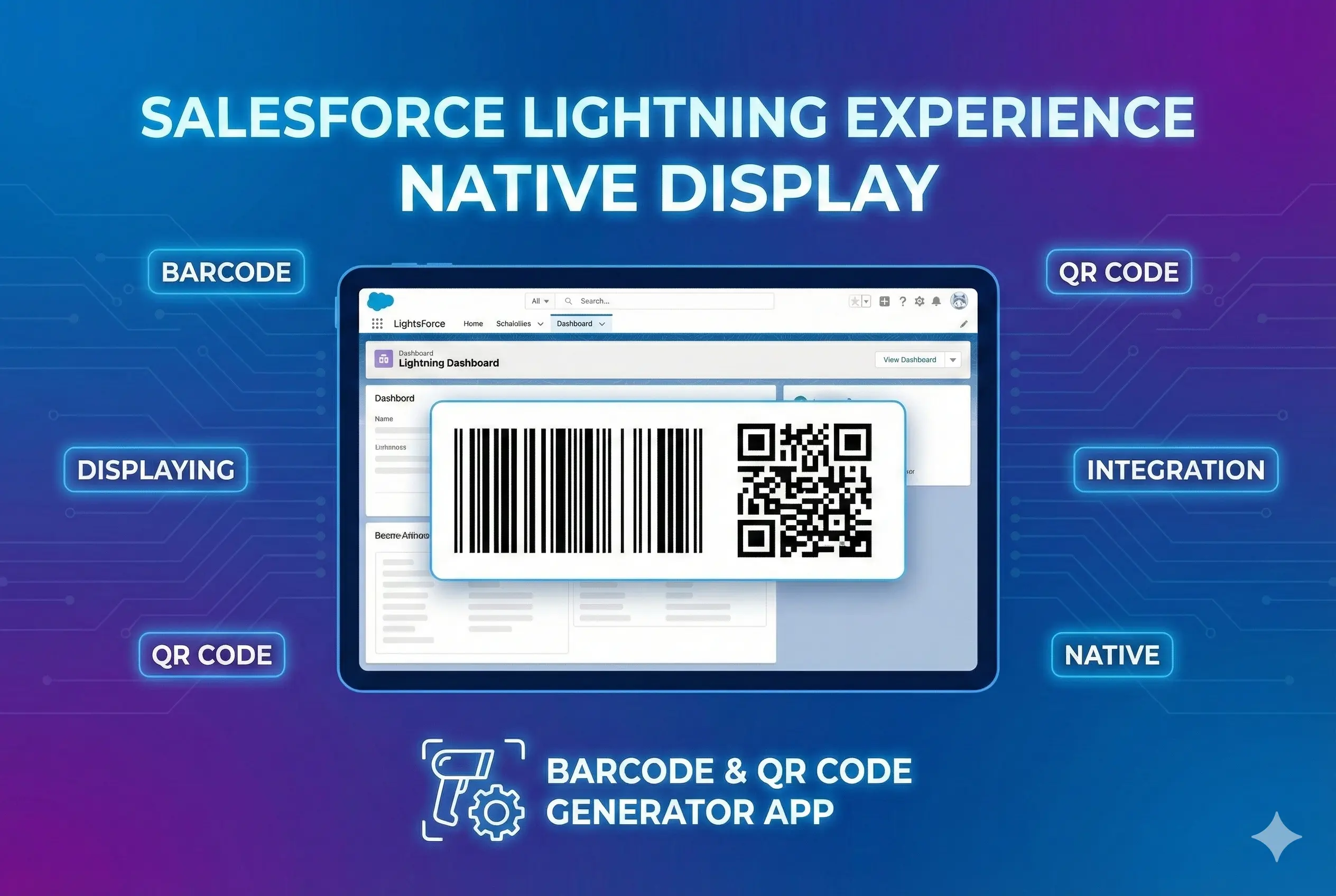
Displaying barcode in Salesforce lightning experience natively
Here we cover an easy way to display barcode in lightning experience using a free appexchange app Barcode and QR Code Generator.
This app allows you to generate barcode in Salesforce without depending on any external services. In below example, we are assuming that you have the app installed already. If not please go to Barcode and QR Code Generator and install.
Example - Displaying barcode using email field in lead
Here we will go through an example of displaying barcode using data from email field in lead records. This is just one example. Same approach will work for any other field in any custom/standard object in Salesforce.
1) Create a barcode config record for lead email field
Go to “Barcode Configs” tab that comes with the app and create a new record. Give it a name without spaces or special characters. Specify lead as object name and email as field name. You can leave other fields with default values. Then save the record. Please check below screenshot.

2)Add Barcode component to lead flexipage and activate
Once you have created a barcode config record, it is just matter of editing lead flexipage and adding “Barcode and QR Code Generator” component to the page.
First go to a lead record details page. Click Gear Icon and “Edit Page”.

Drop “Barcode and QR Code Generator” component from left sidebar to the place you need. It will ask for a configName. Give the name of the record you created from step 1.

Click “Save” button on top right and finally click “Activation” on top right and assign the page as organization default (or based on your app or profile preferences).
Result
If you followed the steps correctly, you should see barcode when you go to any lead record page.

Use cases
Barcode generation and scanning can be used to improve a lot of business processes. Some examples are:-
- Generate product barcodes and stick labels to products so that you can scan and add products to opportunity.
- Generate QR code corresponding to your event registration custom object field(Id or registration number) and email users, so that you can scan in participants at the time of the event
- Stick a QR code in your outgoing shipments and incoming shipments and then scan it into Salesforce records so that you can track shippings end to end
- Need to scan the barcode values to Salesforce as well? Check out the article here