
Every Salesforce admin has fielded this ticket:
“I just want to export this list as a CSV quickly. That’s it.”
Standard Salesforce makes this surprisingly hard. The Data Export Wizard dumps whole objects on a schedule. Reports usually need admin setup and has a 2k record limit. Data Loader needs an install and multiple steps. Workbench needs SOQL literacy. So users end up screenshotting the list view and then pinging Ops to “just send me the CSV”.
This post walks through the four workarounds most teams land on, and then shows a cleaner pattern: a one‑click CSV export from a grid that honors the user’s current filters, column order, and sort — no admin ticket required.
Who this is for: Salesforce admins, Ops leads, and any architect who has ever been asked “can you just send me this data as an Excel” more than twice in the same week.
The four common workarounds (and where each one breaks)
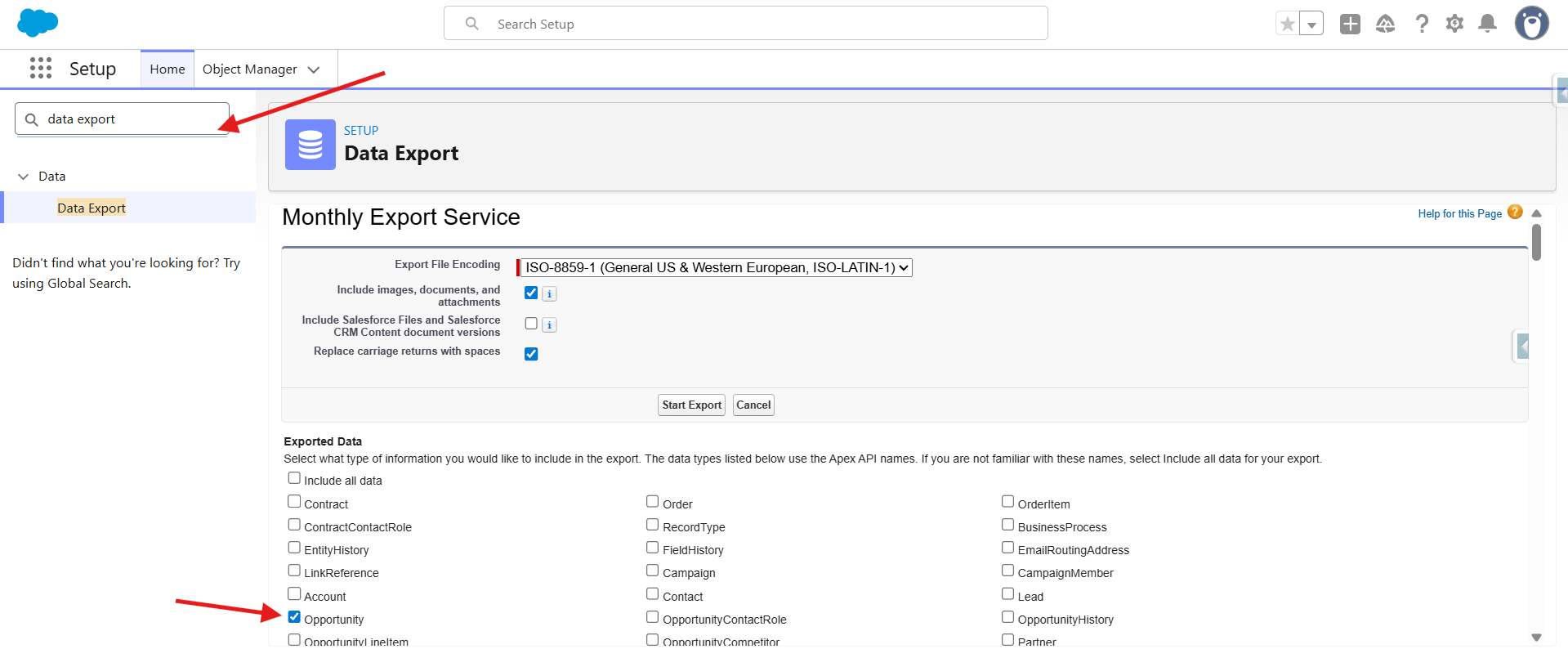
1. The Data Export Wizard
Setup → Data Export. Salesforce runs a job and emails you a zip of CSVs, one per object.
Where it works: a scheduled, full‑object backup for compliance or archival.
Where it breaks:
- Whole object, not filtered. You get every Opportunity, not “open Opportunities this quarter over $50k owned by me”.
- Slow. A manual export can take minutes to hours; scheduled exports run weekly or monthly only.
- Admin‑only. End users can’t trigger it.
- No column control. You get every accessible field, not the 8 the user actually cares about.
- Two‑step unzip. The delivered file is a zip with one CSV per object — not a single spreadsheet for “what’s on my screen”.
2. Build a report and export it
Create a report with the right filters and columns, save it to a folder, and have users click Export → Formatted Report or Details Only.
Where it works: a recurring business process where the same slice is reviewed every week.
Where it breaks:
- Admin setup for every variation. Every new “can I get this sliced by region / source / tier” is a new report or a new filter prompt.
- Report folder sprawl. 80 reports in 20 folders, nobody can find the right one, half are stale.
- Row limits. Standard report exports cap at 2,000 rows on Formatted export and 100,000 on Details Only — and hitting either silently truncates results.
- No personalization. A report’s columns are shared across everyone who runs it.
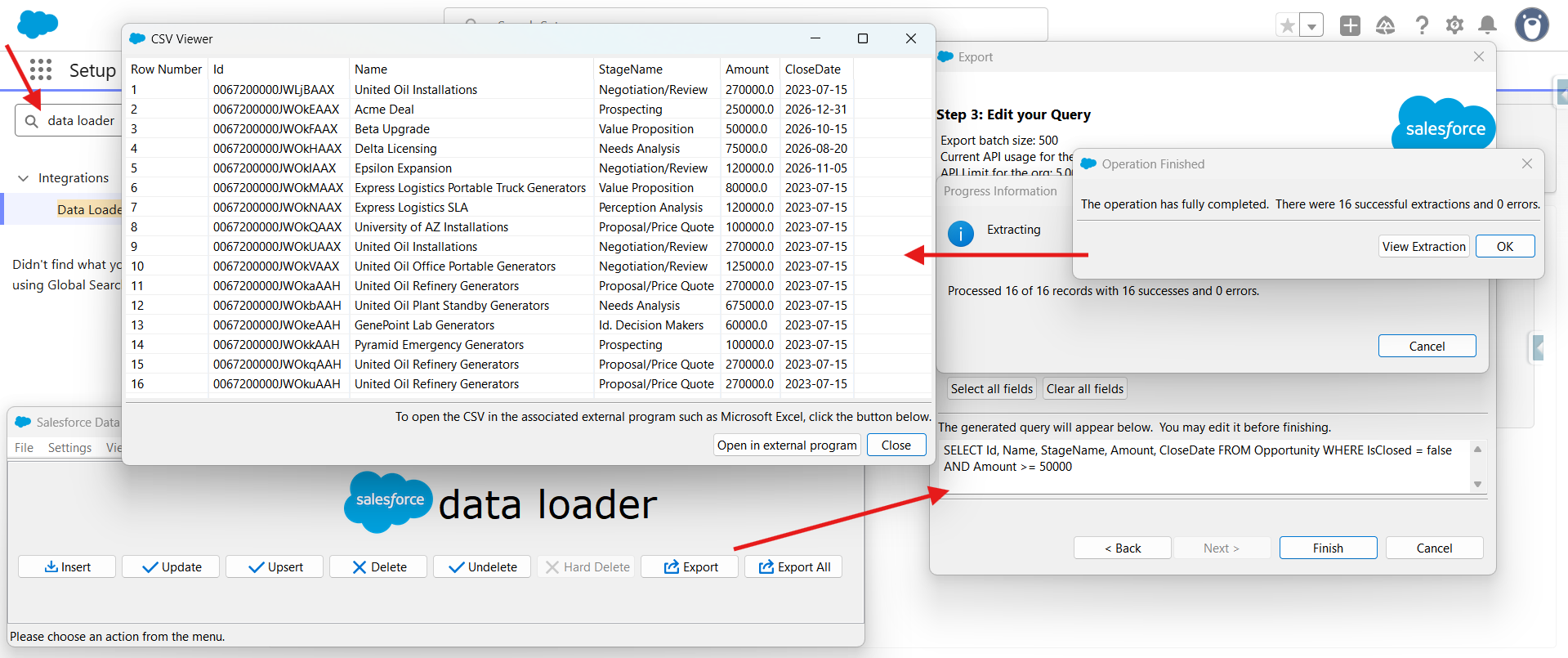
3. Data Loader (desktop or CLI)
Install Data Loader, configure a SOQL query, run an export, get a CSV.
Where it works: bulk, repeatable extraction by a technical user — data migrations, integration dumps.
Where it breaks:
- Requires install and elevated permissions. Most reps and managers don’t have it and shouldn’t.
- Writing SOQL. “Active accounts in California owned by reps on the enterprise team” is not a SOQL statement most users will author.
- Multiple steps. Repeat a bunch of steps every time you need to export.
- Operational risk. A stray
UPDATEorDELETEconfig in the same tool that does your export is one misclick away from a very bad day.
4. Workbench / a one‑off SOQL query
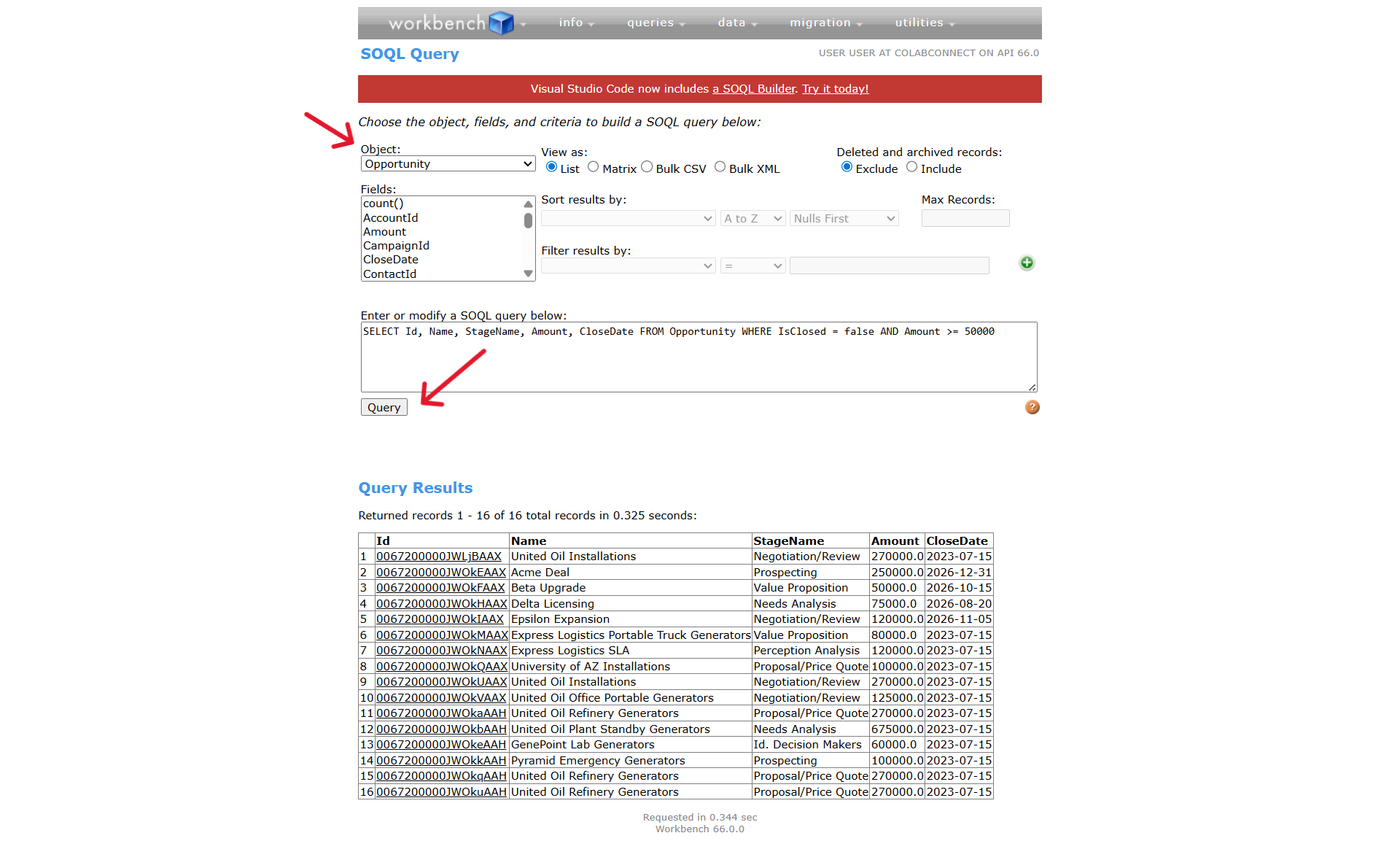
Open Workbench, authenticate, paste SOQL, export results to CSV.
Where it works: a developer or senior admin triaging a specific data question.
Where it breaks:
- Dev‑only tool. Not something you put in front of a sales rep.
- No column personalization. Whatever fields are in the SOQL show up; reordering or hiding columns happens post‑export in Excel.
- No auditability as a recurring workflow. This is a one‑off triage tool, not a repeatable user workflow.
The common thread: Salesforce’s native export tools are designed for admin‑initiated, object‑level extraction — backups, migrations, reports. None of them answer the question users actually ask, which is “export this list as CSV quickly”.
A cleaner pattern: one‑click CSV export from the grid the user is already using
What users actually want is trivial in intent: a Download CSV button on the list they are already working with, that exports the rows, columns, and order they currently see on screen.
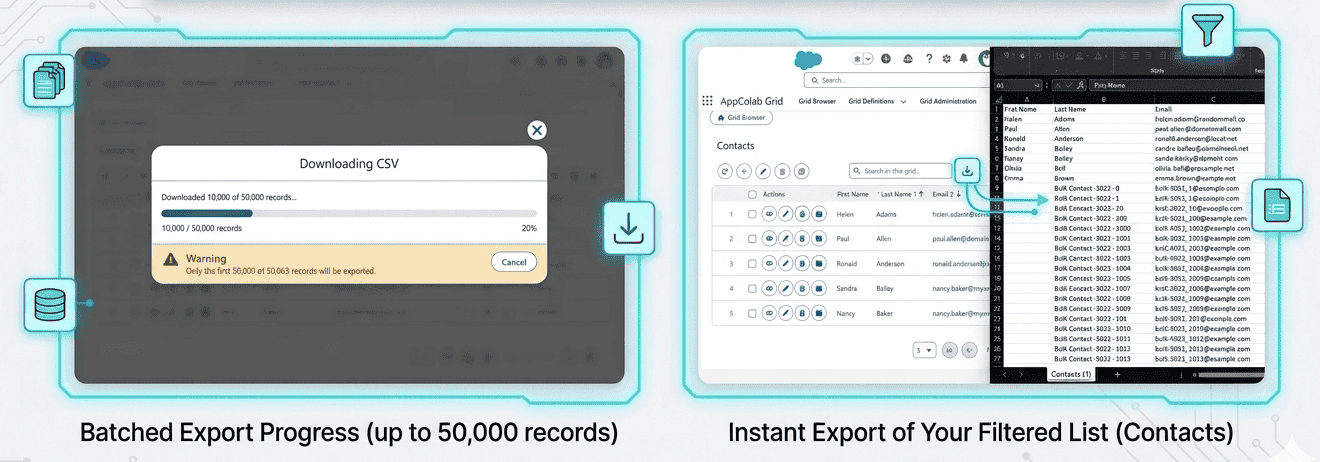
That is what AppColab Grid’s Download CSV feature does. It is one toggle in the Grid Definition’s feature list. When turned on, every user sees a download icon in the grid toolbar. Clicking it produces a CSV that mirrors exactly:
- the rows matching the active filters (admin‑locked + user‑applied)
- the columns the user has chosen to make visible
- the column order the user has arranged
- the sort direction currently applied
- the search term if the user has narrowed results using the search bar
No SOQL, no report builder, no Data Loader install, no admin ticket.
What one‑click grid export gives you that the four workarounds don’t
- Exports exactly what’s on screen. No mental re‑translation from “my view” to “report columns” to “SOQL”.
- Respects the user’s personalization. Column order, visibility, sort, and filter values from that user’s
User_Preference__crecord are honored. Two different reps can export two different CSVs from the same grid. - Consistent with the working view. Column headers in the CSV match the labels on screen. Lookup fields export both the ID column and a separate
<RelationshipName> Namecolumn for readability. What you see is what you get. - Large dataset support. Download up to 50,000 records quickly, showing a live progress bar.
- Excel‑ready out of the box. The exported file includes a UTF‑8 BOM so Excel opens it with correct character encoding — no garbled special characters.
- Auditable. Download CSV is a toggleable feature per grid definition. If Finance mandates “no export on the GL line item grid”, admins turn the feature off on that definition. The button disappears for everyone.
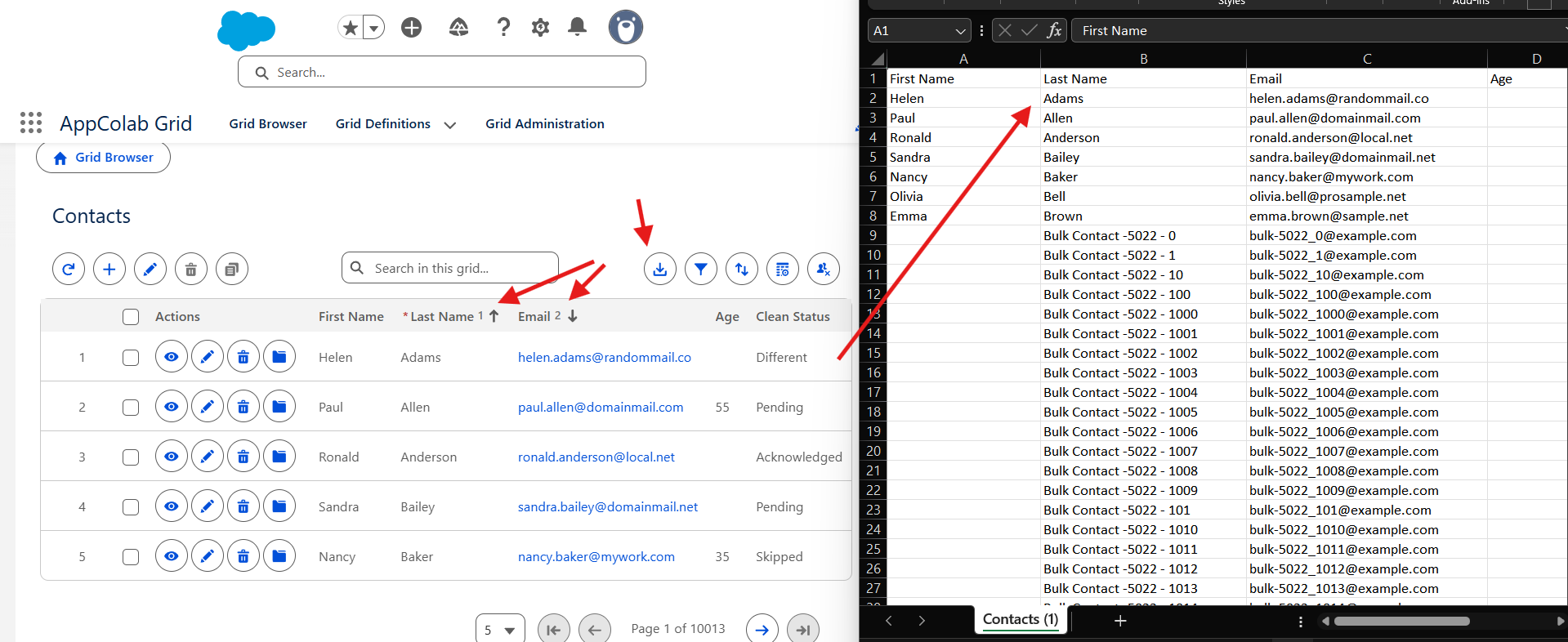
What actually lands in the CSV
A concrete example makes this real. Say a rep opens a pipeline grid with these personalizations:
- Filters:
IsClosed = false,Amount >= 50000,CloseDate = THIS_QUARTER - Visible columns (in order):
Name,Account.Name,StageName,Amount,CloseDate,Owner.Name - Sort:
CloseDateascending
Then clicks the Download CSV icon. File is downloaded to the user’s system in seconds.
For lookup fields (like Owner.Name or Account.Name), the grid automatically exports the the raw Salesforce ID and the resolved display name - so the CSV is immediately readable without a VLOOKUP.
Large datasets: the progress modal
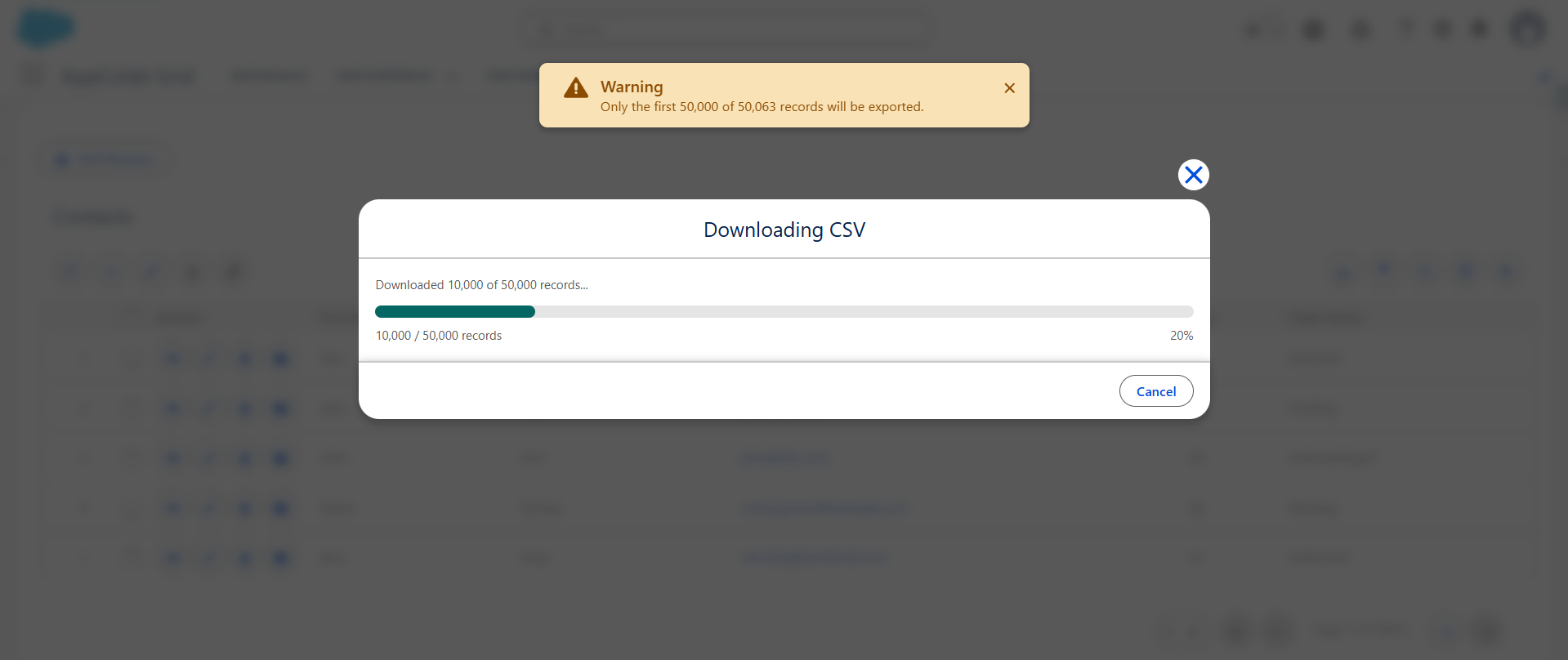
For grids configured with server‑side pagination (used when a grid may hold tens of thousands of records), clicking Download CSV opens a Downloading CSV progress modal instead of triggering an instant download.
The modal shows:
- A live progress bar:
Downloaded 5,000 of 23,400 records... (21%) - An error state if any batch fails — the modal displays the error and the partial download is discarded
The export fetches up to 50,000 records across batches of 5,000. If the filtered result set exceeds 50,000, a warning toast appears before the modal opens, letting the user know only the first 50,000 will be included. Once all batches complete the modal closes automatically and the CSV file is saved to the browser’s default download folder.
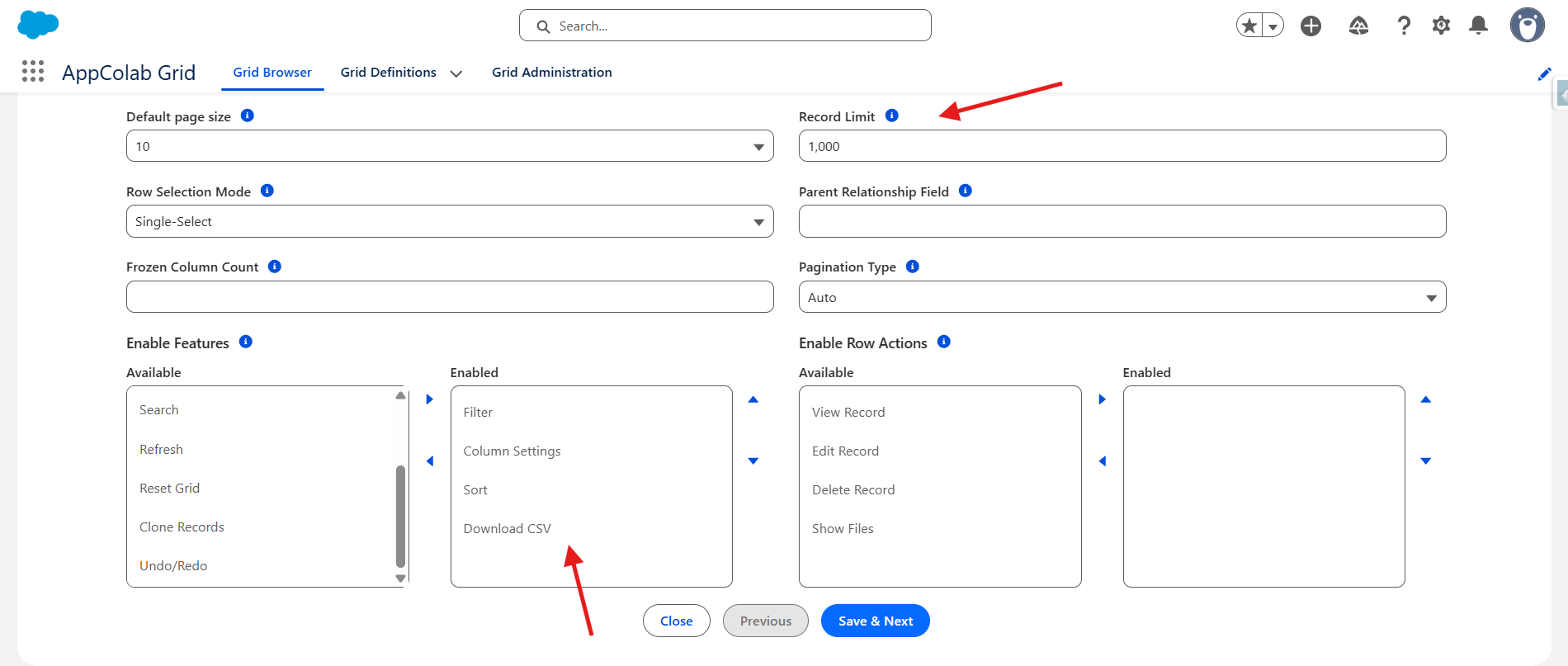
What it takes to configure a grid(point‑and‑click, no code)
Here is the actual path for “give users one‑click CSV export of any grid, honoring their personalization”:
- Open your Grid Definition in the Grid Configuration Editor (or create a new one — e.g.
RevOps_Pipeline_Grid). - In Step 1 (Grid Details), find the Enable Features dual‑listbox and move Download CSV from Available to Enabled. That’s it for the export itself.
- Use the grid from
Grid Browseror Drop theAppColab Gridcomponent on the user’s page via Lightning App Builder, setting the Grid Definition Name to your grid’s identifier. done.
There is no report to build, no SOQL to write and no Data Loader to install, and no screen Flow to compose.
Three real scenarios this pattern unlocks
- Sales — Quarterly pipeline export for forecasting. Reps open the pipeline grid, apply their personal filters, click the download icon, and drop the file into their forecast spreadsheet. Ops stops being a middleware between Salesforce and Excel.
- Service — Case backlog export for a weekly review meeting. Managers filter the case grid to “my team, open, aging > 7 days”, export to CSV, and bring the file to the review. No new report, no new folder.
- Finance — Invoice reconciliation. Finance opens the
Invoices Due This Monthgrid, adds their ad‑hoc filter (“customer segment = Enterprise”), exports, and reconciles against the GL system. Same grid works for every month‑end close.
When this pattern is not the right answer
Be honest with yourself. Grid‑toolbar CSV export is not the right tool when:
- You need a scheduled, recurring export delivered to an inbox or an S3 bucket — use the Data Export Wizard, Salesforce Data Cloud, or a proper ETL tool.
- You need millions of rows — grid CSV export supports up to 50,000 records per download. Move to a bulk API / Data Loader / ETL above that.
For everything else — the 80% of “can you just send me this as a CSV” requests — a one‑click grid export is faster to ship, friendlier to users, and dramatically cheaper to maintain than any of the four workarounds above.
Try it on your own org in under 10 minutes
- Install AppColab Grid from the Salesforce AppExchange.
- Open the Grid Configuration Editor, create a new Grid Definition for any object (e.g.
Opportunity), pick a few columns in Step 2, and in Step 1 enable Download CSV, Filter, and Sort in the Features dual‑listbox. - Navigate to “Grid Browser” page and click the new grid you created.
- Apply a couple of filters, reorder a column, and click the download icon in the toolbar. Open the file in Excel and confirm the rows, columns, and order match exactly what was on screen.
That is the entire loop: configure → view → filter → export. No admin ticket, no report builder, no SOQL.
Build in minutes, not sprints. Every user, their own view. Salesforce‑native and secure.