
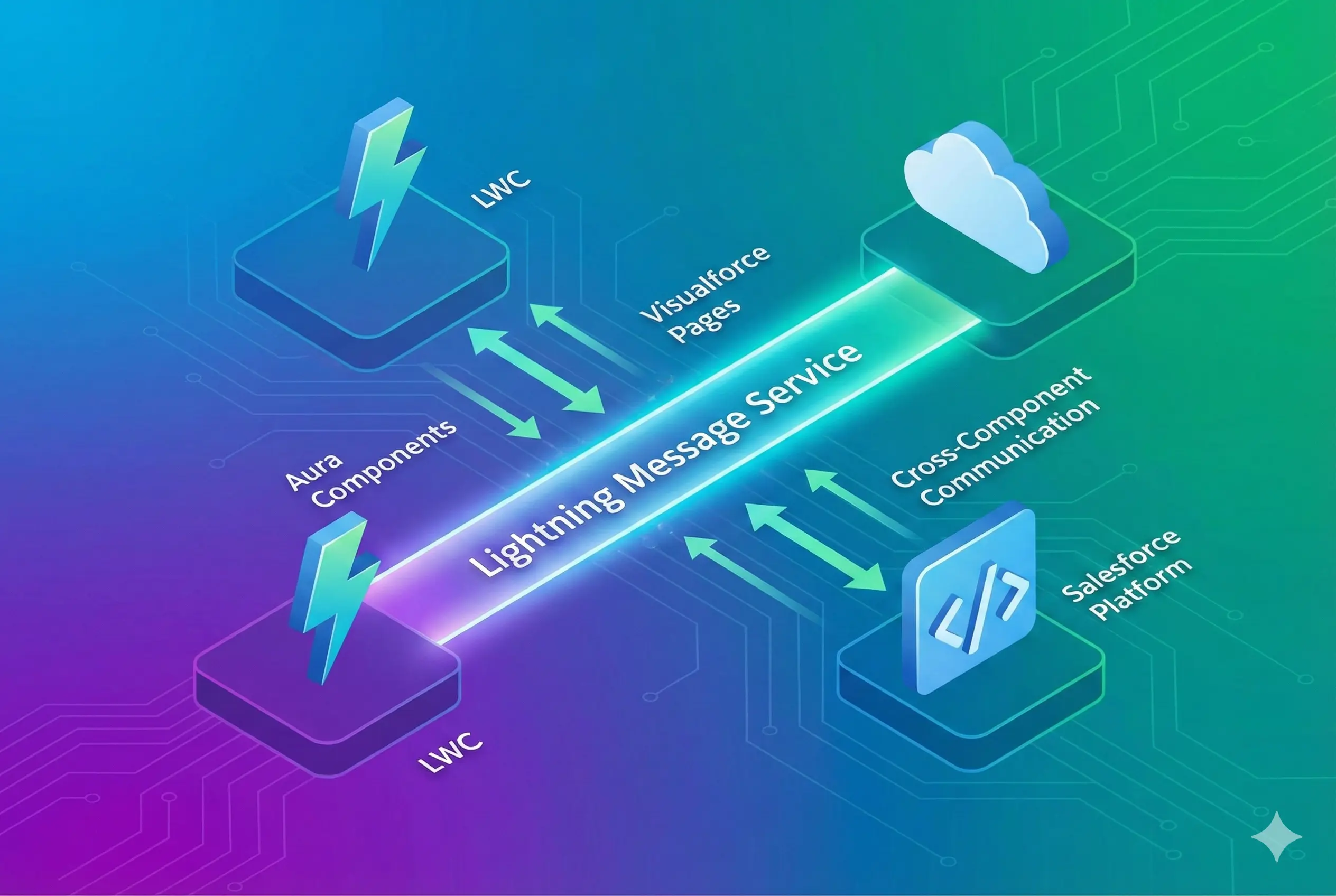
Using Lightning Message Service to communicate between lightning components and visualforce
Lightning message service allows you to communicate between all UI technologies of Salesforce (LWC, Aura and Visualforce). This is the recommended way to communicate between lightning components and Visualforce.

Lighting message service communication works in below three steps
-
Create a new MessageChannel metadata file and deploy to your org.
-
Publish a message from one of the three UI technologies.
-
Subscribe to the message in any of the three UI technologies.
1)Creating new MessageChannel
Currently Salesforce do not provide any option in the UI to create MessageChannel. So you have to deploy it as metadata. isExposed setting in metadata allow you to enable communicate between different namespaces/managed packages.
Copy below code metadata to messageChannels folder in your code folder. Name the file as CarSelectionChannel.messageChannel-meta.xml
<?xml version="1.0" encoding="UTF-8"?>
<LightningMessageChannel xmlns="http://soap.sforce.com/2006/04/metadata">
    <masterLabel>CarSelectionChannel</masterLabel>
    <isExposed>true</isExposed>
    <description>This Lightning Message Channel is used to notify when new cars are selected.</description>
    <lightningMessageFields>
        <fieldName>carName</fieldName>
        <description>This is the name of the newly selected car</description>
    </lightningMessageFields>
</LightningMessageChannel>
If you have sfdx installed, you can use below line to deploy the file.
sfdx force:source:deploy -p “pathToFile” -u targetOrgAliasHere
2) Publish event on the MessageChannel
This step varies depending on the whether you are publishing it from LWC or Aura or Visualforce. Our example scenario outlines subscribing and publishing from all three technologies.
3) Subscribing to events on MessageChannel
This step also varies depending on the whether you are publishing it from LWC or Aura or Visualforce. Our example scenario outlines subscribing and listening from all three technologies.
Visualforce Example
Here we use sforce.one methods. This do not work as a stand alone visualforce page. Make sure you are inside lightning experience. ie create a visualforce page with below code, create a tab for that visualforce page and check from lightning experience.
<apex:page>
    <style>
        .green-border {
            background-color: white;
            border: 3px solid green;
            padding: 50px;
            width: 250px;
            height: 250px;
            float:left;
        }
    </style>
        <div class="green-border">
            <h1>Visualforce</h1>
            <br/>
            <p>Please select your car:</p>
            <input type="radio" id="audi" name="car" value="Audi" onclick="fireEvent(this.value);"/>
            <label for="audi">Audi</label><br/>
            <input type="radio" id="tesla" name="car" value="Tesla" onclick="fireEvent(this.value);"/>
            <label for="tesla">Tesla</label><br/>
            <input type="radio" id="bmw" name="car" value="BMW" onclick="fireEvent(this.value);"/>
            <label for="bmw">BMW</label>

            <br/>
            <br/>
            <h2>Last message received</h2>
            <br/>
            <div id="lastPayload">
            </div>
        </div>

    <script>
        //Getting CarSelectionChannel message channel ID. Need __c postfix
        let channelId = '{!$MessageChannel.CarSelectionChannel__c}';

        //Publishes event with selected car name
        function fireEvent(value) {
            sforce.one.publish(channelId, {source: 'VF', carName: value});
        }

        //Subscribes and stores subscription ID to unsubscribe later if needed.
        let subscriptionId;
        function subscribeToMessageChannel() {
            subscriptionId = sforce.one.subscribe(channelId, (data) => {
                document.querySelector('#lastPayload').textContent = JSON.stringify(data);
            });
        }
        subscribeToMessageChannel();

        //Unsubscribes from subscription. Not used in the demo
        function unsubscribeFromMessageChannel() {
            if(subscriptionId) {
                sforce.one.unsubscribe(subscriptionId);
                subscriptionId = undefined;
            }
        }

    </script>
</apex:page>
Aura Example
Here we use lightning:messageChannel in the component to subscribe to event.
<aura:component implements="flexipage:availableForAllPageTypes" access="global">
    <aura:attribute name="lastMessage" type="string"/>
    <lightning:messageChannel type="CarSelectionChannel__c" aura:id="carChannel" onMessage="{!c.handleCarSelectionMessage}"/>
    <lightning:card >
        <div class="red-border">
            <h1 class="slds-text-heading_medium">Aura</h1>
            <br/>
            <p>Please select your car:</p>
            <input type="radio" id="audi" name="car" value="Audi" onclick="{!c.publishEventInMessageChannel}"/>
            <label for="audi">Audi</label><br/>
            <input type="radio" id="tesla" name="car" value="Tesla" onclick="{!c.publishEventInMessageChannel}"/>
            <label for="tesla">Tesla</label><br/>
            <input type="radio" id="bmw" name="car" value="BMW" onclick="{!c.publishEventInMessageChannel}"/>
            <label for="bmw">BMW</label>

            <br/>
            <br/>
            <h2>Last message received</h2>
            <br/>
            <div id="lastPayload">
                {!v.lastMessage}
            </div>
        </div>
    </lightning:card>
</aura:component>
.THIS {
    padding: 40px;
}
.THIS .red-border {
    background-color: white;
    border: 3px solid red;
    padding: 50px;
    width: 320px;
    height: 250px;
}
{
    publishEventInMessageChannel : function(component, event, helper) {
        const payload = { source: "Aura", carName: event.target.value };
        component.find("carChannel").publish(payload);
    },

    handleCarSelectionMessage: function (component, event, helper) {
        const carName = event.getParam("carName");
        const source = event.getParam("source");
        component.set("v.lastMessage", `{source: "${source}", carName: "${carName}"}`);
    }
})
LWC Example
Here we import @salesforce/messageChannel/CarSelectionChannel__c in JavaScript controller. Also we use subscribe, unsubscribe methods imported from lightning/messageService to subscribe to event.
Please note that if you are just publishing message to channel and not listening to it, you just need to import publish method and the channel. Then you can use the code in handleCarSelect method to publish message to the channel.
.container {
    background-color: white;
    padding:40px;
}
.red-border {
    border: 3px solid blue;
    padding: 50px;
    width: 320px;
    height: 250px;
}
<template>
    <div class="container">
        <div class="red-border">
            <h1 class="slds-text-heading_medium">LWC</h1>
            <br/>
            <p>Please select your car:</p>
            <input type="radio" id="audi" name="car" value="Audi" onclick={handleCarSelect}/>
            <label for="audi">Audi</label><br/>
            <input type="radio" id="tesla" name="car" value="Tesla" onclick={handleCarSelect}/>
            <label for="tesla">Tesla</label><br/>
            <input type="radio" id="bmw" name="car" value="BMW" onclick={handleCarSelect}/>
            <label for="bmw">BMW</label>

            <br/>
            <br/>
            <h2>Last message received</h2>
            <br/>
            <div id="lastPayload">
                {lastMessage}
            </div>
        </div>
    </div>
</template>
import { LightningElement, wire, track } from "lwc";
import {
  publish,
  MessageContext,
  subscribe,
  unsubscribe,
  APPLICATION_SCOPE
} from "lightning/messageService";
import carSelected from "@salesforce/messageChannel/CarSelectionChannel__c";

export default class LmsLwc extends LightningElement {
  subscription = null;
  @track lastMessage = "";
  @wire(MessageContext) mContext;

  handleCarSelect(event) {
    const payload = { source: "LWC", carName: event.target.value };
    publish(this.mContext, carSelected, payload);
  }

  handleMessage(message) {
    this.lastMessage = JSON.stringify(message);
  }

  //Method to subscribe to message channel. It will be invoked from connectedCallback
  subscribeToCarSelectedChannel() {
    if (!this.subscription) {
      this.subscription = subscribe(
        this.mContext,
        carSelected,
        (message) => this.handleMessage(message),
        { scope: APPLICATION_SCOPE }
      );
    }
  }

  //Method to unsubscribe from message channel. It will be invoked from disconnectedCallback
  unsubscribeToCarSelectedChannel() {
    unsubscribe(this.subscription);
    this.subscription = undefined;
  }

  connectedCallback() {
    this.subscribeToCarSelectedChannel();
  }

  disconnectedCallback() {
    this.unsubscribeToCarSelectedChannel();
  }
}
<?xml version="1.0" encoding="UTF-8"?>
<LightningComponentBundle xmlns="http://soap.sforce.com/2006/04/metadata">
    <apiVersion>49.0</apiVersion>
    <isExposed>true</isExposed>
     <targets>
       <target>lightning__AppPage</target>
       <target>lightning__RecordPage</target>
       <target>lightning__HomePage</target>
    </targets>
</LightningComponentBundle>
Create app builder page to see the result in one page
In order to confirm that the event is getting published and received in all three technologies, put above visualforce, aura and lwc components in a new App builder page and add the page to any app. It should looks like the screenshot at starting of this post.