

If your team keeps operational data in Google Sheets, someone is probably copying it into Salesforce or switching tabs every time they need an answer.
Imagine opening an Account and seeing the latest customer milestones from a shared Google Sheet directly on the record. A customer-success manager updates a status in Salesforce, saves it, and the change appears in the sheet for the external project team. There is no second dataset to import, reconcile, or let go stale.
That is the pattern this walkthrough will help you build with AppColab Grid. We will use a customer onboarding tracker as the example, but the same approach can bring many shared-sheet workflows into Salesforce.
Try the same pattern with:
- partner action plans on an Opportunity;
- renewal checklists on an Account;
- project tasks on an implementation record;
- inventory or fulfillment updates on an Order;
- any other sheet whose rows can be matched to a Salesforce record.
Google Sheets remains the source of truth for collaborators who work there. Salesforce users get a searchable, editable grid in the context of the customer record, and their changes write back to the same sheet.
If there is one spreadsheet your Salesforce users check every week, this is a practical way to put it where they already work. Start with that use case, connect it once, and let both teams work from the same live data.
Who this is for: Salesforce admins, architects, customer-success leaders, and operations teams that coordinate work in Google Sheets.
The onboarding scenario
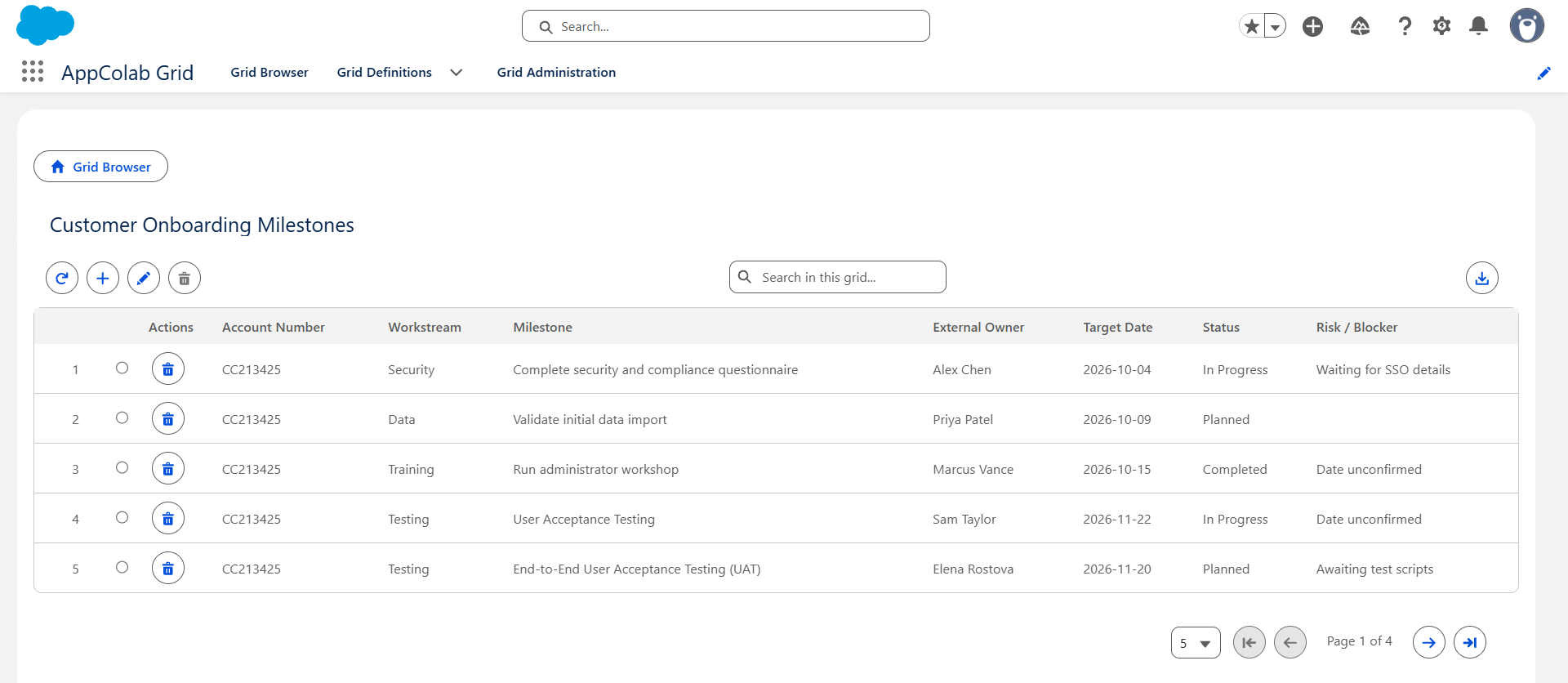
Imagine an implementation team maintaining this sheet:
| Account Number | Workstream | Milestone | External Owner | Target Date | Status | Risk / Blocker |
|---|---|---|---|---|---|---|
CC23425 |
Security | Complete security questionnaire | Alex | 2026-10-04 | In Progress | Waiting for SSO details |
CC23426 |
Data | Validate initial data import | Priya | 2026-10-09 | Planned | |
CC23426 |
Training | Run administrator workshop | Sam | 2026-10-15 | Planned | Date unconfirmed |
The first column relates a unique identifier of your Customer/Account across systems. The remaining columns stay owned by the implementation process.
An external project manager can continue updating the sheet. A customer-success manager working in Salesforce can refresh the grid, see those changes, update a milestone, add a new row, or download the current view as CSV.
Why keep the tracker in Google Sheets?
A Salesforce custom object is a good answer when the onboarding records belong in Salesforce permanently, need platform automation, or must participate in reporting and sharing as first-class CRM records.
A live sheet is useful when:
- outside collaborators already work in Google Workspace;
- implementation team doesn’t have Salesforce licenses;
- the implementation process changes frequently;
- the team needs a shared planning surface more than a formal CRM data model;
- Salesforce users still need the information beside the customer record.
AppColab Grid provides the Salesforce work surface. Once a Google Sheets connection is configured, the grid discovers columns and supports search, refresh, inline edit, add, delete, and CSV download. The sheet remains the source of truth.
Step 1: Prepare the onboarding sheet
Create an Onboarding tab and put the column names in row 1. You can use this sample as a reference.
Include a column that you can use to match Salesforce record with the Google sheet rows. Like Account Number column. It matches AccountNumber column in Salesforce.
If collaborators want to use another field like Id field in Salesforce, you can use that instead. The important requirement is that the Salesforce value and sheet value match.
Keep the demo sheet reasonably sized. This approach is a good fit for operational trackers rather than very large analytical datasets.
Step 2: Connect Salesforce to Google Sheets
Configure the Google OAuth app, Salesforce Auth Provider, External Credential, Named Credential, and principal access by following the Google Sheets authentication setup.
Need support with the Google Sheets connection, or AppColab Grid configuration? Email admin@appcolab.com or contact us online.
The authentication setup is reusable. Once authenticated with Google, different Grid Definitions can point to the same provider for different sheets.
Step 3: Create the Google Sheets Grid Definition
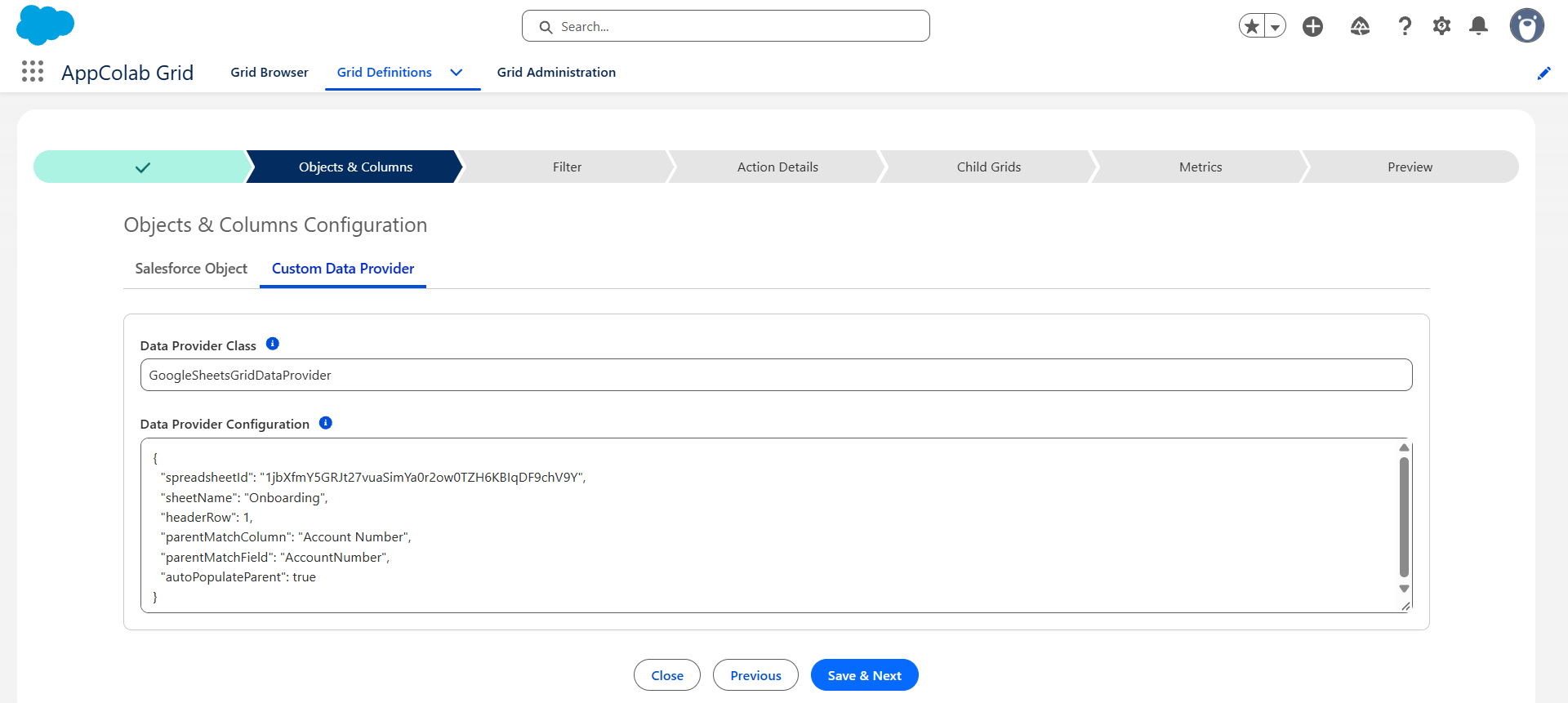
In the AppColab Grid configuration editor, create a Grid Definition such as:
- Name:
Customer_Onboarding_Google_Sheet - Label:
Customer Onboarding Milestones - Data Provider Class:
GoogleSheetsGridDataProvider - Is Active: checked
Use this Data Provider Configuration:
{
  "spreadsheetId": "YOUR_SPREADSHEET_ID",
  "sheetName": "Onboarding",
  "headerRow": 1,
  "parentMatchColumn": "Account Number",
  "parentMatchField": "AccountNumber",
  "autoPopulateParent": true
}
The parent options control how the same Grid Definition behaves in different places:
parentMatchColumnis the exact Google Sheet header to compare.parentMatchFieldis the field read from the Salesforce parent.autoPopulateParentfills that sheet column when a user adds a row from a parent context.
When there is no parent context, the grid shows the complete sheet. When the grid is in an account details page, it returns only matching rows based on the account number.
For the complete setup reference and configuration options, see the Google Sheets Grid Integration guide.
View the Google sheets grid in different locations
View 1: The complete onboarding portfolio
Place the AppColab Grid component on a Lightning app page or home page and select Customer_Onboarding_Google_Sheet as its Grid Definition.
Those pages do not provide a Salesforce record ID, so the provider returns all onboarding rows. This gives an implementation manager one workspace for reviewing work across customers.
From the grid, the manager can:
- search across the sheet columns;
- update milestone status, owner, target date, or blocker notes;
- add and delete sheet rows;
- refresh after an external collaborator changes the sheet;
This is the simplest form of the integration and a useful first connection test: change a status in the grid in Salesforce, save, and confirm that the corresponding Google Sheets cell changed.
View 2: Show only the current Account’s milestones
Place the AppColab Grid component on a Salesforce record page and configure it to show only the current Account’s milestones.
Then:
- Open an Account record and select Setup gear → Edit Page.
- Drag Appcolab Grid onto the Lightning record page.
- Set Grid Definition Name to
Customer_Onboarding_Google_Sheet. - Save and activate the page.
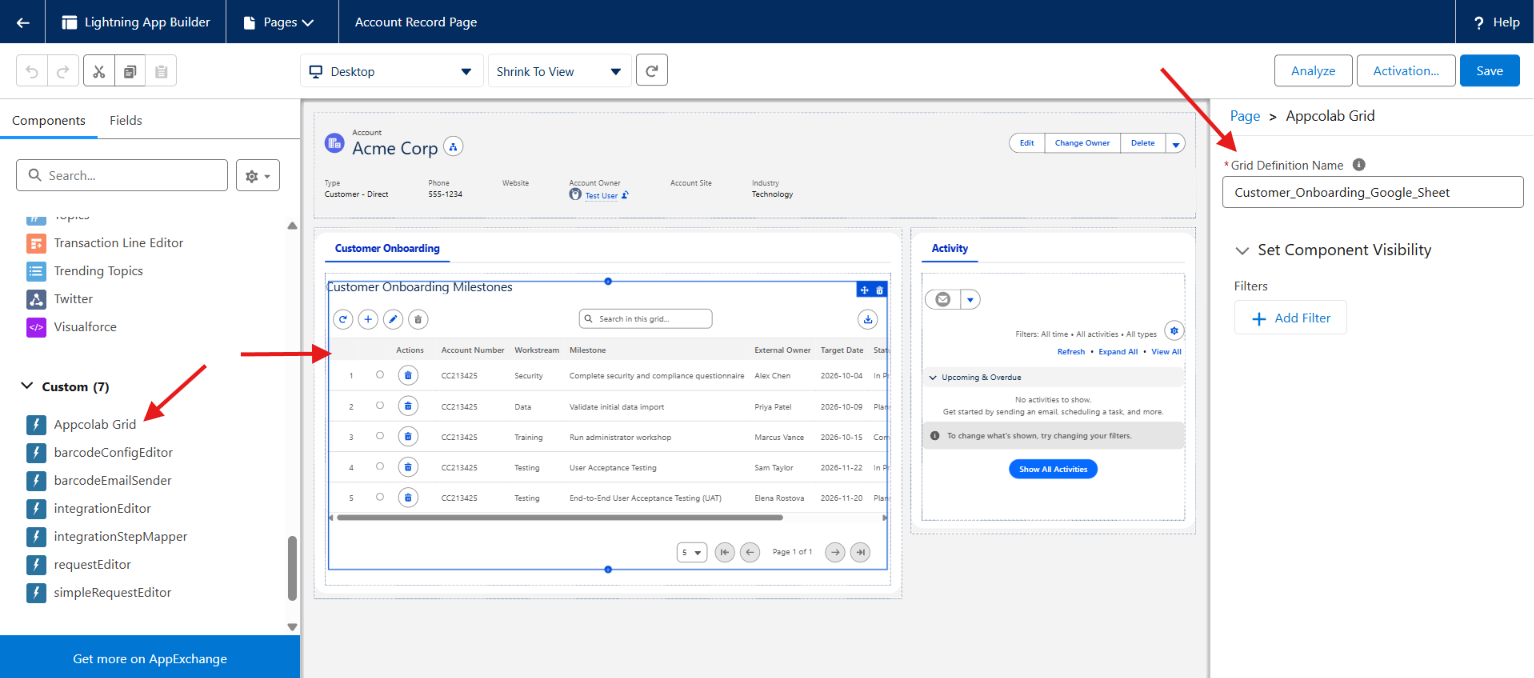
The record page passes the current record context to the grid and it displays only that customer’s milestones.
Click Add Row from this Account page and the provider makes sure that the parent relation is populated automatically in the Google Sheet as well. The user enters the workstream, milestone, owner, target date, status, and notes; saving appends the related row to the sheet.
View 3: Put Google Sheets as a child grid in a Salesforce Account grid
The same Grid Definition can also be a child of a Salesforce Account grid.
- Create or open a Salesforce Account Grid Definition.
- Go to its Child Grids step.
- Add
Customer_Onboarding_Google_Sheetwith the labelOnboarding Milestones. - Save and open the Account grid.
- Expand an Account row.
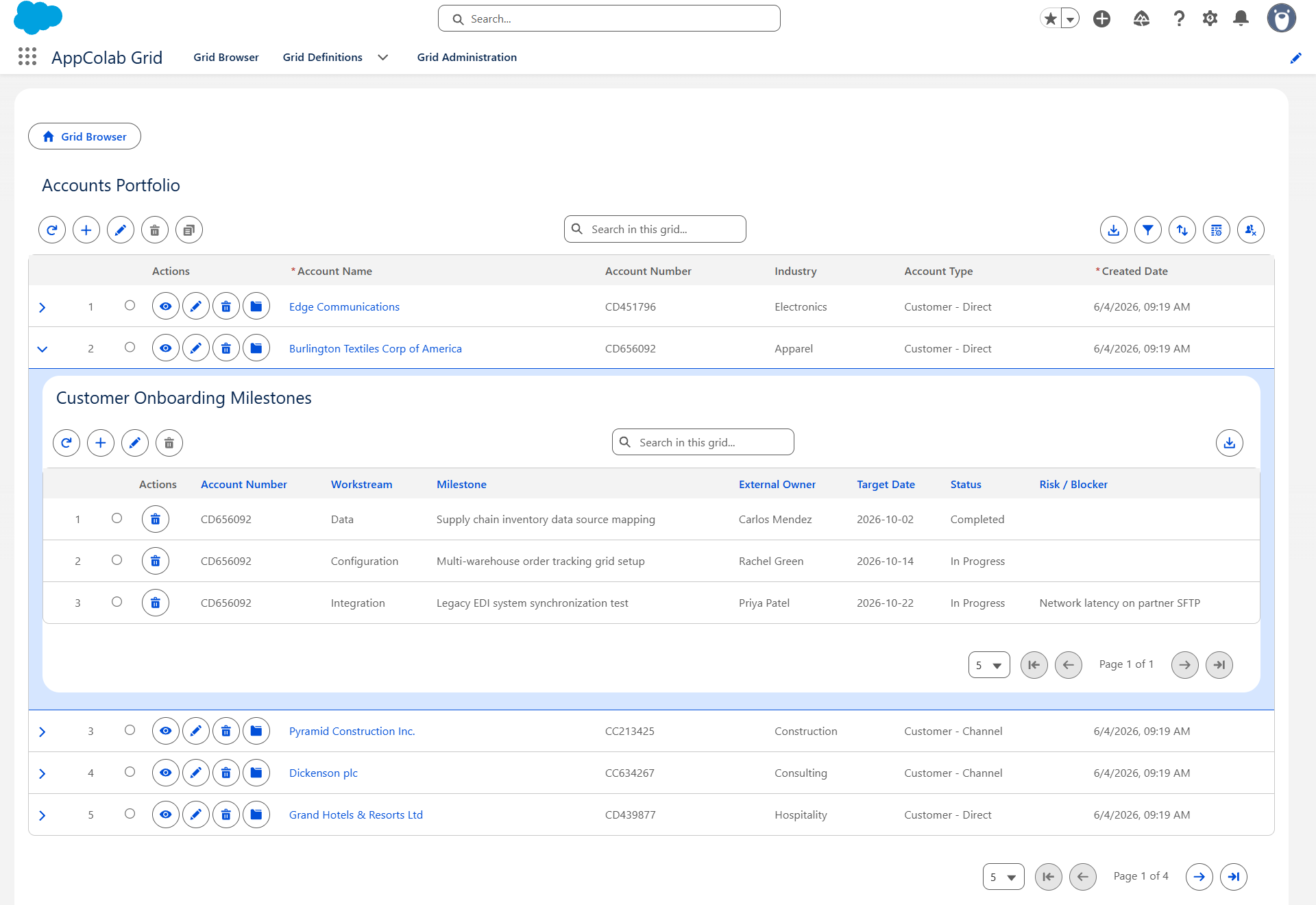
Each expanded row passes a different Account ID to the child grid. A customer-success leader can therefore review the onboarding milestones for each customer directly from the Salesforce Account grid.
Bring your Google Sheet to Salesforce records
In this example, AppColab Grid lets the customer onboarding team keep the collaborative workflow it already uses while giving Salesforce users a focused view within Salesforce.
Same process can be used to enrich data in any Salesforce objects with data from Google sheets.
Install AppColab Grid from Salesforce AppExchange, then follow the Google Sheets Grid Integration guide to connect your first spreadsheet.