
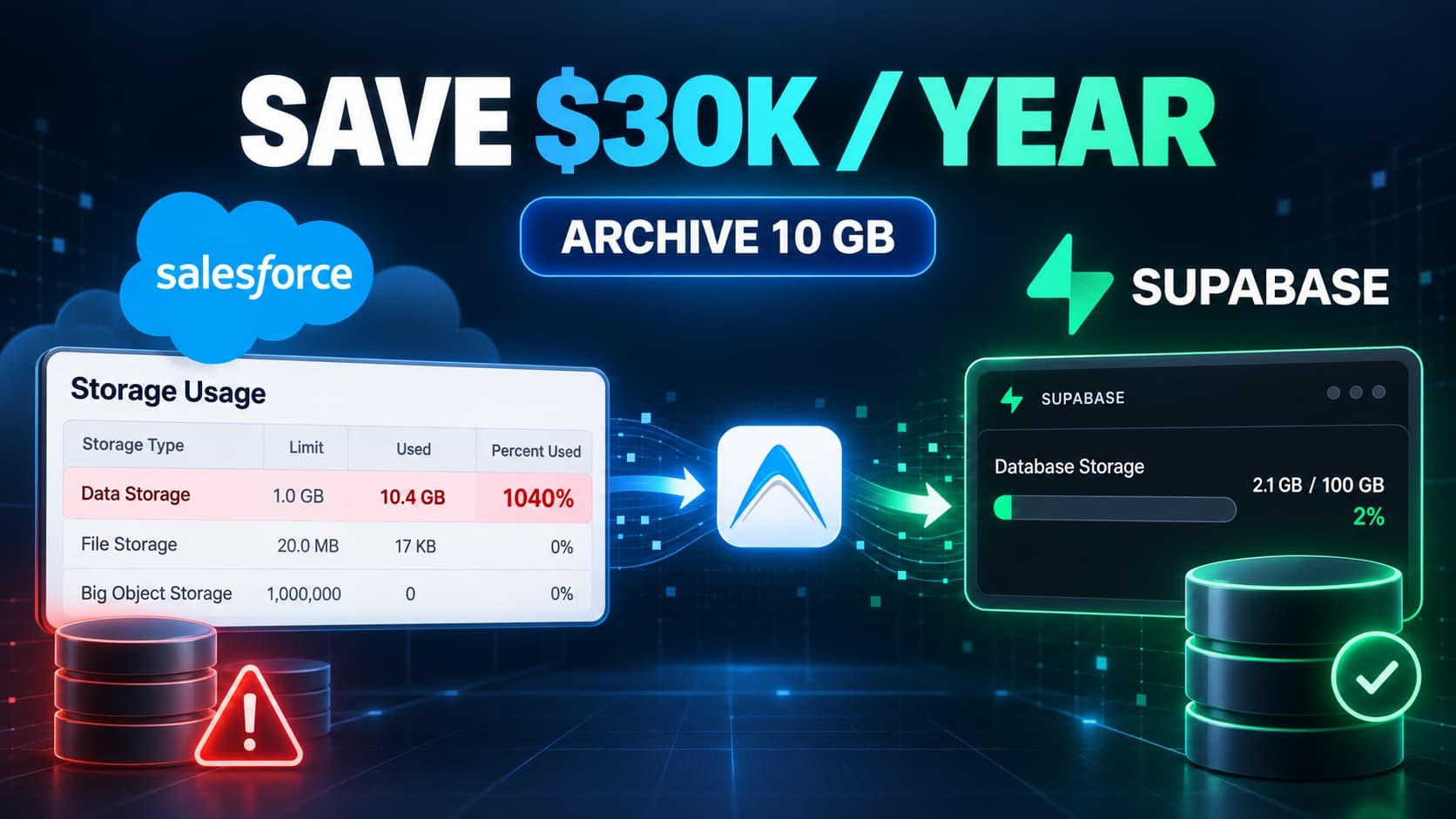
What if the least valuable 10 GB in your Salesforce org is costing you $30,000 every year?
At a common planning rate of $250 per GB per month for additional Salesforce data storage, the math adds up fast:
10 GB × $250 per GB/month × 12 months = $30,000 per year
Your actual price will depend on your Salesforce edition, contract, and negotiated terms, but the budget pressure is the same: high-volume records that are rarely changed can become surprisingly expensive to keep on-platform.
If you manage a growing Salesforce org, you have probably seen this email:
Subject: Warning: Your organization has exceeded its data storage limit.
At first, you check your largest objects. You expect to see bloated Accounts, Opportunities, or Cases. But more often than not, the culprit is a granular child object: survey question responses, order line items, audit logs, email messages or tracking events.
In Salesforce, every single custom object record consumes 2 KB of data storage, whether it contains 50 rich text fields or just a single score. When a single survey submission creates 25 child rows, standard storage limits vanish within months.
Purchasing more storage solves the immediate limit, but at roughly $250 per GB per month it can turn a data-retention problem into a five-figure recurring bill.
Teams usually face a painful compromise:
- Hard delete old data: Reclaims storage, but permanently wipes out historical context and customer interaction history.
- Export to CSV / S3: Saves the data, but buries it in an external archive where sales and service reps can never see it without asking IT.
- Pay for expensive add-ons or Data Cloud: Adds massive licensing overhead for data that is mostly read-only.
In this post, we walk through a clean, cost-effective architectural pattern: keep master header records in Salesforce, stream high-volume child records to external PostgreSQL storage (Supabase), and render them inline directly on the Salesforce parent page using AppColab Grid.
To the end user, nothing changes - they open the parent record and see all child responses in real time. To Salesforce, the child storage footprint is 0 bytes.
The 5 Million-Row Opportunity: Customer Surveys
Consider a standard customer feedback architecture:
- Parent Object (
Survey__c): Represents the overall feedback interaction (Customer Contact, Completed Date, Status, Overall CSAT/NPS Score). - Child Object (
Survey_Item__c): Represents individual answers to specific questions (Question text, Answer, Score, Category).
The Exponential Storage Math
A single completed survey with 25 questions produces:
1Survey header record25Survey Item child records
Let’s scale that across a year of customer interactions. The savings estimate below uses $250 per GB per month and counts only the child records that can be archived:
| Completed Surveys | Header Records (Survey__c) |
Child Records (Survey_Item__c) |
Total Salesforce Storage | Archivable Child Storage | Estimated Annual Savings |
|---|---|---|---|---|---|
| 10,000 | 10,000 | 250,000 | ~520 MB | ~500 MB | ~$1,500 |
| 50,000 | 50,000 | 1,250,000 | ~2.6 GB | ~2.5 GB | ~$7,500 |
| 200,000 | 200,000 | 5,000,000 | ~10.4 GB | ~10 GB | ~$30,000 |
At 200,000 completed surveys, the 5 million child Survey_Item__c records alone consume about 10 GB. Archiving those rows while retaining the 200,000 lightweight Survey__c headers frees over 96% of the survey data footprint—and avoids an estimated $30,000 in annual storage spend at the planning rate above.
Furthermore, once a survey is submitted, those individual question responses are rarely modified. Agents only need to read them when reviewing customer sentiment or investigating an escalation.
The Architecture: Offload & View Inline
Rather than paying recurring storage fees for static child records, we move child records to Supabase, but still render them in survey record via AppColab Grid:
- Keep
Survey__cin Salesforce: Reports, dashboards, and automated flows can still group by Status, Contact, or Overall Score. - Batch Offload to Supabase: An automated Apex batch job extracts
Survey_Item__crecords, sends them in bulk to Supabase, and deletes the Salesforce records upon confirmed receipt. - Render Offloaded data via AppColab Grid: An AppColab Grid component embedded on the
Survey__cLightning Record Page queries Supabase in real time using the current Survey’s Record ID (survey_id = :parentId).
Want help adapting this architecture to your Salesforce org? Email admin@appcolab.com or fill out our contact form, and the AppColab team will be happy to help.
Step-by-Step Implementation
Step 1: Create the Supabase PostgreSQL Schema
In your Supabase Dashboard, open the SQL Editor (>_ in the left sidebar) and execute the following DDL script:
-- 1. Create table to store archived Salesforce Survey Items
CREATE TABLE IF NOT EXISTS survey_items (
    id BIGINT GENERATED ALWAYS AS IDENTITY PRIMARY KEY,
    survey_id TEXT NOT NULL,         -- Stores the Salesforce Survey__c Record ID (Parent link)
    salesforce_id TEXT,              -- Original Survey_Item__c Record ID for audit trail
    question TEXT NOT NULL,
    answer TEXT,
    score NUMERIC(5,2),
    category TEXT,
    created_at TIMESTAMPTZ DEFAULT NOW()
);

-- 2. Create index on survey_id for sub-100ms parent lookups
CREATE INDEX IF NOT EXISTS idx_survey_items_survey_id ON survey_items (survey_id);

-- 3. Enable Row Level Security (RLS)
ALTER TABLE survey_items ENABLE ROW LEVEL SECURITY;

-- 4. Allow API access via your project's anon key
CREATE POLICY "Allow all access to survey_items"
ON survey_items
FOR ALL
USING (true)
WITH CHECK (true);
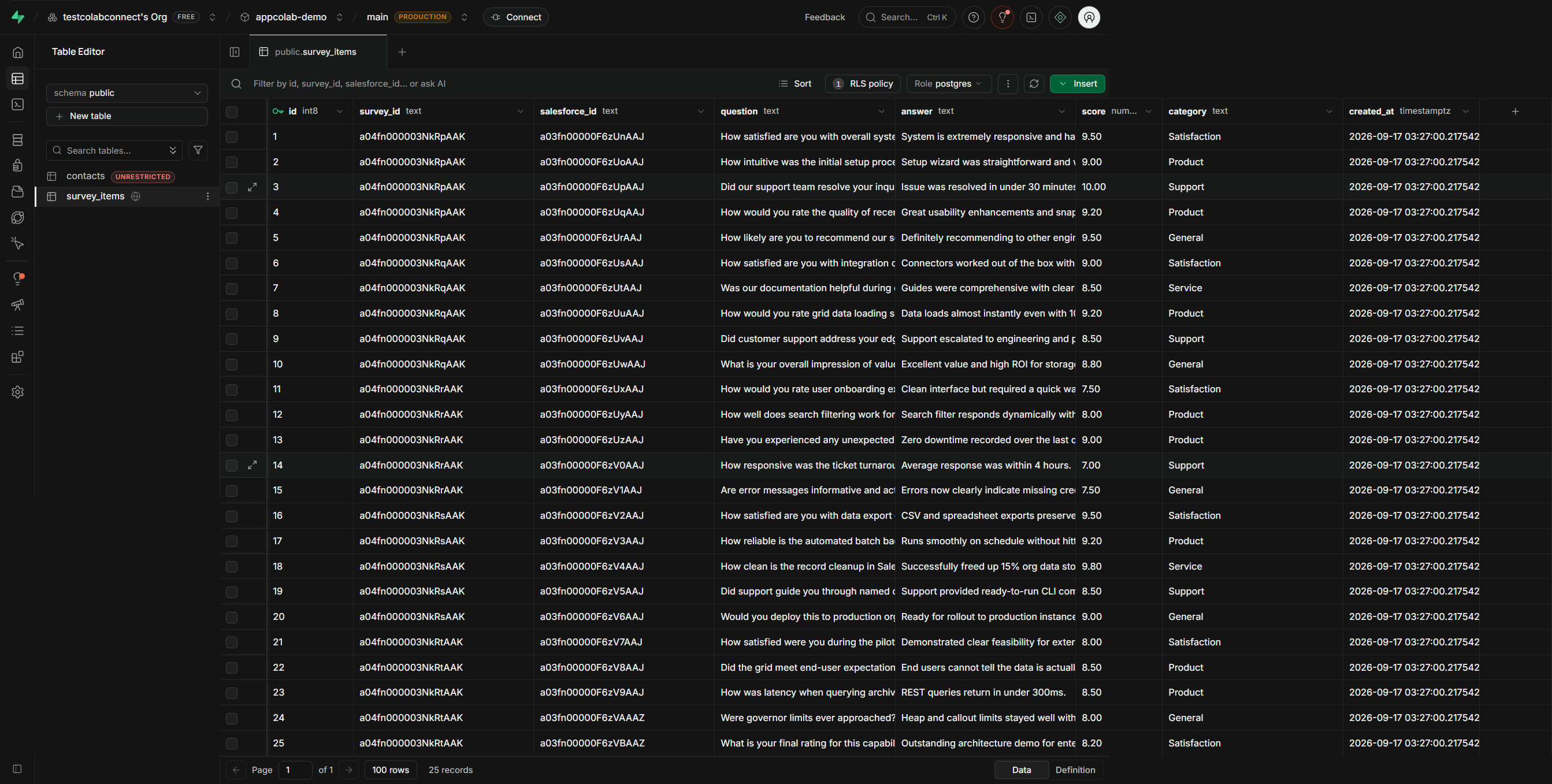
The index on
survey_idis critical. It guarantees that queries from AppColab Grid filter millions of rows in milliseconds when loading a specific survey’s responses.
Step 2: Connect Salesforce to Supabase
Salesforce connects to Supabase securely via Named Credentials using Supabase’s REST API (/rest/v1/).
If you haven’t connected Supabase to your Salesforce org yet, follow our step-by-step setup guide: 👉 Read the AppColab Supabase Grid Integration Guide
Step 3: Run the Offload Batch (SurveyItemBackupBatch)
To safely transfer the records and delete them from Salesforce, we use a stateful Apex Batch class.
The batch processes child records in chunks of 200, sends them to Supabase via SupabaseClient.insertRecords(), and executes delete scope only after a successful HTTP 201/200 response.
Here is the core logic inside the batch:
public void execute(Database.BatchableContext bc, List<sObject> scope) {
    List<Map<String, Object>> recordsToInsert = new List<Map<String, Object>>();

    for (sObject record : scope) {
        Map<String, Object> payload = new Map<String, Object>();
        payload.put('salesforce_id', (String) record.get('Id'));
        payload.put('survey_id', (String) record.get('Survey__c'));
        payload.put('question', (String) record.get('Question__c'));
        payload.put('answer', (String) record.get('Answer__c'));
        payload.put('score', (Decimal) record.get('Score__c'));
        payload.put('category', (String) record.get('Category__c'));
        recordsToInsert.add(payload);
    }

    try {
        // 1. Bulk insert into Supabase PostgREST table
        SupabaseClient client = new SupabaseClient();
        client.insertRecords('survey_items', recordsToInsert);

        // 2. Reclaim Salesforce storage only after successful API confirmation
        delete scope;
    } catch (Exception ex) {
        System.debug(LoggingLevel.ERROR, 'Archival failed: ' + ex.getMessage());
        // Records remain safely in Salesforce if any callout fails
    }
}
Executing the Batch in Developer Console
To run the archival on demand:
- Open Developer Console in Salesforce.
- Go to Debug → Open Execute Anonymous Window.
- Paste and run:
Database.executeBatch(new SurveyItemBackupBatch(), 200);
Scheduling Automatic Nightly Archival
You can schedule the batch to run automatically every night at 2:00 AM:
System.schedule(
    'Nightly Survey Item Archival',
    '0 0 2 * * ?',
    new SurveyItemBackupBatch()
);
Once the batch finishes, Survey_Item__c records are safely moved to Supabase.
Step 4: Configure AppColab Grid with Parent-Child Filtering
Now that the child data lives in Supabase, we configure AppColab Grid to display it inline on the Survey__c parent record.
Deploy SupabaseGridDataProvider class and related components from our extensions repo AppColab-Grid-Extensions.
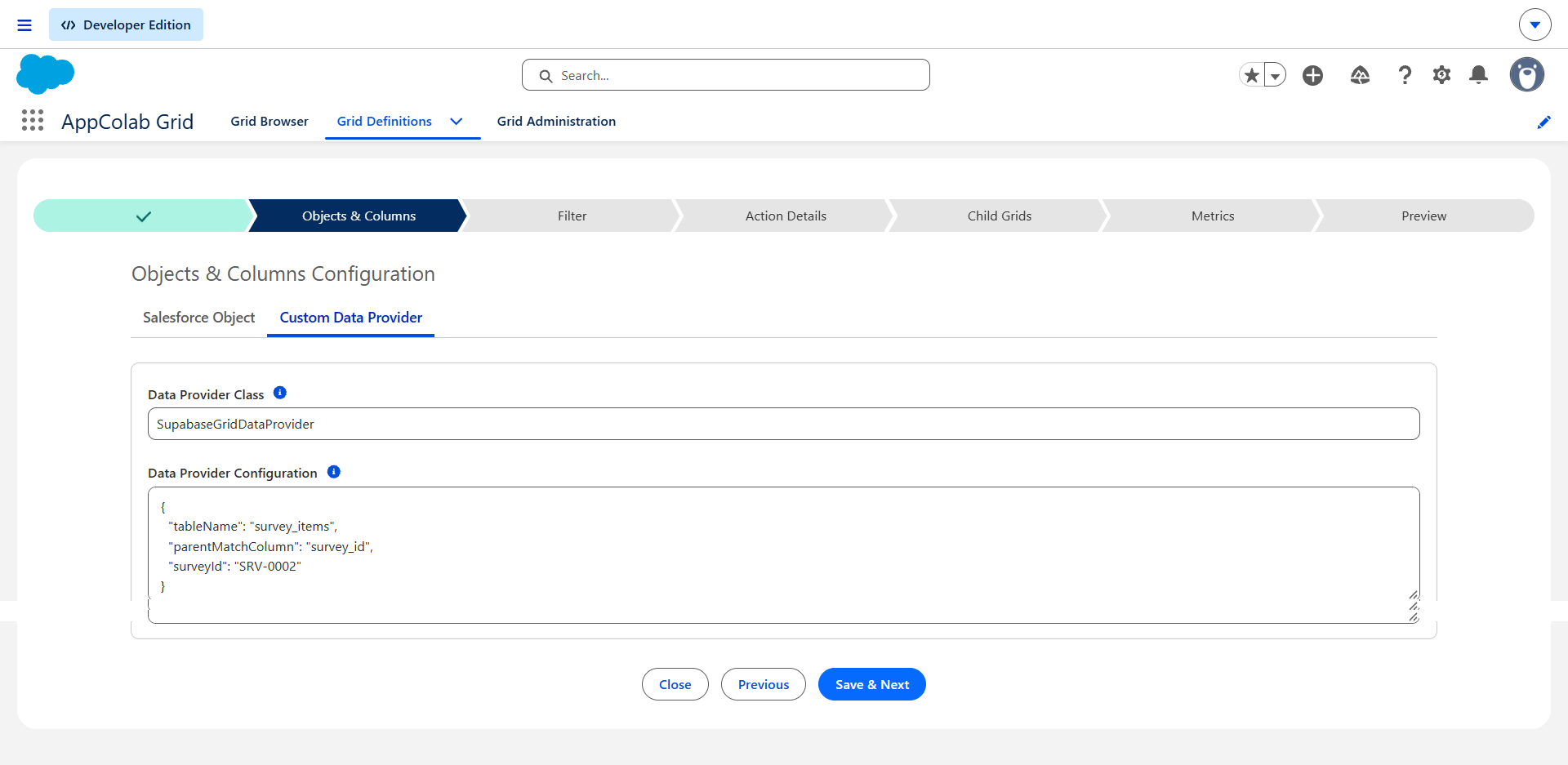
- Navigate to the AppColab Grid app launcher → Grid Definitions → New.
- Select External Data Provider.
- Set Data Provider Class to
SupabaseGridDataProvider.
Understanding the JSON Configuration: 2 vs 3 Parameters
When configuring the Data Provider Configuration (JSON), understand the difference between Live Record Pages and Wizard Previews:
1. Production / Record Page Configuration (2 Parameters)
On a live Lightning record page, you only need two parameters:
{
  "tableName": "survey_items",
  "parentMatchColumn": "survey_id"
}
Why? When AppColab Grid renders inside a Survey__c page, it automatically detects the current record’s ID (context.parentId) and appends survey_id=eq.<RecordId> to the Supabase query. It dynamically displays only the responses for whichever survey you are currently viewing!
2. Testing in the Setup Wizard Preview (3 Parameters - Optional)
Inside the Grid Definition creation wizard, you are not on a record page, so context.parentId is null. If you want to test and preview actual data inside the wizard preview step, you can supply a sample Survey ID or AutoNumber:
{
  "tableName": "survey_items",
  "parentMatchColumn": "survey_id",
  "surveyId": "SRV-0002"
}
SupabaseGridDataProvider automatically resolves "SRV-0002" to its underlying Salesforce record ID, allowing admins to verify columns and sample rows before publishing.
Step 5: Embed on the Survey Lightning Record Page
To give users a seamless experience:
- Open any
Survey__crecord in your org. - Click the Setup Gear (⚙️) → Edit Page.
- In the Lightning App Builder, add a new tab labeled “Survey Responses” (or “Archived Details”).
- Drag the AppColab Grid component into the tab.
- In the component properties panel on the right, select your
Supabase Survey ItemsGrid Definition. - Click Save and Activate.
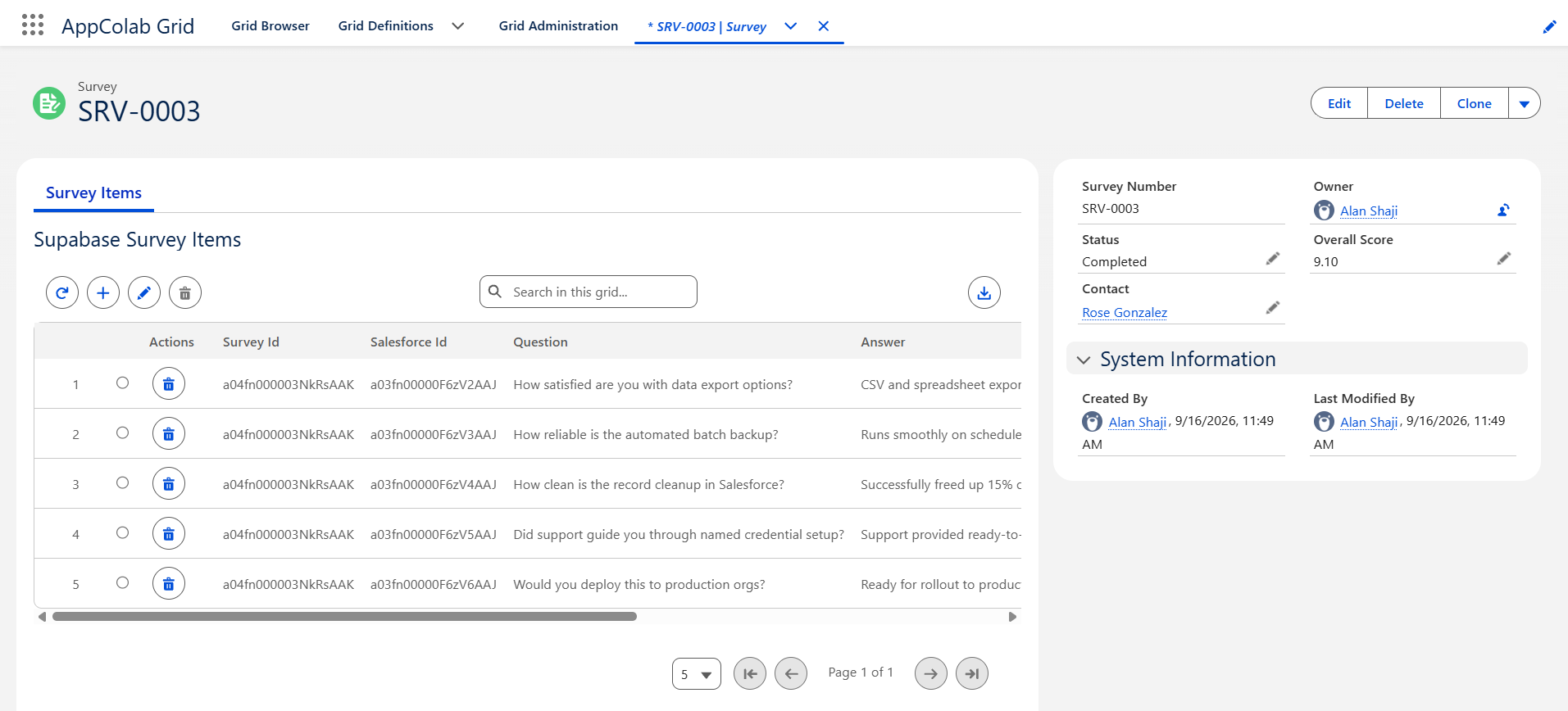
When users open any survey record link SRV-0000, SRV-0001, or SRV-0002, AppColab Grid instantly loads the related Survey_Item__c records from Supabase with full support for search, sorting, and CSV export.
Need support with the Supabase connection, archival batch, or AppColab Grid configuration? Email admin@appcolab.com or contact us online.
What Architects and Admins Need to Know
1. Security & Compliance
- Credential Storage: Salesforce Named Credentials encrypt the Supabase API key at rest. Secrets are never exposed in client-side code.
- Row Level Security (RLS): In production environments, Supabase RLS policies can be scoped to validate specific tenant tokens or signed JWTs if multi-tenancy is required.
- Audit Traceability: Storing the original Salesforce ID in the
salesforce_idcolumn ensures complete auditability across both systems.
2. Cost Comparison: Salesforce vs. Supabase
| Feature | Native Salesforce Storage | Supabase (PostgreSQL) |
|---|---|---|
| Included Tier | 20 MB (Dev) / 10 GB (Enterprise) | 500 MB Free (holds ~250,000+ rows) |
| Additional Storage | ~$250 / GB / month (~$3,000 / GB / year) | $0.125 / GB / month beyond the plan allowance |
| API Costs | Governed by Salesforce API limits | Unlimited REST API requests |
| Query Performance | Fast within limits | Sub-100ms via indexed PostgreSQL |
At that planning rate, archiving 10 GB of historical detail records avoids an estimated $30,000 per year in Salesforce storage add-on spend. Supabase plan, compute, backup, and egress charges still apply, but the incremental database storage cost is dramatically lower.
3. Where Else Does This Pattern Apply?
This architecture works for any high-volume detail object where historical data must remain accessible:
- Order Line Items: Archive lines once an order is marked
DeliveredorClosed. - Integration & Error Logs: Keep logs for audit compliance without filling up CRM storage.
- Customer Service Task Histories & Transcripts: Retain chat transcripts and telephony logs.
- Email Messages: Offload email messages from marketing systems like marketing cloud, hubspot etc.
Conclusion
Data storage limits shouldn’t force your team into an ultimatum between sky-high Salesforce bills and permanently deleting customer history.
By combining an external PostgreSQL database like Supabase with AppColab Grid, you get the best of both worlds:
- Zero data storage consumed in Salesforce for high-volume child records.
- Complete visibility for your users, rendered inline with rich searching, filtering, and export capabilities.
Ready to connect your external databases to Salesforce? Install AppColab Grid on Salesforce AppExchange and start building external data grids in minutes.