
Supabase Grid Integration
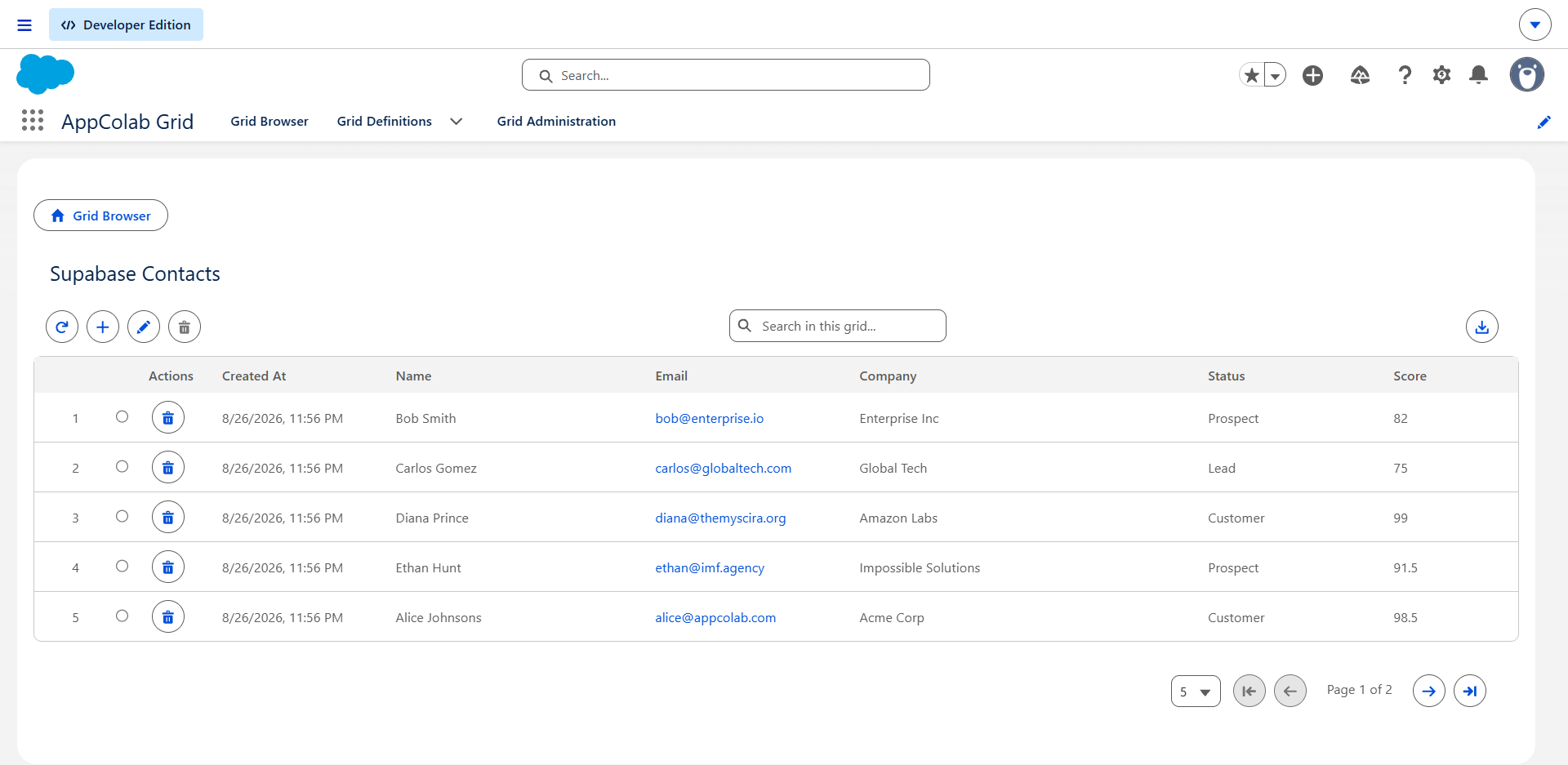
The Supabase Grid integration allows users to view, search, inline-edit, create, and delete rows from any Supabase PostgreSQL database table directly inside AppColab Grid without complex ETL or data pipelines.
What’s Deployed
| Component | Name | Purpose |
|---|---|---|
| Named Credential | Supabase |
Connects to your Supabase Project REST endpoint via Supabase External Credential |
| External Credential | Supabase |
Custom authentication with apikey and Authorization: Bearer <anon_key> headers |
| Apex Client | SupabaseClient.cls |
PostgREST client supporting listRecords, getRecord, createRecord, updateRecord, deleteRecord, getTableSchema |
| Apex Data Provider | SupabaseGridDataProvider.cls |
Implements appcg.GridDataProviderV1 and appcg.GridDataMutationProviderV1 with dynamic schema describe and full CRUD |
| Permission Set | Integration_Admin |
Grants access to Supabase → ApiKey external credential principal |
One-Time Manual Setup
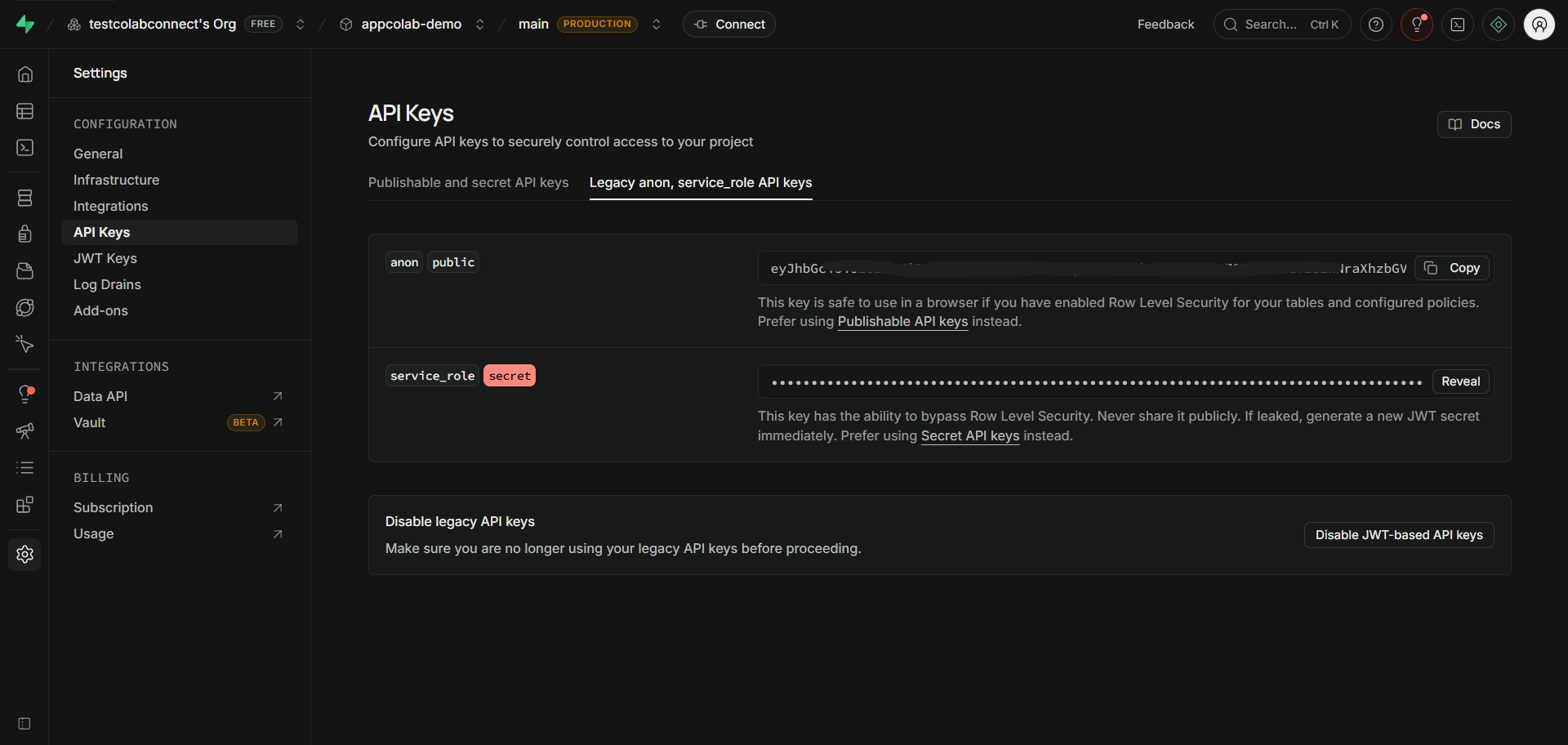
1. Get Your Supabase Project URL & Anon Key
- Sign in to your Supabase Dashboard and select your project.
- Click Project Settings (⚙️) in the sidebar → navigate to API Keys.
- Under the Project API keys section:
- Copy the Project URL (e.g.
https://xyzcompany.supabase.co). - Copy the
anon(public) key (starts witheyJhbGci...).
- Copy the Project URL (e.g.
2. Configure Credentials in Salesforce Setup
2.1 Create the External Credential
- Go to Setup (gear icon ⚙️ → Setup).
- In the Quick Find box, enter Named Credentials and select Named Credentials.
- Click the External Credentials tab → click New:
- Label:
Supabase - Name:
Supabase - Authentication Protocol:
Custom - Click Save.
- Label:
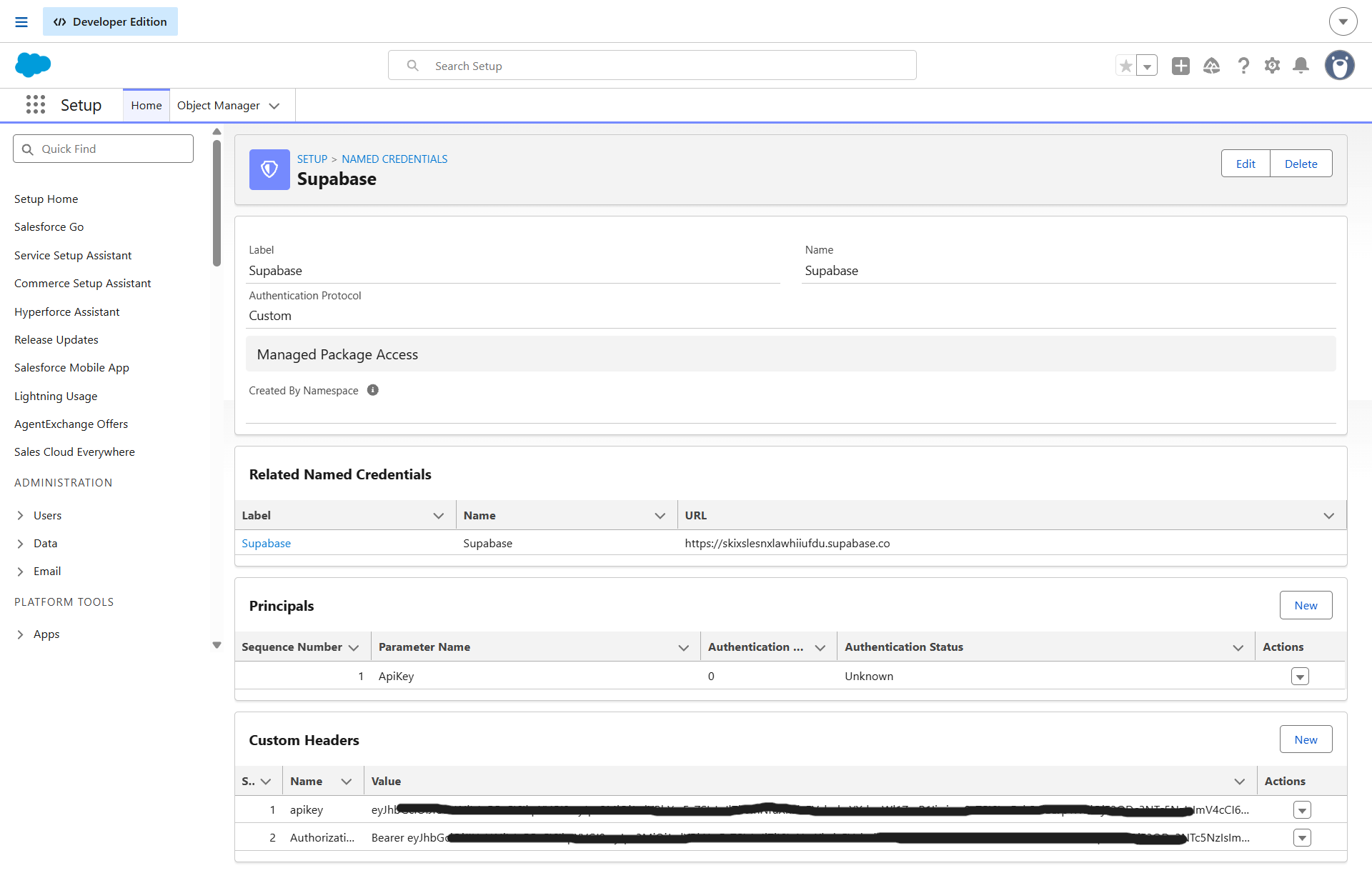
- In the Principals section, click New:
- Parameter Name:
ApiKey - Sequence:
1 - Click Save.
- Parameter Name:
- In the Custom Headers section, click New:
- Name:
apikey - Value: Paste your
anonkey (eyJhbGci...) - Sequence Number:
1 - Click Save.
- Name:
- Click New again under Custom Headers:
- Name:
Authorization - Value:
Bearerfollowed by the sameanonkey (e.g.Bearer eyJhbGci...) - Sequence Number:
2 - Click Save.
- Name:
2.2 Create the Named Credential
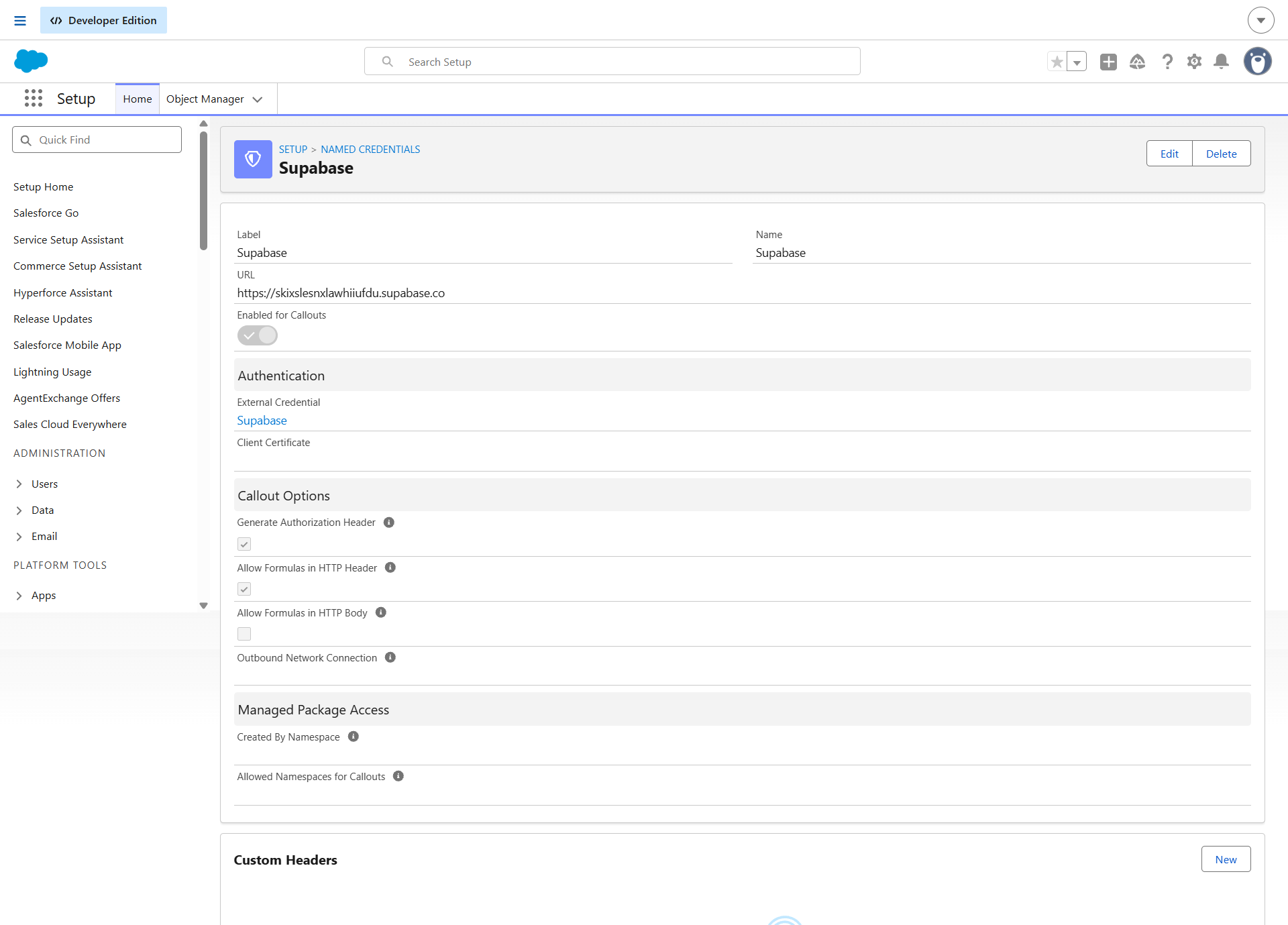
- Click the Named Credentials tab (next to External Credentials) → click New:
- Label:
Supabase - Name:
Supabase - URL: Paste your actual Supabase Project REST URL (e.g.
https://skixslesnxlawhiiufdu.supabase.co)[!IMPORTANT] Do NOT use placeholder URLs like
https://your-project.supabase.co. Always use your real project reference ID URL from your Supabase Project Settings. - External Credential: Select
Supabase - Generate Authorization Header: Leave Unchecked (handled by custom Authorization header)
- Allow Formulas in HTTP Header: Checked
- Label:
- Click Save.
3. Assign Permission Set Access
- In Salesforce Setup, enter Permission Sets in Quick Find.
- Select Integration Admin (or
Supabase_Integration/ your custom admin permission set). - Click External Credential Principal Access → click Edit.
- Add
Supabase - ApiKeyto Enabled External Credential Principals. - Click Save and verify the permission set is assigned to your Salesforce users.
Creating a Supabase Grid Definition
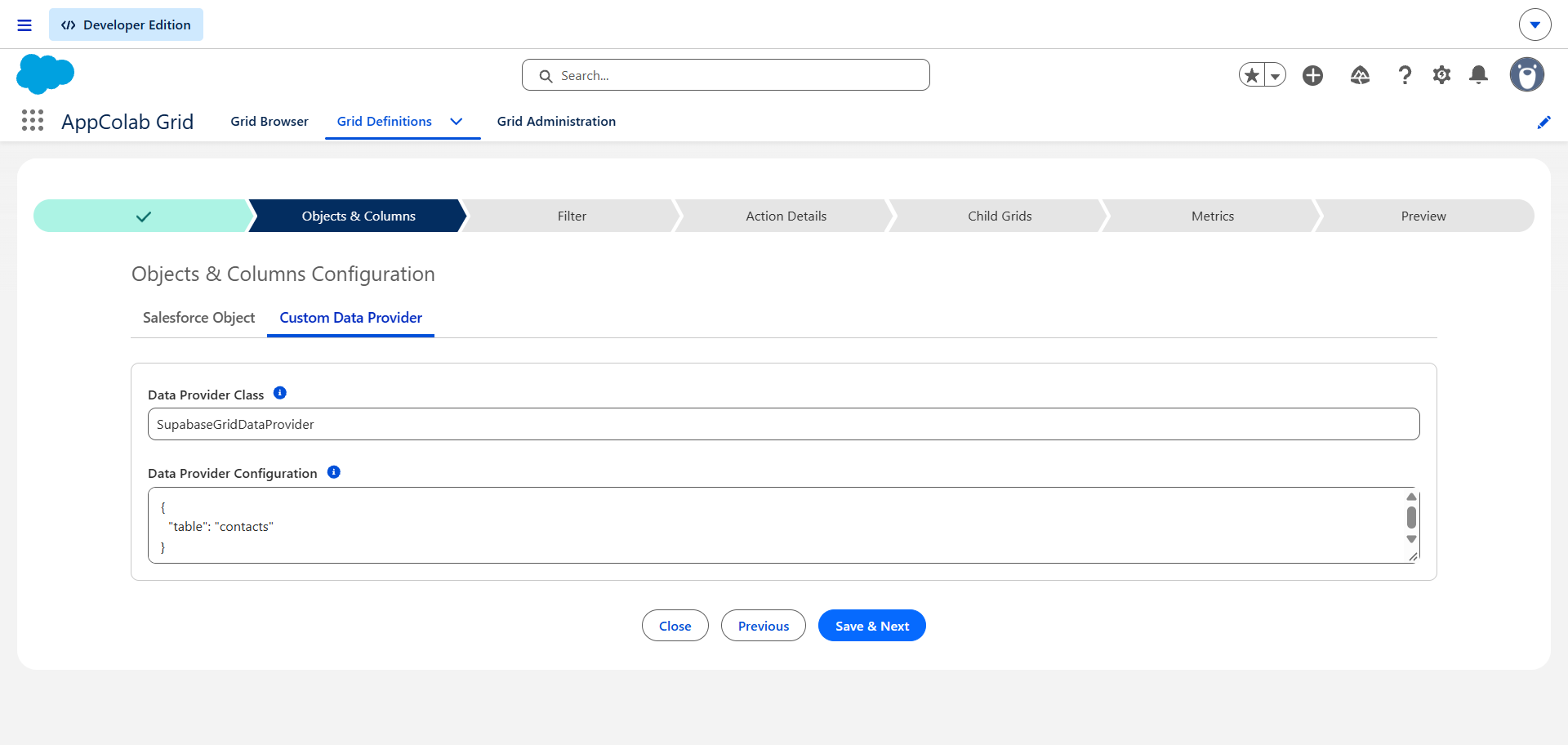
- In Salesforce, open AppColab Grid app → Grid Definitions tab → click New Grid Definition.
- Fill in:
- Grid Settings Name:
Supabase_Contacts_Grid - Grid Label:
Supabase Contacts - Is Active?: Checked
- Data Provider Class:
SupabaseGridDataProvider - Data Provider Configuration:
{
  "table": "contacts"
}
- Grid Settings Name:
- Click Save & Next → proceed to Preview.
- The Grid automatically discovers all database columns, maps PostgreSQL data types to Grid types, and displays live database records!
Supported Grid Features
| Feature | Details |
|---|---|
| Dynamic Schema Discovery | Queries OpenAPI schema definition to discover column names and types automatically |
| Inline Editing | Modifying cell values sends instant PATCH requests to Supabase PostgREST |
| Row Insertion | Click + Add Row to create new PostgreSQL records directly from Salesforce |
| Row Deletion | Delete database records with automatic UI removal |
| Server-Side Pagination | Supports limit and offset for high-performance navigation through tens of thousands of database rows |
Troubleshooting & Common Gotchas
404 / Connection Failed:- Cause: The Named Credential URL contains a placeholder (
your-project.supabase.co) or invalid project reference ID. - Fix: Copy the exact Project URL from your Supabase Dashboard (Project Settings ⚙️ → API) and update the
SupabaseNamed Credential.
- Cause: The Named Credential URL contains a placeholder (
401 Unauthorized / Invalid API Key:- Cause: One of the two required custom headers is missing or contains the wrong token.
- Fix: Ensure the External Credential has both headers configured:
- Header
apikey: Your Supabaseanonpublic key (eyJhbGci...) - Header
Authorization:Bearerfollowed by the sameanonkey (Bearer eyJhbGci...)
- Header
PGRST200 / relation "public.xxx" does not exist:- Cause: The
"table"name in your Data Provider Configuration JSON does not match any table in the public schema. - Fix: Ensure the table name is spelled exactly as it exists in PostgreSQL (case-sensitive) and exists in the
publicschema.
- Cause: The
- Grid renders with zero records despite database having rows (RLS Policy):
- Cause: Row Level Security (RLS) is enabled in Supabase without a read policy for the
anonrole. - Fix: In your Supabase Dashboard under Authentication → Policies, either add a policy allowing
SELECTaccess toanon, or disable RLS for that specific table.
- Cause: Row Level Security (RLS) is enabled in Supabase without a read policy for the
- Missing External Credential Access:
- Cause: Users cannot execute callouts because
Supabase - ApiKeyprincipal is not assigned. - Fix: Add
Supabase - ApiKeyto the user’s assigned permission set under External Credential Principal Access.
- Cause: Users cannot execute callouts because