
Sales, account management, and customer success teams constantly need financial context.
When an account executive prepares for an annual contract renewal, or an account manager reviews customer health before an executive briefing, they need immediate answers:
- Does this customer have overdue invoices or an outstanding balance?
- Has their latest invoice been marked as paid by the accounting team?
- What services, retainers, or subscription tiers are they actively billed for in QuickBooks?
- What is their total historical spend across previous quarters?
In most organizations, finding those answers means juggling browser tabs, pinging the finance department for ad-hoc ledger lookups, or purchasing expensive QuickBooks Online seats for team members who only need occasional read-only visibility.
Even worse, attempts to synchronize QuickBooks data into custom Salesforce objects usually create fragile batch pipelines, data drift, storage bloat, and security concerns around storing accounting databases in CRM storage.
This walkthrough demonstrates how to use AppColab Grid to connect Salesforce directly to QuickBooks Online in real time: providing complete visibility into QuickBooks records—both company-wide and scoped to individual Account record pages—without duplicating a single invoice or payment in Salesforce storage.
Who this is for: Salesforce administrators, RevOps leaders, billing analysts, and account executives who need real-time QuickBooks invoice, payment, and customer visibility directly beside CRM records without purchasing extra QuickBooks licenses or duplicating financial tables into Salesforce.
Need help or have questions? Check out the complete QuickBooks Grid Integration guide for detailed Named Credential setup and JSON configuration options.
The customer billing scenario
Consider an account manager reviewing an enterprise customer like Edge Communications (or United Oil & Gas Corp.) directly inside Salesforce:
| Document / Invoice | Line Items & Description | Total Amount | Balance Due | Status | Issue Date |
|---|---|---|---|---|---|
| INV-2026-001 | Cloud Integration Architecture & Setup | $5,000.00 | $0.00 | Paid in Full | Sep 01, 2026 |
| INV-2026-002 | Monthly Enterprise Grid Retainer | $1,200.00 | $1,200.00 | Open | Sep 15, 2026 |
| INV-2026-003 | Custom Data Provider Tuning & Training | $850.00 | $850.00 | Open | Sep 20, 2026 |
| PMT-148 | Wire Transfer Payment for INV-2026-001 | $5,000.00 | — | Applied | Sep 10, 2026 |
Rather than switching to QuickBooks or waiting on an email from accounting, the account team sees this live financial ledger directly within the Edge Communications Account page in Salesforce.
Step 1: Connect Salesforce to QuickBooks
Salesforce connects securely to QuickBooks Online through native Named Credentials and an Auth. Provider using your Intuit Client ID and Client Secret.
Configure the permanent connection by following the QuickBooks authentication setup guide:
- Auth. Provider: Create
QuickBooks_OAuth(OpenID Connect) with your Intuit Client ID, Client Secret, and scopecom.intuit.quickbooks.accounting. - Redirect URI: Add the Salesforce Callback URL to your Intuit App Dashboard settings.
- External & Named Credential: Configure
QuickBookswithOAuth 2.0(Browser Flow) and link it to your Auth Provider. - One-Time Consent: Click Authenticate once on the principal to link your company. From then on, Salesforce automatically refreshes tokens in the background with zero manual maintenance.
- Principal Access: Grant user access via your
Integration_Adminpermission set.
This connection is permanent and shared across all QuickBooks Grid Definitions. Users granted access can view and query live accounting data without needing individual QuickBooks logins.
Step 2: Get all QuickBooks entities to work in Account context
AppColab Grid allows you to scope any QuickBooks financial entity to the current Salesforce Account record.
When a user opens an Account, the grid dynamically resolves the Account’s identifier (such as QuickBooks_Customer_Id__c or standard AccountNumber), queries QuickBooks using Intuit SQL dialect, and renders only the transactions belonging to that specific client.
Here is how to configure each QuickBooks entity in Account context:
1. Customer Invoices (invoices)
Displays all open, paid, and past-due invoices for the current customer:
{
  "realmId": "YOUR_COMPANY_ID",
  "resource": "invoices",
  "parentMatchColumn": "CustomerRef",
  "parentMatchField": "QuickBooks_Customer_Id__c"
}
- Columns displayed: Invoice Number (
DocNumber), Customer Name, Transaction Date, Due Date, Total Amount, Balance Due, Print Status. - Match logic: Resolves the Account’s
QuickBooks_Customer_Id__cand queries QuickBooks:SELECT * FROM Invoice WHERE CustomerRef = '<Id>'.
2. Filter for Open or Overdue Invoices Only
Combine parent matching with custom QuickBooks SQL predicates:
{
  "realmId": "YOUR_COMPANY_ID",
  "resource": "invoices",
  "parentMatchColumn": "CustomerRef",
  "parentMatchField": "QuickBooks_Customer_Id__c",
  "where": "Balance > '0'"
}
- AppColab Grid merges the parent match predicate with your
whereclause usingAND, instantly isolating outstanding balances.
3. Payment History & Receipts (payments)
Surfaces historical customer payments, check numbers, and applied amounts:
{
  "realmId": "YOUR_COMPANY_ID",
  "resource": "payments",
  "parentMatchColumn": "CustomerRef",
  "parentMatchField": "QuickBooks_Customer_Id__c"
}
- Columns displayed: Payment ID, Payment Date, Total Amount Received, Unapplied Amount, Payment Method, Customer Reference.
4. Quotes & Estimates (estimates)
Gives sales teams visibility into outstanding proposals generated in QuickBooks:
{
  "realmId": "YOUR_COMPANY_ID",
  "resource": "estimates",
  "parentMatchColumn": "CustomerRef",
  "parentMatchField": "QuickBooks_Customer_Id__c"
}
- Columns displayed: Estimate Number, Customer, Date, Expiration Date, Total Amount, Transaction Status (
Accepted,Pending,Closed).
5. Vendor Bills on Accounts (bills)
When managing suppliers, vendors, or partner accounts in Salesforce:
{
  "realmId": "YOUR_COMPANY_ID",
  "resource": "bills",
  "parentMatchColumn": "VendorRef",
  "parentMatchField": "QuickBooks_Vendor_Id__c"
}
- Columns displayed: Bill Number, Vendor Name, Bill Date, Due Date, Total Amount, Balance Due.
Parent Matching Tip:
- Standard Field Option (
parentMatchField: "AccountNumber"): If you prefer not to add custom fields to your Account object, store your QuickBooks customer number in standardAccountNumber.- Custom Field Option (
parentMatchField: "QuickBooks_Customer_Id__c"): Recommended for enterprise teams maintaining dedicated external system IDs.- Graceful Fallback: If an Account record has no QuickBooks ID populated, the grid automatically displays 0 rows without throwing errors.
Step 3: Company-wide financial portfolios (Standalone Grids)
In addition to child grids on Account record pages, you can configure high-level operational ledgers across your entire QuickBooks organization by omitting the parent matching properties.
A. Centralized Accounts Receivable Ledger
{
  "realmId": "YOUR_COMPANY_ID",
  "resource": "invoices"
}
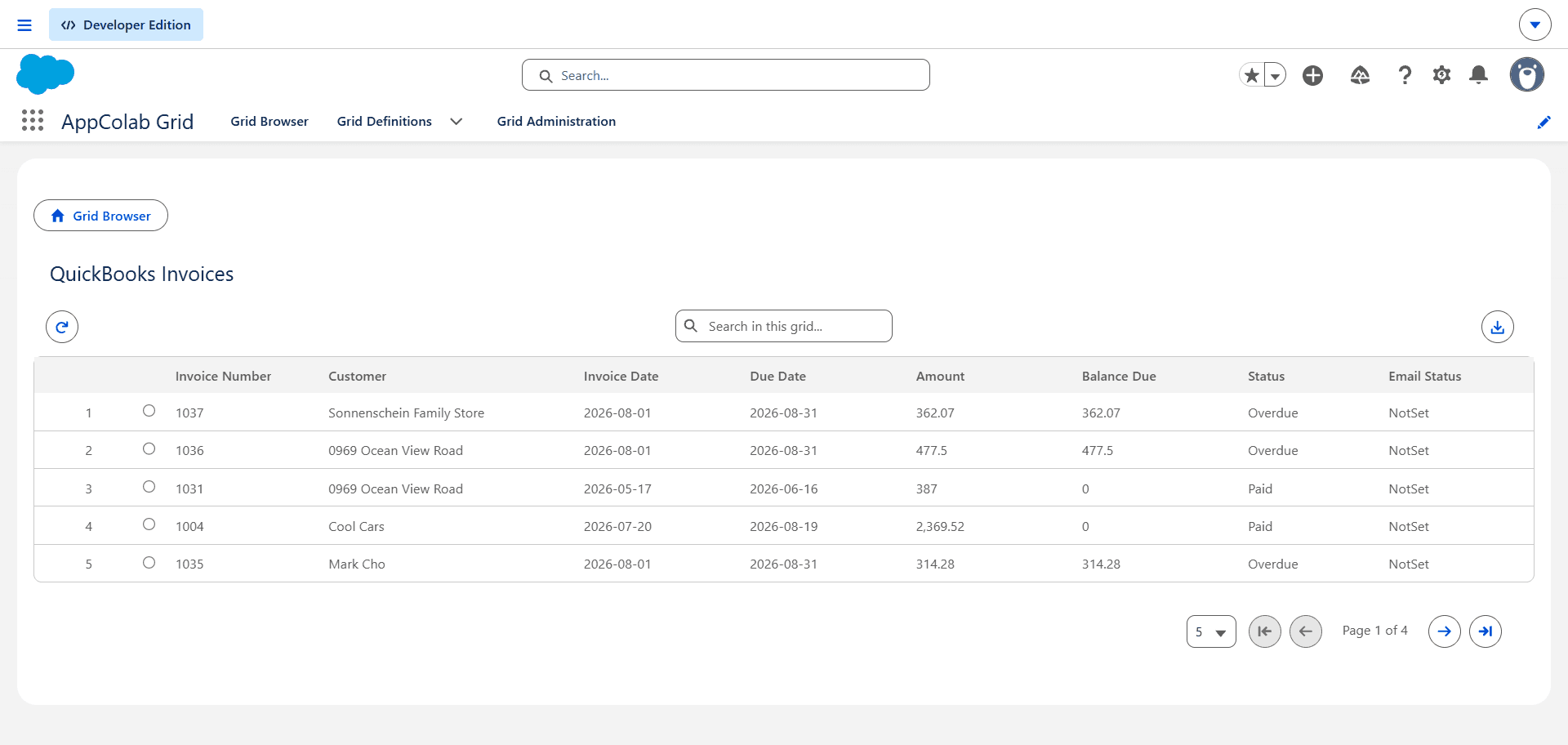
Place this grid on a Salesforce Home Page or Finance App Page to give billing coordinators and leadership a searchable, server-paginated ledger of all company invoices with quick CSV export.
B. Complete Customer Directory & Balances
{
  "realmId": "YOUR_COMPANY_ID",
  "resource": "customers"
}
Gives RevOps and Credit Management teams a comprehensive directory of every customer account in QuickBooks, displaying billing contacts, phone numbers, active flags, and current total outstanding balances.
C. Accounts Payable & Vendor Liabilities
{
  "realmId": "YOUR_COMPANY_ID",
  "resource": "bills"
}
Enables procurement and operations teams to review upcoming vendor obligations, bill dates, and payment liabilities without leaving Salesforce.
Step 4: Embed on the Account Lightning Record Page
Once your Grid Definitions are created in the AppColab Grid tab:
- Open any Account in Salesforce (such as Edge Communications).
- Click the gear icon ⚙️ → Edit Page.
- In the center layout, add a new tab labeled QuickBooks Billing.
- Inside the tab:
- Drag an AppColab Grid component and select Grid Definition:
Account Invoices (QuickBooks). - Optionally drag a second AppColab Grid component below it (or into sub-tabs) and select:
Account Payments (QuickBooks).
- Drag an AppColab Grid component and select Grid Definition:
- Click Save and Activate.
When users navigate between Accounts, AppColab Grid dynamically queries QuickBooks and renders only that specific customer’s invoices and payment history!
A five-minute live demonstration
Once configured, this quick walkthrough showcases the power of the integration:
- Open Edge Communications in Salesforce and click the QuickBooks Billing tab to display their $5,000.00 paid invoice and their open $1,200.00 and $850.00 invoices.
- Open United Oil & Gas Corp. to show their $14,500.00 enterprise license and $6,200.00 automation invoice.
- In QuickBooks Online, generate a new invoice or receive a payment against an open balance.
- Return to Salesforce, click Refresh on the grid, and watch the updated transaction appear instantly—with zero synchronization delay.
- In the grid’s search bar, type
INV-2026or a specific item description to observe instant server-side filtering across the ledger. - Click Export to CSV to immediately download the filtered ledger for financial review.
That demonstration establishes four key points: data is real-time, zero CRM storage is consumed, Account context scopes the records cleanly, and account executives gain immediate financial context without leaving Salesforce.
What to consider before using this pattern
- Account Matching Strategy:
Matching by Customer ID (
CustomerRef) ensures 100% precision. Store the QuickBooks Customer ID inQuickBooks_Customer_Id__cor standardAccountNumberon your Account records. - Permanent OAuth 2.0 Background Refreshes: By connecting via an Auth. Provider and OAuth 2.0 Named Credential, Salesforce securely holds the refresh token and automatically refreshes short-lived Intuit access tokens in the background. Teams never have to manually generate or copy-paste API tokens.
- Server-Side Pagination Performance:
The QuickBooks provider uses Intuit SQL pagination (
STARTPOSITIONandMAXRESULTS), querying only the records requested for the active page (up to 1,000 rows/page). It effortlessly handles companies with thousands of invoices without hitting Salesforce governor limits. - Security & Credential Principal Access:
Grant External Credential principal access only to user profiles or permission sets (such as
Integration_Admin) that require visibility into financial ledgers. - Sandbox vs. Production URLs:
When developing in sandbox environments, ensure your Named Credential points to
https://sandbox-quickbooks.api.intuit.com. Production environments usehttps://quickbooks.api.intuit.com.
Bring the QuickBooks ledger to your CRM
AppColab Grid eliminates the barrier between your accounting software and your CRM, giving customer-facing teams the financial intelligence they need while preserving strict accounting controls.
Start with standalone invoice and customer grids to validate your connection. Then add Account-scoped child grids to bring real-time financial context to every client interaction.
Install AppColab Grid from Salesforce AppExchange, and review the QuickBooks Grid Integration guide to connect your workspace.