
Sales and customer-facing teams constantly need billing context.
When an account executive prepares for an annual renewal, or a customer success manager hops on an escalation call, they need immediate answers:
- Is this customer’s subscription active, paused, or scheduled to cancel?
- Are there overdue invoices or recently failed payments?
- What plan tier or license count are they currently billed for in Stripe?
In most companies, finding those answers means juggling tabs, asking the finance team for manual lookups, or purchasing expensive Stripe dashboard seats for team members who only need occasional read-only context.
Worse, attempts to sync Stripe data into custom Salesforce objects often lead to synchronization lag, storage bloat, and serious PCI/data compliance concerns.
This walkthrough uses AppColab Grid to bridge Salesforce and Stripe in real time: providing complete visibility into Stripe data—both company-wide and scoped to individual Contacts and Accounts—without duplicating a single payment record in Salesforce storage.
Who this is for: Salesforce administrators, RevOps leaders, billing specialists, and customer-success teams who need real-time Stripe payment, subscription, and invoice visibility beside CRM records without purchasing separate Stripe seats or duplicating financial data into Salesforce storage.
Need help or have questions? Check out the complete Stripe Grid Integration guide for detailed Named Credential setup and JSON configuration options.
The customer billing scenario
Imagine an account executive viewing a Salesforce Contact such as Rose Gonzalez (or Sean Forbes) at Edge Communications:
| Record / Invoice | Description | Amount | Currency | Status | Date |
|---|---|---|---|---|---|
| INV-09RNY1A7-0001 | Enterprise Annual Platform License | $1,200.00 | USD | Open | Due next month |
| ch_3Pz… | Implementation Consulting Fee | $350.00 | USD | Succeeded | Sep 28, 2026 |
| sub_1Pz… | Standard Plan - Monthly Tier | $99.00 / mo | USD | Active | Renews Oct 28 |
In traditional setups, accessing this ledger requires logging into the Stripe Dashboard or building complex webhook integrations.
With AppColab Grid, the exact same information appears right inside a Stripe Billing tab on the Contact record page:
Updates made in Stripe (such as an invoice being paid or a subscription upgraded) appear immediately the next time the grid loads or the user clicks Refresh.
Why virtualization beats data duplication
Syncing external financial records into Salesforce custom objects introduces significant technical and security friction:
| Challenge | Heavy Sync Tools (ETL / Webhooks) | Real-Time Grid Virtualization |
|---|---|---|
| Data Freshness | Webhook queues, sync batches, and API lag. | Live API query directly against Stripe at the moment of view. |
| Data Storage Limits | Consumes Salesforce storage for thousands of transactions. | 0 KB storage used in Salesforce. |
| PCI / Sensitive Data | Storing customer billing info in Salesforce increases audit scope. | Sensitive card and payment tokens stay securely inside Stripe. |
| Maintenance | Custom schemas, broken sync mappings, and reconciliation errors. | Standard connector with automated formatting and pagination. |
AppColab Grid provides the Salesforce work surface. The Stripe provider converts grid requests into direct REST API calls, discovers columns dynamically, formats currency and timestamps, and supports full-text search, pagination, and CSV export.
Step 1: Connect Salesforce to Stripe
Salesforce connects securely to Stripe through native Named Credentials using your Stripe Secret Key (sk_test_... or sk_live_...).
Configure the External Credential, Named Credential, and principal access by following the Stripe authentication setup guide.
This connection setup is reusable across all Stripe Grid Definitions. Users granted access to the credential principal can view live Stripe data directly within Salesforce without requiring individual Stripe dashboard logins.
Step 2: Get all Stripe entities to work in Contact context
AppColab Grid allows you to scope any Stripe entity to the current Contact record.
When a user opens a Contact in Salesforce, the grid resolves the Contact’s information (such as their Email or an external Stripe_Customer_Id__c), queries Stripe, and returns only the records belonging to that customer.
Here is how to configure each Stripe entity in Contact context:
1. Customer Invoices (invoices)
Displays open, paid, and past-due invoices for the current customer:
{
  "resource": "invoices",
  "parentMatchColumn": "customer_email",
  "parentMatchField": "Email"
}
- Columns displayed: Invoice Number, Total Amount, Amount Due, Amount Paid, Currency, Status, Due Date, Created Date.
- Match logic: Matches the Contact’s
Emailagainst Stripe’scustomer_email.
2. Payment History & Charges (charges)
Surfaces historical credit card, ACH, or debit charges:
{
  "resource": "charges",
  "parentMatchColumn": "customer_email",
  "parentMatchField": "Email"
}
- Columns displayed: Amount, Currency, Status (
succeeded,failed), Description, Paid, Refunded, Created Date. - Smart fallback: Inspects the charge’s billing email first; if empty, it automatically falls back to
receipt_email.
3. Active Recurring Subscriptions (subscriptions)
Shows active plans, billing periods, and cancellation statuses:
{
  "resource": "subscriptions",
  "parentMatchColumn": "customer",
  "parentMatchField": "Stripe_Customer_Id__c"
}
- Columns displayed: Subscription ID, Customer ID, Status (
active,past_due,canceled), Period Start, Period End, Cancel At End flag. - Optimized filtering: Passes
&customer=cus_...directly to Stripe’s REST endpoint. Stripe executes the filter server-side for maximum performance.
4. Payment Intents & Authorizations (payment_intents)
Displays checkout sessions, customer payments, and authorization states:
{
  "resource": "payment_intents",
  "parentMatchColumn": "receipt_email",
  "parentMatchField": "Email"
}
- Columns displayed: Payment Intent ID, Amount, Amount Received, Currency, Status, Customer ID, Receipt Email, Description.
- Automatic formatting: Automatically converts Stripe’s integer cents (
2500) into standard decimal currency ($25.00).
5. Stripe Customer Account Profile (customers)
Embeds the customer’s Stripe account status directly on the Contact:
{
  "resource": "customers",
  "parentMatchColumn": "email",
  "parentMatchField": "Email"
}
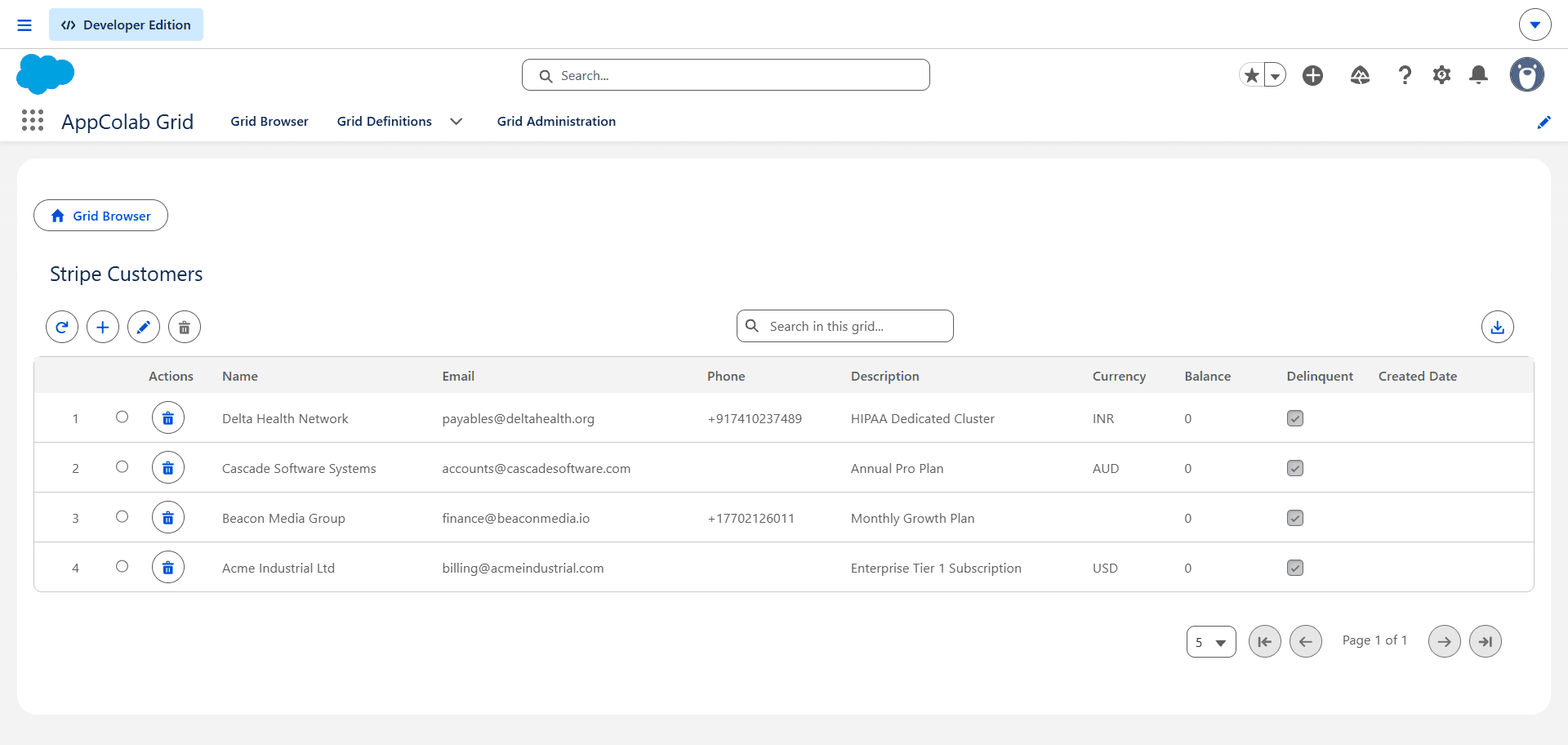
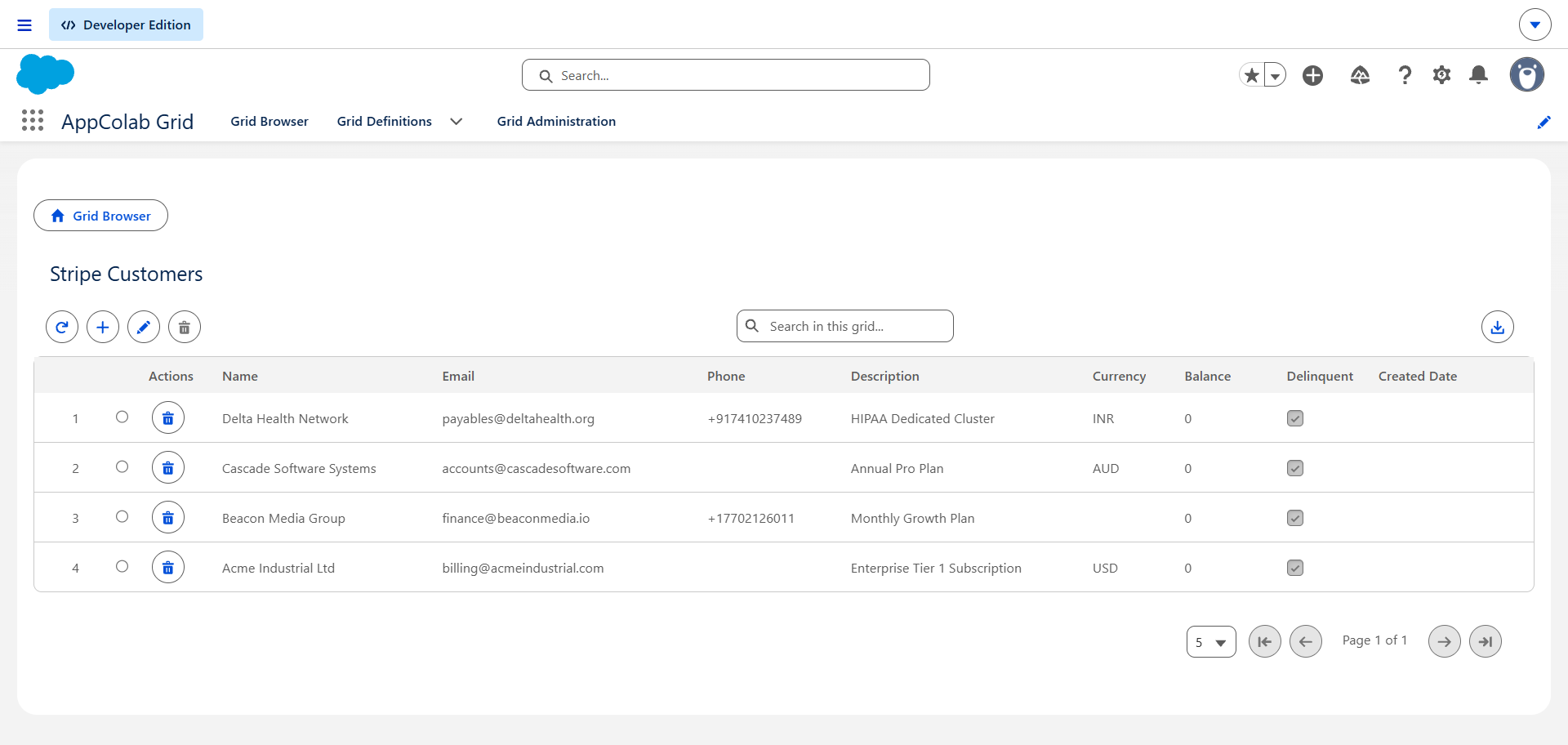
- Columns displayed: Customer ID, Name, Email, Phone, Currency, Balance, Delinquent status.
- Capabilities: Full CRUD. Users can view delinquent flags or inline-edit customer contact details directly from Salesforce.
Parent Matching Tip:
- Email Matching (
parentMatchField: "Email"): Works out-of-the-box with zero custom fields needed in Salesforce. Matches are case-insensitive (ALICE@TEST.COMmatchesalice@test.com).- Customer ID Matching (
parentMatchField: "Stripe_Customer_Id__c"): Ideal for enterprise accounts with thousands of Stripe transactions, using Stripe’s native server-side customer query.
Step 3: Company-wide financial portfolios (Standalone Grids)
In addition to Contact child grids, you can create high-level operational views across your entire Stripe workspace by omitting the parent match properties.
A. Centralized Customer Directory
{
  "resource": "customers"
}
Place this grid on an App Page (e.g. in your Sales or Billing Console) to give team members a searchable directory of all customer balances and billing details with inline-editing support.
B. Active Subscriptions Ledger
{
  "resource": "subscriptions"
}
Gives RevOps and Finance a consolidated view of every active recurring subscription, upcoming renewal cycles, and cancellation risks across the company.
Step 4: Embed on the Contact Lightning Record Page
Once your Grid Definitions are created in the AppColab Grid tab:
- Open any Contact in Salesforce (such as Sean Forbes or Rose Gonzalez).
- Click the gear icon ⚙️ → Edit Page.
- In the center layout, add a tab named Stripe Billing.
- Inside the tab:
- Drag an AppColab Grid component and select Grid Definition:
Customer Invoices (Stripe). - Drag a second AppColab Grid component below it (or into sub-tabs) and select:
Payment History & Charges (Stripe).
- Drag an AppColab Grid component and select Grid Definition:
- Click Save and Activate.
When users navigate between Contacts, AppColab Grid dynamically queries Stripe and renders only that specific customer’s transactions!
A five-minute live demonstration
Once configured, this quick walkthrough establishes the power of the integration:
- Open Sean Forbes in Salesforce and click the Stripe Billing tab to show his $99.00 subscription invoice.
- Open Rose Gonzalez to show her $1,200.00 platform invoice and $350.00 onboarding charge.
- In Stripe, mark an invoice as paid or generate a new test charge using card
4242 4242 4242 4242. - Return to Salesforce, click Refresh on the grid, and show the updated status appearing instantly without any synchronization delay.
- Open a Contact with no email and show how the grid cleanly displays 0 rows without error.
- Open the company-wide Active Subscriptions Ledger to review renewals across all accounts in a single table.
That demonstration establishes four key points: data is real-time, no local storage is consumed, Contact context scopes the data cleanly, and customer teams gain full visibility without switching tabs.
What to consider before using this pattern
- Email Matching vs Customer ID:
Matching by Email is the fastest to set up because standard Salesforce Contacts already have an
Emailfield. However, on large Stripe accounts with tens of thousands of charges, scanning multiple pages can consume Salesforce callout limits. For high-volume implementations, store the Stripe Customer ID (cus_...) in a field likeStripe_Customer_Id__cto leverage Stripe’s server-side filtering. - Security & Principal Access:
Grant External Credential principal access only to profiles or permission sets (such as
Integration_Admin) that should view billing records. - Currency Formatting:
Stripe stores monetary values in base currency units (cents). AppColab Grid automatically handles decimal normalization for
charges,invoices, andpayment_intents.
Bring the Stripe workspace to your CRM
AppColab Grid eliminates the barrier between your billing platform and your CRM, giving customer-facing teams the context they need while preserving strict financial controls.
Start with the standalone customer and subscription grids to validate your connection. Then add Contact-scoped child grids to bring real-time financial context to every customer interaction.
Install AppColab Grid from Salesforce AppExchange, and review the Stripe Grid Integration guide to connect your workspace.