
Stripe Grid Integration
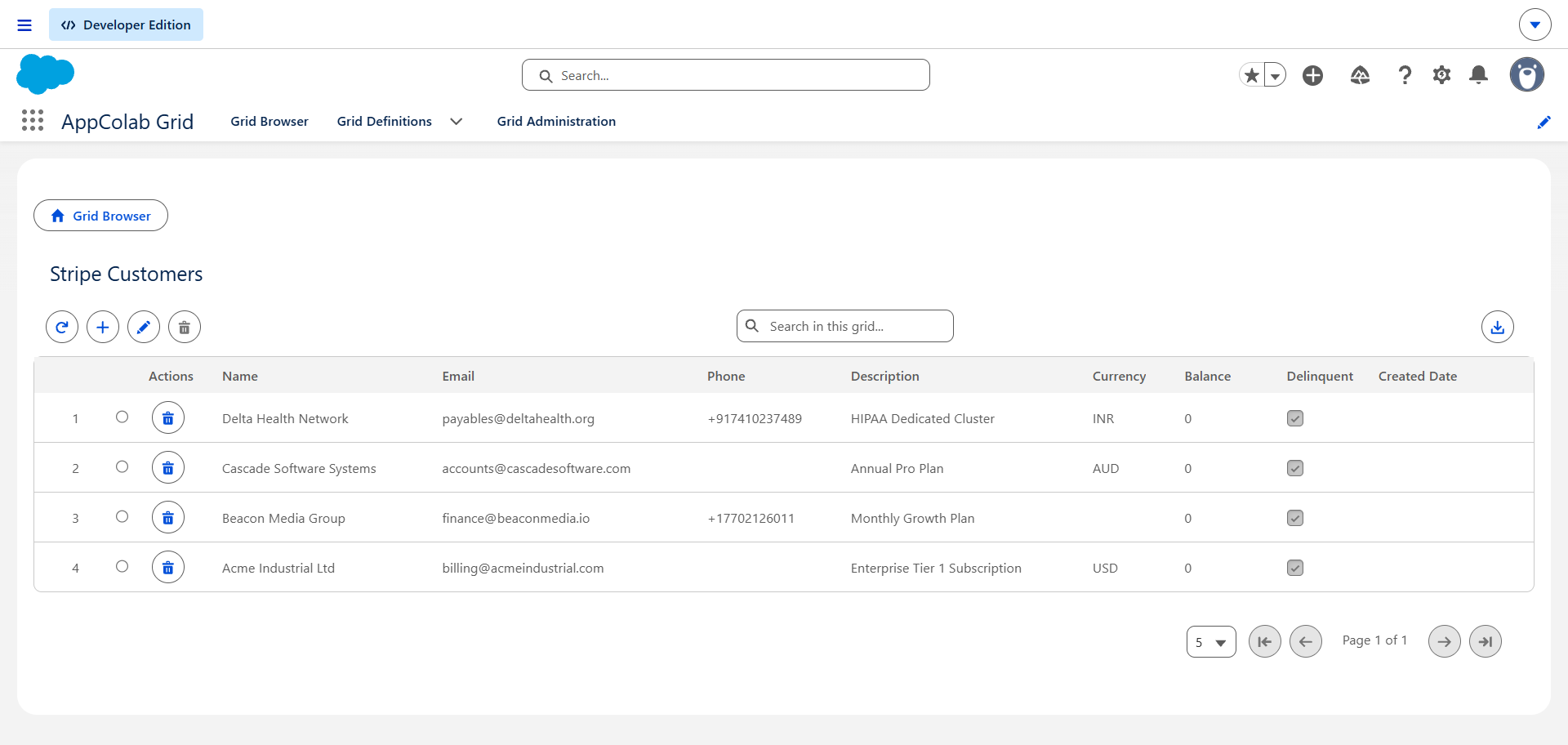
The Stripe Grid integration allows finance, billing, support, and sales teams to view, search, inline-edit, and export records from Stripe (Customers, Invoices, Subscriptions, Charges, and Payment Intents) directly inside AppColab Grid without duplicating payment data in Salesforce.
Architecture & What’s Deployed
| Component | Name | Purpose |
|---|---|---|
| Named Credential | Stripe |
Connects to callout:Stripe pointing to https://api.stripe.com |
| External Credential | Stripe |
Custom authentication with Bearer <Stripe_Secret_Key> header |
| Apex Client | StripeClient.cls |
REST client supporting listResources, getResource, createResource, updateResource, deleteResource, and native Stripe customer filtering |
| Apex Data Provider | StripeGridDataProvider.cls |
Implements appcg.GridDataProviderV1 and appcg.GridDataMutationProviderV1 with full CRUD for Customers, child grid parent matching on Contact/Account, and multi-resource support |
| Permission Set | Integration_Admin |
Grants user access to the Stripe → ApiKey external credential principal |
One-Time Manual Setup
1. Obtain Your Stripe Secret Key
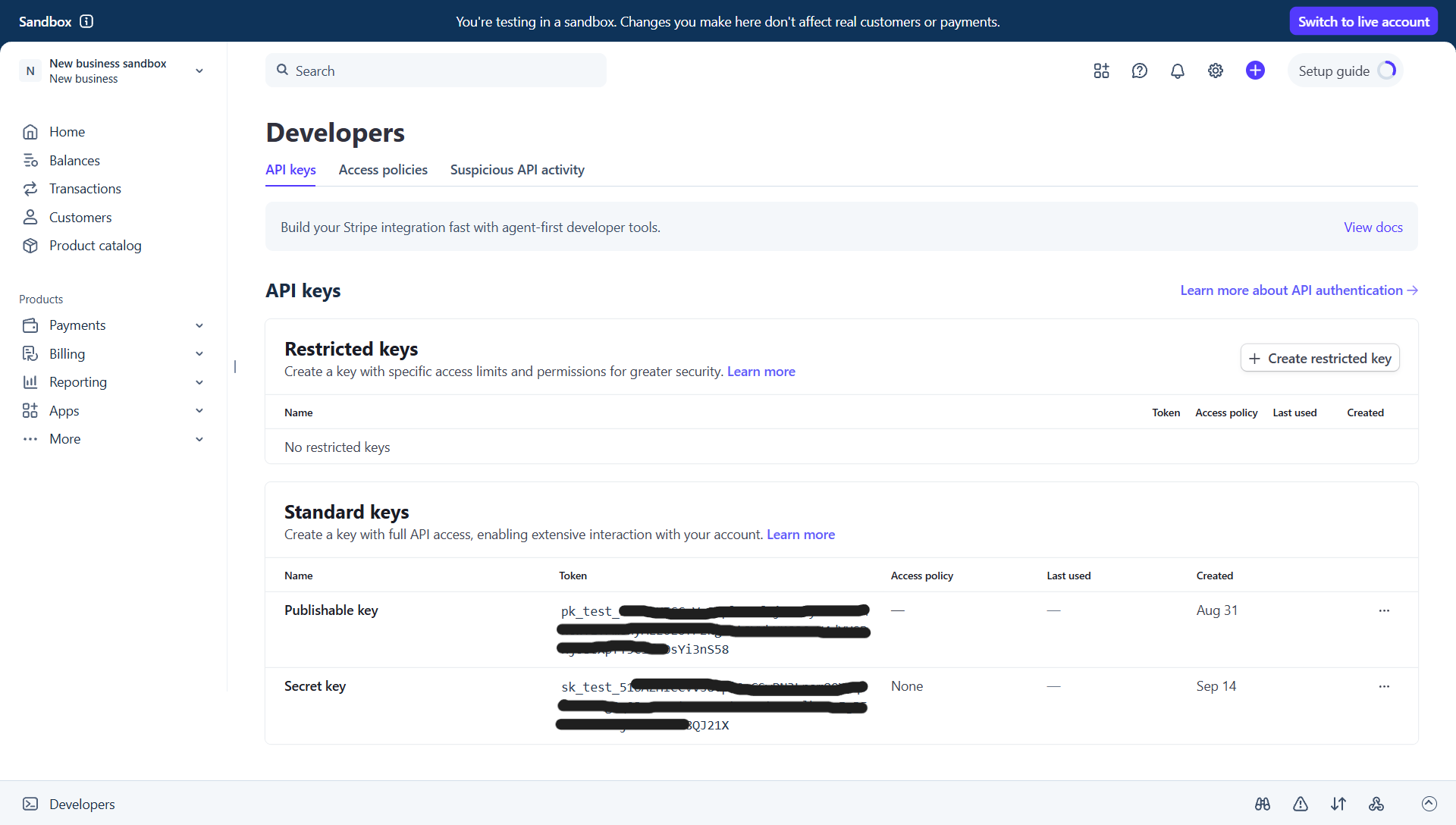
- Log in to your Stripe Dashboard and ensure Test Mode (or Production) is selected.
- In the right-hand API keys panel (or under Developers → API keys), copy your Secret key (starts with
sk_test_...orsk_live_...).
2. Configure Credentials in Salesforce Setup
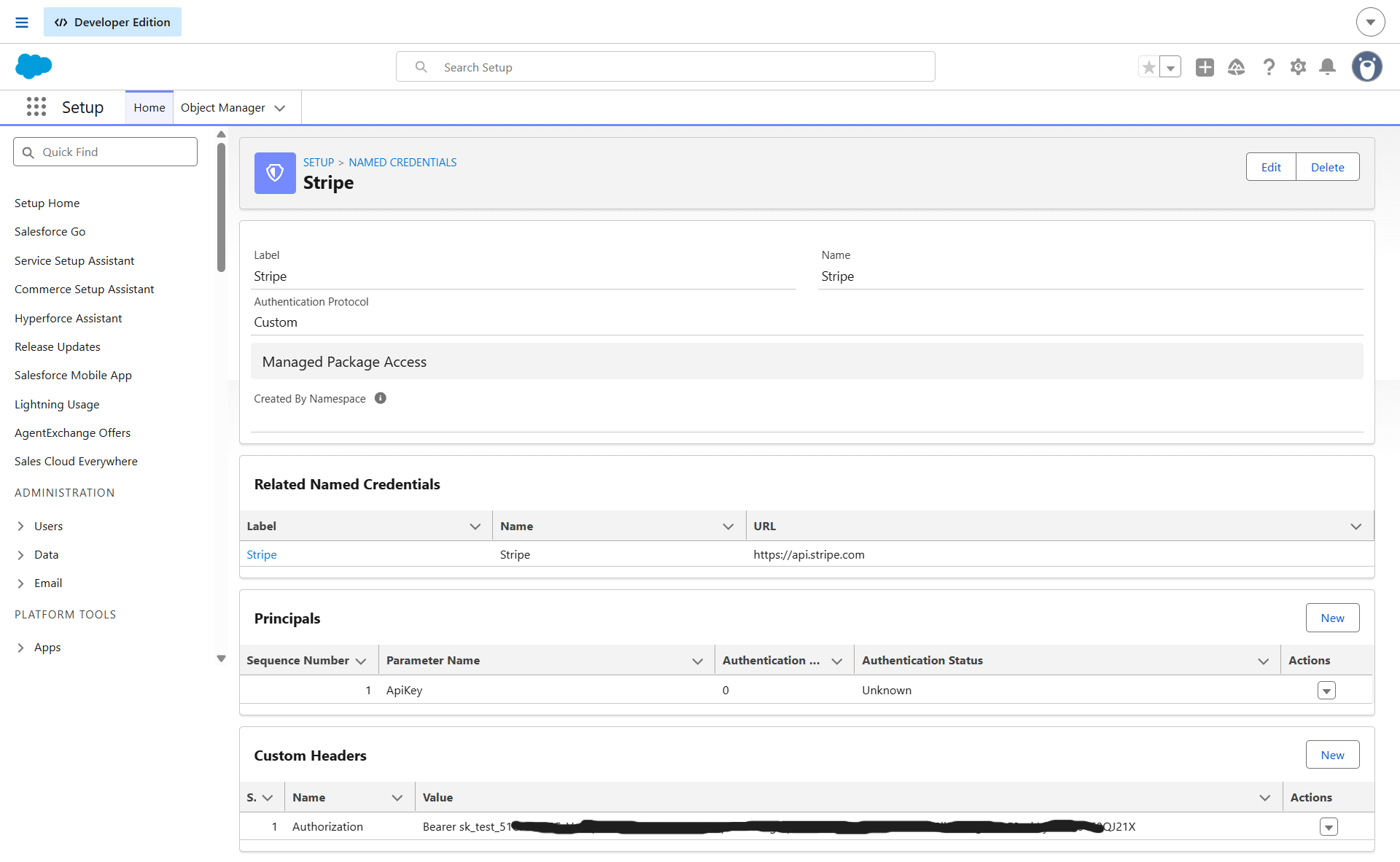
2.1 Create the External Credential
- In Salesforce, go to Setup (gear icon ⚙️ → Setup).
- In Quick Find, enter Named Credentials and select Named Credentials.
- Click the External Credentials tab → click New:
- Label:
Stripe - Name:
Stripe - Authentication Protocol:
Custom - Click Save.
- Label:
- Under Principals, click New:
- Parameter Name:
ApiKey - Sequence:
1 - Click Save.
- Parameter Name:
- Under Custom Headers, click New:
- Name:
Authorization - Value:
Bearer YOUR_STRIPE_SECRET_KEY(replace with your real secret key, e.g.Bearer sk_test_51...) - Sequence Number:
1 - Click Save.
- Name:
2.2 Create the Named Credential
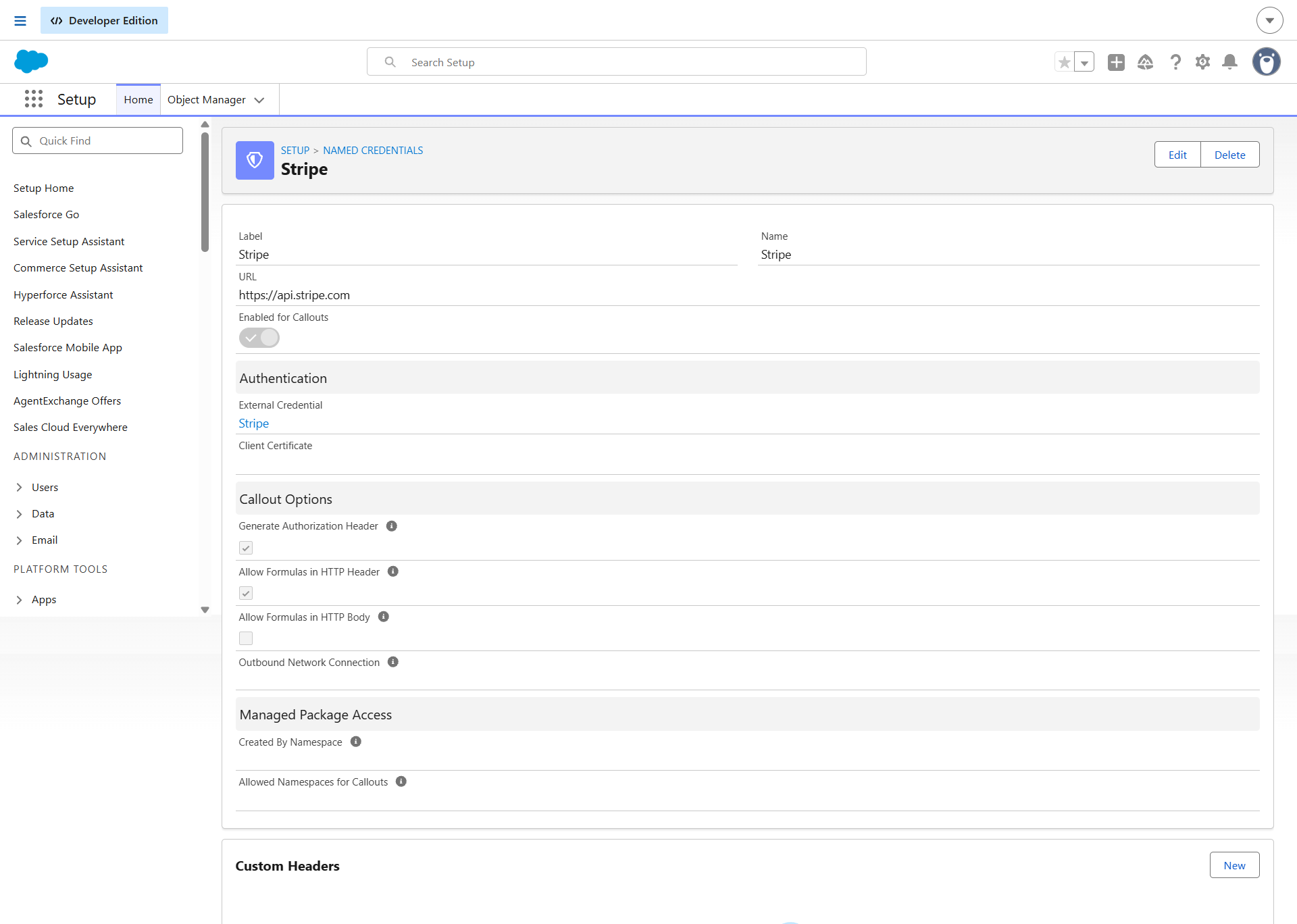
- Click the Named Credentials tab (next to External Credentials) → click New:
- Label:
Stripe - Name:
Stripe - URL:
https://api.stripe.com - External Credential: Select
Stripe - Generate Authorization Header: Leave Unchecked (handled by custom header above)
- Allow Formulas in HTTP Header: Checked
- Label:
- Click Save.
3. Assign Permission Set Access
- In Salesforce Setup, enter Permission Sets in Quick Find.
- Select Integration Admin (or
Appcolab Grid Admin). - Click External Credential Principal Access → click Edit.
- Add
Stripe - ApiKeyto Enabled External Credential Principals. - Click Save and verify the permission set is assigned to your Salesforce users.
Use Case 1: Embedded Child Grids on Contacts & Accounts
AppColab Grid supports dynamic parent-child matching. When placed on a Contact or Account record page, the grid automatically filters Stripe records to show only those belonging to the current customer.
Option A: Matching by Contact Email (Zero Schema Changes)
Match Stripe invoices, charges, or payment intents to the Salesforce Contact’s standard Email field.
{
  "resource": "charges",
  "parentMatchColumn": "customer_email",
  "parentMatchField": "Email"
}
- For
charges:customer_emailautomatically checks the charge’s billing email first, falling back to receipt email. - For
payment_intents: use"parentMatchColumn": "receipt_email". - For
invoices: use"parentMatchColumn": "customer_email". - Matching is case-insensitive (e.g.
ALICE@TEST.COMmatchesalice@test.com). - If the Salesforce Contact has no email, the grid gracefully displays 0 records.
Option B: Matching by Stripe Customer ID (High Volume Recommended)
If your Salesforce Contact or Account stores the Stripe Customer ID (e.g. Stripe_Customer_Id__c or Department):
{
  "resource": "charges",
  "parentMatchColumn": "customer",
  "parentMatchField": "Stripe_Customer_Id__c"
}
- Stripe Server-Side Filtering: Passes
&customer=cus_...directly to Stripe’s API. Stripe handles the filtering on its servers, providing instant performance without paging through unrelated records. - Works seamlessly across
charges,invoices,subscriptions, andpayment_intents.
Use Case 2: Standalone Management Grids
Create full-page operational views across your entire Stripe workspace.
1. Stripe Customer Accounts
{
  "resource": "customers"
}
- Supported Actions: Full CRUD (Search, View, Inline Edit Name/Email/Phone/Currency, Add New Customer, Delete Customer).
2. Active Subscriptions Ledger
{
  "resource": "subscriptions"
}
- View subscription tiers, recurring amounts, billing periods, and cancellation statuses with real-time search and CSV export.
3. Payment Intents & Transactions
{
  "resource": "payment_intents"
}
- Displays authorization status, amount received, currency, customer ID, and receipt email with automatic decimal conversion (e.g.
2500cents rendered as$25.00).
Supported Stripe Resources
| Resource | Supported Actions | Available Columns |
|---|---|---|
customers |
View, Search, Inline Edit, Add Customer, Delete | Customer ID, Name, Email, Phone, Currency, Balance, Delinquent, Created |
invoices |
View, Search, Filter, Export | Invoice Number, Customer ID, Name, Email, Total Amount, Amount Due, Status, Due Date, Created |
subscriptions |
View, Search, Filter, Export | Subscription ID, Customer ID, Plan, Status, Period Start, Period End, Cancel at Period End, Created |
charges |
View, Search, Filter, Export | Charge ID, Amount, Currency, Status, Customer ID, Customer Email, Description, Paid, Refunded, Created |
payment_intents |
View, Search, Filter, Export | Payment Intent ID, Amount, Amount Received, Currency, Status, Customer ID, Receipt Email, Description, Created |
Troubleshooting & Common Gotchas
401 Unauthorized: Invalid API Key provided: Verify that your Stripe secret key starts withsk_test_orsk_live_and has no trailing whitespace.- 0 records returned on contextual grids (e.g. Invoices): When using a child or contextual grid configured to match parent records by customer email, opening the grid in standalone preview without a parent Contact ID returns 0 rows by design. Embed the grid on a Contact record page with an email address to view related Stripe records.
User doesn't have access to the external credential principal: Assign theIntegration Admin(orStripe_Integration) permission set to your Salesforce user.