
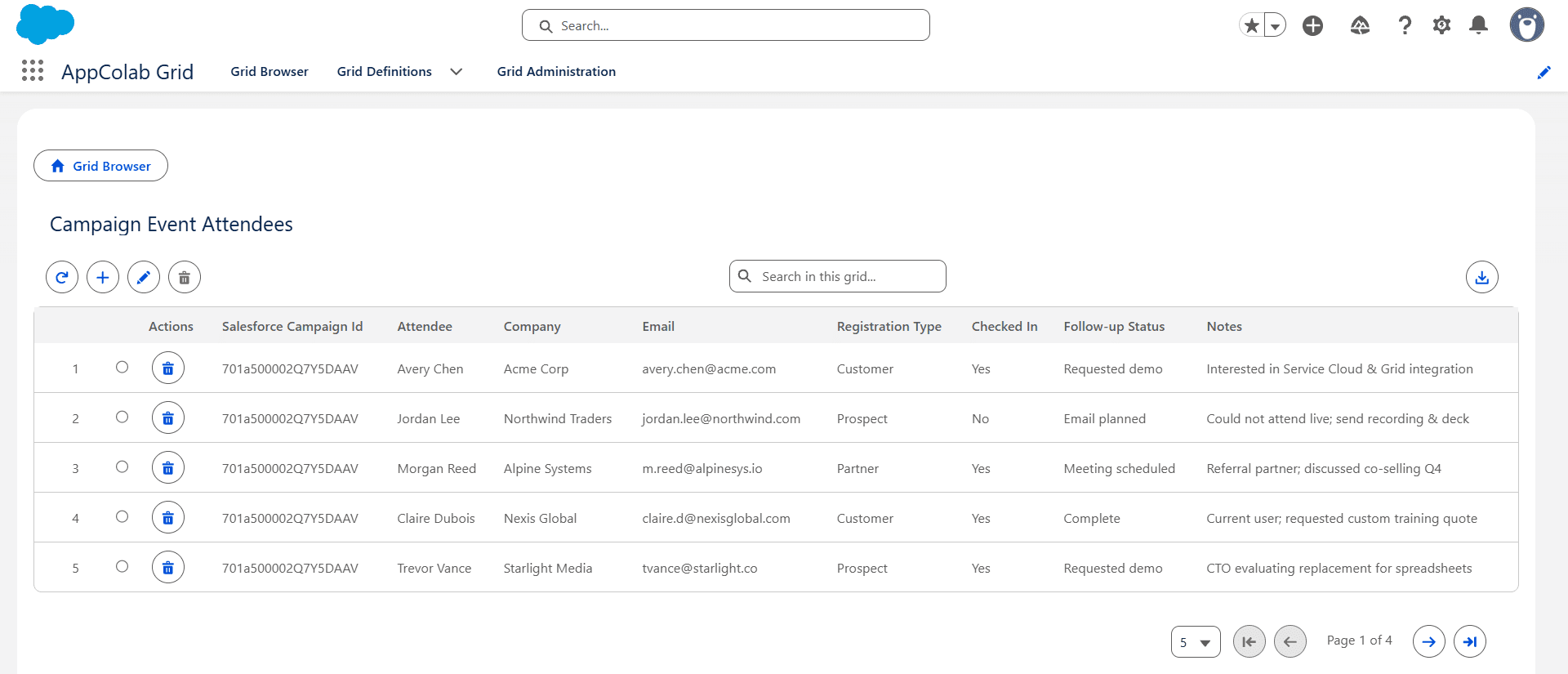
Event data tends to arrive in spreadsheets.
The registration platform exports a file. The event agency adds check-in information. Field marketing adds notes. Sales asks who attended, who requested a demo, and which names need follow-up. Meanwhile, Salesforce contains the Campaign that is supposed to bring all of that activity together.
Importing every working row into Salesforce immediately can create duplicate Leads, incomplete Campaign Members, and a cleanup project before the event has even finished. Leaving the data only in Google Sheets forces Salesforce users to switch tabs and work without Campaign context.
This walkthrough uses AppColab Grid to display and update the Google Sheet inside Salesforce while keeping each attendee related to the correct Salesforce Campaign.
The same Grid Definition can provide:
- a complete attendee operations workspace across events;
- the attendees for the Campaign currently open;
- attendee rows nested beneath Campaigns in a Salesforce grid.
Who this is for: Salesforce admins, field-marketing teams, event managers, and sales operations teams that receive registration or attendance data through Google Sheets.
The event-attendee sheet
Suppose an event agency maintains this Google Sheet:
| Salesforce Campaign Id | Attendee | Company | Registration Type | Checked In | Follow-up Status | Notes | |
|---|---|---|---|---|---|---|---|
701... |
Avery Chen | Acme | avery@example.com | Customer | Yes | Requested demo | Interested in Service Cloud |
701... |
Jordan Lee | Northwind | jordan@example.com | Prospect | No | Email planned | Could not attend live |
701... |
Morgan Reed | Alpine | morgan@example.com | Partner | Yes | Complete | Referral partner |
Salesforce Campaign Id is the relationship between a sheet row and a Salesforce Campaign. The agency can continue using the familiar sheet while Salesforce users see the same operational data in AppColab Grid.
Changes made through the grid write back to Google Sheets. Changes made in Google Sheets appear in Salesforce the next time the grid loads or the user clicks Refresh.
Where this pattern fits
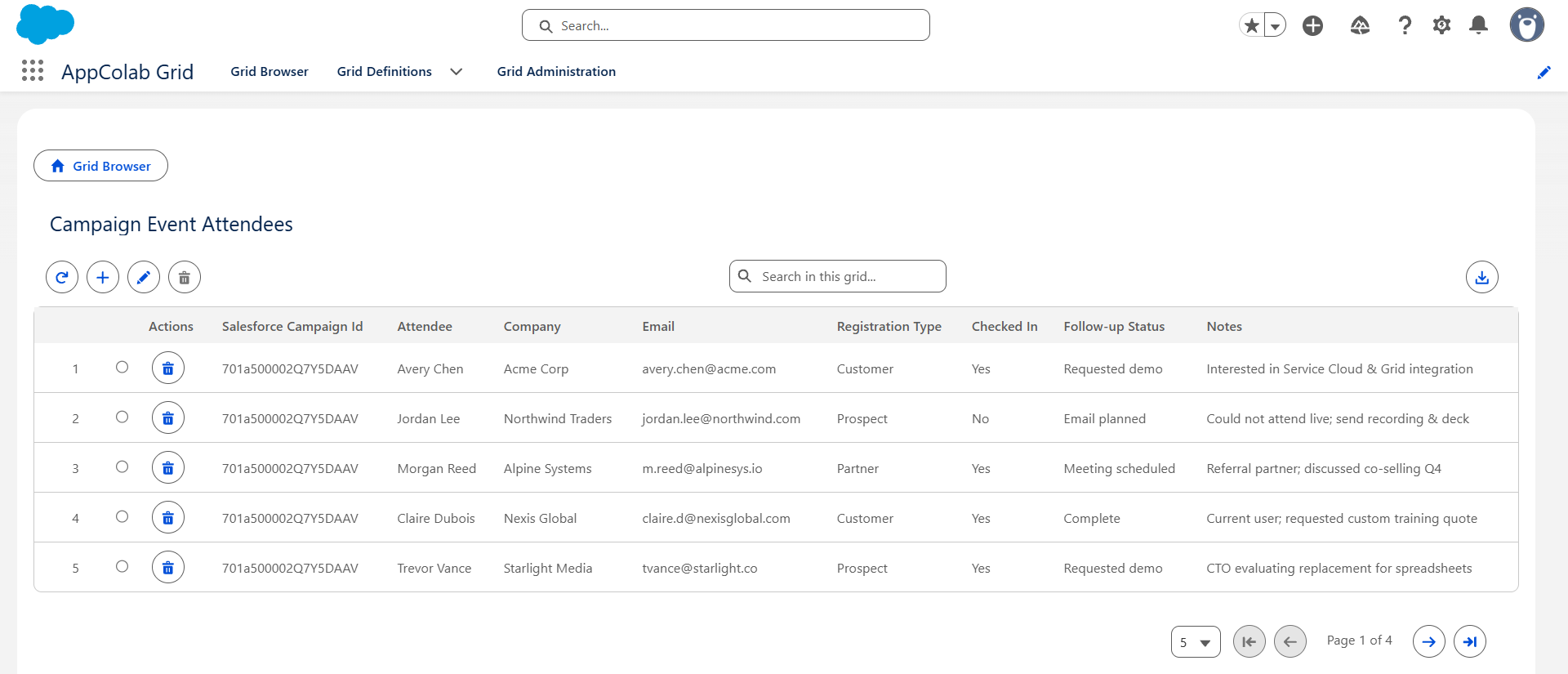
An attendee sheet and Salesforce Campaign Members serve different purposes.
The sheet is useful during registration and event operations, when rows may still be incomplete, duplicated, or owned by an outside agency. Salesforce Campaign Members are the better destination once a person should participate in CRM reporting, attribution, consent processes, lead routing, or sales automation.
This pattern creates a useful staging period:
- The event team manages registration and attendance in Google Sheets.
- Salesforce users review the working data beside the Campaign.
- Marketing decides which people should become or update Leads, Contacts, and Campaign Members through its established import or automation process.
The grid does not silently turn sheet rows into CRM records. It gives the Salesforce team visibility and a place to update the operational source while that decision is being made.
Step 1: Prepare the sheet for Campaign context
Create an Event Attendees tab and put the column headers in row 1. Include this exact header:
Salesforce Campaign Id
Populate the column with the related Campaign ID for each existing row. Use the same sheet for several events if you want the complete portfolio view; the Campaign ID is what lets the provider select the correct rows later.
If the agency should work with an event code instead of a Salesforce ID, add a corresponding field such as Event_Code__c to Campaign and use Event Code as the sheet match column. The provider can resolve that accessible Campaign field before matching the sheet rows.
Keep personal data to what the event workflow actually needs. Anyone who can use the integration principal may be able to see data returned from the connected sheet, subject to the grid and page access you configure in Salesforce.
Step 2: Reuse the Google Sheets connection
If Salesforce is not connected to Google Sheets yet, follow the Google Sheets authentication setup.
That guide covers the Google OAuth application, Salesforce Auth Provider, External Credential, Named Credential, authentication, and principal access. The event use case does not require a separate authentication design.
The integration uses the Google account authorized as the Salesforce Named Principal. Share the spreadsheet with that account and grant External Credential principal access only to the Salesforce users who should use the attendee grid.
Step 3: Create the attendee Grid Definition
Create a Grid Definition with values such as:
- Name:
Campaign_Event_Attendees_Google_Sheet - Label:
Event Attendees - Data Provider Class:
GoogleSheetsGridDataProvider - Parent Relationship Field:
Salesforce Campaign Id - Is Active: checked
Use this Data Provider Configuration:
{
  "spreadsheetId": "YOUR_SPREADSHEET_ID",
  "sheetName": "Event Attendees",
  "headerRow": 1,
  "parentMatchColumn": "Salesforce Campaign Id",
  "parentMatchField": "Id",
  "autoPopulateParent": true
}
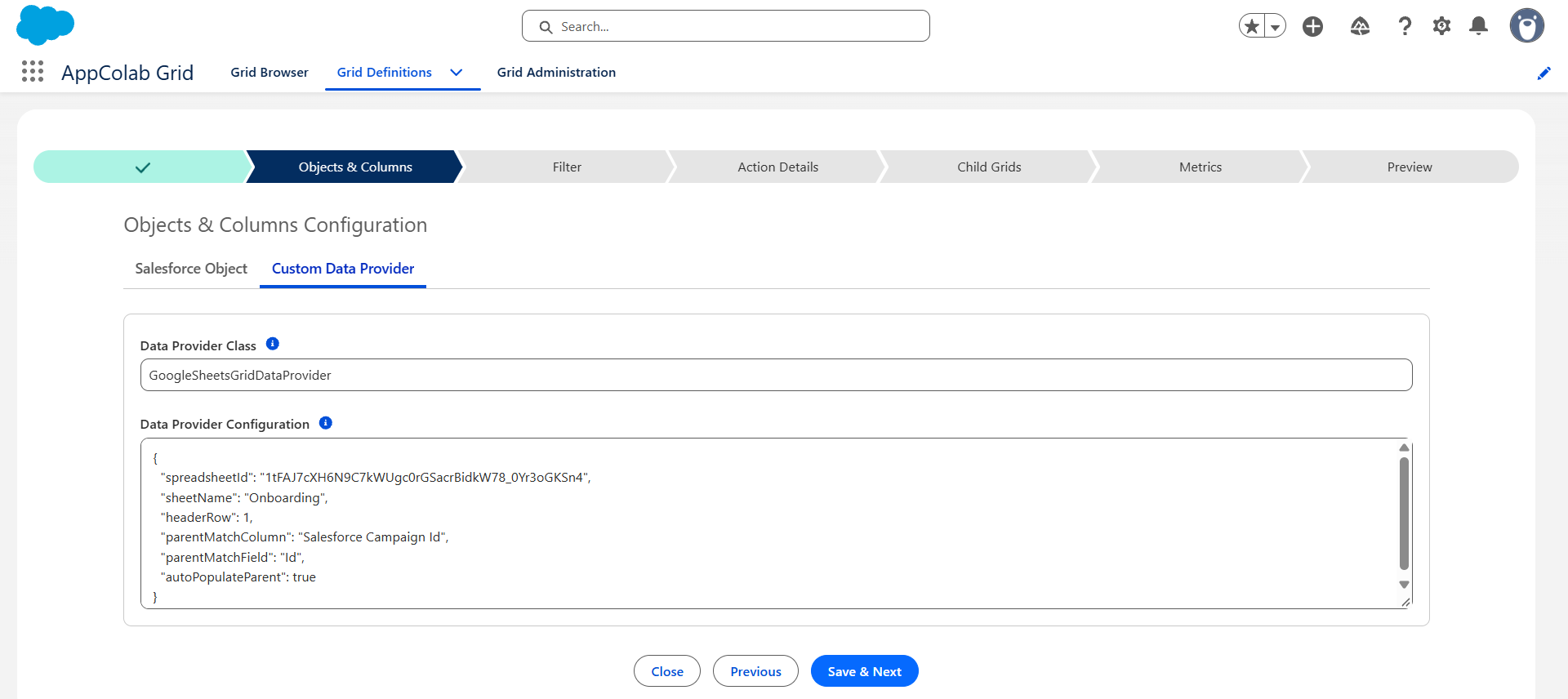
The behavior depends on where the grid is displayed:
- Without a Salesforce parent record, it returns the complete sheet.
- With Campaign record context, it returns only matching attendees.
- When a user adds a row in Campaign context, it fills
Salesforce Campaign Idautomatically. - The match column is read-only in Campaign context so the row cannot accidentally be reassigned while editing other fields.
If the sheet uses an event code, configure the match like this:
{
  "parentMatchColumn": "Event Code",
  "parentMatchField": "Event_Code__c",
  "autoPopulateParent": true
}
See the Google Sheets Grid Integration guide for the complete configuration reference.
View 1: One event-operations workspace
Place Campaign_Event_Attendees_Google_Sheet on a Lightning app page for field marketing.
An app page has no Campaign record context, so the grid displays attendees across every Campaign represented in the sheet. This is useful during a busy event season when the same team is coordinating several conferences, webinars, and customer dinners.
The team can search for a person or company, update check-in and follow-up values, add a late registrant, remove a test row, refresh after the agency makes changes, and download the sheet data as CSV.
For a quick connection test, change Follow-up Status in Salesforce, save the grid, and show the updated cell in Google Sheets.
View 2: Attendees on the Campaign record page
Place the same Grid Definition directly on the Salesforce Campaign record page:
- Open a Campaign and select Setup gear → Edit Page.
- Drag Appcolab Grid onto the page.
- Set Grid Definition Name to
Campaign_Event_Attendees_Google_Sheet. - Save and activate the page.
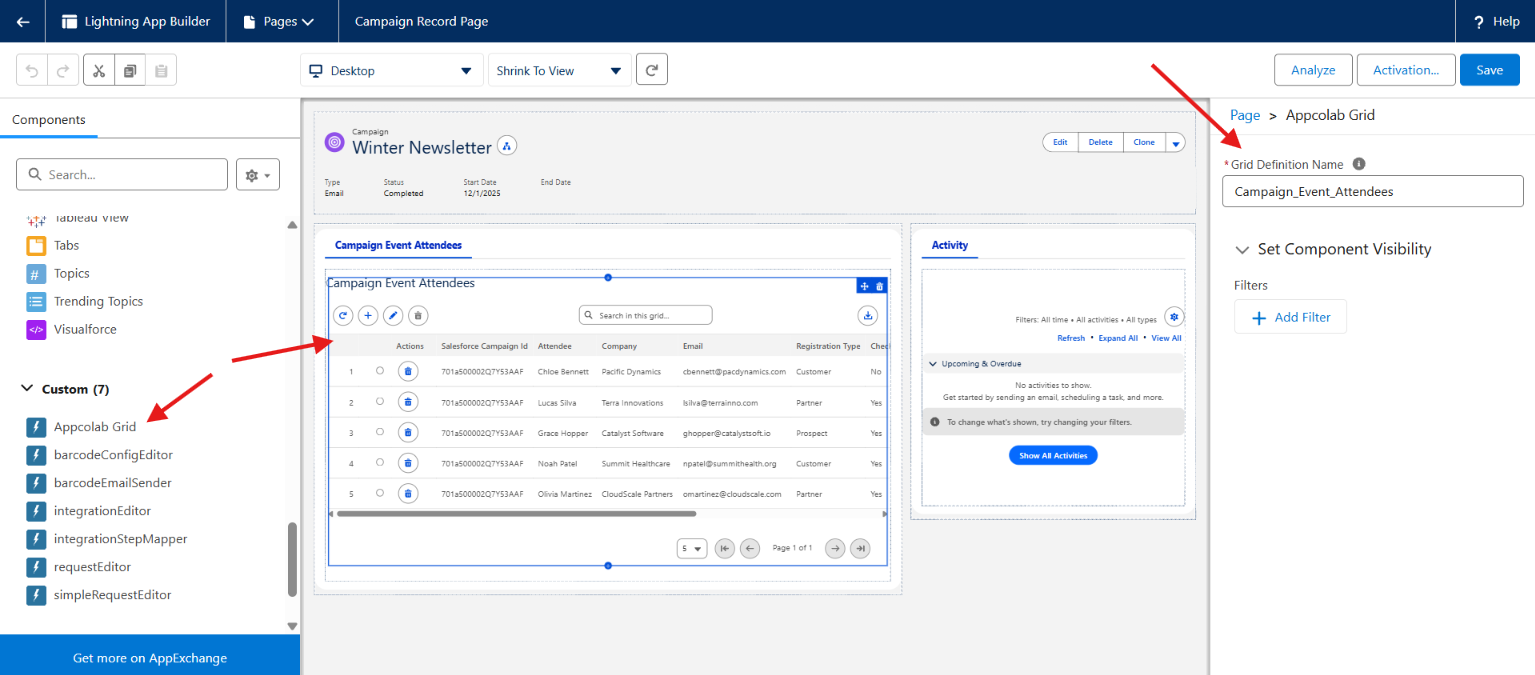
The record page passes its Campaign ID to the provider. A webinar Campaign shows webinar registrants; a conference Campaign shows conference attendees. Both can use the same spreadsheet and Grid Definition.
If a walk-in attendee needs to be recorded, click Add Row from the Campaign page. AppColab Grid fills the Campaign ID, and the user enters the attendee and follow-up details. Saving appends the row to Google Sheets.
This view works well for a marketer preparing a Campaign recap or a sales manager reviewing the people associated with one event.
View 3: Attendees beneath a Salesforce Campaign grid
For a portfolio view, create a Salesforce Campaign grid and attach the attendee Grid Definition as a child:
- Open the Salesforce Campaign Grid Definition.
- Go to Child Grids.
- Add
Campaign_Event_Attendees_Google_Sheetwith the labelEvent Attendees. - Save and open the Campaign grid.
- Expand a Campaign row to load its matching sheet rows.
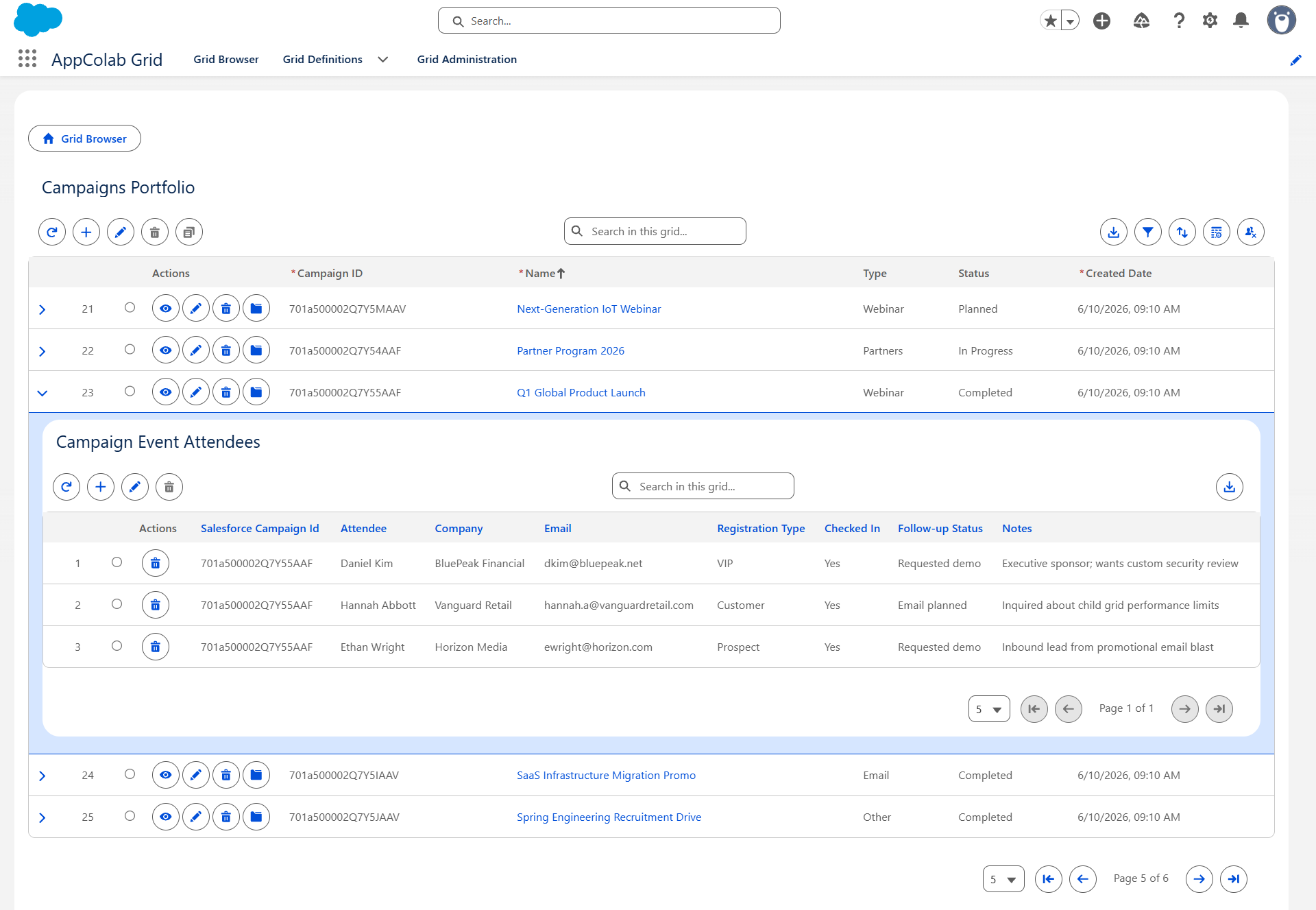
The parent can show Salesforce fields such as Campaign Name, Type, Status, Start Date, Owner, Budgeted Cost, and Number of Responses. The child grid supplies the operational detail still maintained by the event team.
This gives a field-marketing leader a compact review workflow: scan Campaign performance in Salesforce, then expand only the events whose attendee or follow-up details need attention.
A focused demonstration
The following sequence shows the use case in a few minutes:
- Open the field-marketing app page and show attendees from several events.
- Search for a company and change one row to
Requested demo. - Open Google Sheets and show that the status changed.
- Add an agency note directly in the sheet.
- Return to the matching Salesforce Campaign and refresh the attendee grid.
- Add a walk-in attendee from the Campaign page and show that the Campaign ID was populated automatically.
- Open the Salesforce Campaign grid and expand two Campaigns to show different attendee rows beneath each one.
The audience sees a single sheet support both broad event operations and precise Salesforce record context without an import between each step.
Operational and data considerations
The sample Google Sheets provider reads the sheet’s used range and treats discovered columns as text. It is suited to working attendee lists; very large datasets or requirements for typed date, number, and picklist behavior may justify a more specialized provider.
Rows are identified by their current Google Sheets row number. Avoid sorting, inserting, or deleting sheet rows while another user has unsaved grid edits, because structural changes can move those row numbers.
Treat attendee names, emails, notes, and consent-related values according to your organization’s privacy and retention policies. The Google account behind the Named Principal controls spreadsheet access, while Salesforce permission assignments control who can invoke that credential.
When an attendee becomes part of the durable CRM process, create or update the appropriate Lead or Contact and Campaign Member. Keep Google Sheets focused on event operations and Salesforce focused on customer history, attribution, automation, and governed follow-up.
Put event data beside the Campaign
AppColab Grid lets an agency or event team continue working in Google Sheets while Salesforce users review and update the same data where Campaign decisions happen.
Start with the complete attendee workspace, then reuse the Grid Definition on Campaign pages and beneath a Salesforce Campaign grid.
Install AppColab Grid from Salesforce AppExchange and follow the Google Sheets Grid Integration guide to connect the spreadsheet.
For another parent-aware example, see How to show a live Google Sheets customer onboarding tracker in Salesforce.