
IT hardware management and employee asset provisioning almost never live neatly in a single platform.
The IT procurement team, warehouse technicians, and hardware depot managers live in Microsoft Excel. It is fast, universal, supports rapid barcode scanner inputs, and allows bulk updates across hundreds of laptops, monitors, and peripherals without paying for expensive CRM platform licenses.
Meanwhile, HR business partners, department heads, and IT service desk agents live in Salesforce. They manage employee Contact records, onboarding cases, role transitions, and offboarding checklists.
That disconnect creates daily friction:
- IT coordinators constantly juggle browser tabs between Excel Online and Salesforce;
- Service desk agents waste time copying serial numbers and warranty dates from spreadsheets into case comments;
- Or teams attempt to build custom
Asset__cobjects in Salesforce, creating yet another cumbersome nightly ETL pipeline that is prone to sync failures and data drift.
This walkthrough demonstrates how to use AppColab Grid to keep Microsoft Excel Online (hosted in OneDrive or SharePoint) as the single source of truth, while providing live, two-way hardware management inside Salesforce in three powerful ways:
- The complete company-wide hardware inventory on an IT Operations app page;
- Employee-scoped hardware provisioning on the Contact record page;
- Nested hardware asset grids beneath Salesforce employee lists.
Edits made in Salesforce write directly back to Microsoft Excel via the Microsoft Graph API. Changes in Excel Online reflect immediately in Salesforce upon refresh. Zero duplicate rows are stored in Salesforce database storage.
Who this is for: Salesforce admins, enterprise architects, IT operations leaders, and HR tech teams managing hardware procurement and employee provisioning across Microsoft 365 and Salesforce.
The IT provisioning scenario
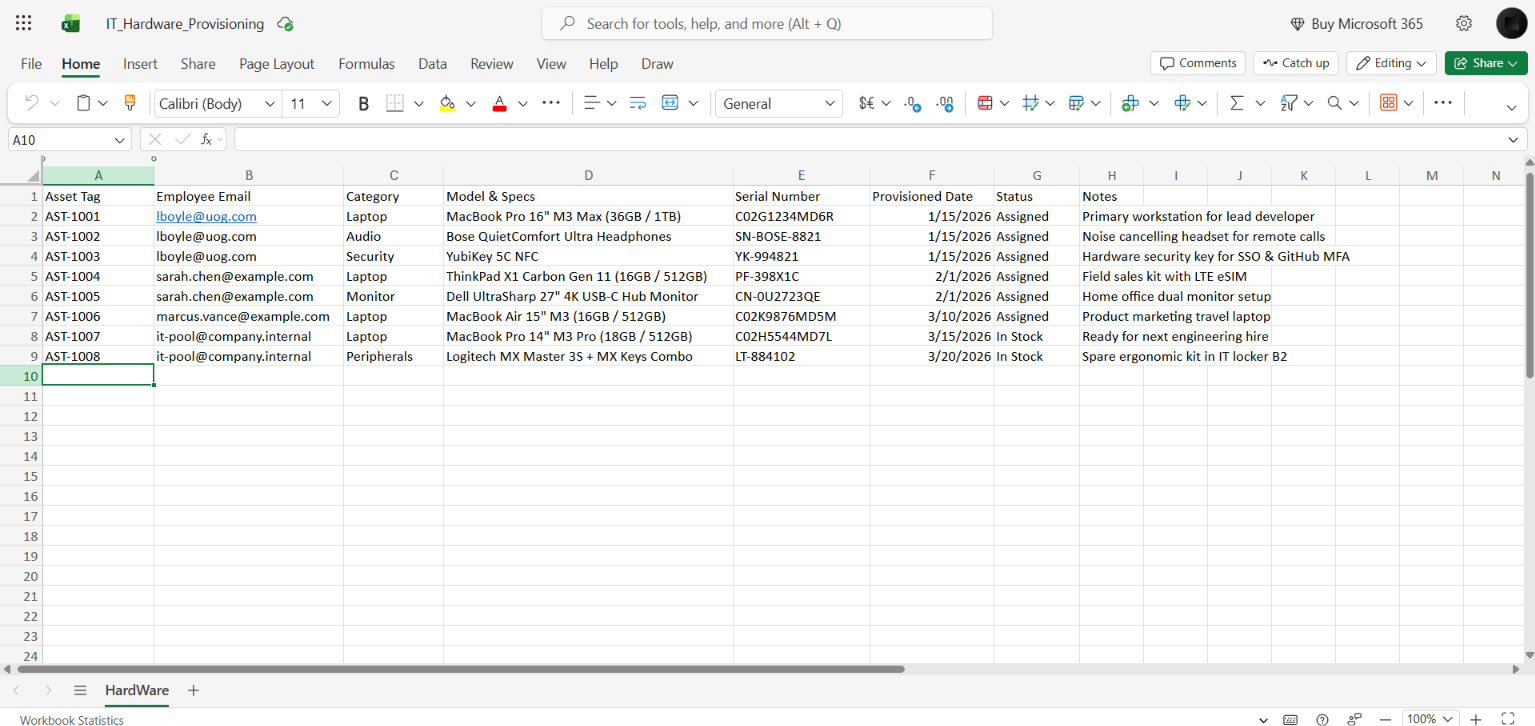
Consider an IT infrastructure team tracking equipment in an Excel workbook named IT_Hardware_Provisioning.xlsx:
| Asset Tag | Employee Email | Category | Model & Specs | Serial Number | Provisioned Date | Status | Notes |
|---|---|---|---|---|---|---|---|
AST-1001 |
lboyle@uog.com |
Laptop | MacBook Pro 16" M3 Max (36GB / 1TB) | C02G1234MD6R |
2026-01-15 | Assigned | Primary workstation for technology leader |
AST-1002 |
lboyle@uog.com |
Audio | Bose QuietComfort Ultra Headphones | SN-BOSE-8821 |
2026-01-15 | Assigned | Noise-cancelling headset for remote calls |
AST-1003 |
lboyle@uog.com |
Security | YubiKey 5C NFC | YK-994821 |
2026-01-15 | Assigned | Hardware security key for SSO & GitHub MFA |
AST-1004 |
sarah.chen@example.com |
Laptop | ThinkPad X1 Carbon Gen 11 (16GB / 512GB) | PF-398X1C |
2026-02-01 | Assigned | Field sales kit with LTE eSIM |
AST-1005 |
sarah.chen@example.com |
Monitor | Dell UltraSharp 27" 4K USB-C Hub Monitor | CN-0U2723QE |
2026-02-01 | Assigned | Home office dual monitor setup |
AST-1006 |
marcus.vance@example.com |
Laptop | MacBook Air 15" M3 (16GB / 512GB) | C02K9876MD5M |
2026-03-10 | Assigned | Product marketing travel laptop |
AST-1007 |
it-pool@company.internal |
Laptop | MacBook Pro 14" M3 Pro (18GB / 512GB) | C02H5544MD7L |
2026-03-15 | In Stock | Ready for next engineering hire |
AST-1008 |
it-pool@company.internal |
Peripherals | Logitech MX Master 3S + MX Keys Combo | LT-884102 |
2026-03-20 | In Stock | Spare ergonomic kit in IT locker B2 |
The Employee Email column acts as the bridge connecting each hardware asset to a Salesforce Contact record (Contact.Email). The remaining columns belong to the operational IT inventory workflow.
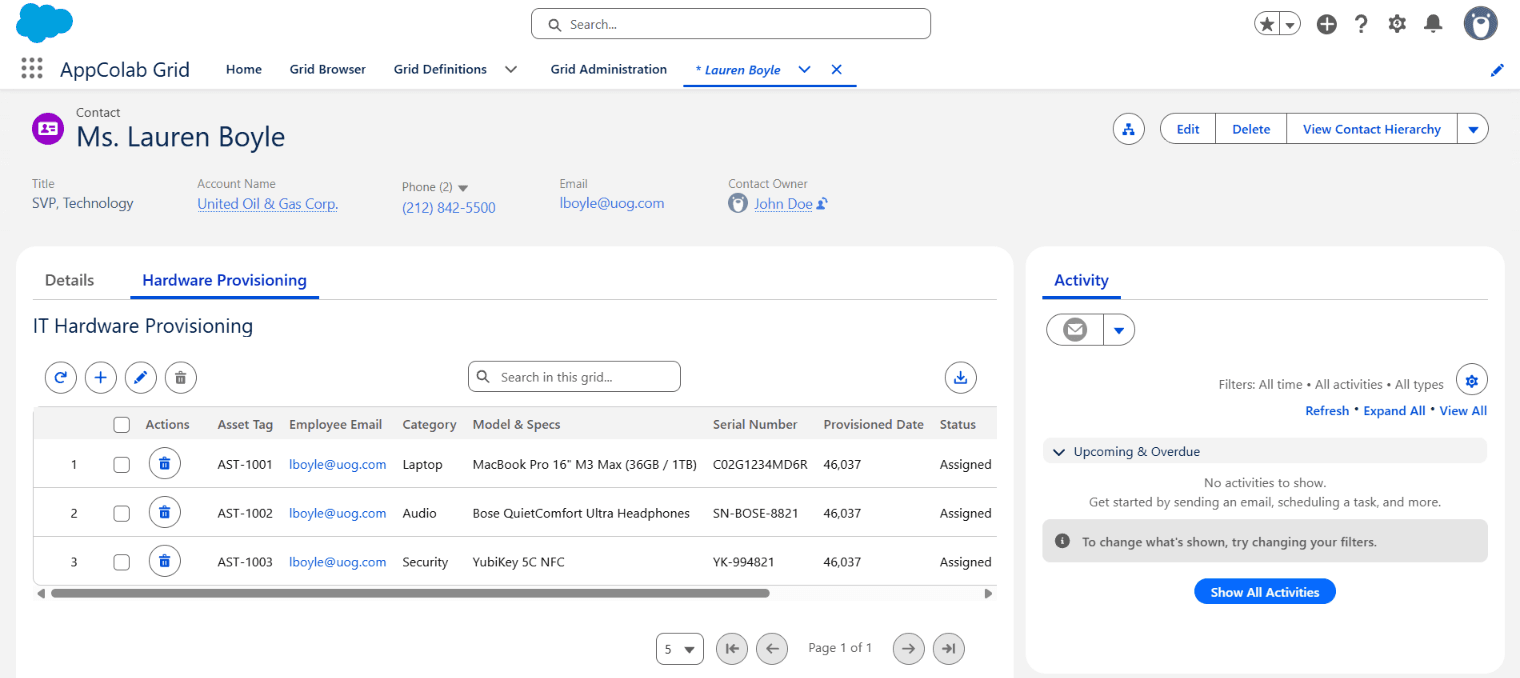
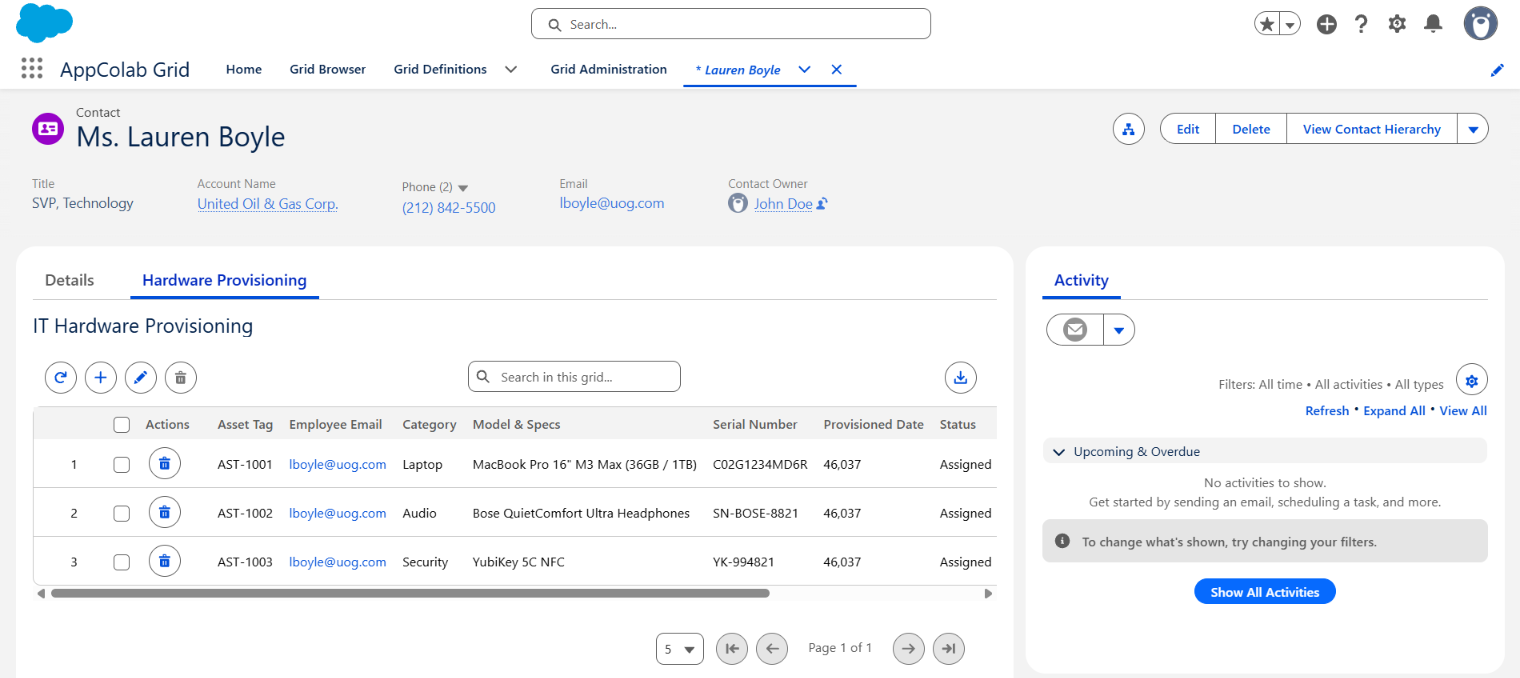
When viewing Ms. Lauren Boyle’s Contact record in Salesforce, the AppColab Grid filters dynamically to display only her provisioned hardware:
Meanwhile, the IT department continues editing the workbook directly in Microsoft Excel Online:
Why keep IT hardware inventory in Microsoft Excel?
Creating custom Salesforce objects for assets is standard practice when hardware items must participate in complex Salesforce billing, field service dispatches, or CPQ quotes.
However, keeping operational inventory in Microsoft Excel on OneDrive is often superior when:
- Procurement & depot teams do not have Salesforce licenses: External logistics contractors and IT support technicians already know Excel and work inside Microsoft 365 daily.
- Rapid bulk editing & scanning: Scanning 50 incoming laptop barcodes into an Excel column takes seconds without waiting on page loads.
- Zero Salesforce storage costs: Storing hundreds of thousands of historical asset rows, accessories, and cables doesn’t consume expensive Salesforce data storage.
- No integration drift: Instead of synchronizing spreadsheets through batch scripts or middleware, Salesforce queries the live workbook on demand and patches cell values directly.
AppColab Grid bridges these two worlds. It discovers the table headers dynamically, provides full search, inline editing, new row creation, row deletion, and CSV export directly within the native Salesforce Lightning Experience.
Step 1: Prepare the Microsoft Excel workbook in OneDrive
- In Microsoft 365 or OneDrive, create a workbook named
IT_Hardware_Provisioning.xlsx. - Name the worksheet tab
Hardware. - Place your column headers in Row 1:
Asset Tag | Employee Email | Category | Model & Specs | Serial Number | Provisioned Date | Status | Notes - Populate your inventory rows. For assigned devices, enter the employee’s work email address matching their Salesforce Contact record (e.g.
lboyle@uog.com). For unassigned depot inventory, use an internal pool identifier such asit-pool@company.internalwith statusIn Stock.
Naming Tip: In Excel Online, the file title at the top left automatically appends the
.xlsxextension. EnterIT_Hardware_Provisioningwithout typing.xlsxto avoid saving the file as.xlsx.xlsx.
Step 2: Connect Salesforce to Microsoft Graph API
Connecting Salesforce to OneDrive uses the native Salesforce Named Credentials infrastructure:
- Azure App Registration: Register an application in Microsoft Entra ID (Azure AD) with the delegated permissions:
Files.ReadWrite(read and write files in OneDrive/SharePoint)offline_access(refresh tokens)
- Salesforce Auth Provider: Create an Auth Provider (
Microsoft_OAuth) using the Microsoft Identity Platform endpoints. - Named Credential: Configure a Named Credential named
Excelpointing tohttps://graph.microsoft.comusing theOAuth 2.0authentication protocol with token refresh enabled. - Integration Setting: Create an
Integration_Setting__mdtrecord namedExcelwithAuth_Type__c = NAMED_CREDENTIALandNamed_Credential__c = Excel.
Once authenticated, any Salesforce user granted the Appcolab_Grid_Admin or Integration_Admin permission set can securely query and update workbooks via the Microsoft Graph API.
Need help with setup? Follow the step-by-step Microsoft Excel Grid Integration guide for full Azure Entra ID and Named Credential walkthroughs.
Step 3: Create the Excel Grid Definition in Salesforce
In the AppColab Grid app, navigate to the Grid Definitions tab and click New Grid Definition:
- Grid Identifier:
IT_Hardware_Provisioning_Grid - Grid Label:
IT Hardware Provisioning - Data Provider Class:
ExcelGridDataProvider - Pagination Type:
Server-Side - Page Size:
10 - Is Active: Checked
Set the Data Provider Configuration JSON:
{
  "filePath": "/IT_Hardware_Provisioning.xlsx",
  "sheetName": "Hardware",
  "headerRow": 1,
  "parentMatchColumn": "Employee Email",
  "parentMatchField": "Email",
  "autoPopulateParent": true
}
How the configuration works:
filePath: The path to the workbook in the authorized user’s OneDrive root (/IT_Hardware_Provisioning.xlsx), or the OneDrive Drive Item ID (69E023394BB8FDAE!s012...).sheetName: The worksheet tab to read (Hardware).headerRow: Row number containing column labels (Row1).parentMatchColumn: The column in Excel used to filter records (Employee Email).parentMatchField: The field on the Salesforce parent record to compare against (Emailon Contact).autoPopulateParent: Whentrue, adding a new row while viewing an employee pre-fillsEmployee Emailautomatically!
View 1: The Master IT Hardware Command Center
Place the Grid component on a Salesforce Lightning App Page (such as an IT Asset Command Center):
- Leave the parent record context empty.
- Because there is no parent record ID,
ExcelGridDataProviderreturns the complete workbook.
IT managers and depot coordinators can:
- View all hardware across all employees and depot stock;
- Filter by category (
Laptop,Monitor,Audio,Security); - Search instantly by serial number, asset tag, or model;
- Perform inline edits on warranty dates, status, or notes;
- Export the filtered inventory view to CSV for hardware audits.
View 2: Employee-Scoped Hardware Tab on Contact Records
To give HR and IT managers instant visibility into an employee’s assigned equipment:
- Open any Contact record (for example, Ms. Lauren Boyle, SVP Technology).
- Click the Setup Gear → Edit Page to enter Lightning App Builder.
- Add a new tab labeled Hardware Provisioning.
- Drag the Appcolab Grid component into the tab.
- Set Grid Definition Name to
IT_Hardware_Provisioning_Grid. - Save and activate the page.
When Lauren Boyle’s record opens:
- AppColab Grid reads the current Contact’s
Emailfield (lboyle@uog.com). - It sends a scoped request to
ExcelGridDataProvider. - The provider queries the live Excel workbook and filters the rows where
Employee Email == 'lboyle@uog.com'. - Only her MacBook Pro 16", Bose headphones, and YubiKey are displayed.
Provisioning new equipment in seconds:
Clicking the Add (+) button directly inside the Contact’s hardware tab automatically sets Employee Email to lboyle@uog.com. The IT manager simply selects the Category, enters the model name and serial number, and clicks Save. The new row is written directly into Excel Online!
View 3: Put Excel Hardware Rows Beneath Salesforce Contacts
You can also nest this Excel grid beneath a Salesforce Contact parent grid:
- Open your master Employees Grid Definition.
- Go to Child Grids and add
IT_Hardware_Provisioning_Gridwith the child labelAssigned Hardware. - Save and open the Employees grid.
- Expand any employee row.
Each expanded employee row passes its Contact ID to the Excel provider, querying their assigned hardware on demand. Team managers can scan through an entire department and expand only those employees whose equipment needs verification.
A five-minute live demonstration
To see the real-time two-way synchronization in action:
- Check Live Scope: Open Contact Ms. Lauren Boyle in Salesforce. Navigate to her Hardware Provisioning tab to see her 3 assigned devices.
- Issue New Hardware in Salesforce: Click the Add (+) button. Enter Asset Tag
AST-1009, CategoryPeripherals, ModelApple Magic Trackpad, and SerialSN-TRK-4412. Click Save. - Verify in Microsoft Excel Online: Switch to your Excel Online tab. The new row
AST-1009appears at the bottom withlboyle@uog.comfilled in automatically. - Update Status in Excel Online: In Excel Online, change the status of row
AST-1002(Bose Headphones) fromAssignedtoPending Return. - Instant Sync in Salesforce: Return to Salesforce and click the Refresh button on the grid. Row
AST-1002updates toPending Returninstantly.
No batch sync jobs. No platform event listeners. No duplicate records.
Architecture & security considerations
- User-Mode Field Security: When resolving parent field values (like
Contact.Email), AppColab Grid enforces Salesforce user-mode security (WITH USER_MODE), ensuring users cannot access field data they lack permission to view. - Zero Data Duplication: Hardware serial numbers, procurement costs, and depot notes remain safely in Microsoft OneDrive. This saves Salesforce storage limits and keeps IT compliance centralized in Microsoft 365.
- Durable Business Keys: While you can match on Salesforce Record IDs (
003...), using standard business identifiers likeEmployee EmailorEmployee_Number__ckeeps the Excel workbook easily readable by humans working outside Salesforce. - Granular Access Control: Access to the Microsoft Graph API is governed through Salesforce External Credential Principal assignments and Permission Sets, ensuring only authorized team members can view or edit company hardware.
Connect Microsoft Excel to your Salesforce workflows
With AppColab Grid, enterprise teams no longer need to choose between the flexibility of Microsoft Excel and the governance of Salesforce. IT depot teams retain their high-speed spreadsheet workflows, while customer-facing teams and managers gain seamless, real-time access right where they work.
Install AppColab Grid from Salesforce AppExchange, and review the Microsoft Excel Grid Integration guide to start connecting Microsoft Excel, Google Sheets, Airtable, and external SQL databases directly to your Salesforce records.