
Microsoft Excel Grid Integration
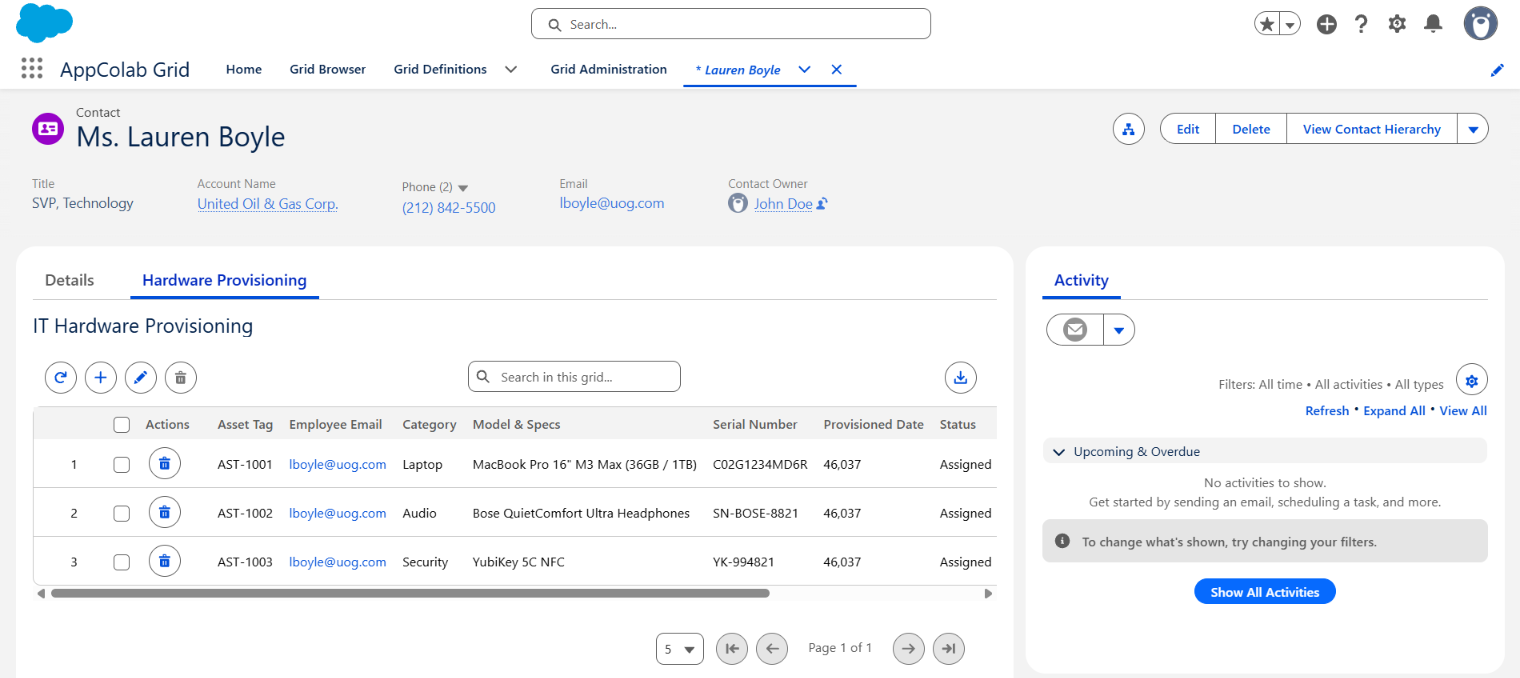
The Microsoft Excel Grid integration allows users to view, search, add, inline-edit, delete, and download rows from any Excel workbook hosted in Microsoft OneDrive or SharePoint directly inside the AppColab Grid UI—in real time via the Microsoft Graph API, without duplicating records in Salesforce storage.
What’s Deployed
| Component | Name | Purpose |
|---|---|---|
| Named Credential | Excel |
Connects to https://graph.microsoft.com via Microsoft_OAuth external authentication |
| Auth Provider | Microsoft_OAuth |
Salesforce Auth Provider connecting to Microsoft Entra ID (Azure AD) |
| CMDT Record | Integration_Setting.Excel |
Points to the Excel Named Credential with timeout and retry configuration |
| Apex Client | ExcelClient.cls |
Microsoft Graph REST client supporting getWorksheets, getUsedRange, getRange, updateRange, and deleteRowRange |
| Apex Data Provider | ExcelGridDataProvider.cls |
Implements appcg.GridDataProviderV1 & appcg.GridDataMutationProviderV1 with full CRUD and parent-aware scoping |
| Permission Set | Integration_Admin |
Grants access to the Microsoft credentials and external callouts |
One-Time Setup Guide
Connecting Microsoft Excel requires authorizing Salesforce to communicate with Microsoft Graph API.
Step 1: Configure Microsoft Entra ID (Azure AD)
- Sign in to the Microsoft Entra Admin Center or Azure Portal.
- Navigate to Identity → Applications → App registrations → click New registration:
- Name:
AppColab Salesforce Integration - Supported account types: Select Accounts in any organizational directory (Multitenant) and personal Microsoft accounts (or your specific tenant).
- Redirect URI: Select Web and paste your Salesforce Callback URL (found in Salesforce Setup → Auth. Providers →
Microsoft_OAuth→ Callback URL). - Click Register.
- Name:
- Under API Permissions → click Add a permission:
- Select Microsoft Graph → Delegated permissions.
- Add:
Files.ReadWrite(read and write user OneDrive/SharePoint files)offline_access(allow maintaining access to data via refresh token)
- Click Add permissions.
- Under Certificates & secrets → click New client secret:
- Description:
Salesforce Integration Secret - Copy the secret Value immediately.
- Description:
Step 2: Configure Salesforce Auth Provider & Named Credential
2.1 Verify Auth. Provider (Microsoft_OAuth)
- In Salesforce Setup, enter Auth. Providers in the Quick Find box.
- Ensure
Microsoft_OAuthis configured with:- Authorize Endpoint URL:
https://login.microsoftonline.com/common/oauth2/v2.0/authorize - Token Endpoint URL:
https://login.microsoftonline.com/common/oauth2/v2.0/token - Default Scopes:
Files.ReadWrite offline_access - Consumer Key: Paste your Azure Application (client) ID.
- Consumer Secret: Paste your Azure Client Secret Value.
- Authorize Endpoint URL:
2.2 Verify Named Credential (Excel)
- In Salesforce Setup, navigate to Named Credentials.
- Under the Named Credentials tab, verify
Excel:- URL:
https://graph.microsoft.com - Identity Type: Named Principal
- Authentication Protocol: OAuth 2.0
- Authentication Provider:
Microsoft_OAuth - Scope:
Files.ReadWrite offline_access - Generate Authorization Header: Checked
- URL:
- Save and authenticate the principal with your Microsoft account (Status should display Authorized).
Step 3: Assign Permission Set Access
- Setup → Permission Sets → click Integration Admin (or
Appcolab_Grid_Admin). - Ensure access to the
ExcelNamed Credential and Apex classes (ExcelClient,ExcelGridDataProvider) is granted. - Click Manage Assignments and assign the permission set to active grid users.
Creating an Excel Grid Definition
- In Salesforce, open the AppColab Grid app → navigate to the Grid Definitions tab → click New Grid Definition.
- Fill in:
- Grid Identifier:
IT_Hardware_Provisioning_Grid - Grid Label:
IT Hardware Provisioning - Is Active?: Checked
- Data Provider Class:
ExcelGridDataProvider - Pagination Type:
Server-Side - Page Size:
10 - Data Provider Configuration:
{
  "filePath": "/IT_Hardware_Provisioning.xlsx",
  "sheetName": "Hardware",
  "headerRow": 1,
  "parentMatchColumn": "Employee Email",
  "parentMatchField": "Email",
  "autoPopulateParent": true
}
- Grid Identifier:
- Click Save.
- Open the Grid Browser or place the grid on a record page to view live data!
Provider Configuration Options
| Property | Required | Default | Description |
|---|---|---|---|
filePath |
Conditional | — | Path to the workbook in OneDrive starting with / (e.g. /IT_Hardware_Provisioning.xlsx). Used if workbookId is omitted. |
workbookId |
Conditional | — | The OneDrive Drive Item ID (e.g. 69E023394BB8FDAE!s012...). Recommended for durable resolution regardless of file renaming or path moves. |
sheetName |
No | Sheet1 |
The worksheet tab name to read and write. |
headerRow |
No | 1 |
The one-based row number containing column headers. |
parentMatchColumn |
No | — | Exact Excel header used to relate rows to a Salesforce parent record (e.g. Employee Email or Account ID). |
parentMatchField |
No | Id |
Field on the parent Salesforce record compared with parentMatchColumn (e.g. Email on Contact, or Id on Account). |
autoPopulateParent |
No | false |
When true, clicking + Add Row from a parent record pre-populates parentMatchColumn with the parent field value, and makes that column read-only in context. |
Scope Excel Rows to a Salesforce Record
To display only rows related to the current Salesforce record:
- Add a column in your Excel sheet matching
parentMatchColumn(e.g.Employee Email). - Populate that column with the corresponding parent record value (e.g. employee email address).
- In Lightning App Builder:
- Drag Appcolab Grid onto the parent record page (e.g. Contact Record Page).
- Set Grid Definition Name to
IT_Hardware_Provisioning_Grid. - Save and activate.
When opened on an employee’s Contact record, AppColab Grid queries Microsoft Graph API and filters rows where Employee Email matches Contact.Email.
Supported Grid Features
| Feature | Provider Implementation | How It Works |
|---|---|---|
| Dynamic Headers | getUsedRange() |
Discovers column names from headerRow (Row 1) automatically |
| Search | In-Memory Filter | Full-text search across all workbook columns in real time |
| Inline Edit | updateRange() |
Cell edits write back directly to the exact Excel range address (e.g. Hardware!B2:B4) |
| Add Row | updateRange() |
Appends new records to the next available row below the used range |
| Delete Row | deleteRowRange() |
Deletes the specified row range and shifts cells up |
| CSV Export | AppColab Grid Core | Download filtered or complete workbook data as CSV |
Testing via Anonymous Apex
You can test the Microsoft Excel integration directly in the Developer Console (Debug → Open Execute Anonymous Window):
ExcelGridDataProvider provider = new ExcelGridDataProvider();
appcg.GridDataProviderTypesV1.ProviderContext ctx = new appcg.GridDataProviderTypesV1.ProviderContext();

// 1. Identify the Grid Definition
ctx.gridDefinitionId = [
    SELECT Id
    FROM appcg__Grid_Definition__c
    WHERE appcg__Grid_Identifier__c = 'IT_Hardware_Provisioning_Grid'
    LIMIT 1
].Id;

// Optional: Test Parent-Aware Filtering with a Contact Record ID
// ctx.parentId = '003fn000006zzphAAA';

// 2. Query Data
appcg.GridDataProviderTypesV1.QueryRequest req = new appcg.GridDataProviderTypesV1.QueryRequest();
req.context = ctx;
req.pageSize = 10;

appcg.GridDataProviderTypesV1.PageResult page = provider.getData(req);
System.debug('Total Rows: ' + page.totalCount);
for (Object r : page.records) {
    System.debug('Row: ' + JSON.serialize(r));
}
Troubleshooting
HTTP 404 Not Found:- In Excel Online, typing
.xlsxin the title bar causes Excel to name the filefilename.xlsx.xlsx. Rename the file in Excel Online to omit the extension. - Or use the explicit
workbookId(Drive Item ID) in your Data Provider Configuration.
- In Excel Online, typing
401 / 403 AuthenticationException:- The Microsoft OAuth token expired or lacks
Files.ReadWritepermissions. Re-authenticate the principal under Setup → Named Credentials → External Credentials →Microsoft_OAuth.
- The Microsoft OAuth token expired or lacks
Row shifting and formula warnings:- For sheets with formulas, avoid manual row insertions in Excel Online while users have pending unsaved edits in Salesforce.