
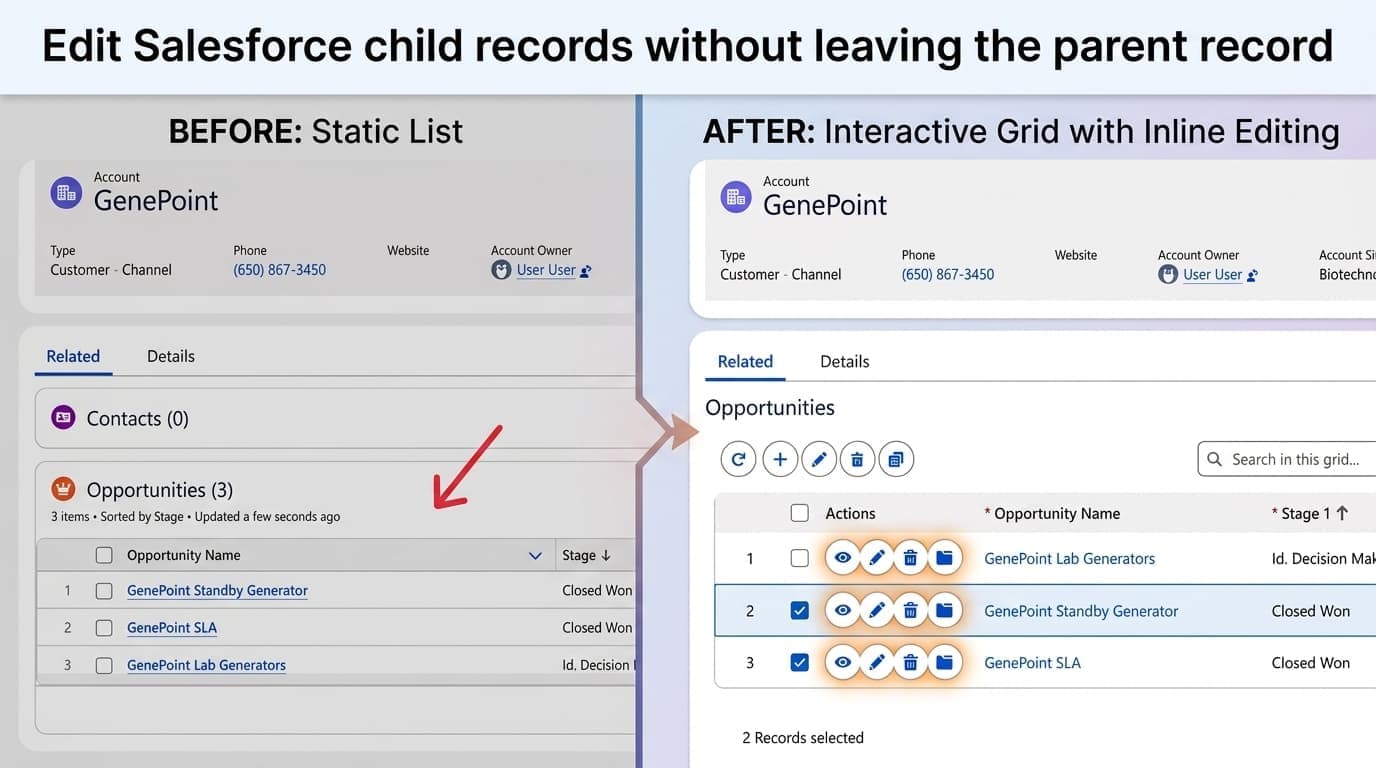
Every Salesforce admin has heard some version of this request:
When I’m on an Account, I want to update the Stage, Amount, and Close Date on all its open Opportunities — right there, without opening each one.
Standard Salesforce gives you a Related List. Related Lists are built for reading, not editing at scale. The moment a user needs to change more than one or two child records, the UX falls apart and admins start shipping custom LWCs, screen Flows, or multi‑tab workflows.
This post walks through the three workarounds most teams land on, honestly evaluates each one, and then shows a cleaner pattern: an AppColab grid rendered inline in the details page of the parent record, where users can filter, sort, edit, and bulk‑action related records without ever leaving the page.
Who this is for: Salesforce admins, architects, and RevOps leads who own a page layout where users routinely complain about “too many clicks” on related records.
The three common workarounds (and where each one breaks)
1. Edit records via the standard/enhanced Related List
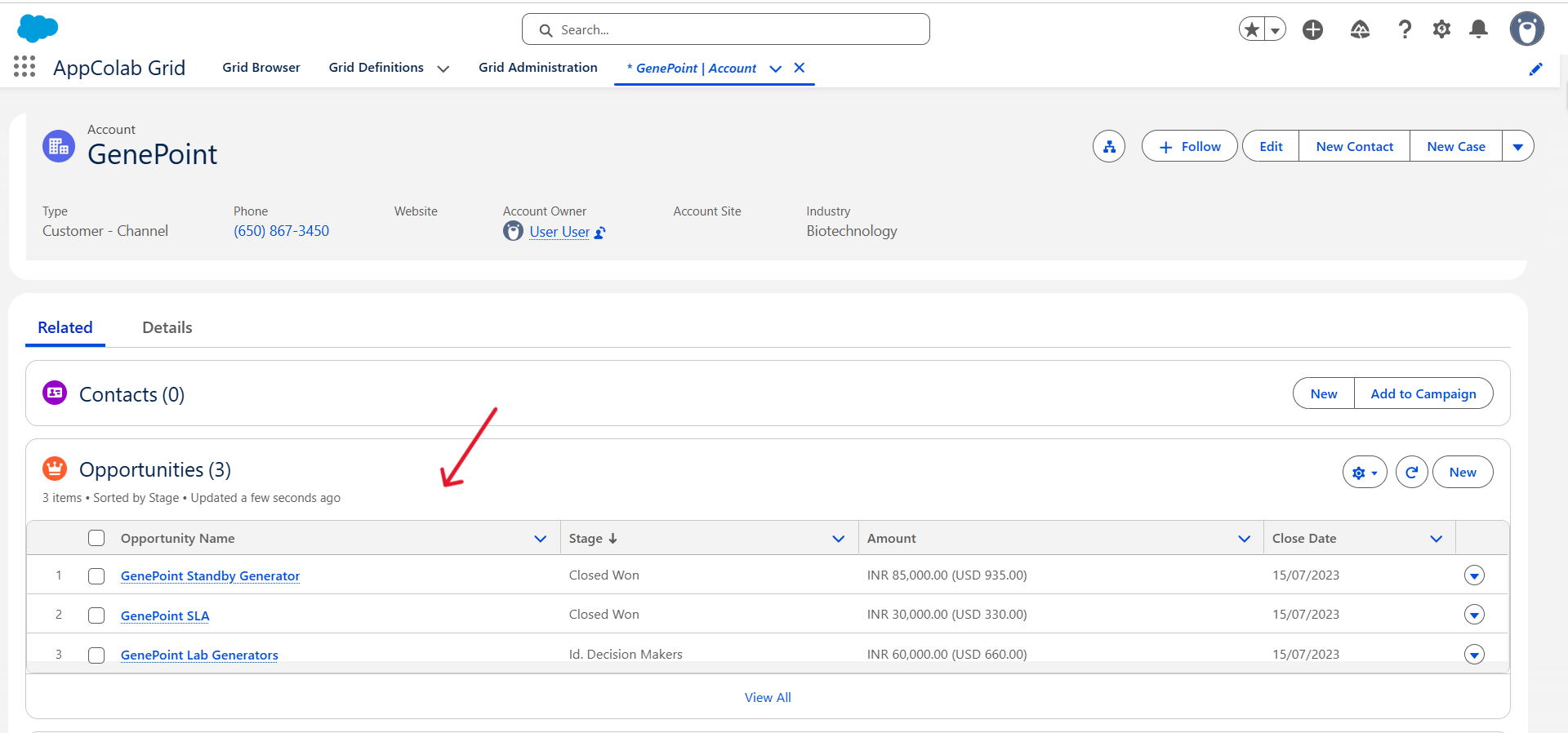
On a standard Salesforce Related List, each row has a down arrow (▼) action button. Clicking it reveals a dropdown with Edit and Delete options. Clicking Edit opens the full record edit page or modal — which means the user navigates away from the parent record entirely. Enhanced Related Lists add inline column sort and some additional display options, but the edit story remains the same: one record at a time, one row action at a time.
Where it works: one record at a time, for users who don’t mind being taken to the record edit page or pop up and clicking back.
Where it breaks:
- No bulk edit — changing 20 Close Dates means 20 dropdown clicks, 20 navigation hops to the record edit page, 20 saves, and 20 “Back” clicks.
- No filter builder on the related list itself — users see all child records, and that’s it.
- No column personalization per user without maintaining separate page layouts. Sales gets the same columns as Support.
- No way to add a custom action (e.g., “Escalate selected cases”) without a list button + screen Flow contraption.
- Releated list with “View All” button that opens a new page with the full list.
2. Open the child record in a subtab / console navigation
In the Service/Sales Console, you can click a related record to open it as a subtab, edit it, save, and close the subtab.
Where it works: agents who live in the console and need deep edits on one child at a time.
Where it breaks:
- Still one child at a time. Any “update 15 of these” workflow becomes 15 subtabs, 15 saves, 15 close‑tab clicks.
- Non‑console users (standard Lightning navigation) don’t get subtabs — clicking a related record is a full page navigation that loses the user’s context.
- No way to compare / sort / filter across children. The user has to mentally hold “which 8 of these 15 rows I clicked on already”.
3. Build a screen Flow launched from a list view button
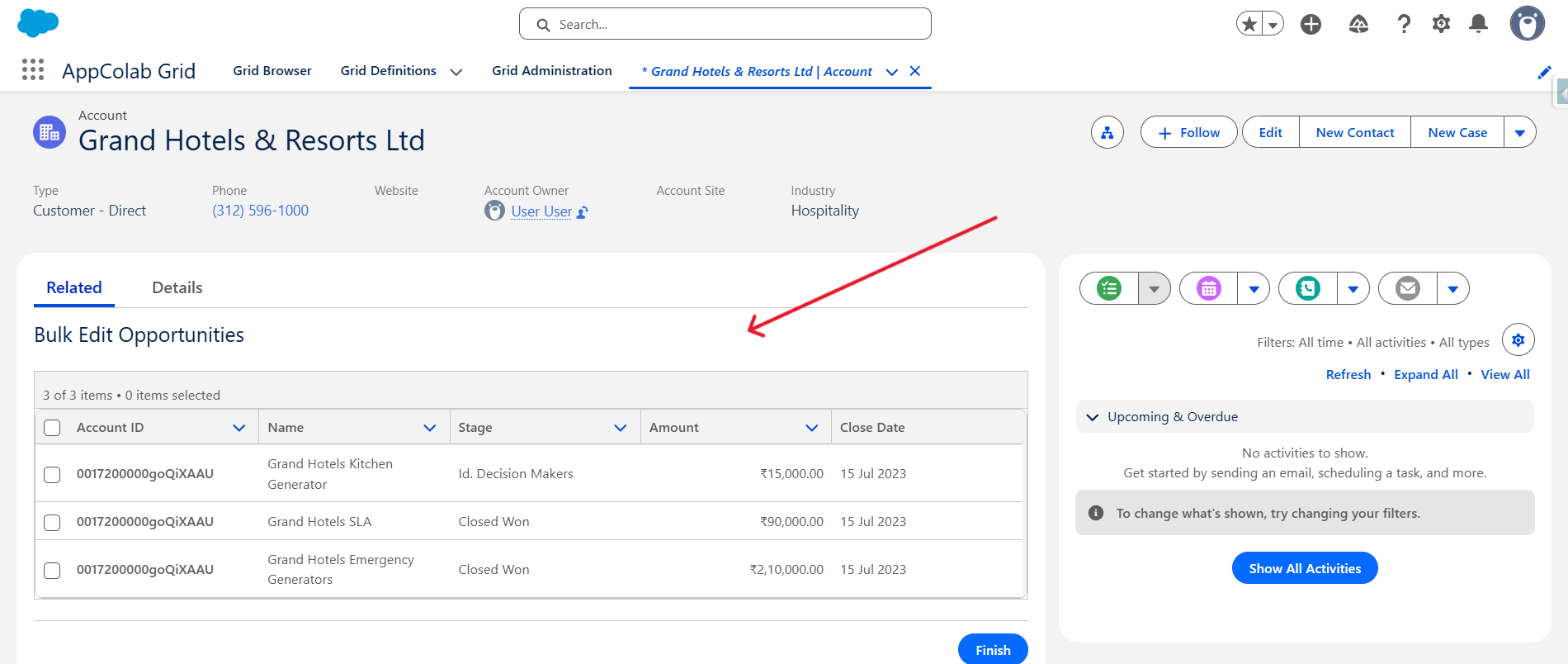
The “admin power move”: a screen Flow that takes selected record IDs, loops them into a data table, collects updates in a screen component, and commits them in a single save.
Where it works: one specific, well‑defined bulk operation (“Mark selected Cases as Escalated”) where you can afford to invest a day of Flow building.
Where it breaks:
- One Flow per use case per object. The “bulk update Stage on child Opportunities” Flow and the “bulk update Close Date on child Opportunities” Flow are two separate artifacts.
- Screen Flow data tables are still limited — no frozen columns, no multi‑column sort, no CSV export, no undo.
- Runs on the list view page, not on the parent record page. Users still have to navigate away from the Account to launch the Flow against its Opportunities.
- Every schema change (a new field on the child object the sales team wants to edit) means a Flow revision, test, and release.
The common thread: Salesforce’s built‑in options are optimized for editing related records on record at a time. The moment bulk editing, filtering, or custom actions enter the picture, admins are forced into custom development.
A cleaner pattern: Add AppColab Grid to the parent page
What users actually want is simple: a data table for editing related records, embedded on the parent record, that respects the user’s personal column preferences.
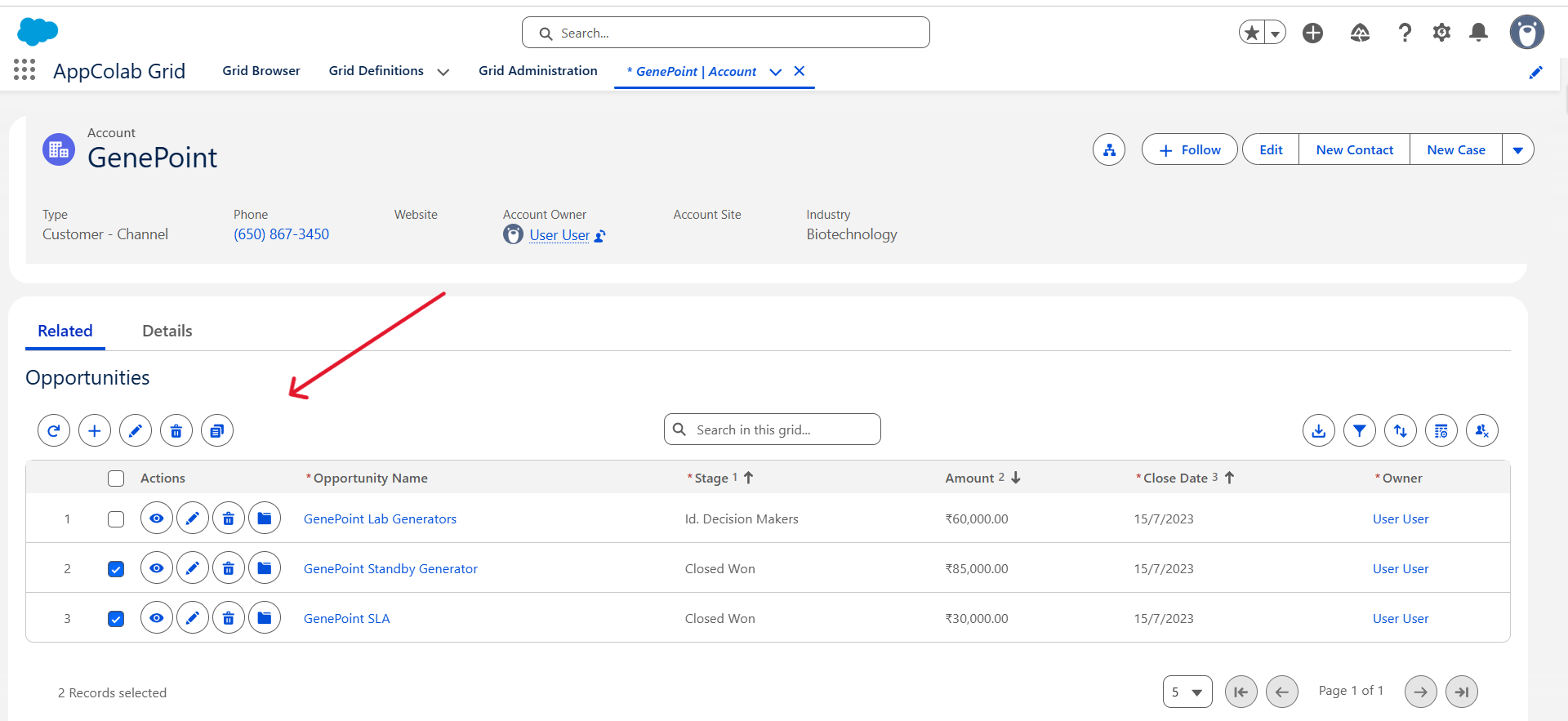
That is a common use case for AppColab Grid. You can create a Grid Definition for Opportunities (say, Opportunities configured with AccountId as its parent relationship field), and then drop “AppColab Grid” component on the Account record page and specify the name of the Grid Definition to use.
What AppColab Grid gives you that the workarounds don’t
- Inline edit across every column you mark editable, with dirty‑row tracking, validation, and an undo/redo stack. Toggle edit mode once from the toolbar, change 50 Close Dates across selected rows, hit save once.
- A filter builder on the child grid itself — users can narrow “show me only Opportunities over $50k closing this quarter” without you editing a single list view.
- Per‑user column order, visibility, sort, and page size, stored in a
User_Preference__crecord scoped to the grid and the user. Each sales rep’s view persists; your admin config is never overwritten. - Custom Flow or Apex actions bound to the child grid’s toolbar and row action buttons — the same Escalate or Request Update buttons work against 1 row or 200, with selected record IDs passed in automatically.
- Frozen columns, CSV export, row cloning, search, and multi‑column sort on the child data — the features users assume exist on related lists and are always surprised to find missing.
- Lookup traversal up to 5 levels deep, so a child grid of Opportunities can still show
Owner.Manager.NameorAccount.Owner.Profile.Nameas a read‑only column without a single formula field.
What it takes to configure (point‑and‑click in 3 minutes, no code)
Here is the actual path for “edit child Opportunities inline under an Account”, end to end:
- Create a Grid Definition record for “Opportunity” in the Grid Configuration Editor. In Step 1 (Grid Details), set the Parent Relationship Field to “AccountId” — this is what tells the grid to filter Opportunities by the parent Account’s Id when it renders inline.
- Pick child columns. In Step 2 (Objects & Columns), drag in “Name”, “StageName”, “Amount”, “CloseDate”, “OwnerId” or any other relevant fields.
- Drop the “AppColab Grid” component on the Account Lightning record page via Lightning App Builder. Set the Grid Definition Name property to your Account grid’s identifier. Save, activate, done.
There is no LWC to write, no Apex to deploy for the common path, and no Flow required unless you want a custom action. An admin can ship this end to end in well under an hour.
Three real scenarios this pattern unlocks
- Sales Ops — “Account 360”. An Account page with child grids for Contacts, Open Opportunities, Cases, and Assets. Reps close deals faster because they stop bouncing between tabs. Ops gets one artifact to maintain instead of four custom LWCs.
- Service — Case Comments cleanup. A Case page with a child grid of
CaseCommentrecords, inline editable, filterable by author and date, with a bulk “Mark Internal” action. Agents clear comment backlogs without opening a single child record.
When this pattern is not the right answer
Be honest with yourself. A child grid is not the right tool when:
- You need a wizard‑style, multi‑step data capture (screen Flow is better).
- You need heavy per‑cell conditional UI with rules that change the fields shown per row (custom LWC or screen Flow).
- The parent‑child relationship is not a standard lookup / master‑detail — e.g., a polymorphic or cross‑object relationship resolved through custom logic.
For everything else — the 90% of “let me edit related records inline” requests — a configured child grid is faster to ship, safer to maintain, and friendlier to users than any of the three workarounds above.
Try it on your own org in under 10 minutes
- Install AppColab Grid from the Salesforce AppExchange.
- Launch AppColab Grid app and navigate to Grid Definition tab.
- Create a Grid Definition for
Opportunity, with AccountId as the parent field. - Navigate to any Account record page, click the Setup gear → Edit Page, drag the AppColab Grid component onto the layout, and set the Grid Definition Name to your Opportunity grid’s identifier.
- Save and Activate the page.
The related Opportunities grid will now appear inline in the account details page — fully editable, filterable, and personalized per user — without navigating away from the Account.
Build in minutes, not sprints. Every user, their own view. Salesforce‑native and secure.