
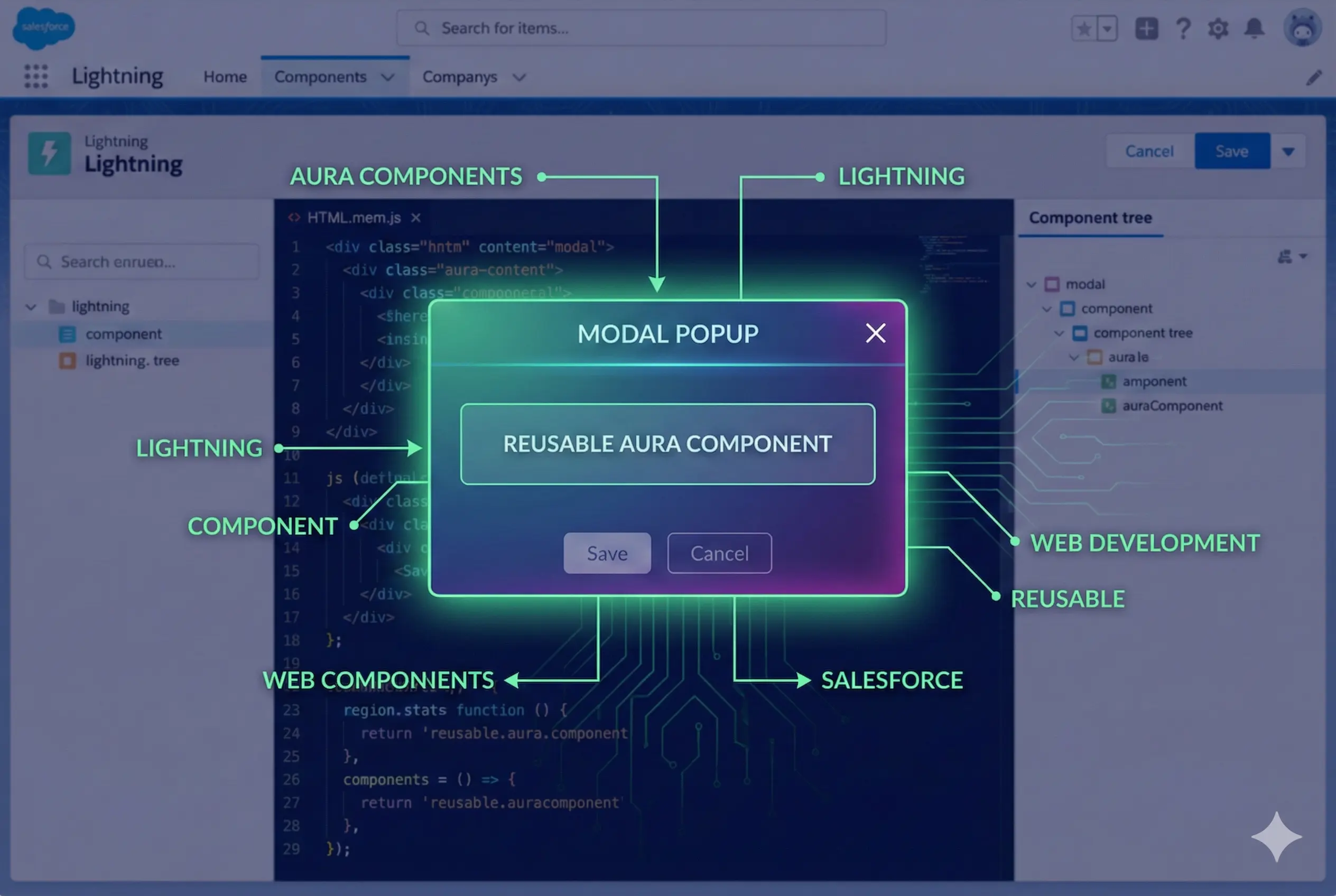
How to display a modal popup using aura components
When you build custom interfaces it is very common need to show a modal window or a popup window. In this example we will go through how we can build a reusable modal window using lightning aura components. If you are looking for a lightning web component (lwc) version of modal/popup component please check out lwc modal.
Use cases
- Display modal window or popup window in user interface.
- Show Yes/No confirmation modal popups.
Steps to Implement
STEP 1 :- Create a component event with name Util_PressEvent. This event is used to track click event on buttons that can be used to add listeners on modal component. Find the event file and metadata below,
Generic component event for all press actions.
<aura:event type="COMPONENT" description="Generic component event for all press actions" />

<?xml version="1.0" encoding="UTF-8"?>
<AuraDefinitionBundle xmlns="http://soap.sforce.com/2006/04/metadata">
    <apiVersion>41.0</apiVersion>
    <description>This event is used to represent click/press events.</description>
</AuraDefinitionBundle>
STEP 2 :- Create an aura component with name Util_ModalWindow. This component will contain all code needed to show and hide the modal popup,
<aura:component>
    <aura:attribute name="title" type="string" description="Title of the popup" />
    <aura:attribute name="cancelLabel" type="string" default="" description="Label for cancel button" />
    <aura:attribute name="confirmLabel" type="string" default="Okay" description="Label for OK button" />
    <aura:attribute name="isHidden" type="Boolean" default="true" description="Flag used to toggle popup" />
    <aura:registerEvent name="onSaveClick" type="c:Util_PressEvent" />
    <aura:registerEvent name="onCancelClick" type="c:Util_PressEvent" />

    <aura:method name="changeVisibility" action="{!c.changeVisibility}" description="show/hide this component">
        <aura:attribute name="isShow" type="Boolean" default="false" />
    </aura:method>

    <div>
        <div aria-hidden="{!v.isHidden}" role="dialog"
            class="{!v.isHidden ? 'slds-modal slds-modal__close slds-fade-in-close' : 'slds-modal slds-modal__open slds-fade-in-open'}">
            <div class="slds-modal__container">
                <div class="slds-modal__header">
                    <h2 class="slds-text-heading--medium">
                        {!v.title}
                    </h2>
                    <button class="slds-button slds-modal__close slds-button--icon-inverse" title="Close" onclick="{!c.defaultCloseAction}">
                        X
                    </button>
                </div>

                <div class="slds-modal__content slds-p-around--medium">
                    <div>
                        {!v.body}
                    </div>
                </div>

                <div class="slds-modal__footer">
                    <aura:if isTrue="{! !empty(v.cancelLabel)}">
                        <button class="slds-button slds-button--neutral" onclick="{!c.fireCancelEvent}">{!v.cancelLabel}</button>
                    </aura:if>
                    <button class="slds-button slds-button--brand" onclick="{!c.fireSaveEvent}">{!v.confirmLabel}</button>
                </div>
            </div>
        </div>
        <div class="{!v.isHidden ? 'slds-backdrop slds-backdrop--close' : 'slds-backdrop slds-backdrop--open'}" aura:id="backdrop"></div>
    </div>
</aura:component>
.THIS {
}

@media screen and (max-width: 900px) and (min-width: 300px) {
    .THIS.cLIModalWindow .slds-modal__footer .slds-button {
        min-width: 0;
        margin: 0.20em;
        padding: 0.20em;
    }
    .THIS.cLIModalWindow .slds-modal__footer {
        padding: 0.75rem 0;
        text-align: right;
    }
}
({
	defaultCloseAction : function(component, event, helper) {
		component.set("v.isHidden", true);
	},

	fireSaveEvent : function(component, event, helper) {
		var event = component.getEvent("onSaveClick");
        event.fire();
	},

	fireCancelEvent : function(component, event, helper) {
		var event = component.getEvent("onCancelClick");
        event.fire();
	},

	changeVisibility: function(component, event, helper) {
		var isShow = event.getParam('arguments').isShow;
		console.log("isShow ==>",isShow);
		component.set("v.isHidden", !isShow);
	}
})
STEP 3 :- You are all set to use the modal component. Let us use the modal component inside an aura component to show a modal popup. Here we are using a parent aura component with name DemoAuraComponent to show modal popup.
<aura:component implements="force:appHostable">
    <aura:attribute name="isModalHidden" type="Boolean" default="true" description="Flag to control modal window"  />
    <lightning:card title="Modal Demo">
        <p class="slds-p-horizontal_small">
            This is a parent component from where we need to show the modal window
        </p>
        <lightning:button variant="brand" label="Show Modal" title="Show Modal" onclick="{! c.openModal }" />
    </lightning:card>
    <c:Util_ModalWindow isHidden="{!v.isModalHidden}" cancelLabel="cancel" onSaveClick="{! c.onConfirm }" onCancelClick="{! c.onCancel }">
        This is the modal body. Other Aura/LWC components can be embedded here.
    </c:Util_ModalWindow>
</aura:component>
({
    openModal : function(component, event, helper) {
        component.set("v.isModalHidden", false);
    },

    onConfirm: function(component, event, helper) {
        console.log('Will be called when confirm button is clicked on modal');
        component.set("v.isModalHidden", true);
    },

    onCancel: function(component, event, helper) {
        console.log('Will be called when cancel button is clicked on modal');
        component.set("v.isModalHidden", true);
    }
})
Explanation
Here we can add any content including other aura components between opening and closing tags of Util_ModalWindow. All the content between the tags will be rendered as the body of the modal window.
Example
- Before opening Modal

- After opening modal
