
Lightning Experience Setup
Example — Displaying a Barcode Using the Email Field in Lead
This example demonstrates how to display a barcode using the Email field from Lead records.
The same approach can be applied to any other field on any standard or custom object in Salesforce.
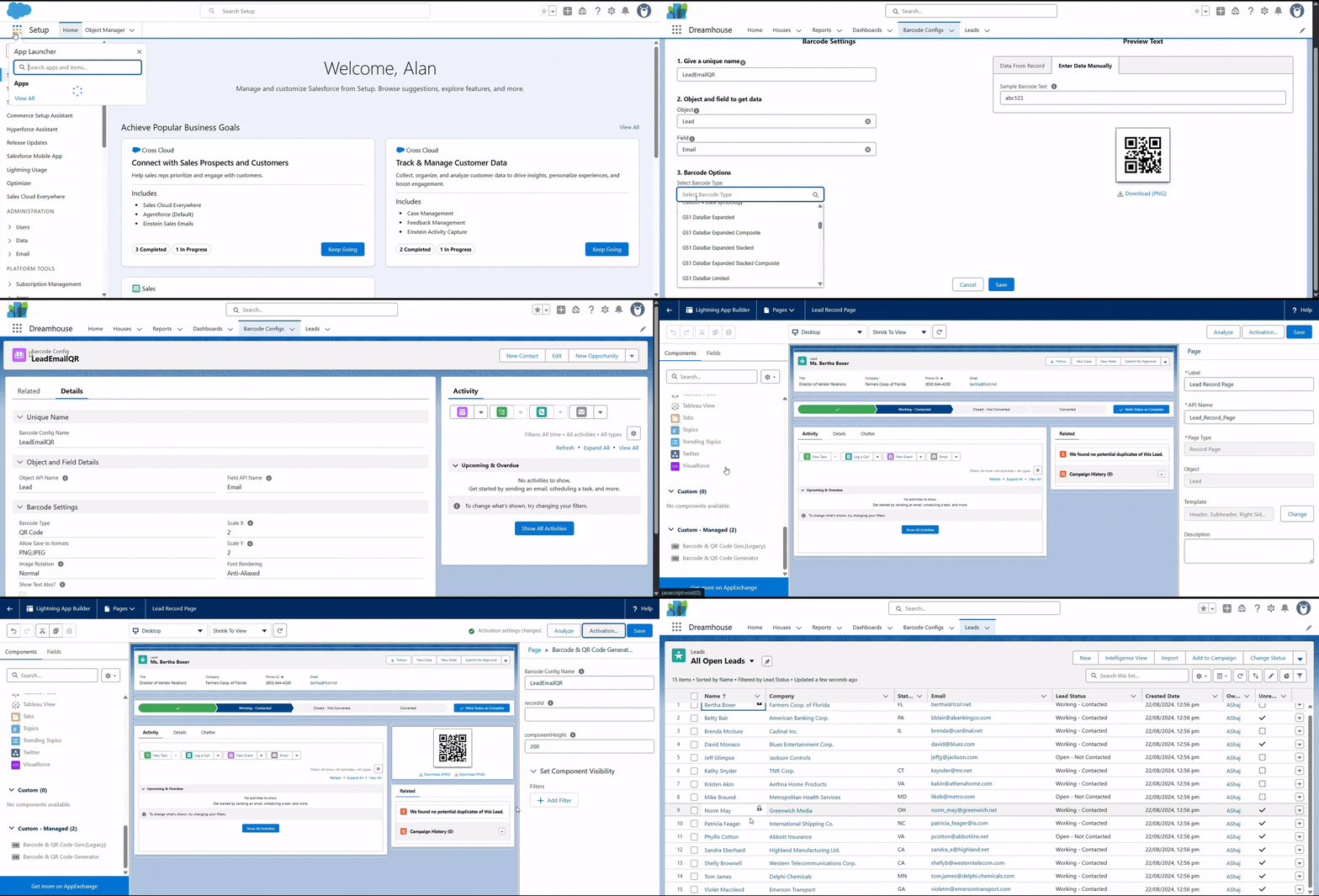
Steps
1️⃣ Create a Barcode Config Record for the Lead Email Field
- Open the Barcode and QR Code Generator app from the App Launcher and go to the Barcode Configs tab. (You can also click + Create New Configuration on the app’s Home tab.)
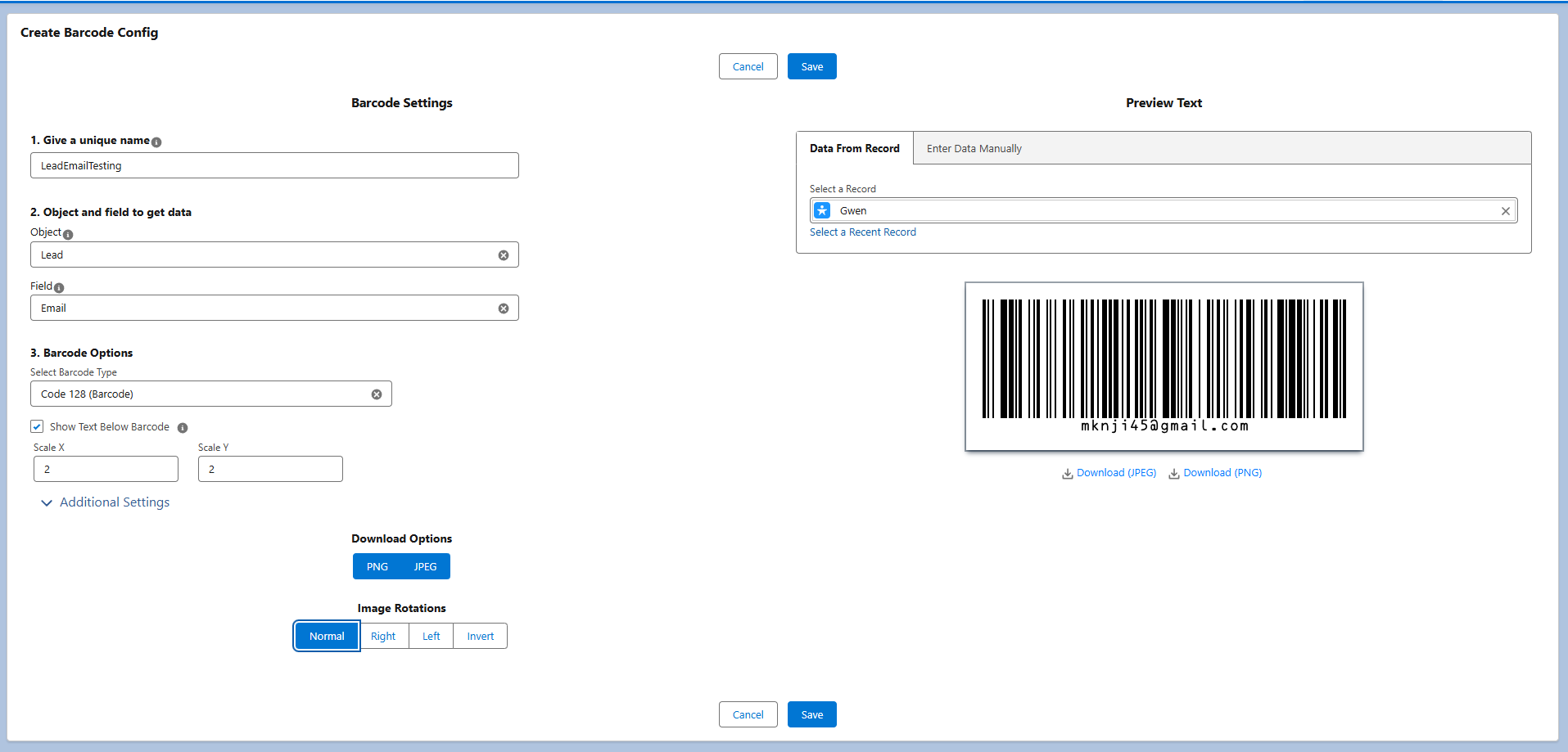
- Click New to create a new configuration record.
- Enter a Unique Config Name present in the left hand side.
- Use a name without spaces or special characters.
- Set the following values:
- Object Name:
Lead - Field Name:
Email
- Object Name:
- Barcode Type: Select the desired barcode type (e.g.,
Code128,QR Code, etc.). - Leave other fields as default (unless customization is required).
- Expand the additional settings if needed and configure them.
- You can modify options like Download options, Image Rotations etc.
- On right hand side you can select the data from record or you can enter data manually.
- Click Save button present on bottom.
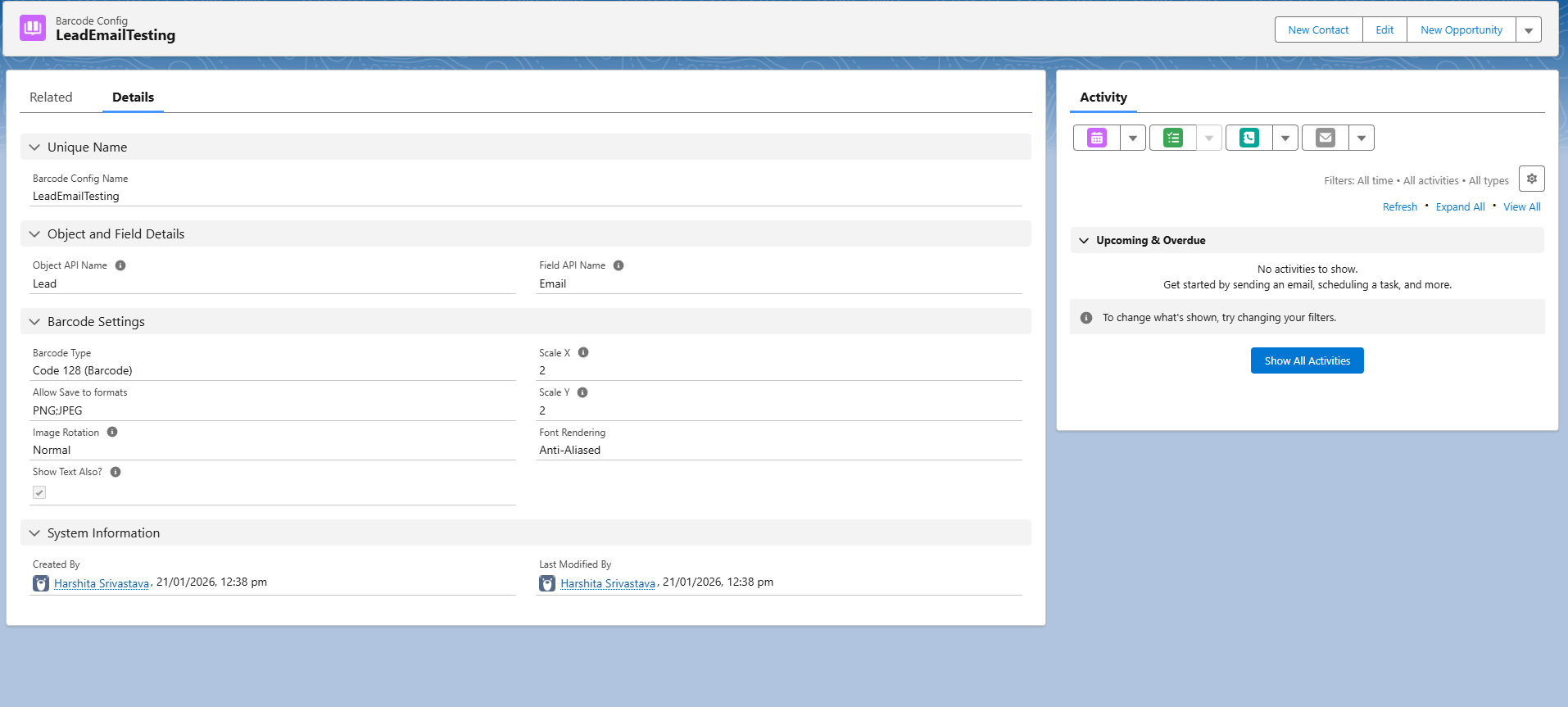
- Go to the Barcode Config App to check the record page of to verify the details.
2️⃣ Add the Barcode Component to the Lead Record Page
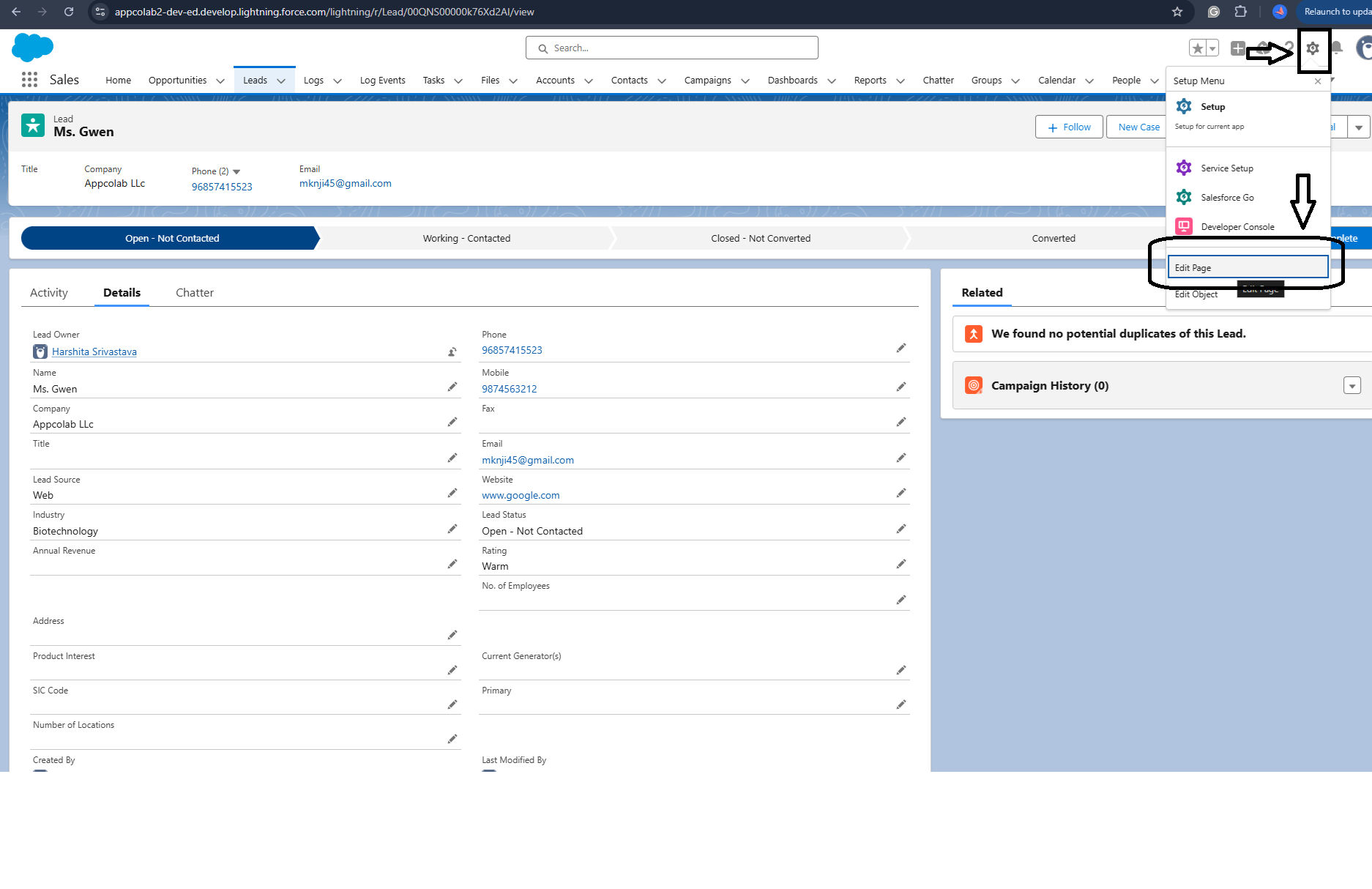
- Open any Lead record details page. Make sure you select the object you typed in the configuration record.
- Click the Gear Icon (⚙️) present on the top and select Edit Page.
 3. Lightning App Builder page will appear onto your screen , scroll down a bit , you can see the component in Custom-Managed Section.
- From the left sidebar , drag the “Barcode and QR Code Generator” component onto the page layout.
- In the component properties, enter the value for Config Name
- Use the same name which you have entered in the record.
- Enter the Barcode Config Name in the right side panel. Enter the exact name you used while creating the Barcode Config record.
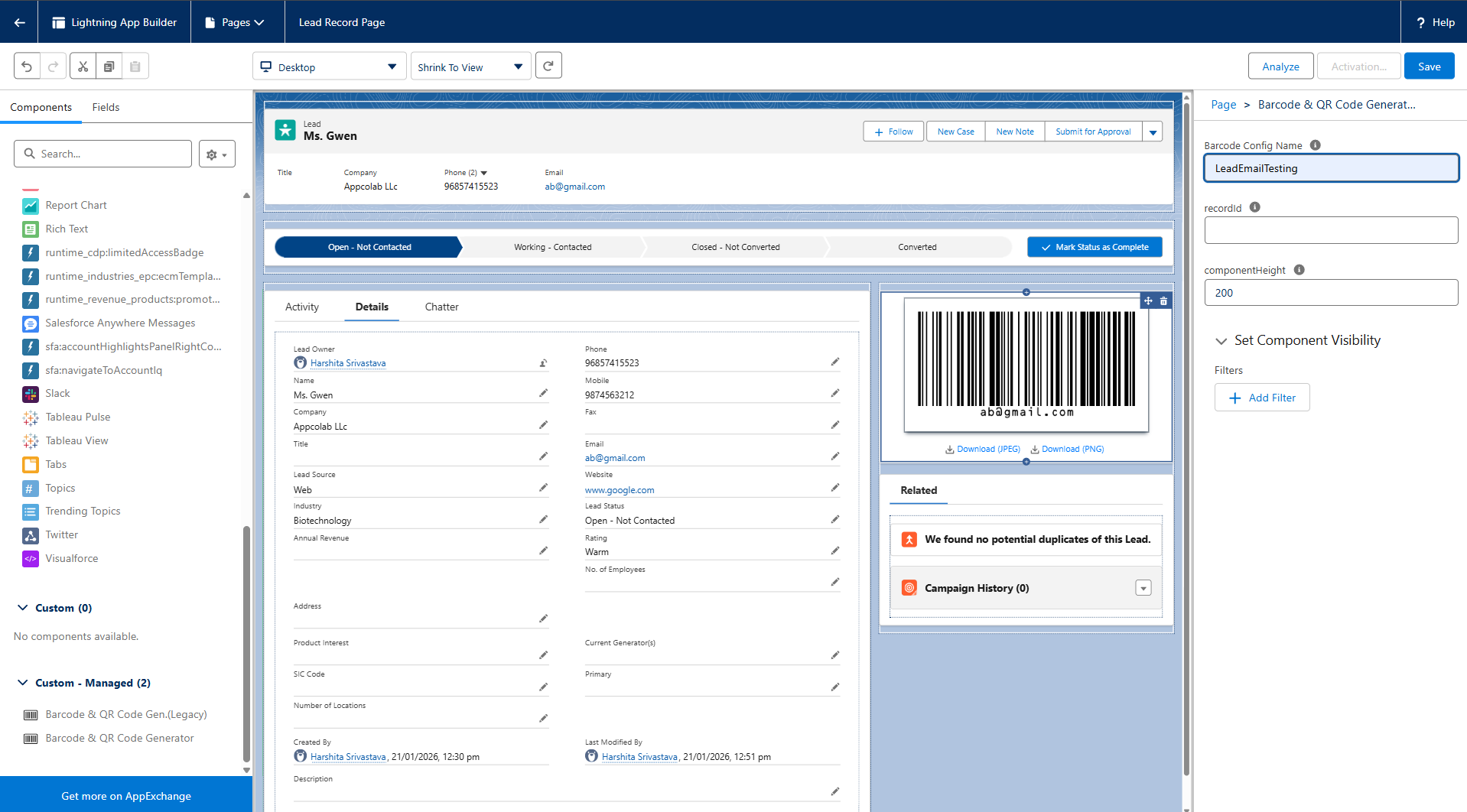
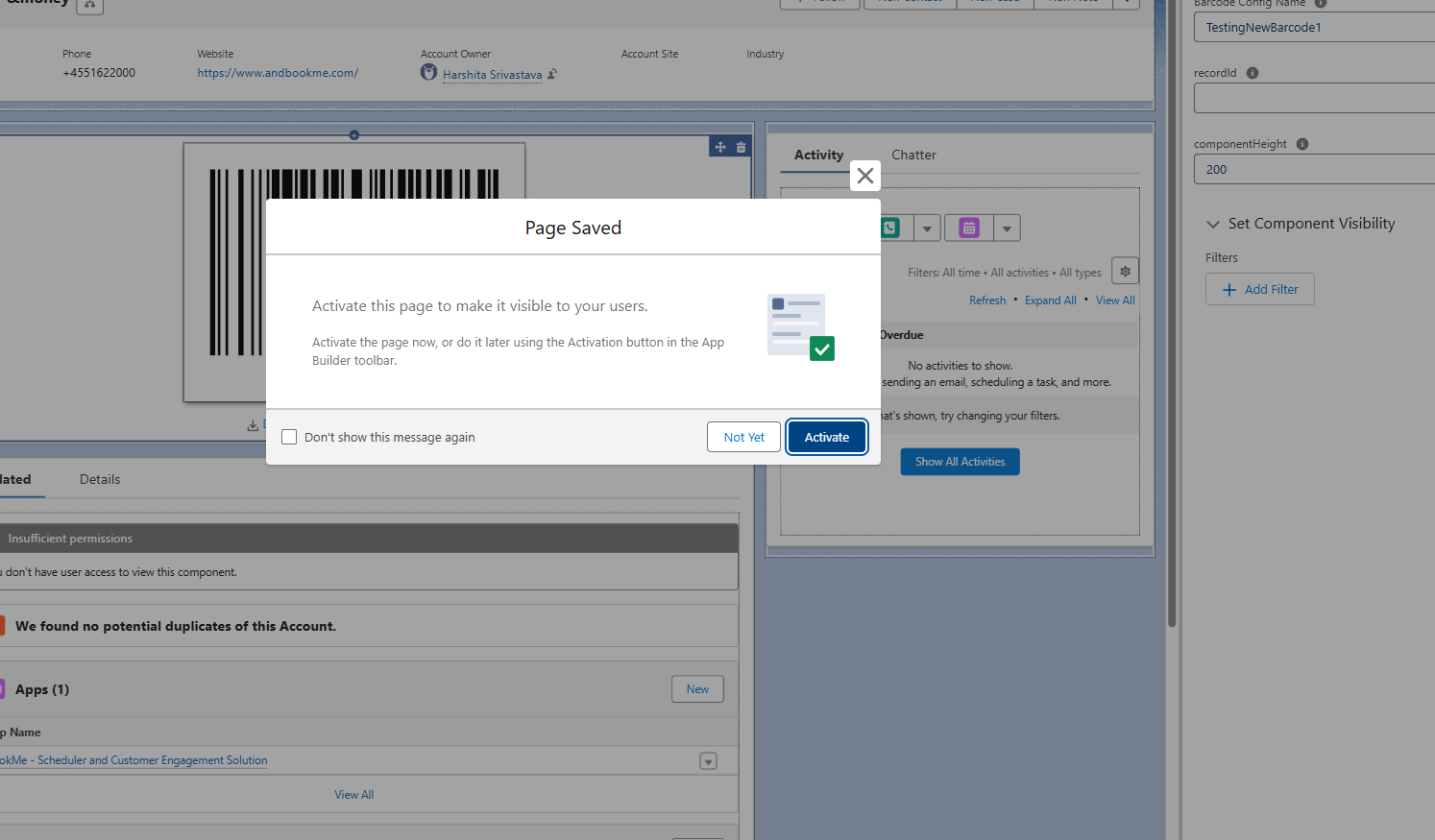
- Click Save (top-right corner)
- Click Activate button and assign the page as:
 .
.
- Inside Org Default tab click on Assign as Org Default button.
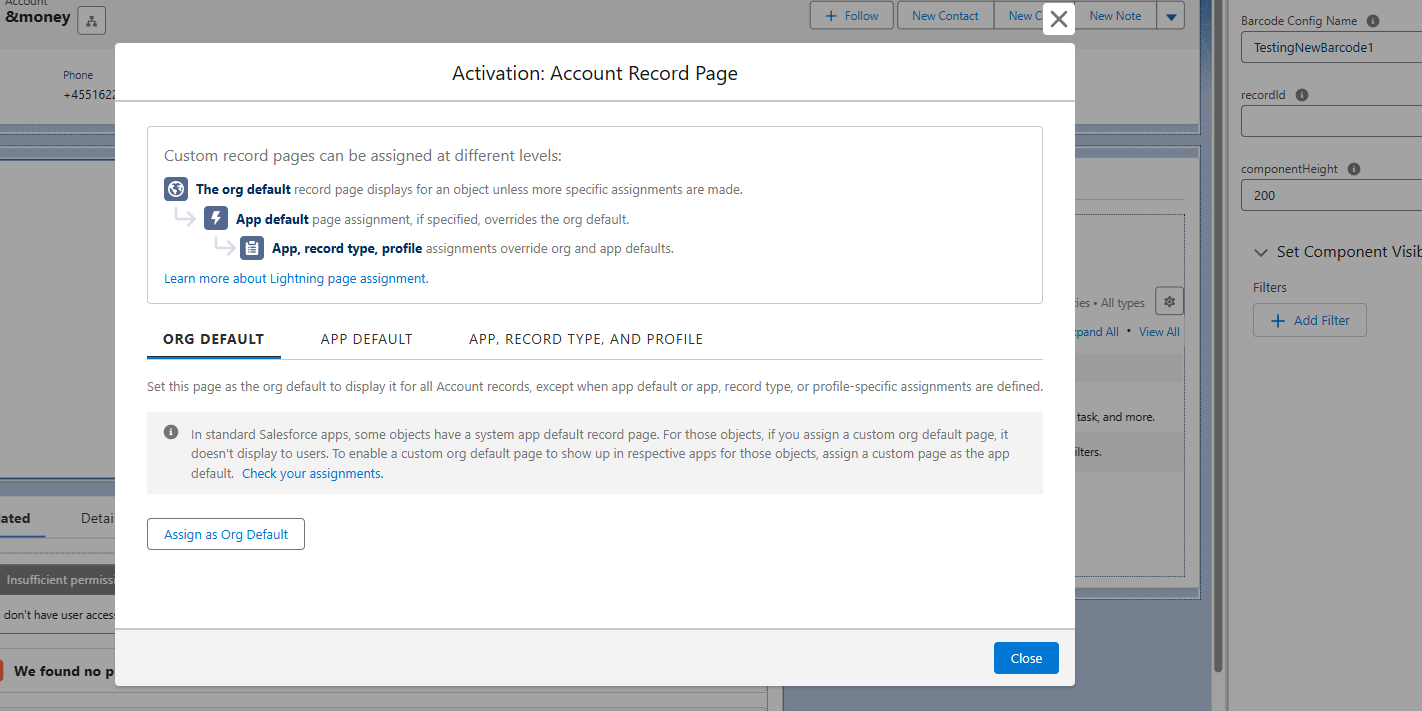 .
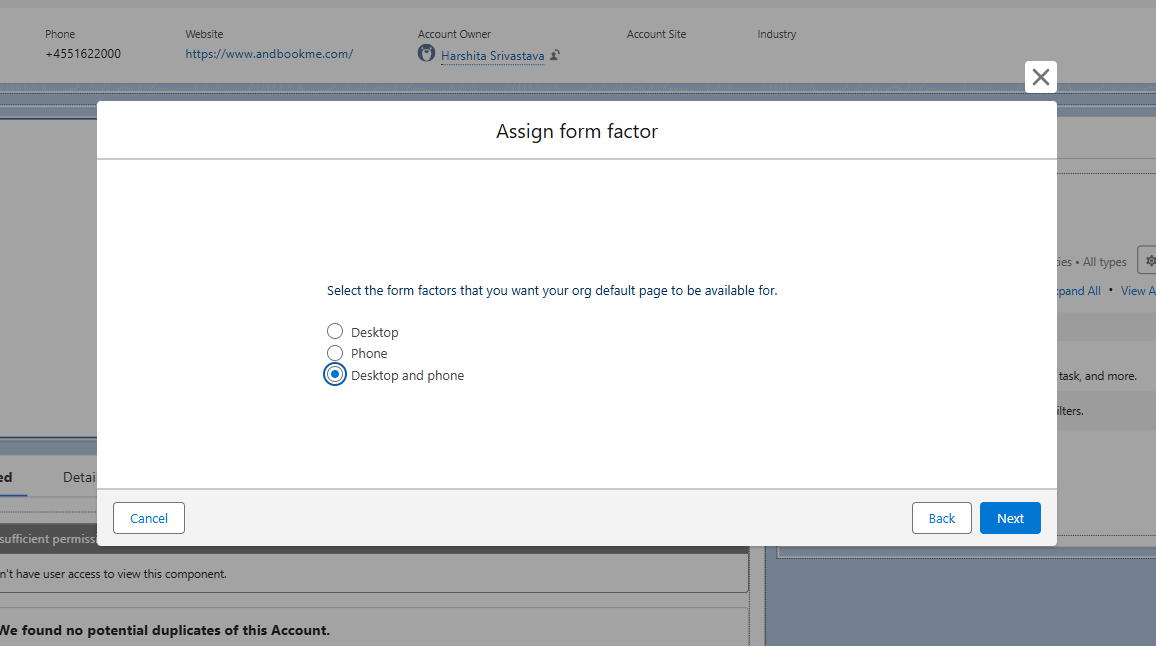
. - A popup will appear, click on Assign Form Factor button.
- Select the Desktop and Phone option and click Next.
- Inside Org Default tab click on Assign as Org Default button.
- Finally, click on Save button.
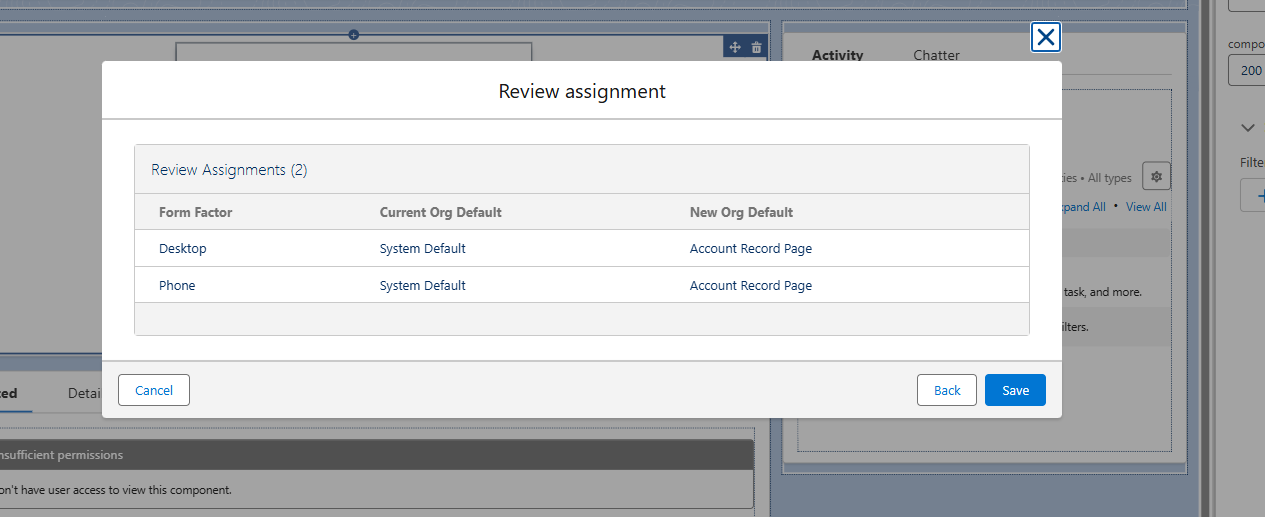
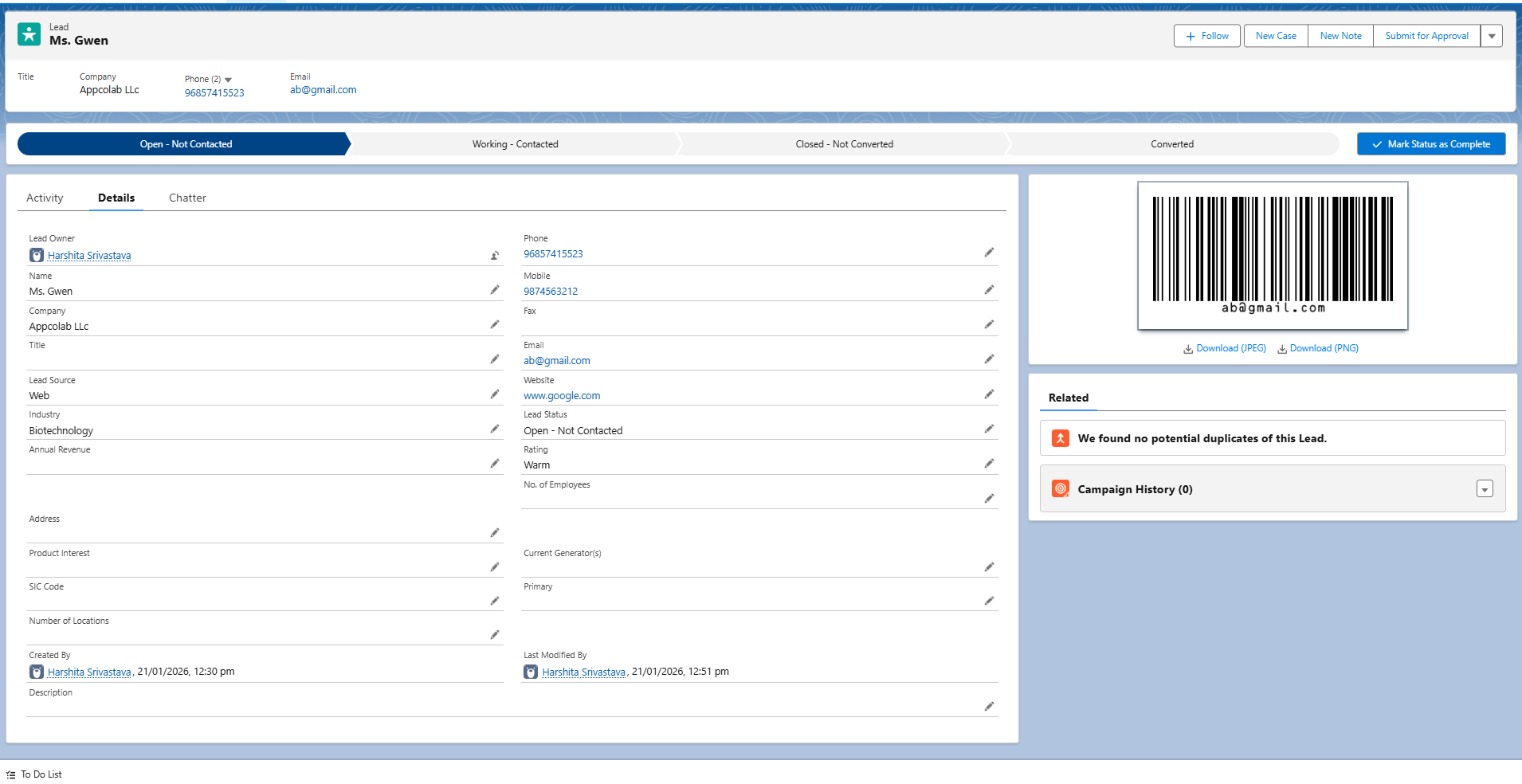
- You can now navigate back to the Lead record page and see the barcode.
Note: The component list also contains Barcode & QR Code Gen.(Legacy). Use the standard Barcode & QR Code Generator component for Lightning pages. The legacy component is kept for existing pages and for places the new component is not available, such as Experience Cloud pages and quick actions.
Result
If the configuration is set correctly, a barcode will be displayed when you open any Lead record.
For the full list of config settings and where they apply, see the Barcode Config Reference.
Note
You can repeat the same steps to:
- Use a different field (e.g., Phone, Name, Custom Fields), or
- Apply barcode generation to other objects such as Lead, Contact, or Custom Objects.