
Assign Permissions
Assigning Permission Sets
This page explains how to assign the Barcode & QR Code Permissions permission sets to the appropriate users in Salesforce.
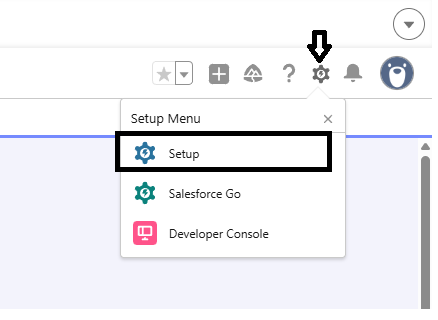
Open Setup
- Click the Gear Icon (⚙️) in the top-right corner.
- Select Setup.
Approach 1 : Assign Permission Set from Permission Set Details Page
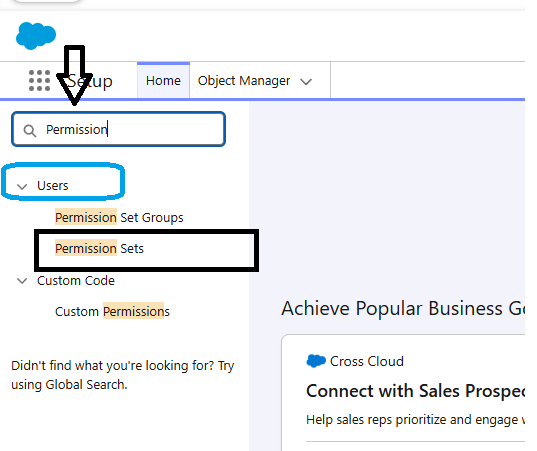
- In the Quick Find search box in the left side below Home , type Permission Sets.
- Click Permission Sets under the Users section.
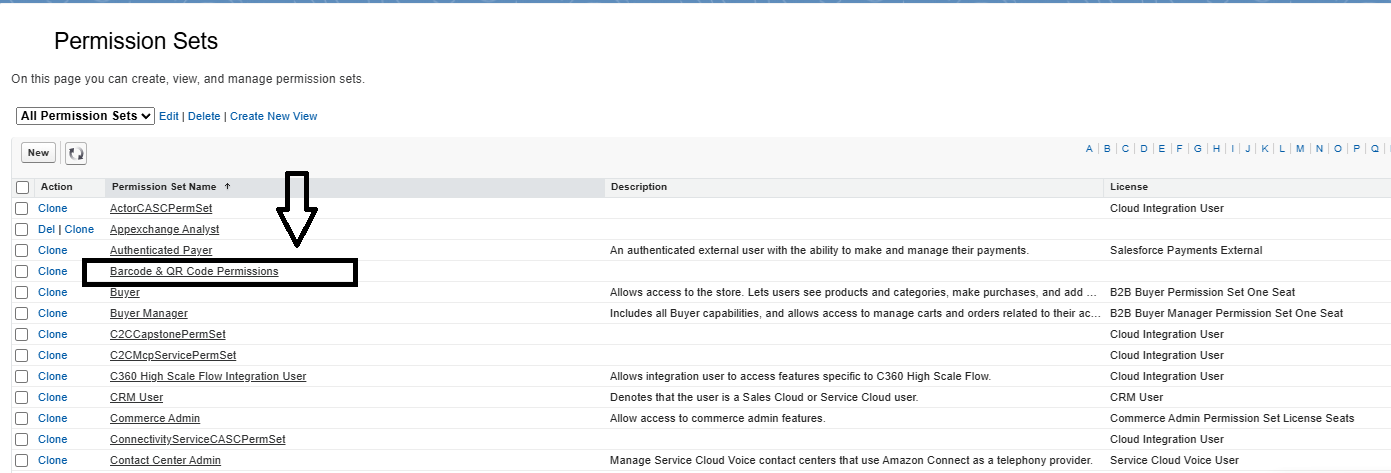
- From the permission set list, select Barcode & QR Code Permissions.
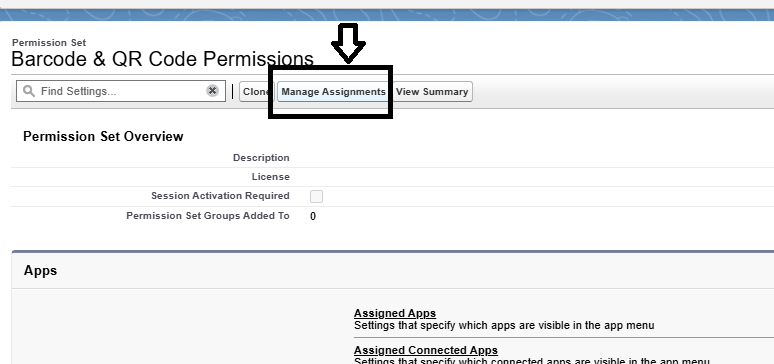
- Click Manage Assignments present on the top.
- Click Add Assignments button to the top right.
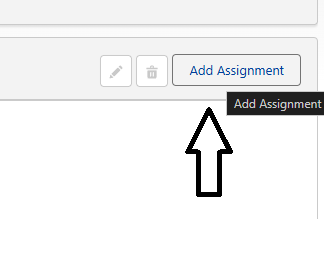
- In the list of users, find and select the users you need by checking the checkbox next to the names.
- Click “Next” and “Assign” to assign the permission set to the selected users.
Approach 2 : Assign Permission Set from User Details Page
- From Setup, find the user who needs the permission. You can search for the user in the top search box under setup.
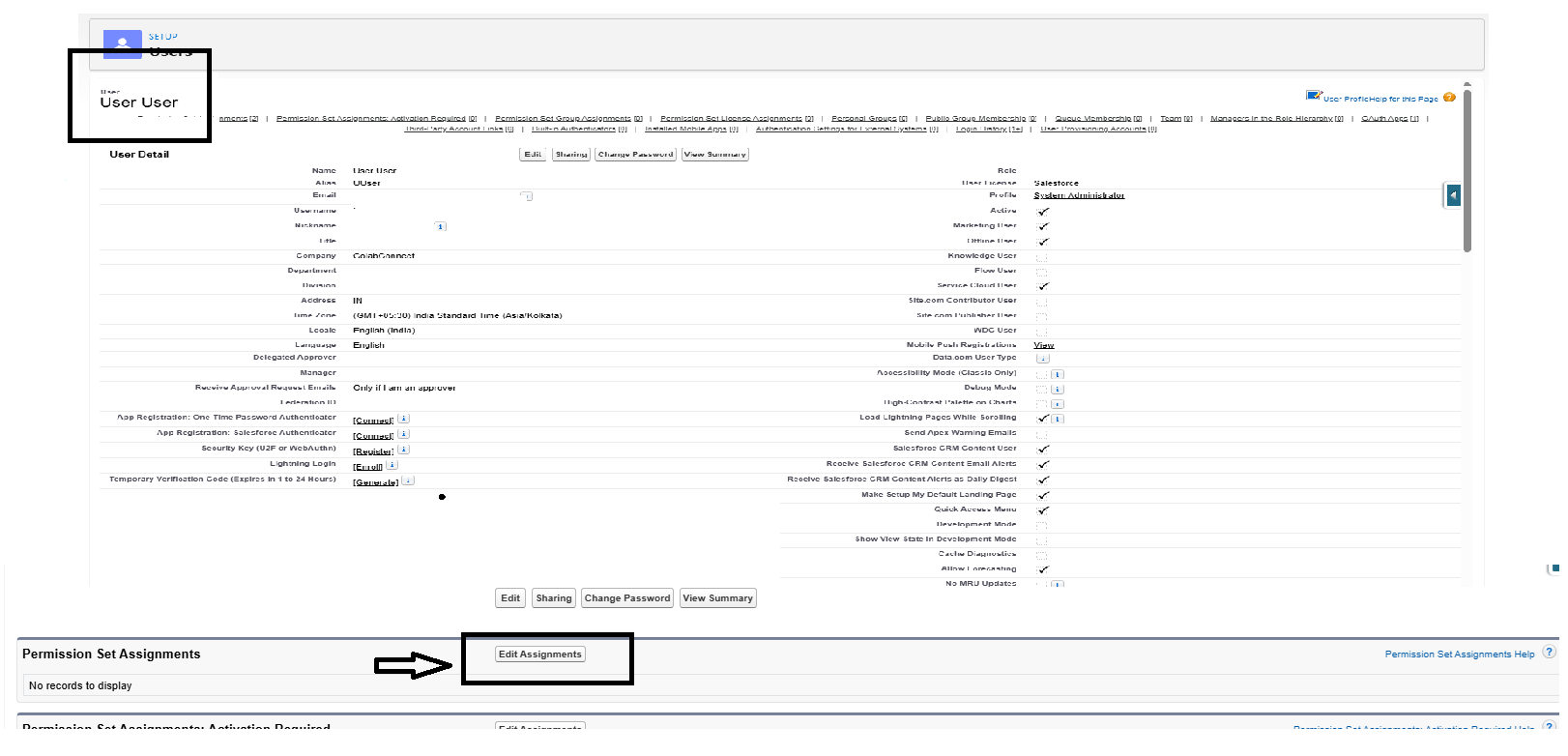
- In user details page, scroll down and go under Permission Set Assignments section and click Edit Assignments.
- From the Available Permission Sets list, select Barcode & QR Code Permissions and click the Add button (→) to move it to the Enabled Permission Sets list.
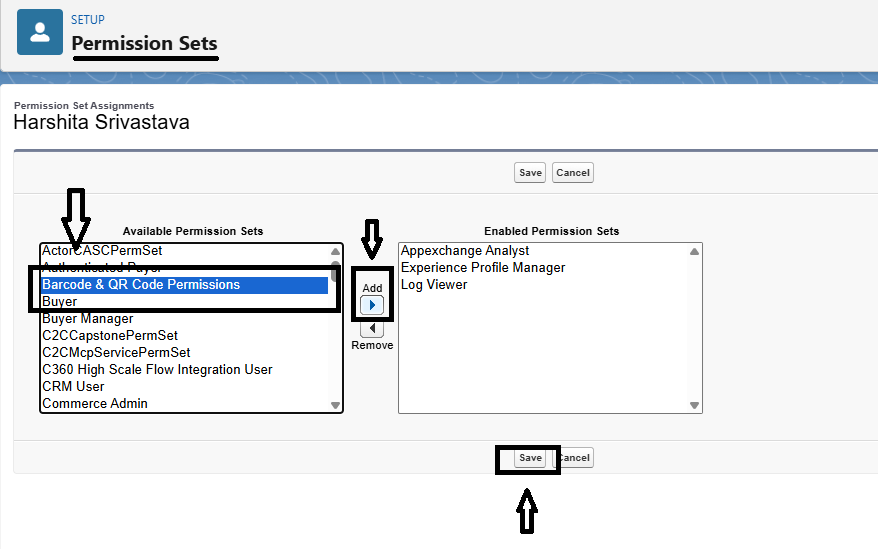
- Click Save to finalize the assignment.
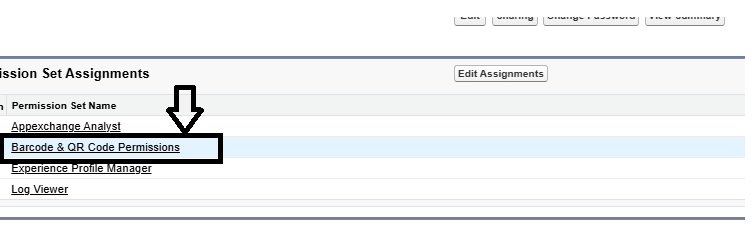
- You can see the assigned permission set under the Permission Set Assignments section of your profile page.
What the Permission Set Includes
The Barcode & QR Code Permissions permission set gives users:
- Access to the Barcode and QR Code Generator app and its Home, Barcode Configs and Bulk Barcode Generator tabs.
- Create, read, edit and delete access to Barcode Config records.
- Access to the Apex classes behind the components, the Bulk Barcode Generator, and the six Barcode Flow actions.
- Access to the barcode image and PDF Visualforce pages.
Users also need read access to the object and field configured in a Barcode Config. To generate barcode files with Flow or Apex, they need permission to create Salesforce Files and, for attached files, access to the target record.
Tip: The Barcode actions check the running user’s access to Barcode Configs and to the source record and field. Assign the permission set to every user who runs a Flow or Apex automation that uses them, including users whose record changes start a record-triggered Flow.
By following these steps, you can ensure that the right users have the necessary permissions to utilize the barcode and QR code generation features in Salesforce.