Classic Setup
Example: Displaying QR Code Using a Custom Field
This guide demonstrates how to display a QR code using data from a custom field.
For this example, we use a custom object named Demo_Record__c which contains a custom field with the API name Unique_Field__c.
Note: While this example uses specific object names, this same approach works for any field on any standard or custom object in Salesforce.
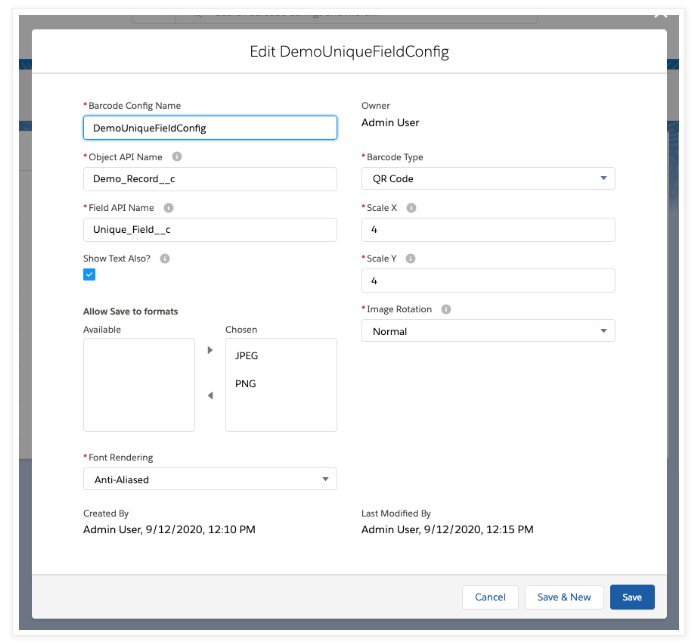
1. Create a Barcode Configuration Record
Navigate to the Barcode Configs tab included with the app and create a new record:
- Name: Enter
DemoUniqueFieldConfig(Ensure there are no spaces or special characters). - Object Name: Enter
Demo_Record__c. - Field Name: Enter
Unique_Field__c. - Barcode Type: Select QR Code from the dropdown menu.
- Save: Leave other fields as default and save the record.
2. Create a Custom Button
Navigate to Setup → Objects → Demo Record → Buttons, Links, and Actions
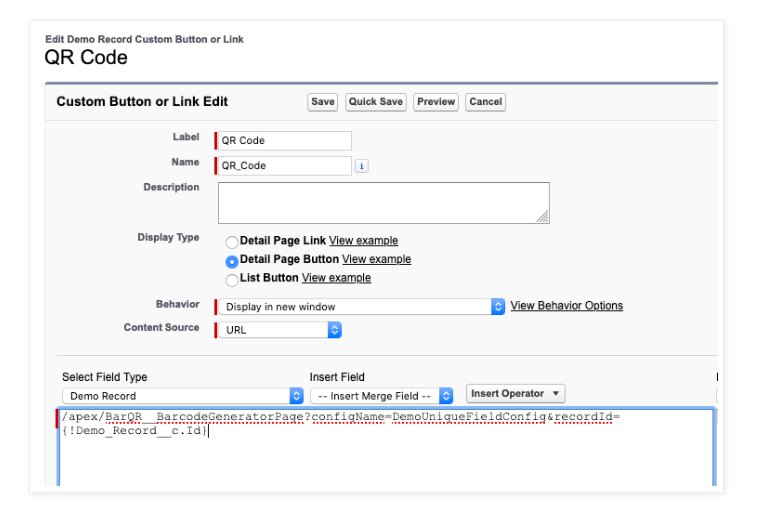
Then, create a new custom button:
- Click New Button or Link.
- To display the barcode in a new window, configure the button to redirect to the generic generator URL.
- Use the configuration name from Step 1 (
DemoUniqueFieldConfig) and pass the record ID dynamically.
Copy and paste the following into the button URL area:
/apex/BarQR__BarcodeGeneratorPage?configName=DemoUniqueFieldConfig&recordId={!Demo_Record__c.Id}
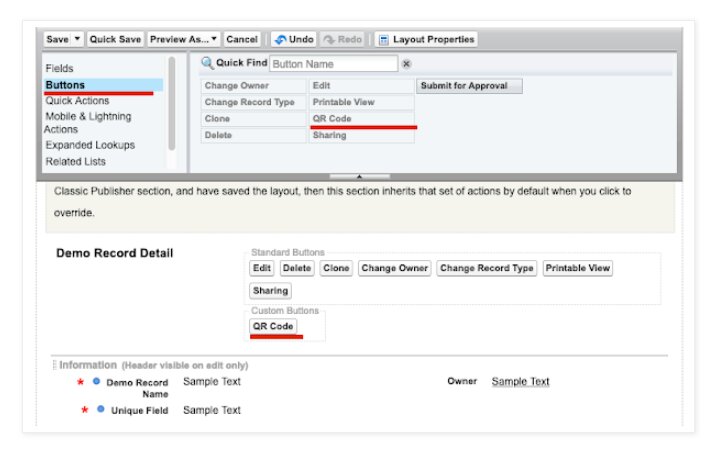
3. Add the Button to the Page Layout
- Save your button after creating it.
- Navigate to
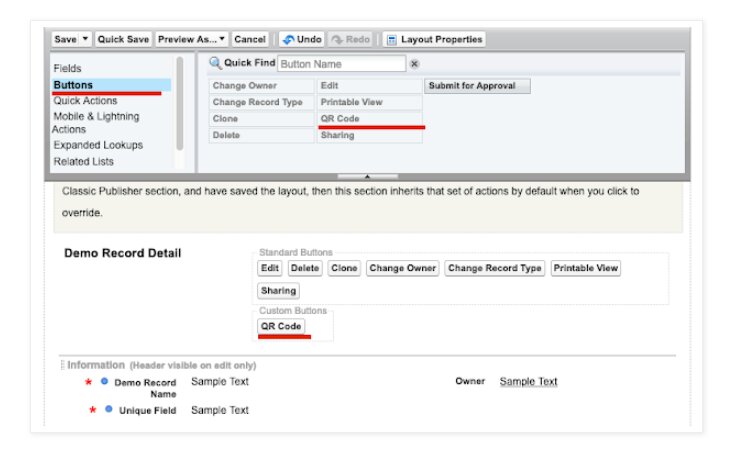
Setup → Object Manager → Demo Record → Page Layouts. - Click Edit on the desired page layout.
- Drag the button to the appropriate section in the layout.
- Click Save to apply the changes.
Refer to the screenshot below for guidance.
4. Test the Button
Test the QR Code Button
- Click Save after adding the button to the layout.
- Navigate to any record detail page.
- You should now see the “QR Code” button on the page.
- Click the button — a popup window will appear displaying the QR code generated from the configured field value.
Result
You will see the QR code successfully displayed.
The example shown below is from the Salesforce Classic view.
Refer to the screenshot below for the visual example.