
Mobile setup
Mobile App Setup Options
Barcode To Cloud supports two different mobile platforms for setup and usage.
Users can configure and use the app on Android as well as iOS devices, depending on their preference and device availability.
Android App Setup
Link for Google Play Store Andriod Setup:
Barcode To Cloud on Google Play Store
Follow these steps to set up Barcode To Cloud on an Android device:
- Open the Google Play Store
- Search for Barcode To Cloud
- Install the application on your device
- Launch the app and tap on Connect to Salesforce
- Log in using your Salesforce credentials
- Grant required permissions such as:
- Camera access (for scanning barcodes)
- Internet access (for Salesforce sync)
Once connected, configure the scanner and start scanning barcodes.
iOS App Setup
Link for Google Play Store IOS Setup:
Barcode To Cloud on Google Play Store IOS
Follow these steps to set up Barcode To Cloud on an iOS device:
- Open the Apple App Store
- Search for Barcode To Cloud
- Download and install the application
- Open the app and tap on Connect to Salesforce
- Log in using your Salesforce credentials
- Allow the app to access:
- Camera (for barcode scanning)
- Network permissions (for Salesforce communication)
After completing the setup, configure scanner settings in Salesforce and begin scanning.
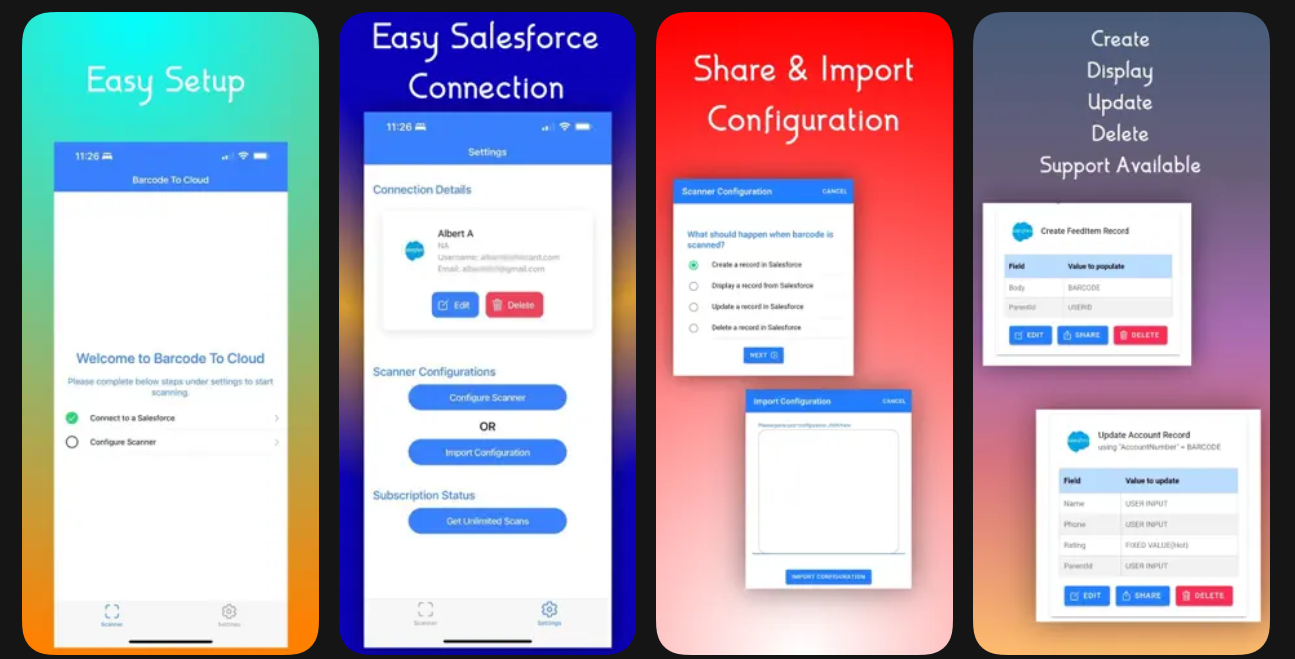
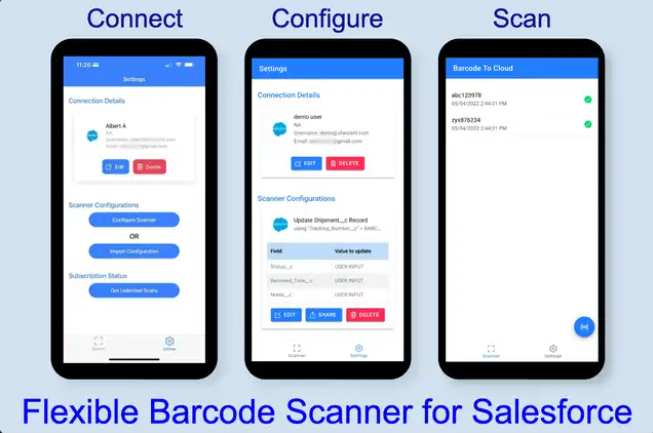
Platform Behavior & Configuration
- The scanner configurations are managed in Salesforce, not on the device
- The same configuration can be used on both Android and iOS
- Any updates made to the configuration in Salesforce are reflected automatically in the mobile app
- Scanner configurations can be exported and shared across users and devices