
Start Scanning
3️⃣ Start Scanning
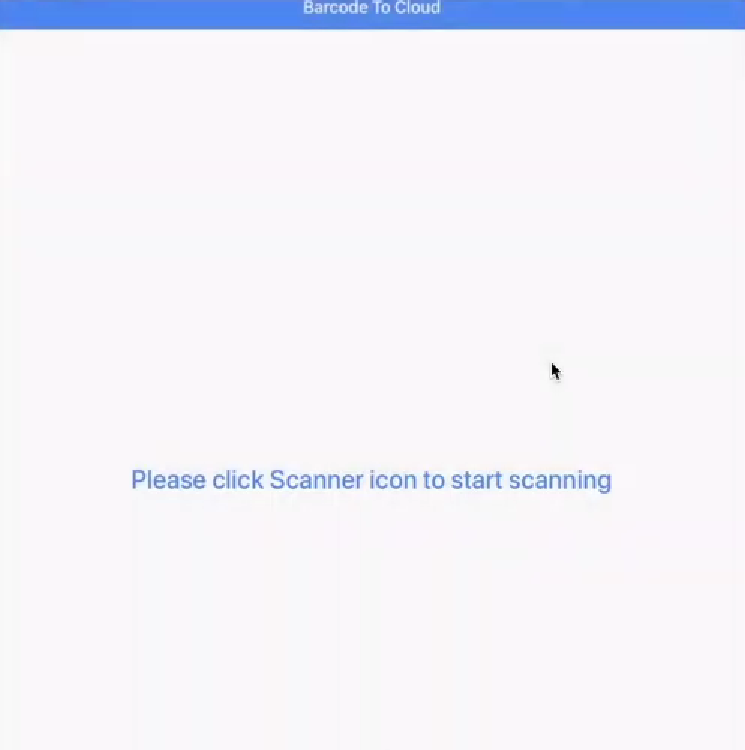
- After configuring the scanner option, you can start scanning the barcodes by clicking on the Start Scanning button present on the home screen of the application. You wil see the ui as shown below.
- Point the camera towards the barcode you want to scan. The application will automatically detect and scan the barcode.
- Once the barcode is scanned, the application will process the data based on the configured scanner option. For example, if you have configured the option to update a record, the application will update the corresponding record in Salesforce with the scanned data.The app fetches the related record details from Salesforce
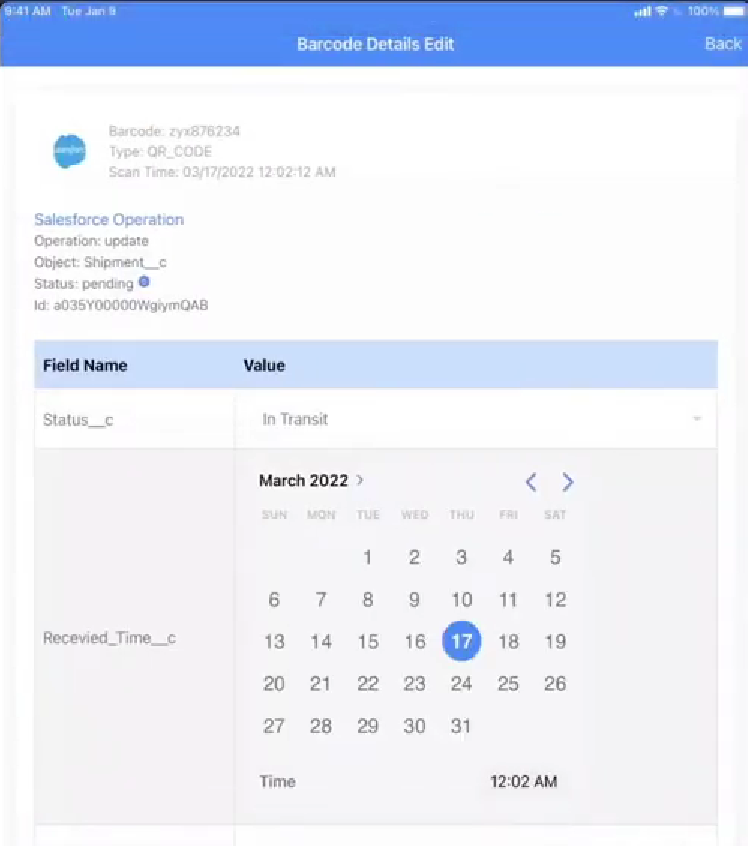
- You can continue scanning more barcodes as needed. The application will keep processing each scanned barcode according to the configured settings.
- You can also modify the data before final submission if required.
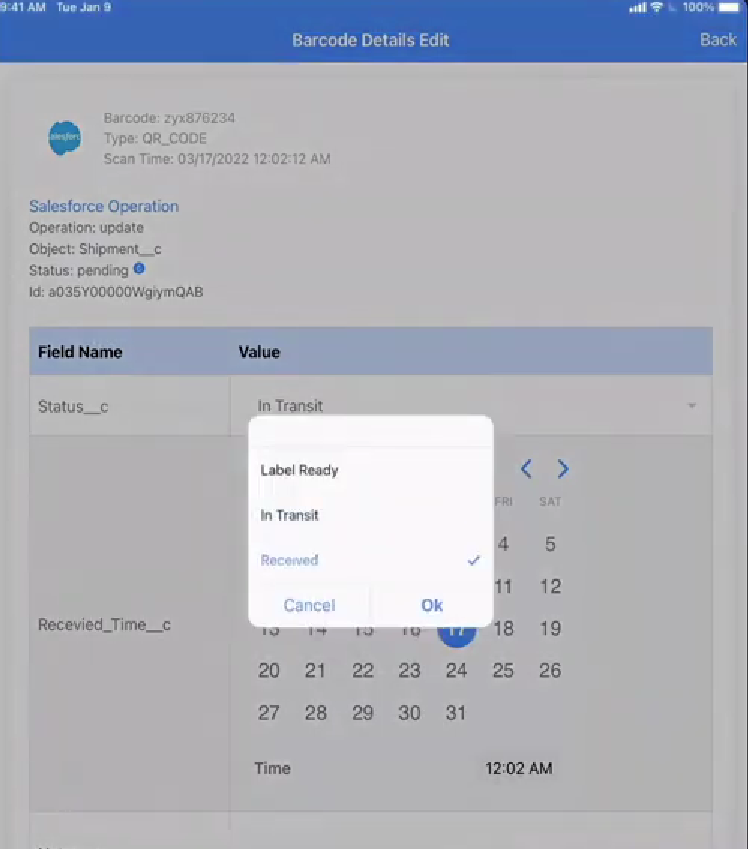
- Updated data is saved back to Salesforce in real time.
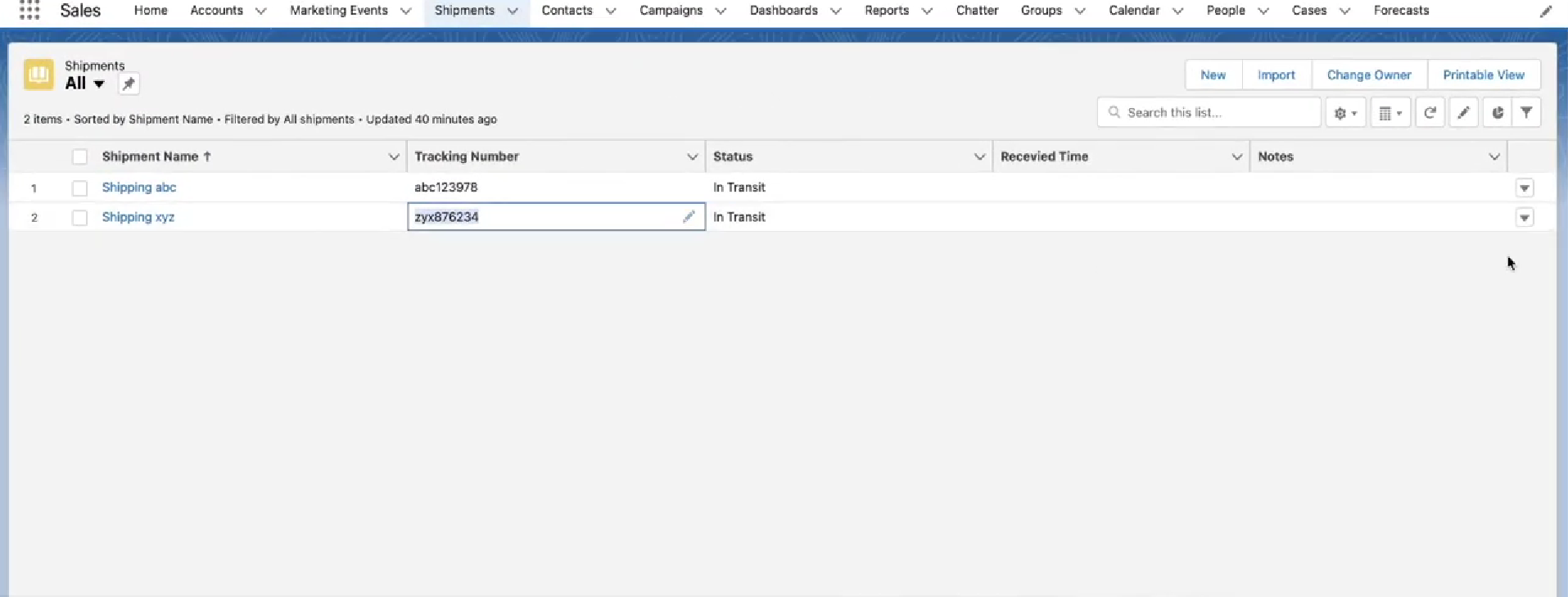
- Congratulations! You have successfully scanned barcodes and updated records in Salesforce using the Barcode to Cloud Mobile App.