
Bulk Barcode Generator
Generating and Printing Barcodes in Bulk
The Bulk Barcode Generator tab renders barcodes for many records at once and lays them out as printable labels. It uses an existing Barcode Config, so every barcode uses the same type, scale and text settings as on your record pages.
Typical uses include asset tags, inventory and shelf labels, event badges and packing slips.
Prerequisite: Assign the Barcode & QR Code Permissions permission set and create a Barcode Config for the object you want to print. See Assign Permissions and Lightning Experience Setup.
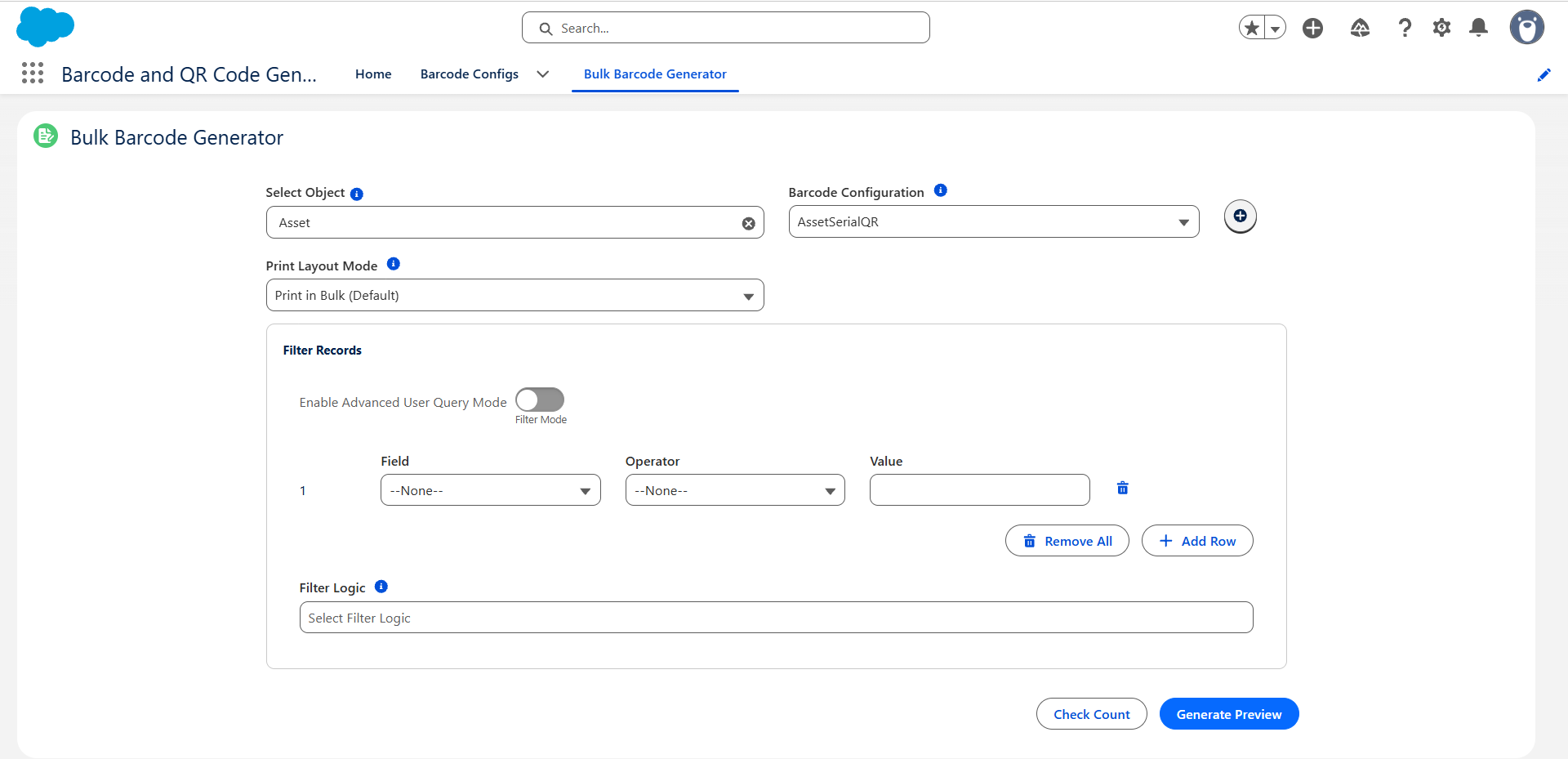
Steps
1. Open the Bulk Barcode Generator
- Open the Barcode and QR Code Generator app from the App Launcher.
- Click the Bulk Barcode Generator tab.
2. Choose the object and Barcode Config
- In Select Object, search for and select the object whose records you want to print (for example,
Asset). - In Barcode Configuration, select a config. Only configs whose Object matches the selected object are listed.
- Click the + icon next to the list to create a new config.
3. Choose a print layout
Pick a Print Layout Mode:
| Mode | Result |
|---|---|
| Print in Bulk (Default) | All barcodes on the current page flow into one continuous grid. |
| Print Individually | One barcode per printed page. |
| Specify Layout Grid | Set Columns (per Row) (1–8) and Rows (per Page) (1–10) to match a label sheet, e.g. 3 × 8. |
4. Filter the records
Use Filter Records to choose which records get a barcode:
- Add one or more rows with a Field, Operator (Equals, Contains, Starts With, Greater Than, and so on) and Value.
- For date fields, check Relative to use a date literal such as
TODAYorLAST_N_DAYS:30. - With more than one row, set the Filter Logic, for example
1 AND (2 OR 3).
For complex criteria, turn on Advanced Query Mode and type a SOQL WHERE clause without the WHERE keyword, for example:
Status = 'Installed' AND InstallDate = LAST_N_DAYS:30
Filters run with the current user’s access, so users only see records they are allowed to view.
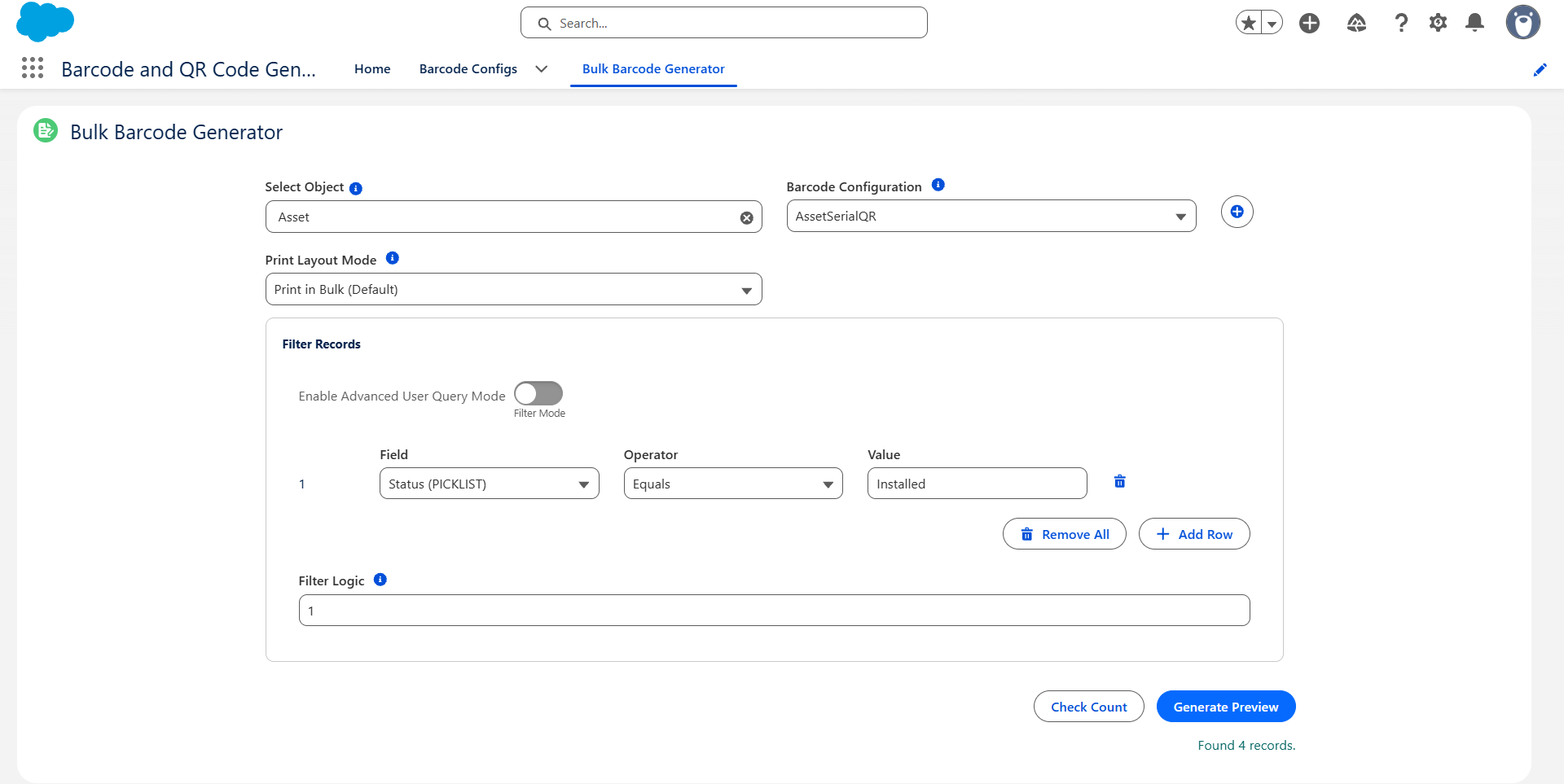
5. Preview and print
- Click Check Count to see how many records match (
Found N records.). - Click Generate Preview. Barcodes appear in the selected layout, newest records first, each with its encoded value as a caption.
- Use Items Per Page (20, 50 or 100) and the arrows to page through the results.
- Click Print Page to print the current page. To save a PDF instead, choose Save as PDF in your browser’s print dialog.
- Click Back to Config to change the settings.
Note: If the configured field is empty on a record, the record’s Id is encoded instead.
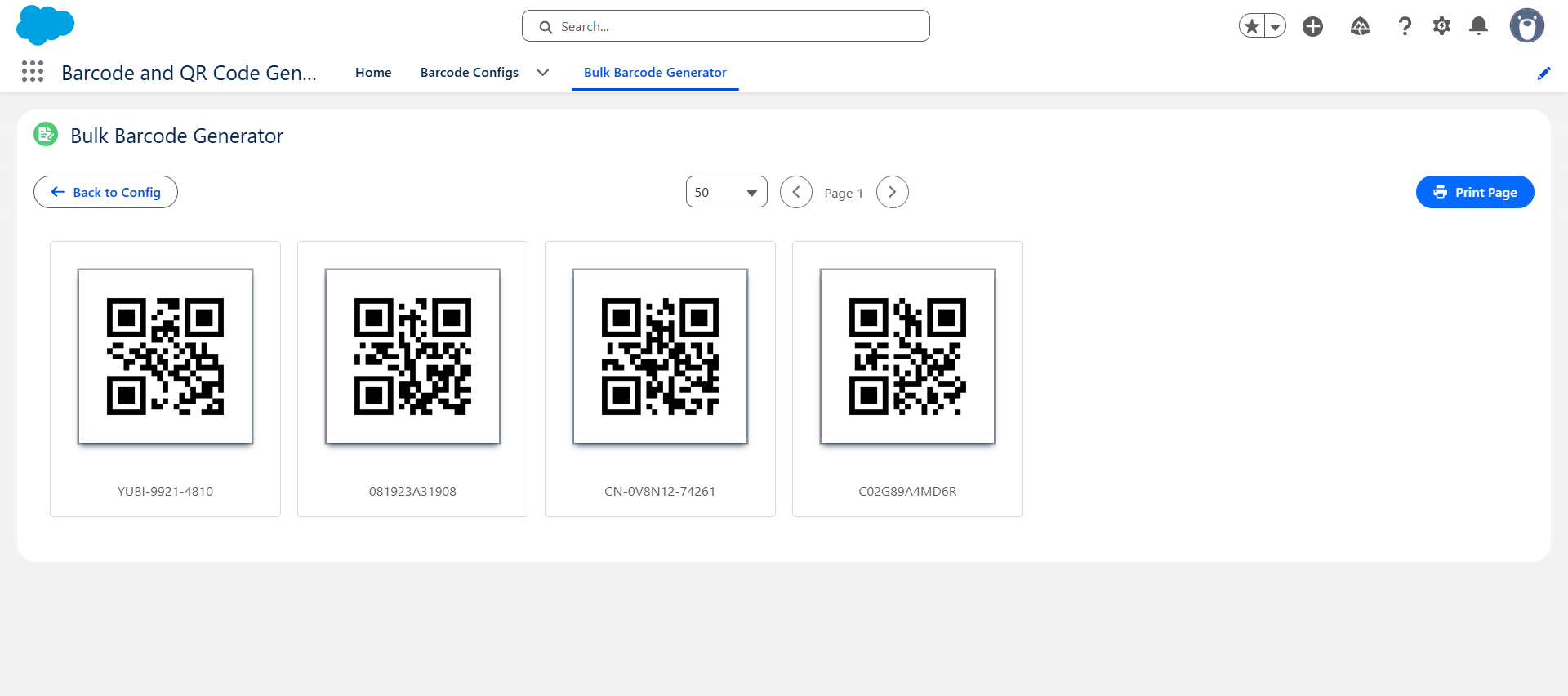
Printing Selected Records from a List View
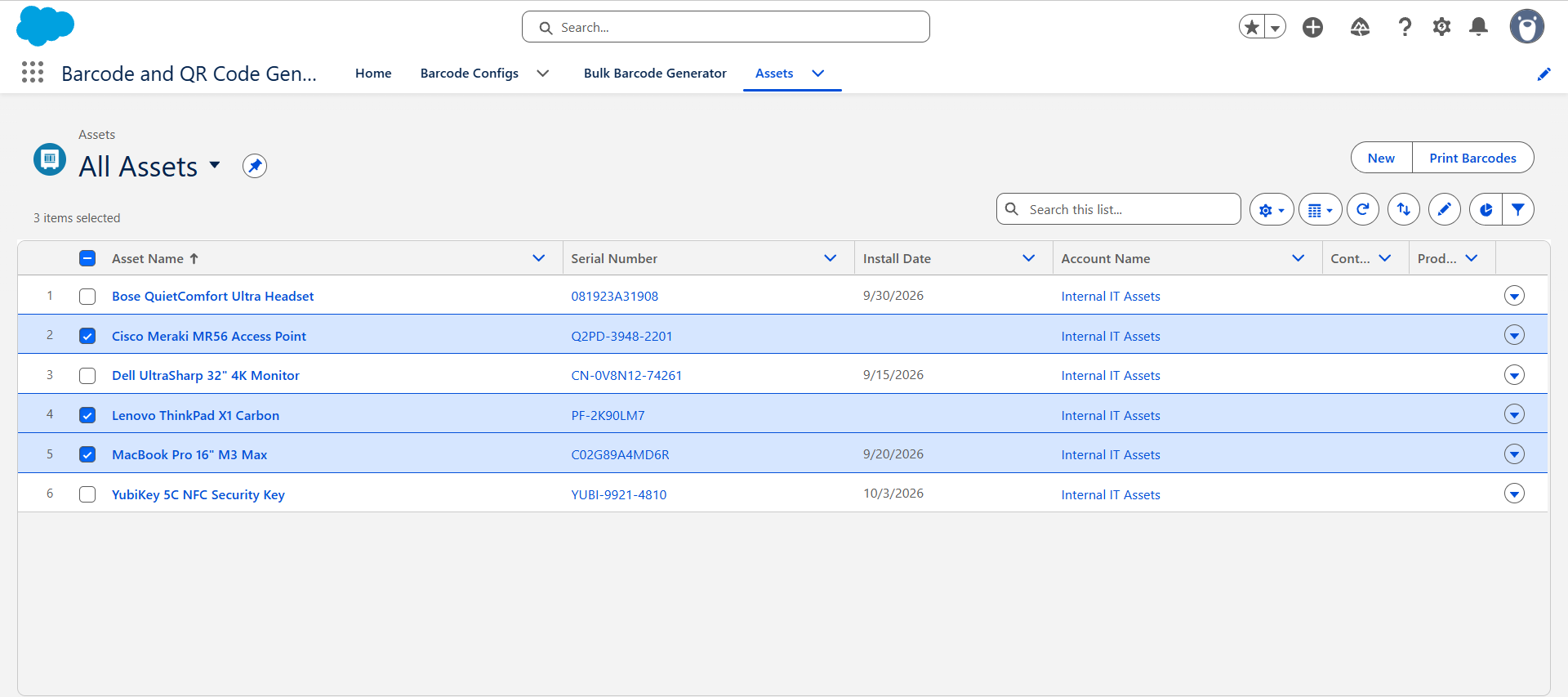
The Bulk Barcode Generator component can also be placed on a Screen Flow and given specific record Ids. This lets users select records in a list view and print their barcodes with one click.
1. Create the Screen Flow
- Go to Setup → Flows → New Flow, choose Screen Flow and click Create.
- In the Toolbox, click New Resource and create a variable:
- Resource Type: Variable
- API Name:
ids(it must be exactly this name) - Data Type: Text
- Check Allow multiple values (collection) and Available for input.
- Add a Screen element and drag the Bulk Barcode Generator component onto it.
- Set Selected Record IDs to
{!ids}. - Optionally, hide the screen’s footer, since the component has its own buttons.
- Save the Flow as
Print_Barcodesand click Activate.
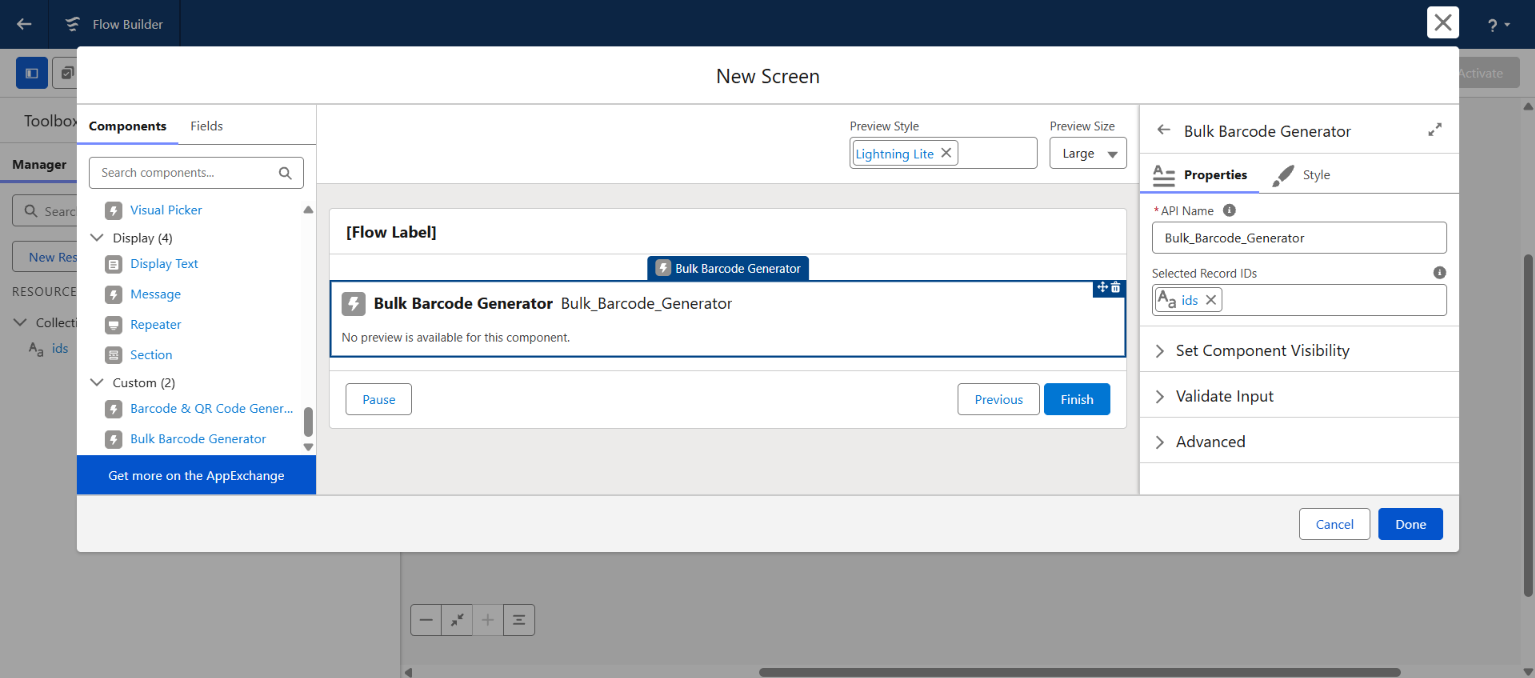
2. Add a list view button
- Go to Setup → Object Manager → your object → Buttons, Links, and Actions → New Button or Link.
- Set:
- Label:
Print Barcodes - Display Type: List Button, with Display Checkboxes (for Multi-Record Selection) checked
- Behavior: Display in existing window without sidebar or header
- Content Source: URL
- Label:
- Enter the Flow URL, replacing
Assetwith your object’s API name:
/flow/Print_Barcodes?retURL=/lightning/o/Asset/list
- Save, then go to Search Layouts for Salesforce Classic → List View, click Edit, and add Print Barcodes to the selected buttons.
When users select records in a list view and click Print Barcodes, Salesforce passes the selected Ids into the ids variable. The generator finds the object, picks the first matching Barcode Config, and opens the preview. Back to Config finishes the Flow.
Alternative: Open the tab with URL parameters
You can also link straight to the tab and pass record Ids and a config name. This works in custom links, buttons and emails:
/lightning/n/BarQR__Bulk_Barcode_Generator?BarQR__recordIds=02i5g00000AbCdE,02i5g00000FgHiJ&BarQR__configName=AssetSerialQR
| Parameter | Description |
|---|---|
BarQR__recordIds |
Comma-separated record Ids. All Ids must belong to the same object. |
BarQR__configName |
Optional. Name of the Barcode Config to use. If omitted, the first matching config is selected. |
BarQR__configId |
Optional. Id of the Barcode Config to use, instead of the name. |
Notes
- Barcodes are rendered in the browser, so every barcode type in the config editor is supported.
- Large selections are paged; print each page separately.
- To create barcode files in bulk instead of printing, use the Flow actions or Apex.