
Use in Visualforce & PDFs
Barcodes in Visualforce Pages
The package includes a Visualforce component and two Visualforce pages. Use them to add barcodes to your own Visualforce pages, Classic page layouts, custom buttons and printable PDFs.
| Asset | Name | Input | Output |
|---|---|---|---|
| Visualforce component | <BarQR:BarcodeVFComponent> |
Barcode Config + record Id | Barcode rendered in the browser (all 100+ types) |
| Generator page | /apex/BarQR__BarcodeGeneratorPage |
Barcode Config + record Id | Full page with the barcode (see Classic Setup) |
| Image page | /apex/BarQR__BarcodeImage |
Barcode type + text | PNG image |
| PDF page | /apex/BarQR__BarcodePdf |
Barcode type + text | One-page PDF with the barcode and its text |
Prerequisite: Users need the Barcode & QR Code Permissions permission set, which grants access to these pages. See Assign Permissions.
Embed the Component in Your Own Page
Add <BarQR:BarcodeVFComponent> to any Visualforce page and pass the config name and record Id. The component supports every barcode type and honors all config settings, including rotation and the PNG/JPEG save links.
| Attribute | Required | Description |
|---|---|---|
barcodeConfigName |
Yes | Name of the Barcode Config record. |
recordId |
Yes | Id of the record whose field value is encoded. |
<apex:page standardController="Account" showHeader="false" sidebar="false">
  <h2>{!Account.Name}</h2>
  <BarQR:BarcodeVFComponent barcodeConfigName="AccountNumberQR" recordId="{!Account.Id}" />
</apex:page>
Because the page uses standardController="Account", you can also add it to a Classic Account page layout as an inline Visualforce page.
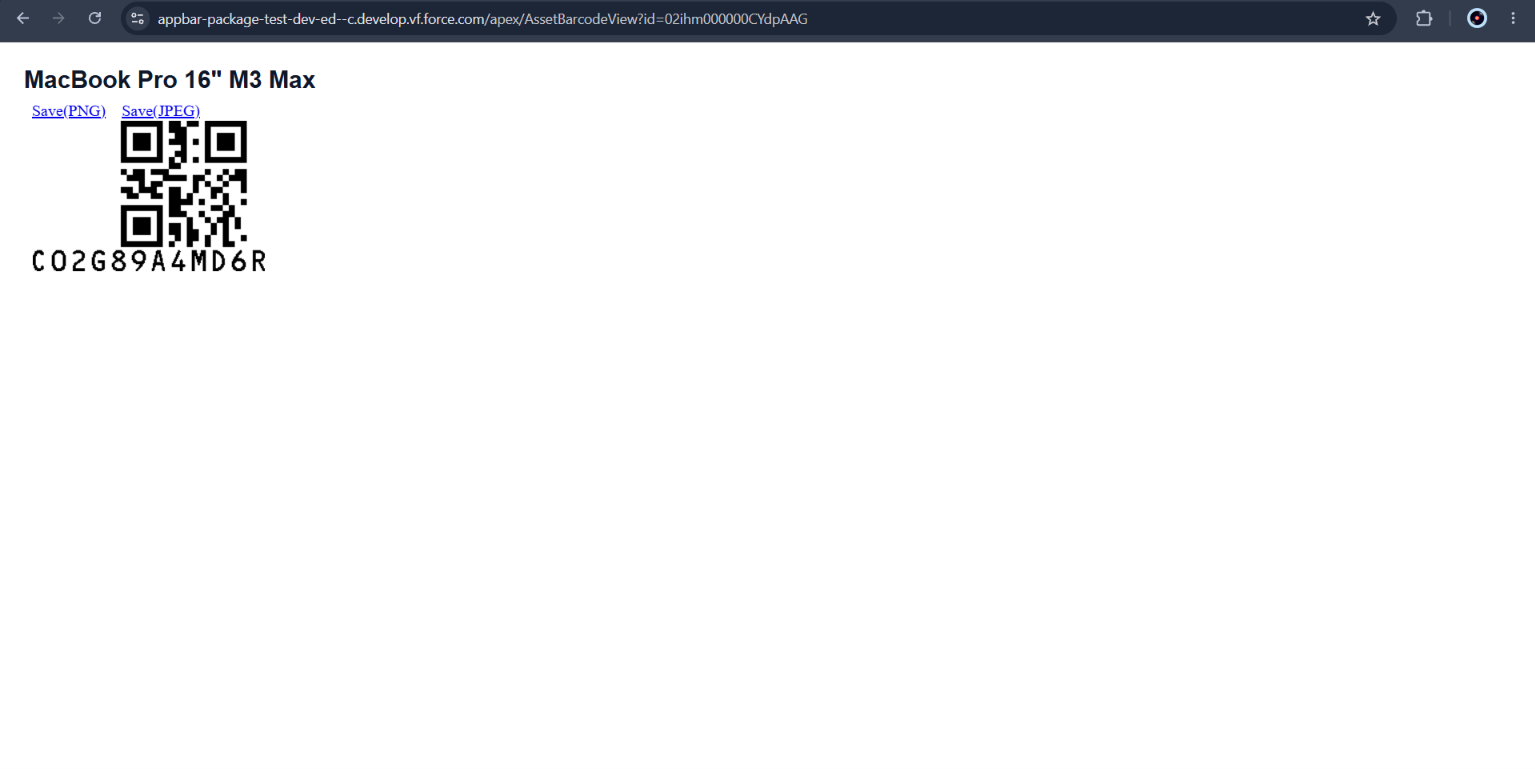
Barcode Image Page
BarQR__BarcodeImage returns a PNG image for any text. Use it as an image source in Visualforce pages.
| Parameter | Default | Description |
|---|---|---|
type |
qrcode |
Barcode type API value. See types supported for server-side generation. |
text |
— | Required. The text to encode. URL-encode it. |
scaleX |
4 |
Horizontal scale, 1–20. |
scaleY |
4 |
Vertical scale, 1–20. |
Example — show an Asset’s serial number as a Code 128 barcode:
<apex:page standardController="Asset" showHeader="false" sidebar="false">
<p>Serial number: {!Asset.SerialNumber}</p>
<apex:image
alt="Serial number barcode"
url="/apex/BarQR__BarcodeImage?type=code128&scaleX=3&scaleY=3&text={!URLENCODE(Asset.SerialNumber)}"
/>
</apex:page>
Note: If you use the image page inside a page with
renderAs="pdf", test the output in a sandbox first. For a ready-made PDF, use the PDF page below.
Barcode PDF Page
BarQR__BarcodePdf takes the same parameters as the image page (type, text, scaleX, scaleY) and returns a one-page PDF with the barcode and its text. If the text is missing or invalid for the barcode type, the PDF shows an error message.
/apex/BarQR__BarcodePdf?type=qrcode&text=Hello%20World&scaleX=4&scaleY=4
Example — a “Print Barcode” button on Account:
- Go to Setup → Object Manager → Account → Buttons, Links, and Actions → New Button or Link.
- Set Label to
Print Barcode, Display Type to Detail Page Button, Behavior to Display in new window, and Content Source to URL. - Enter the URL:
/apex/BarQR__BarcodePdf?type=code128&scaleX=3&scaleY=3&text={!URLENCODE(Account.AccountNumber)}
- Save, then add the button to the Account page layout (in Lightning, under Mobile & Lightning Actions).
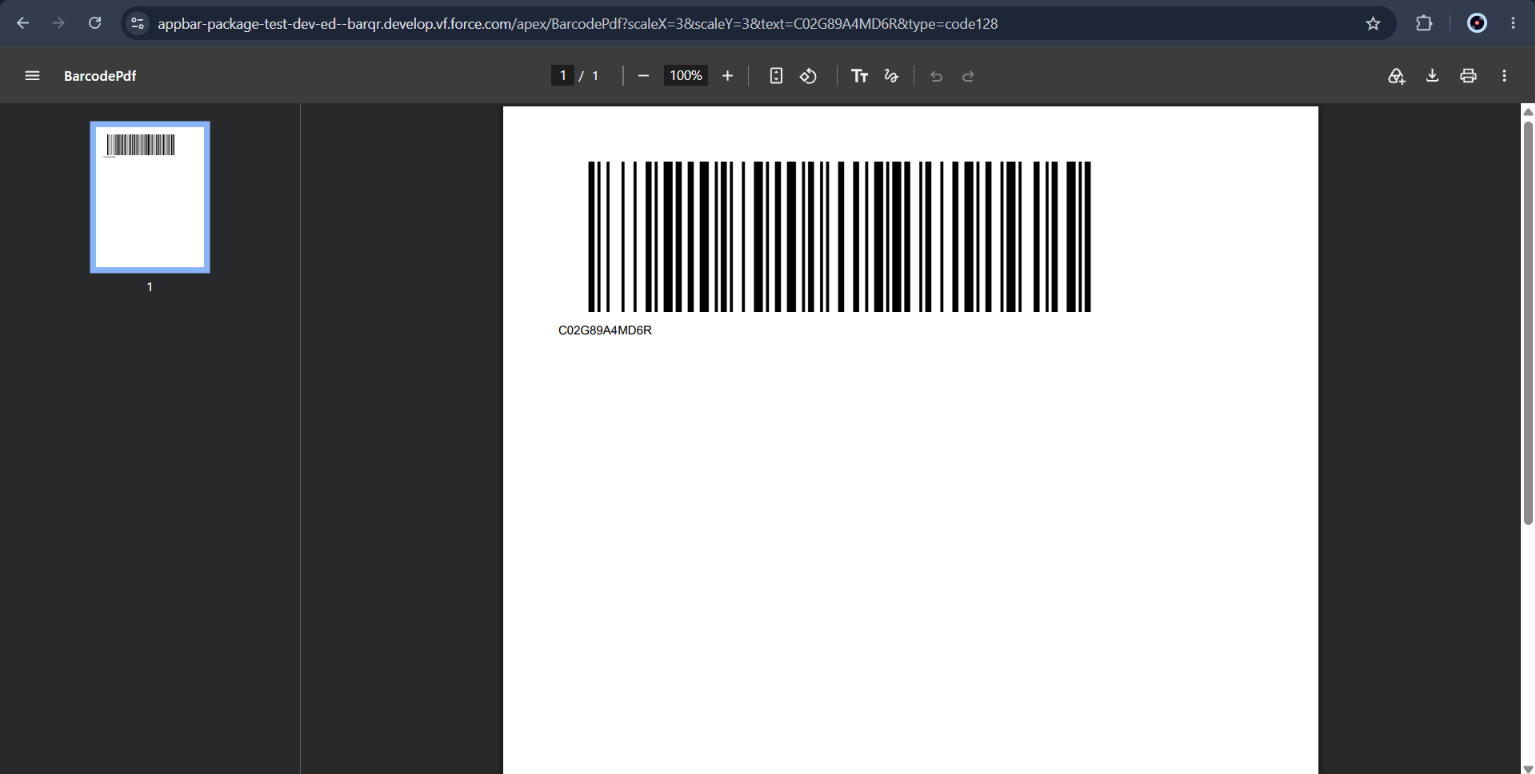
How the Image and PDF Pages Store Images
The image and PDF pages save each generated PNG as an externally available Document in the running user’s personal Documents folder. The same type, text and scale reuse the existing Document instead of creating a new one.
Important: Anyone with an externally available Document’s image URL can view it. Don’t encode confidential data with these pages. To keep barcodes private, use the Flow actions or Apex to create Salesforce Files with internal links.