
Generate Barcode Files in Flow
Barcode Flow Actions
The app adds six Action elements to Flow Builder, under the Barcode category. They generate a barcode image on the server, save it as a Salesforce File (PNG or SVG), and then do one of three things:
- Attach the file to a record, so it appears in the record’s Files related list.
- Return an internal URL that logged-in Salesforce users can open.
- Return a public URL that anyone can open — for emails, websites and external systems.
Each of these comes in two versions:
- with Config — reads the text from a record field and the barcode type and scale from a saved Barcode Config.
- with Data — you pass the barcode type, the text and the scale directly. Use this to encode values that are not in a single field, such as a URL or a combination of fields.
They work in record-triggered, scheduled, autolaunched and screen Flows, and can be called from Apex.
Prerequisite: Users who run the Flow need the Barcode & QR Code Permissions permission set. Config-based actions also need a saved Barcode Config whose barcode type is supported for server-side generation.
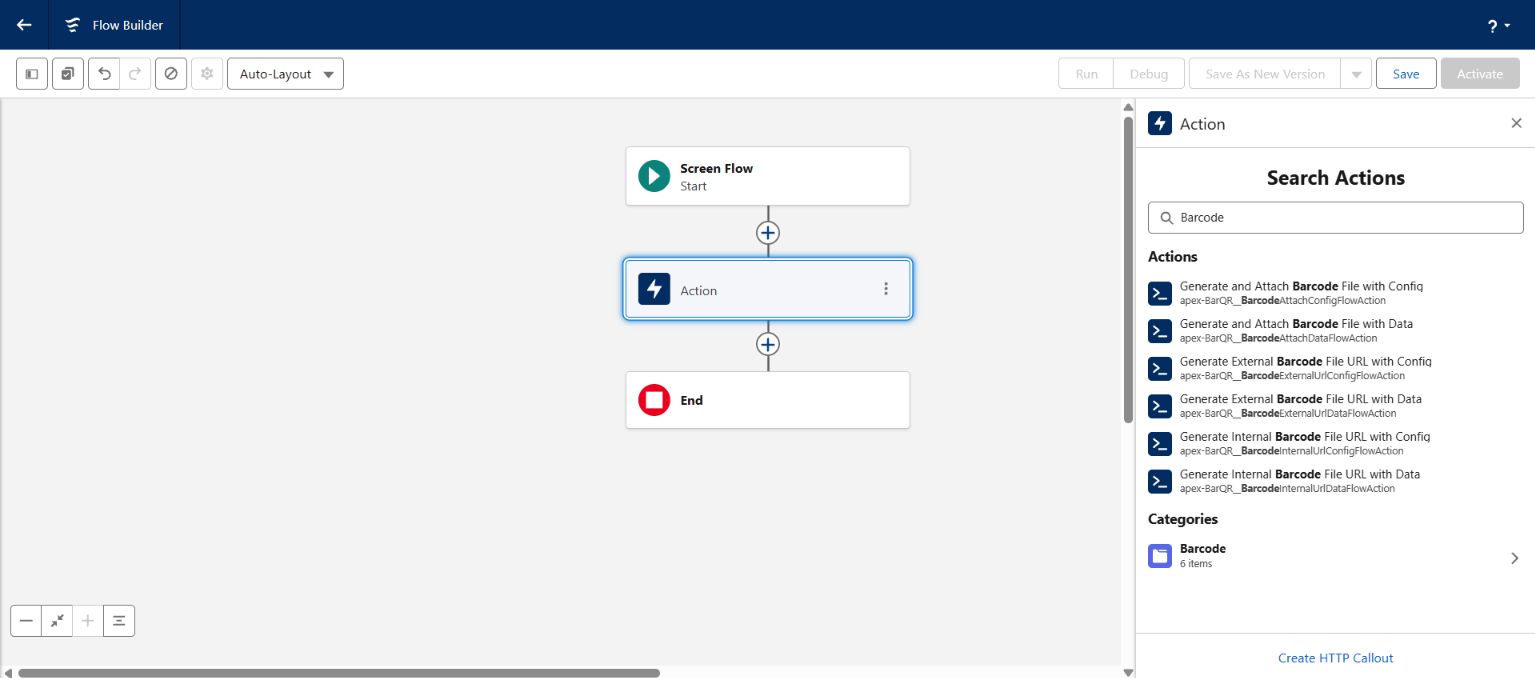
Action Reference
| Action (label in Flow Builder) | Inputs | Main output |
|---|---|---|
| Generate and Attach Barcode File with Config | Record ID, Config Name, Use PNG Format | Content Version ID of the attached file |
| Generate and Attach Barcode File with Data | Record ID, Barcode Type, Text to Encode, Scale X, Scale Y, Use PNG Format | Content Version ID of the attached file |
| Generate Internal Barcode File URL with Config | Record ID, Config Name, Use PNG Format | Internal File URL |
| Generate Internal Barcode File URL with Data | Barcode Type, Text to Encode, Scale X, Scale Y, Use PNG Format | Internal File URL |
| Generate External Barcode File URL with Config | Record ID, Config Name, Use PNG Format | Public Download URL |
| Generate External Barcode File URL with Data | Barcode Type, Text to Encode, Scale X, Scale Y, Use PNG Format | Public Download URL |
Inputs
| Input | Description |
|---|---|
| Record ID | with Config: the record whose field (set in the config) is encoded. Attach: the record the file is attached to. |
| Config Name | The Name of a Barcode Config record, e.g. AssetSerialQR. |
| Barcode Type | Barcode type API value, e.g. qrcode, code128, ean13, datamatrix. See the supported types. |
| Text to Encode | The value to put in the barcode. |
| Scale X / Scale Y | Optional. Size multiplier from 1 to 20. Default 2. |
| Use PNG Format | Optional. True (default) creates a PNG; False creates an SVG. |
Outputs
Every action returns Success (True or False) and Error Message. Errors such as a missing config, an empty field or invalid data do not stop the Flow or go to a fault path — they set Success to False. Add a Decision element after the action to check it.
Attached files are visible to everyone who can see the record. Files created by the URL actions are not attached to any record; they are owned by the running user.
Example 1: Attach a QR Code to Every New Asset
This record-triggered Flow creates a QR code from the Asset’s serial number and attaches it to the Asset.
Before you start, create a Barcode Config named AssetSerialQR with Object Asset, Field SerialNumber, and Barcode Type QR Code.
- Go to Setup → Flows → New Flow, choose Record-Triggered Flow, and click Create.
- Configure the Start element:
- Object: Asset
- Trigger the Flow When: A record is created
- Entry Conditions:
SerialNumberIs NullFalse - Optimize the Flow for: Actions and Related Records
- Check Include a Run Asynchronously path…
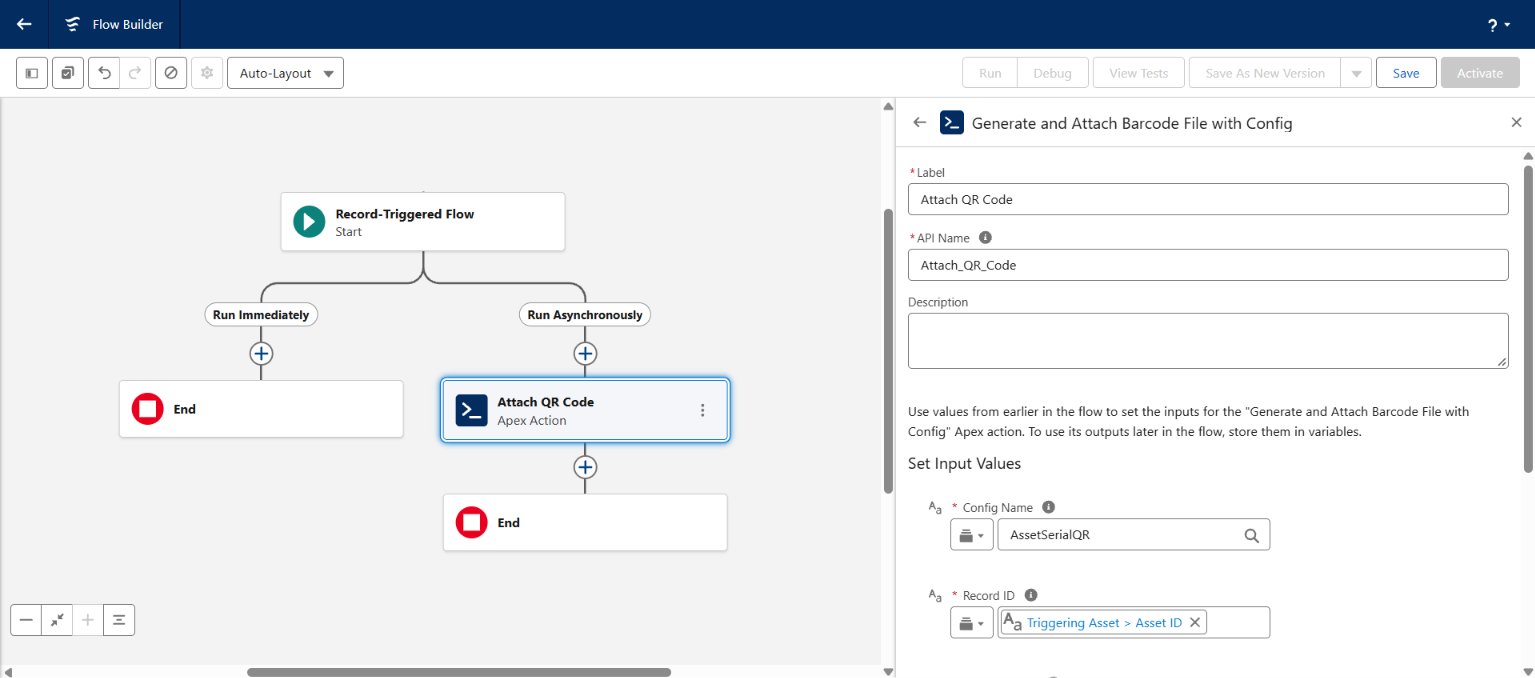
- On the Run Asynchronously path, click + and add an Action. Search for Generate and Attach Barcode File with Config.
- Set:
- Label:
Attach QR Code - Record ID:
{!$Record.Id} - Config Name:
AssetSerialQR - Use PNG Format:
{!$GlobalConstant.True}
- Label:
- Add a Decision after the action with an outcome Failed when
{!Attach_QR_Code.success}Equals{!$GlobalConstant.False}. On that path you could, for example, create a Task containing{!Attach_QR_Code.errorMessage}. - Save and Activate the Flow.
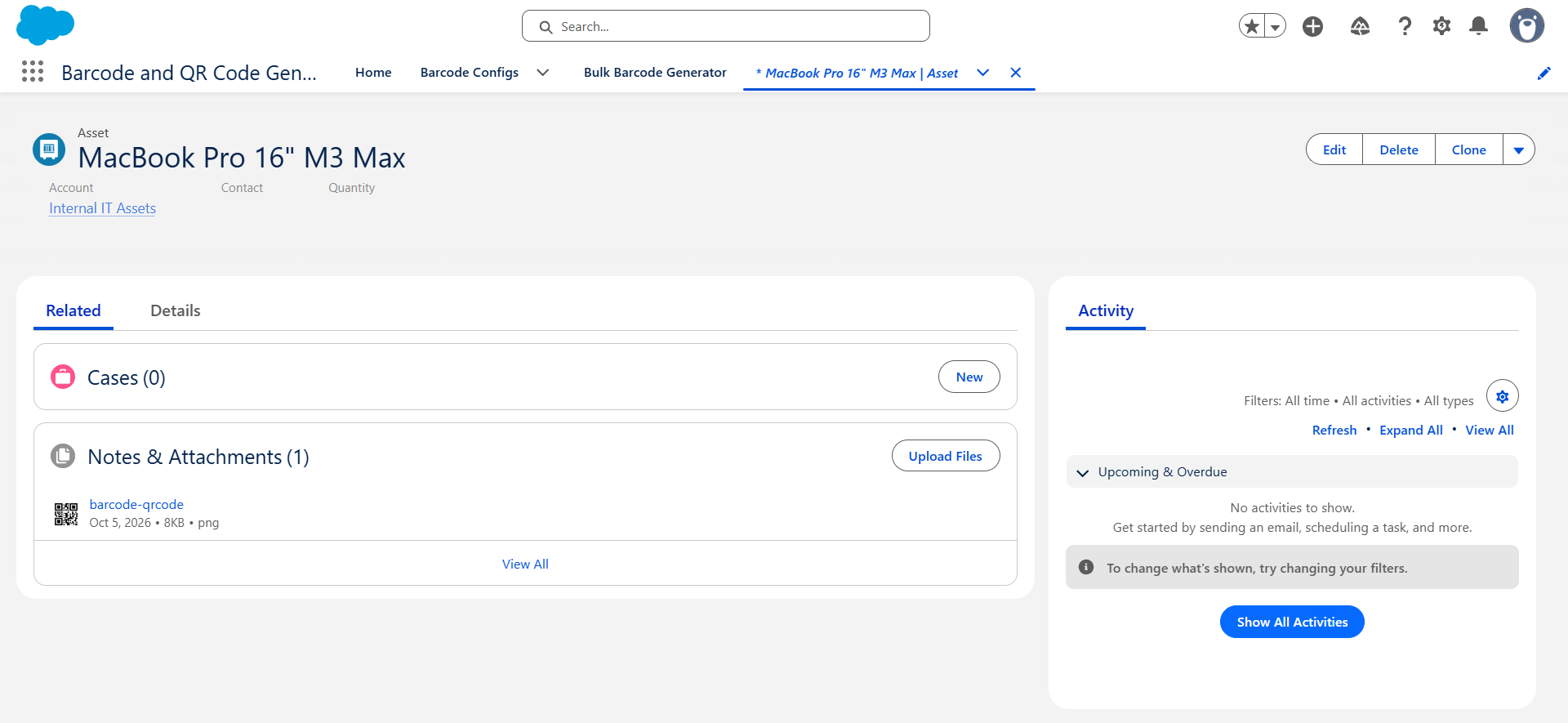
Create an Asset with a serial number: within a few seconds a file named barcode-qrcode.png appears in its Files related list.
Why the asynchronous path? Generating images uses server resources. Running it after the record is saved keeps saves fast, and if generation fails the Asset is still saved.
Example 2: Email a QR Code Ticket
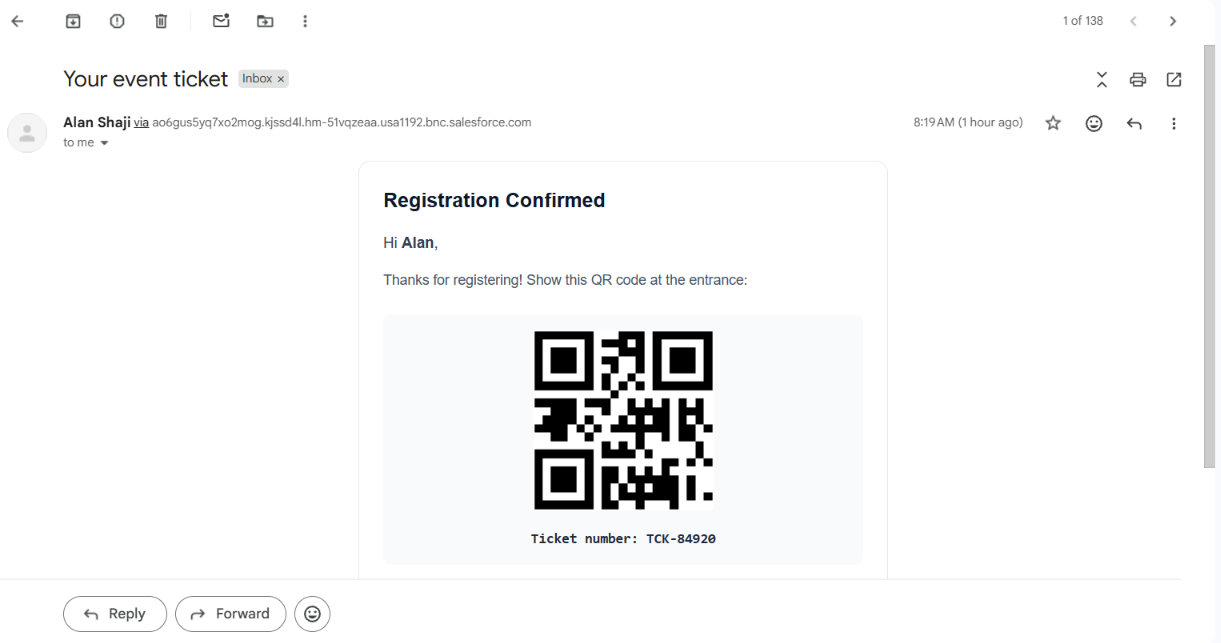
This Flow emails each new event registrant a ticket with a QR code. It uses a public URL, so the image loads in any email client.
Before you start:
- In Setup, search for Content Deliveries and Public Links and enable Content Deliveries and Public Links. Public URL actions fail with an error if this is off. Depending on your org settings, users may also need the Create Public Links permission.
- Create a Barcode Config named
TicketQRon your registration object (in this example, a custom objectRegistration__c) using the fieldTicket_Number__cand the typeQR Code.
- Create a Record-Triggered Flow on
Registration__cthat runs when a record is created, optimized for Actions and Related Records, with a Run Asynchronously path. - On that path, add the action Generate External Barcode File URL with Config:
- Label:
Get Ticket QR - Record ID:
{!$Record.Id} - Config Name:
TicketQR
- Label:
- Add a Decision that continues only when
{!Get_Ticket_QR.success}isTrue. - Create a Text Template resource named
TicketEmailBody. Switch it to View as Plain Text and enter:
<p>Hi {!$Record.First_Name__c},</p>
<p>Thanks for registering! Show this QR code at the entrance:</p>
<p><img src="{!Get_Ticket_QR.url}" alt="Ticket QR code" width="200" height="200" /></p>
<p>Ticket number: {!$Record.Ticket_Number__c}</p>
- Add a Send Email action:
- Recipient Address List:
{!$Record.Email__c} - Subject:
Your event ticket - Body:
{!TicketEmailBody} - Rich-Text-Formatted Body:
{!$GlobalConstant.True}
- Recipient Address List:
- Save and Activate.
Tip: To also keep a copy on the record, store the URL in a URL field with an Update Records element, or add Generate and Attach Barcode File with Config.
Example 3: Encode a Custom Value
Use the with Data actions to encode something other than a single field — for example, a link to the record on your website.
- Create a Formula resource named
AssetUrlwith Data Type Text:
"https://example.com/assets/" & {!$Record.Id}
- Add the action Generate and Attach Barcode File with Data:
- Record ID:
{!$Record.Id} - Barcode Type:
qrcode - Text to Encode:
{!AssetUrl} - Scale X:
4 - Scale Y:
4 - Use PNG Format:
{!$GlobalConstant.False}to create an SVG that stays sharp at any print size
- Record ID:
The same inputs work with Generate Internal Barcode File URL with Data and Generate External Barcode File URL with Data, which don’t need a Record ID.
Bulk Updates and Governor Limits
When many records trigger the Flow at once, Salesforce sends them to the action together, and each one runs its own queries and file inserts. A config-based action uses up to five SOQL queries per record, so a large data load can exceed Salesforce governor limits and fail the whole batch.
- Use the Run Asynchronously path, which has higher limits.
- Load records in small batches, for example a Data Loader batch size of
20. - To generate barcodes for existing records, use Batch Apex with a small scope instead of a Flow.
Troubleshooting
| Error Message | Fix |
|---|---|
Barcode configuration not found: … |
Check the Config Name matches a Barcode Config exactly. |
Could not resolve barcode text from record … |
The configured field is empty on that record, or the user cannot read it. Add an entry condition or check field access. |
Unsupported barcode type: … |
Use a type from the server-side list. |
Text to encode cannot be empty |
Pass a value in Text to Encode. |
Could not create a public link for the barcode file… |
Enable Content Deliveries and Public Links in Setup. |
Type-specific messages such as EAN-13 requires 12 or 13 digits |
The data is not valid for the barcode type. |