
Child Grids
A child grid shows related records inline under each row of a parent grid — for example, Contacts nested under Accounts, or Opportunity Line Items nested under Opportunities.
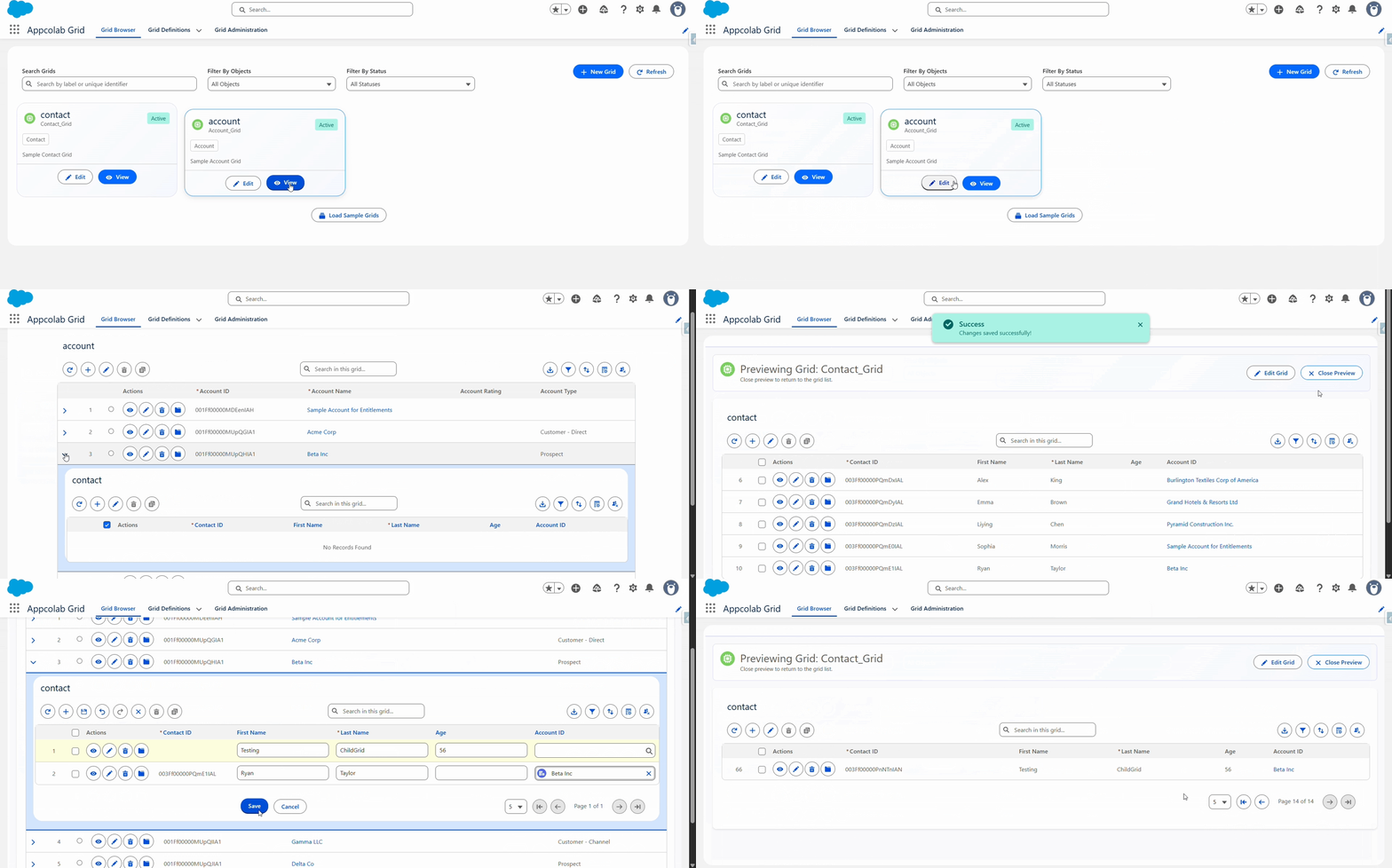
How child grids work
- A child grid is just another Grid Definition — you build it the same way as any grid.
- The child grid’s Parent Relationship Field (on its Grid Details step) is the lookup that points back to the parent record.
- When the user expands a row in the parent grid, AppColab Grid automatically filters the child grid to records whose lookup matches that parent row’s ID.
Step 1: Create the child Grid Definition
If you do not already have one:
- Build a grid for the child object (for example,
Opportunity_LineItems_GridonOpportunityLineItem). - On its Grid Details step, set the Parent Relationship Field to the API name of the lookup that points to the parent object (for example,
OpportunityId). - Configure its columns, filters, actions, and features as usual.
- Check Is Active and save.
Step 2: Attach the child grid to the parent
Open the parent grid in the configuration wizard and go to Child Grids:
- Click Add Child Grid.
- Child Config: pick the child Grid Definition you created.
- Label: the name users see for the child section (for example,
Line Items). - Repeat to add more child grids — a parent grid can have several.
- Click Save & Next.
What the end user sees
- In the parent grid, a chevron (
>) appears on the left of each row. - Clicking it expands the row to reveal the child grid filtered to that record’s children.
- The child grid behaves like a full grid: sort, filter, edit, add row, custom actions, even its own child grids.
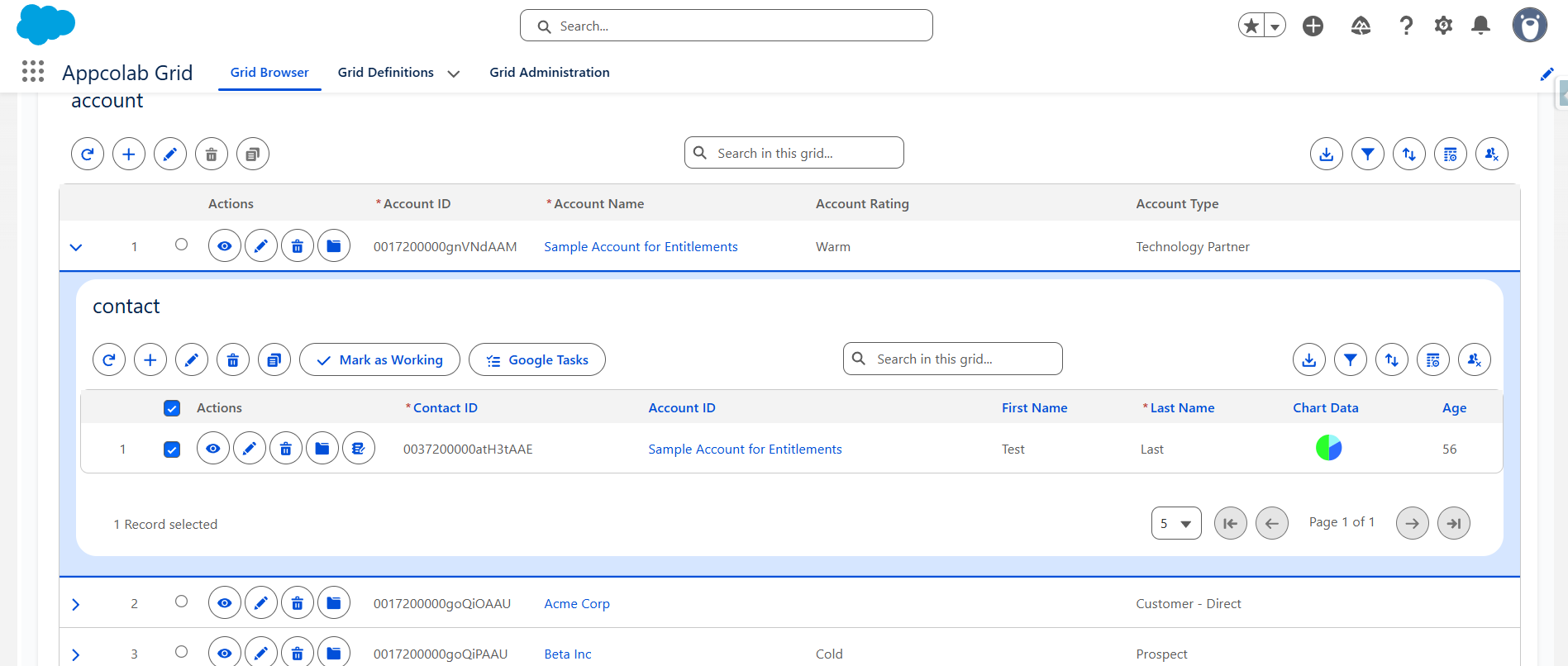
Creating child records inline
If Add Row is enabled on the child grid:
- Expand a parent row.
- Click Add Row in the child grid toolbar.
- The parent lookup field is auto-populated and locked — you do not have to search for the parent ID.
- Fill in the other required fields and Save.
This is particularly useful for order lines, quote line items, or any scenario where the user would otherwise have to navigate away.
Recommendations
- Keep child grids narrow — five to seven columns is usually enough. Users can expand multiple rows, which gets visually noisy with wide child grids.
- Set a sensible default sort on the child grid (for example,
SortOrderascending for line items). - If the parent grid is on a record page scoped to a single record, you usually do not need to nest a child grid — just place the child grid on the record page as a sibling.