
Accessing Grids
This page explains the two ways end users open a grid: through the Grid Browser tab, or through a grid embedded on a Lightning page.
Grid Browser tab
The Grid Browser is the catalog of all grids you have access to.
- Open the Appcolab Grid app from the App Launcher.
- Click the Grid Browser tab.
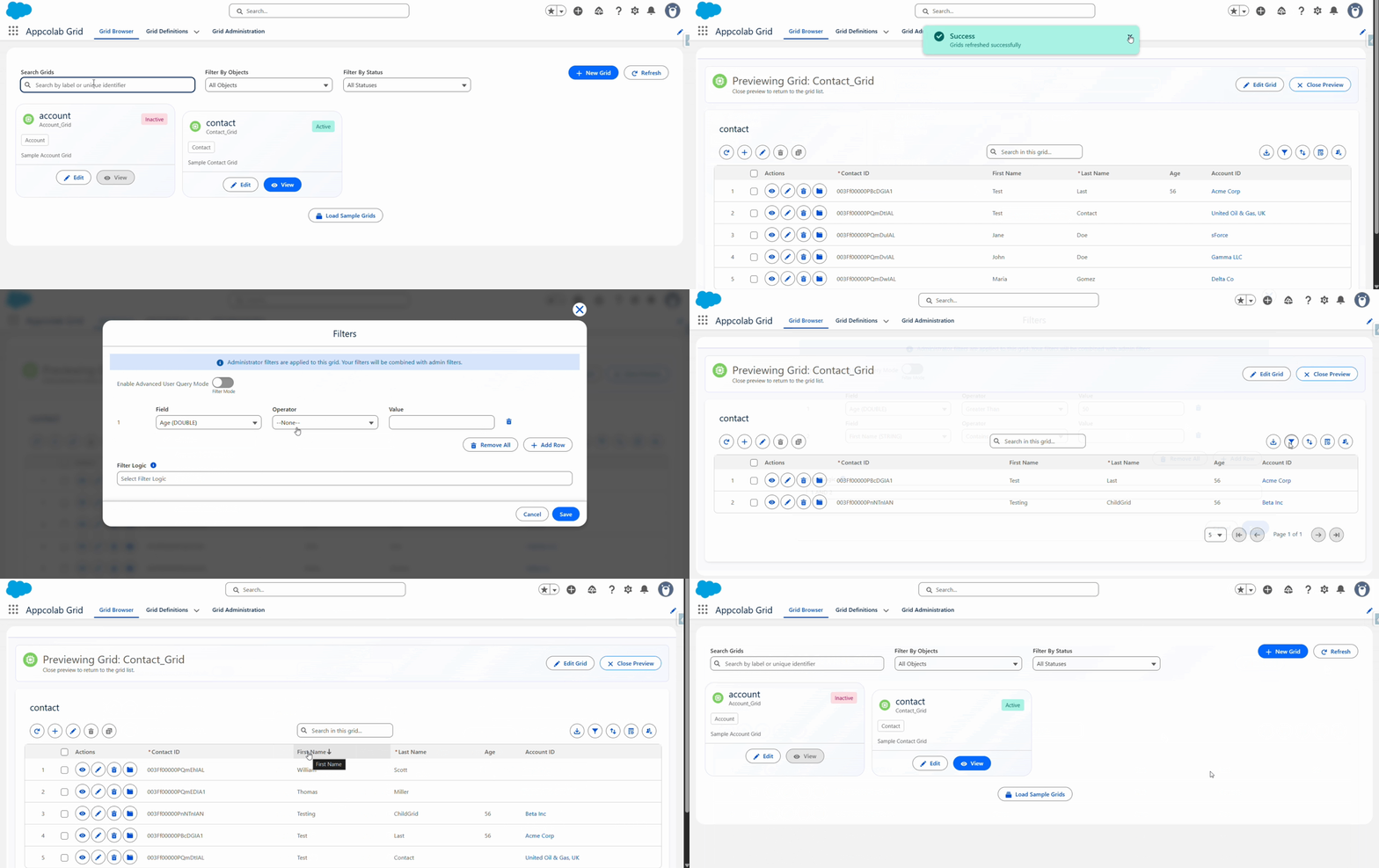
- Grids are shown as cards. Each card displays:
- The grid’s Label (large title) and developer Name (smaller, below the label).
- The Primary Object it targets (shown as a badge).
- The Description, if one was provided.
- An Active (green) or Inactive (red) status badge in the top-right corner of the card.
Find the grid you want
- Search: type in the Search Grids box to filter by label or identifier name.
- Filter by object: use the Filter By Objects dropdown to narrow to a specific object (for example, only show Account grids).
- Filter by status: use the Status dropdown to show Active, Inactive, or All grids. All grids are shown by default.
Open or edit a grid
- Click View on a card to open the grid.
- Click Edit (admins only) to open the grid in the configuration wizard.
Grids embedded on Lightning pages
Administrators can place grids directly on record pages, home pages, or app pages. When a grid is embedded on a record page, it automatically filters to records related to the page’s record (for example, Contacts shown on an Account page are filtered to that Account).
No extra clicks are needed — the grid appears like any other record page component.
Limit Exceeded message
If your org exceeds its active-grid limit, you may see a Limit Exceeded warning instead of the grid. This is a license constraint — contact your Salesforce administrator. See Grid Administration.
Can’t find a grid?
- Make sure you have the
Appcolab_Grid_User(orAppcolab_Grid_Admin) permission set. Ask your administrator to assign it if not. - If the grid is inactive, only admins will see it in the Grid Browser.
- Confirm the grid targets an object you have read access to. Grids respect field-level security and object-level access.