
Adding Grids to Pages
Grids do not have to live only in the Grid Browser tab. You can embed the gridTable component on any Lightning page — a record page, an app page, the home page, or an Experience Cloud (community) page.
Before you start
- The Grid Definition must be saved and Is Active checked.
- Note the Grid Identifier (the Name you set on the Grid Details step).
Add a grid to a record page
Example: show related Contacts on an Account record page.
- Open any Account record.
- Click the gear icon (⚙) in the top-right and choose Edit Page.
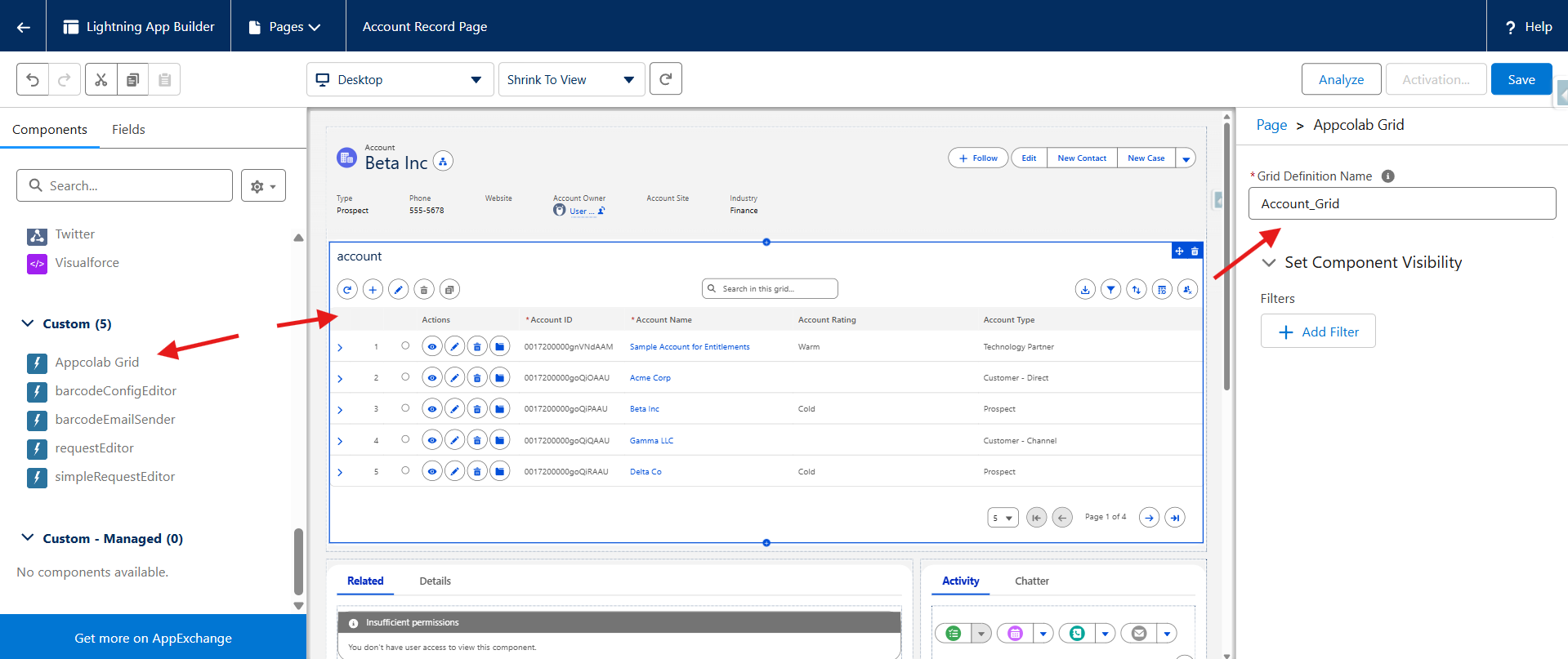
- In the Lightning App Builder, drag the Appcolab Grid component onto the page.
- In the component properties panel, set Grid Definition Name to your grid’s identifier (for example,
Contacts_By_Account_Grid). - Save and Activate the page as usual.
For the grid to scope to the current record, make sure the grid’s Parent Relationship Field is set on its Grid Definition (for example, AccountId). AppColab Grid automatically filters the grid to records where that lookup equals the page’s record ID.
Add a grid to an app page or home page
- Go to Setup → Lightning App Builder → New (or edit an existing app/home page).
- Drag Grid Table onto the canvas.
- Set Grid Definition Name to your grid’s identifier.
- Save and activate.
App pages and home pages have no record context, so the grid shows all records matching the admin filter.
Add a grid to an Experience Cloud (community) page
- Open Experience Builder for your site.
- Drag Appcolab Grid onto a page.
- Set Grid Definition Name to your grid’s identifier.
- Publish the site.
Make sure the Experience Cloud guest or authenticated user profile has the Appcolab_Grid_User permission set (or equivalent access) and sees the underlying object.
Using the same grid in multiple places
The same Grid Definition can be embedded on as many pages as you like. Each user’s personal preferences (column visibility, sort, filters, page size) are saved per grid, so the same grid will look the same to them everywhere they open it.
Troubleshooting embedded grids
- “Grid not found” — the Grid Identifier does not match any active Grid Definition.
- “Limit Exceeded” — too many grids are active; see Grid Administration.
- Grid loads but shows no records on a record page — the Parent Relationship Field is probably not set or points to the wrong lookup.
- Grid loads with every record (not scoped) — same cause as above.
See Common Issues for more.