
Quick Start
Build a working grid over the Contact object in about five minutes. This tutorial assumes AppColab Grid is already installed and you have the Appcolab_Grid_Admin permission set.
1. Open the configuration wizard
- In the Appcolab Grid app, click the Grid Definition tab, then click New.
- Alternatively, open the Grid Browser tab and click + New Grid.
For Screenshots & Detailed Guide — see Creating a Grid Definition.
2. Fill in grid details
On the first step (Grid Details):
- Name:
My_Contact_Grid(developer-style, unique). - Label:
My Contacts. - Description: Optional — a short summary for other admins.
- Default Page Size:
25. - Record Limit:
1000. - Pagination Type:
Auto(let the app choose based on dataset size). - Is Active: check this so users can open the grid.
- Leave the other options at their defaults for now.
Click Save & Next.
3. Choose the object and columns
On Objects & Columns:
- In Primary Object, search and select Contact.
- Add these fields by clicking them in the field search box:
First NameLast NameEmailPhoneTitle
- To add
Account.Name(a related field):- In the Related Fields section below the search, select
Account >from the Level 1 dropdown. - A Level 2 dropdown appears. Select
Name. - Click Add Related Field.
- In the Related Fields section below the search, select
- Drag the selected fields to set the column order you prefer.
Click Save & Next.
4. Add a filter (optional)
On the Filter step:
- Field:
Email - Operator:
Not Equal - Value: leave blank
This will only show contacts that have an email address. Click Save & Next.
5. Skip Actions and Child Grids
You can add these later. Click Save & Next through both steps.
6. Preview and finish
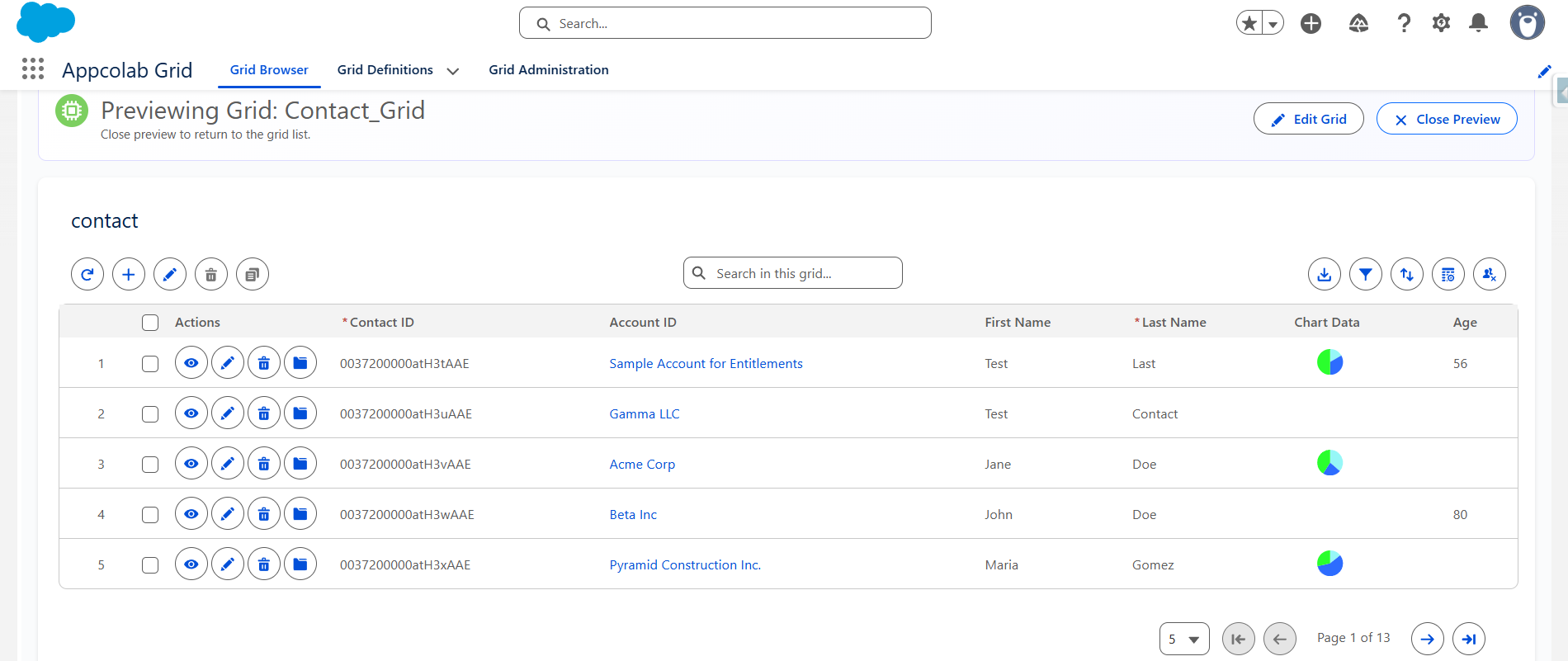
On the Preview step, you will see the grid rendered with live data. Verify it looks right, then click Finish to navigate to the saved Grid Definition record.
7. Open your grid
- Go to the Grid Browser tab.
- Find the My Contacts card and click View.
You should now see your Contact grid with sorting, search, filtering, and inline editing available in the toolbar.
What next?
- Edit data inline — see Inline Editing.
- Add the grid to a record page — see Adding Grids to Pages.
- Add a grid action — see Grid Actions.
- Show related records inline — see Child Grids.