
Filters & Sort
Filters on the configuration control which records the grid shows by default. End users can refine further at runtime, but can never see records that your admin filter excludes. Default sort orders control how records are initially arranged.
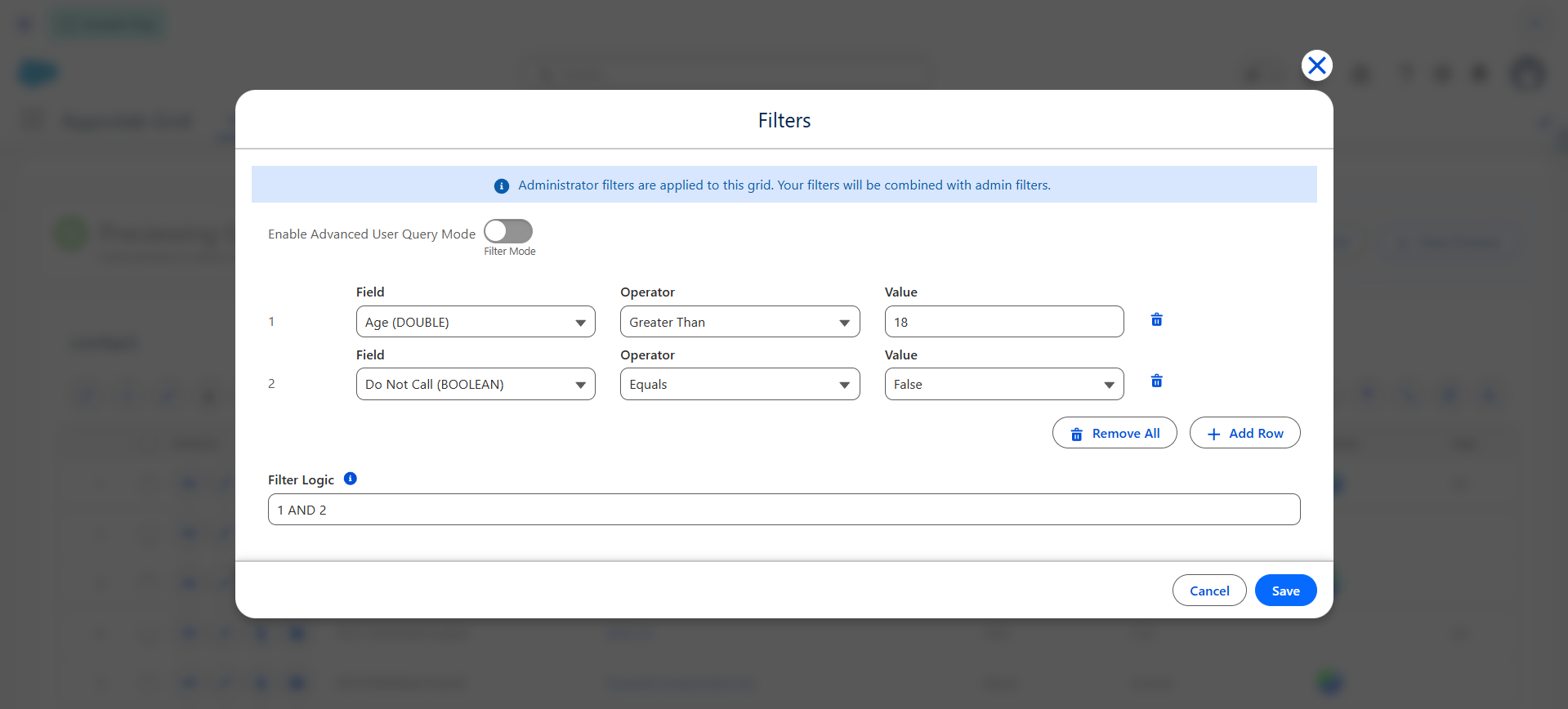
Add a filter rule
On the Filter step of the wizard:
- Click New Filter.
- Choose a Field (fields from the primary object and any related fields are available).
- Pick an Operator —
Equals,Not Equal,Contains,Starts With,Greater Than,Less Than,In,Not In, etc. The list adapts to the field type. - Enter the Value to compare against.
- Repeat to add more rules.
Combine rules with filter logic
Once you have more than one rule, you can control how they combine:
- All of the above (AND) — every rule must match.
- Any of the above (OR) — at least one rule must match.
- Custom — enter a logic expression such as
(1 AND 2) OR 3, where the numbers correspond to the rule order on the screen.
Advanced SOQL WHERE clause
For cases where the filter builder is not expressive enough, you can provide a raw Query Where Clause.
- It is appended (AND’d) to the filter-builder rules.
- Only use fields that are valid in SOQL on the primary object or its traversable lookups.
- Bind variables are not required — the grid applies the snippet literally.
Use this sparingly; the filter builder is easier to maintain.
Default sort order
Default sort is managed at runtime through the Sort modal (the sort icon in the grid toolbar). The Sort modal has two sections:
- Default Sorting — shows the admin-configured default sort for this grid (locked, shown with a lock icon). Users can toggle Override Default to suppress the admin sort and apply their own instead.
- Your Sort — each user’s personal sort entries. Users can add columns to sort by (by clicking a column header), toggle direction, and remove entries. Click Clear All to reset back to the admin default.
End users can click any sortable column header to re-sort at runtime. Their choice is saved to their personal preferences until they click Reset Grid to return to admin defaults.
What users can do at runtime
Even with default filters in place, users can still:
- Apply additional filter panel rules at runtime.
- Use global search across visible columns.
- Click column headers to sort, or use the Sort modal to manage multiple sort levels.
- Click Reset Grid to return to admin defaults.
Recommendations
- Filter out obviously irrelevant records (e.g.,
IsDeleted = false,StageName != 'Closed Lost') so users do not have to. - Avoid using the raw SOQL clause unless a builder rule cannot express the filter.
- Set a sensible default sort — usually
LastModifiedDatedescending works well.