
Grid Administration
The Grid Administration tab is where administrators monitor how AppColab Grid is being used: how many grids are active, who has access, and whether the org is within its license limits.
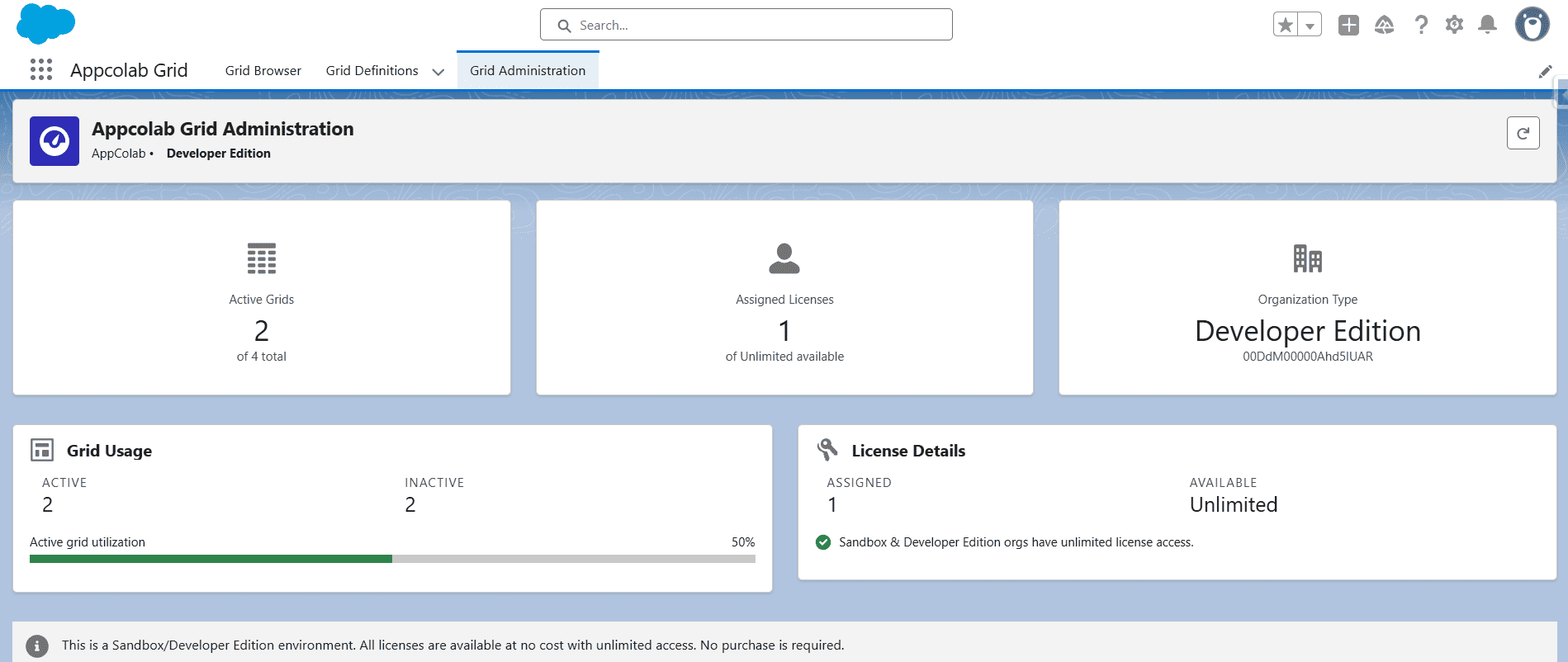
What you see on the tab
- Active Grids — how many Grid Definitions are currently active out of the allowed limit.
- Assigned Licenses — how many users have been granted access to AppColab Grid out of the licenses available.
- Organization Details — your Salesforce organization type (Production, Sandbox, Developer Edition), which determines the license tier applied.
- Grid Usage — a list of every active grid with quick actions to deactivate.
Activate or deactivate a grid
From the Grid Usage list:
- Find the grid you want to change.
- Click the Deactivate / Activate button on its row.
An inactive grid is invisible to end users in the Grid Browser and shows a “not available” message when embedded on a Lightning page.
You can also flip the Is Active checkbox directly on the Grid Definition record.
The active-grid limit
The free tier of AppColab Grid allows a maximum of 2 active grids at any one time. Inactive grids do not count toward the limit — you can save as many as you need.
What happens if you exceed the limit
If more than the allowed number of grids are active:
- Non-admin users see a Limit Exceeded block instead of the grid.
- Admins can still see every grid to manage the issue.
- To restore access, deactivate grids until you are within the limit.
Raising the limit
If your org consistently needs more than 2 active grids:
- Click Purchase Licenses in the License Management section of the Grid Administration tab.
- Or purchase additional licenses through the AppExchange listing.
- After the purchase is applied, the limit adjusts automatically — no manual configuration needed.
Licensing
- In Sandbox and Developer Edition orgs, licensing is generally unrestricted for testing.
- In Production, you must have purchased licenses for every user who opens a grid.
- Assign access using the
Appcolab_Grid_Userpermission set. See Permissions & Access.
Housekeeping tips
- Review the Grid Usage list quarterly. Deactivate grids that are no longer used.
- Use Descriptions on Grid Definitions so other admins understand each grid’s purpose.
- Before deactivating a grid, check whether it is embedded on any Lightning page — users there will see a “not available” message.