
Permissions & Access
AppColab Grid ships with two permission sets. Use them to control who can build grids and who can just use them.
The two permission sets
| Permission Set | Assign to | Gives access to |
|---|---|---|
Appcolab_Grid_Admin |
Admins who configure grids | Grid Browser, Grid Definition, Grid Administration tabs; full CRUD on Grid_Definition__c; edit/activate grids; load samples. |
Appcolab_Grid_User |
Everyone who opens a grid | Grid Browser tab; read on Grid_Definition__c; read/edit on their own User_Preference__c records. |
Grids also respect field-level security and object access of the underlying data. A user who does not have read access to Opportunity cannot see an Opportunity grid’s data, no matter which permission set they have.
Assign a permission set
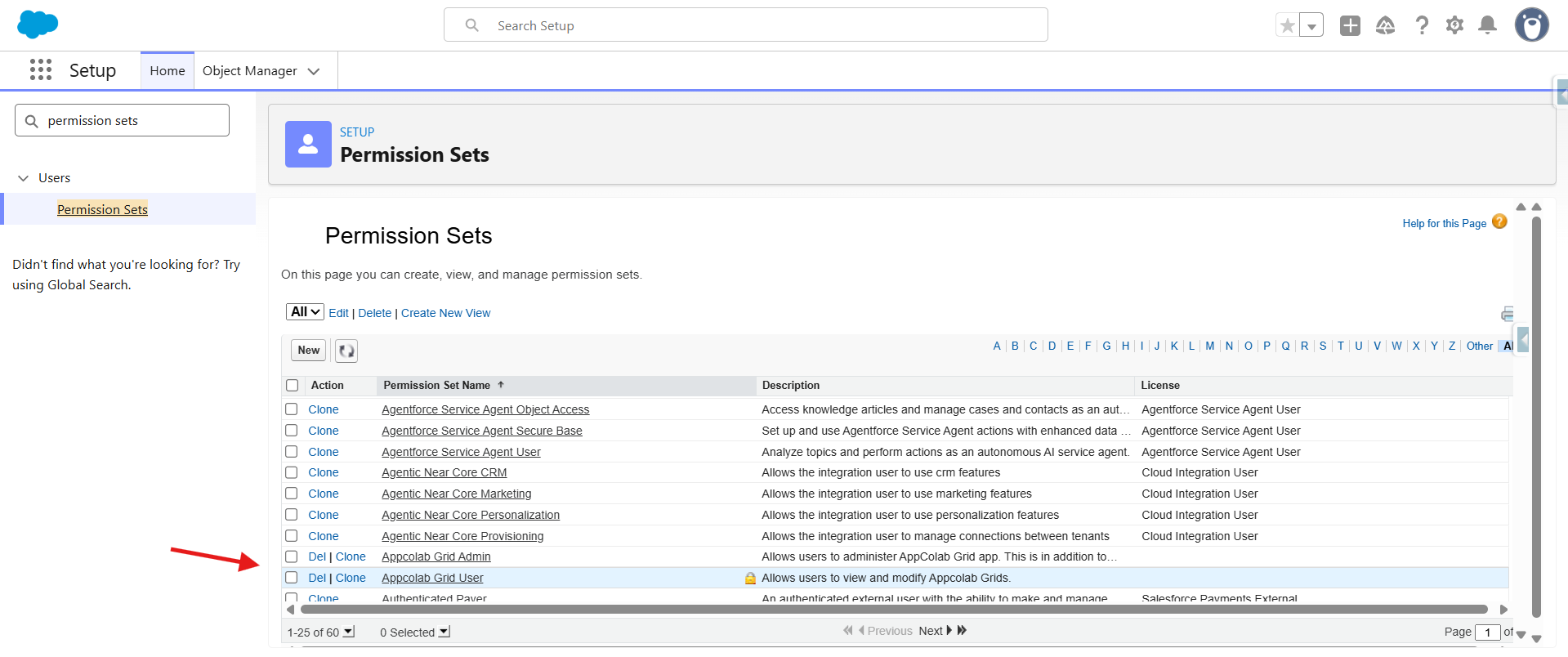
- Go to Setup → Users → Permission Sets.
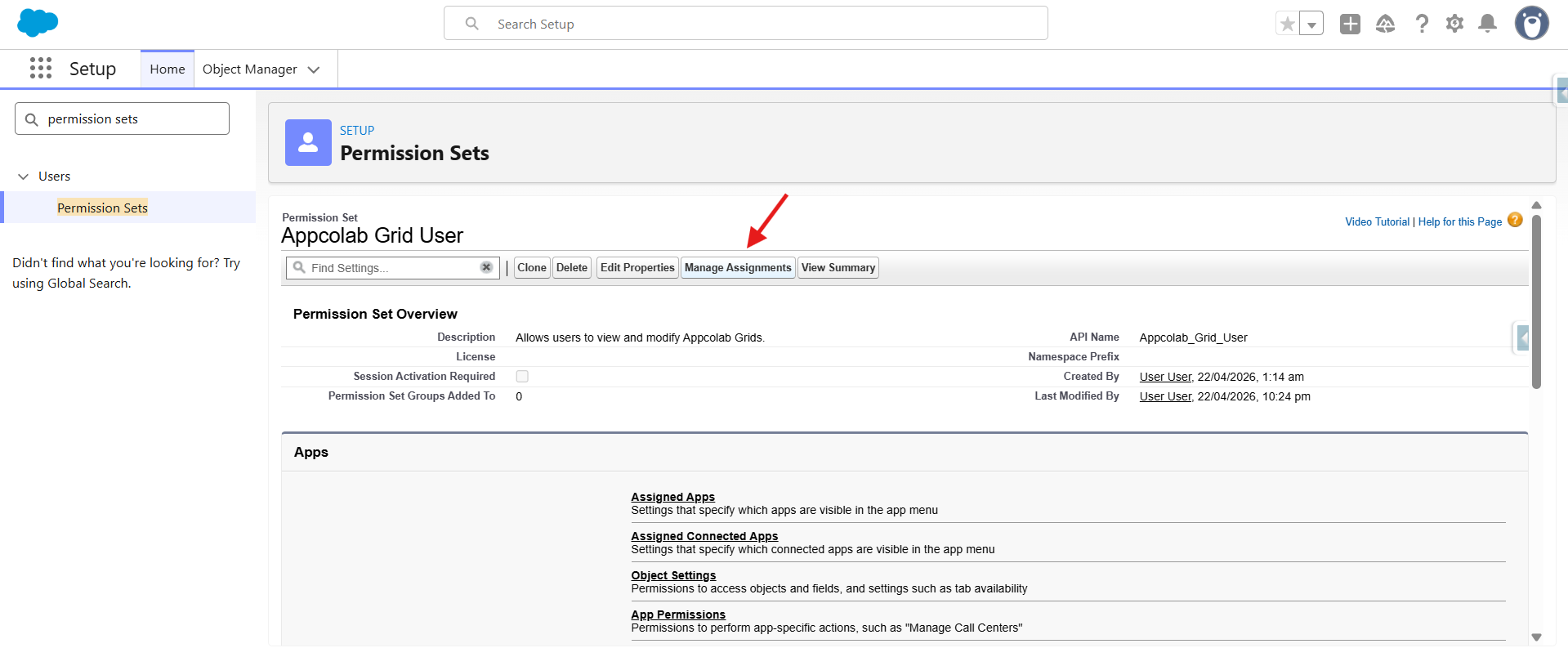
- Open the permission set (for example,
Appcolab_Grid_User). - Click Manage Assignments → Add Assignments.
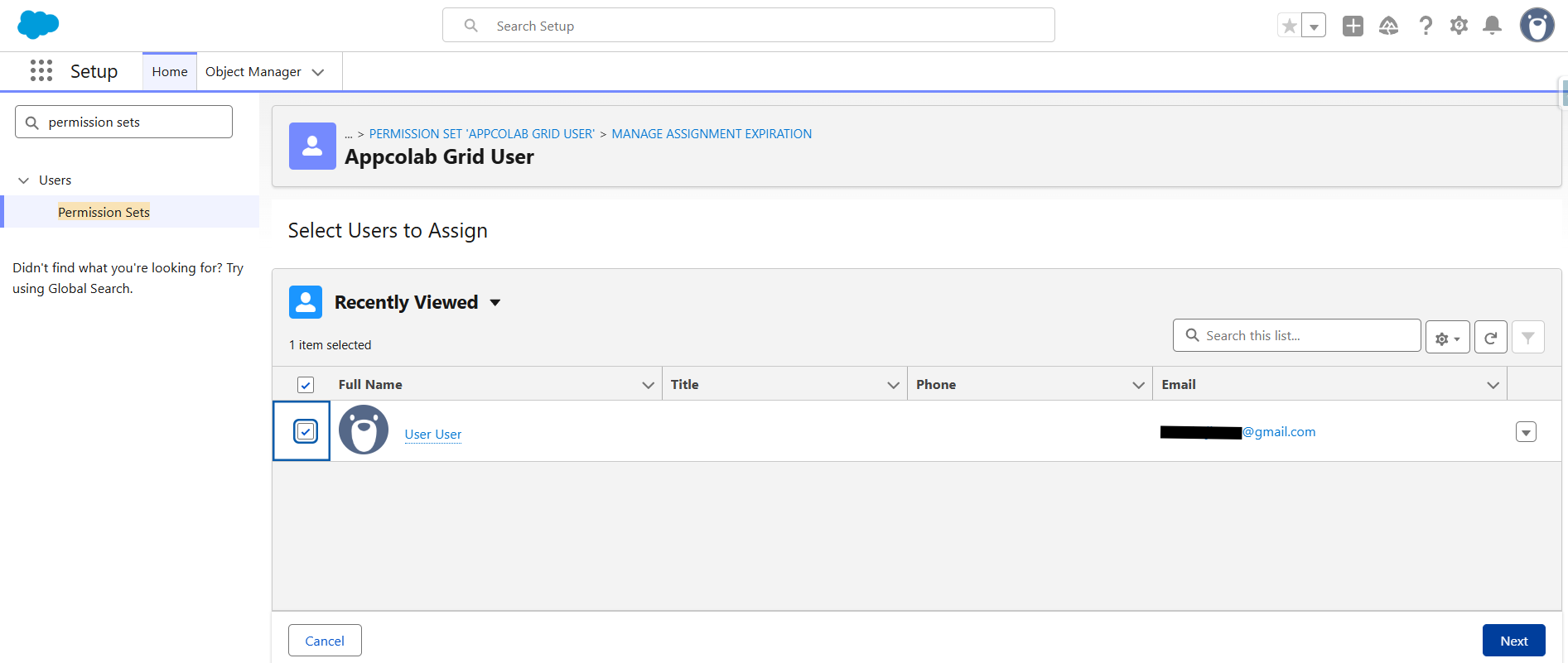
- Select the users and click Assign.
Plan access like this
- Business admins / power users →
Appcolab_Grid_Admin. - Regular end users →
Appcolab_Grid_Useronly. - Integration users / system accounts → usually don’t need either unless they render a grid programmatically.
What AppColab Grid does NOT change
- It does not grant users access to underlying objects or fields. That’s governed by profiles, permission sets, and field-level security as usual.
- It does not override sharing rules. Users see only rows they can see in a standard list view.
- It does not auto-grant read on
Grid_Definition__cto everyone — users without one of the AppColab permission sets will not see grids in the Grid Browser.
Security notes
- All grid queries and DML run in user mode, honoring CRUD, FLS, and sharing.
- All queries use bind variables — no SOQL injection risk from user-supplied filters.
- An Apex action (
GridApexActionInterface) runs in the context of the user invoking it, not as a privileged user, unless you explicitly make the classwithout sharing.
Common access issues
- User can’t see the Grid Browser tab — profile doesn’t have tab access. Assign the permission set or add the tab to their app.
- User can open Grid Browser but sees no grids — the grids they need may not be active, or the user doesn’t have read on the primary object.
- User can see a grid but no rows — sharing rules restrict the data, or the admin filter excludes their records.
- Custom Apex action fails silently — the class probably isn’t granted via the permission set. Add Apex class access to
Appcolab_Grid_Useror a shared permission set.