
Grid Details
The Grid Details step is the first page of the configuration wizard. It defines the grid’s identity and which features are available to end users.
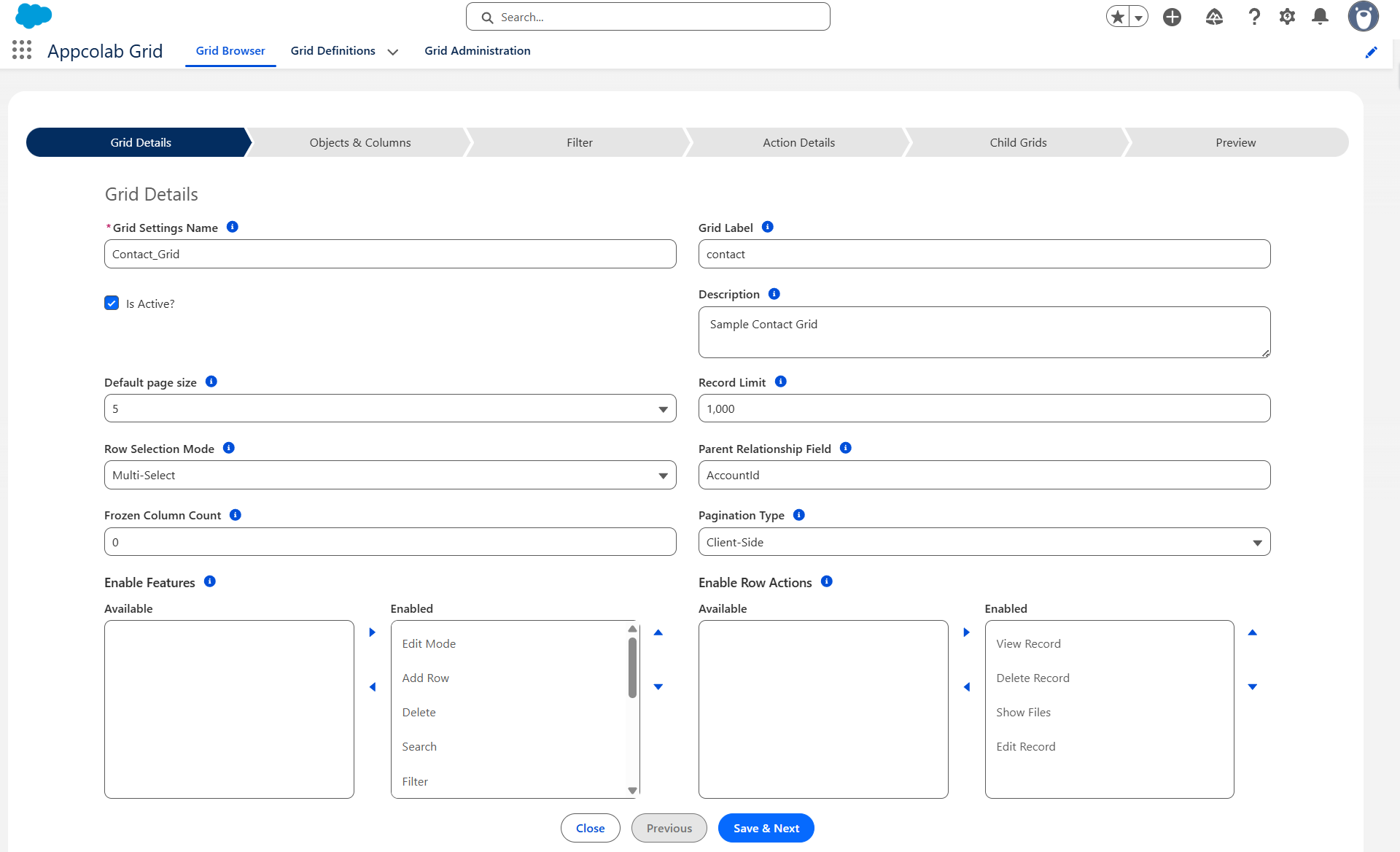
Identity and description
| Field | Description |
|---|---|
| Name | The unique developer-style API name (for example, Account_Active_Grid). Used as the Grid Identifier when embedding the grid on a Lightning page. |
| Label | The user-facing title shown at the top of the grid and in the Grid Browser. |
| Description | Optional. Short summary shown to other admins and on the Grid Browser card. |
| Is Active | When checked, the grid is visible and usable. Inactive grids are hidden from end users. |
Display and data
| Field | Description |
|---|---|
| Default Page Size | How many records appear per page (5, 10, 25, 50, or 100). Users can change this themselves and it will be saved to their preferences. |
| Record Limit | Maximum number of records fetched from Salesforce. Default is 1000. Increase cautiously — larger limits slow initial load. |
| Frozen Column Count | Number of leftmost columns that stay fixed while the user scrolls horizontally. Default is 0 (no frozen columns). 1–2 frozen columns is usually enough. |
Column widths can also be adjusted at runtime by dragging the resize handle on the right edge of any column header, or double-clicking it to auto-fit.
Row selection
| Value | Effect |
|---|---|
| None | No checkboxes. Users cannot select rows. |
| Single-Select | Radio-style selection for one row at a time. |
| Multi-Select | Checkboxes for bulk operations such as mass delete or bulk custom actions. |
Pagination type
Choose how records are loaded:
- Auto (recommended default). The grid decides based on dataset size.
- Client-Side. Loads all matching records up to the Record Limit into the browser at once. Fast for small datasets; filtering/sort/search is instant. Required if you want a full CSV export with one click.
- Server-Side. Loads one page at a time from Salesforce. Best for large datasets. Note: CSV export only includes pages that have been viewed — see Notes.
Parent Relationship Field
Used only when this grid is embedded as a child grid under another grid, or on a record page where it should be scoped to the current record.
- Enter the API name of the lookup field on the primary object that points back to the parent (for example,
AccountIdwhen showing Contacts on an Account page). - When the field is set, the grid automatically filters to rows where that lookup equals the current parent record’s ID.
See Adding Grids to Pages for how this is used on record pages.
Enabled Features (toolbar)
Use the Enable Features dual-list to choose which toolbar buttons end users see. All features are enabled by default for new grids.
| Feature | What it does |
|---|---|
| Edit Mode | Enables inline editing. |
| Add Row | Allows users to create a new record from the grid. |
| Delete | Allows deletion of selected row(s) via the toolbar delete button. |
| Search | Shows the global search bar. |
| Filter | Enables the advanced filter panel. |
| Column Settings | Lets users toggle which columns are visible and reorder them. |
| Sort | Enables the Sort modal for managing sort order. |
| Refresh | Re-queries the data from Salesforce. |
| Reset Grid | Resets user preferences back to admin defaults. |
| Clone Records | Adds a clone toolbar action for duplicating selected records. |
| Download CSV | Enables CSV export. |
| Undo / Redo | Enables undo/redo during inline edit sessions. |
Only the features you enable appear in the toolbar, keeping the UI focused on what each grid needs.
Enabled Row Actions
Choose which actions appear in the per-row action buttons on the left side of each row:
- View Record — opens the standard Salesforce record page.
- Edit Record — opens the standard record edit modal.
- Delete Record — deletes the single row.
- Show Files — opens a modal showing that record’s Salesforce Files/Attachments.
Standard or Custom actions you add in Grid Actions can also be placed on rows.
Recommendations
- Start with a narrow Record Limit (for example, 1000) and only raise it if users regularly need more.
- Turn off features users do not need — simpler grids are faster to learn.
- Use
Autopagination unless you have a specific reason to force a mode. - Keep Frozen Column Count at 1–2 maximum; more frozen columns increase rendering cost.