
Inline Editing
Inline editing lets you update one or many records without leaving the grid. This page covers editing, undo/redo, adding new rows, cloning, and bulk delete.
Enter Edit Mode
- Click the pencil icon in the toolbar to enter Edit Mode.
- Editable cells become input fields — click into any cell to change the value.
- Edited cells are visually marked as “dirty” until you save.
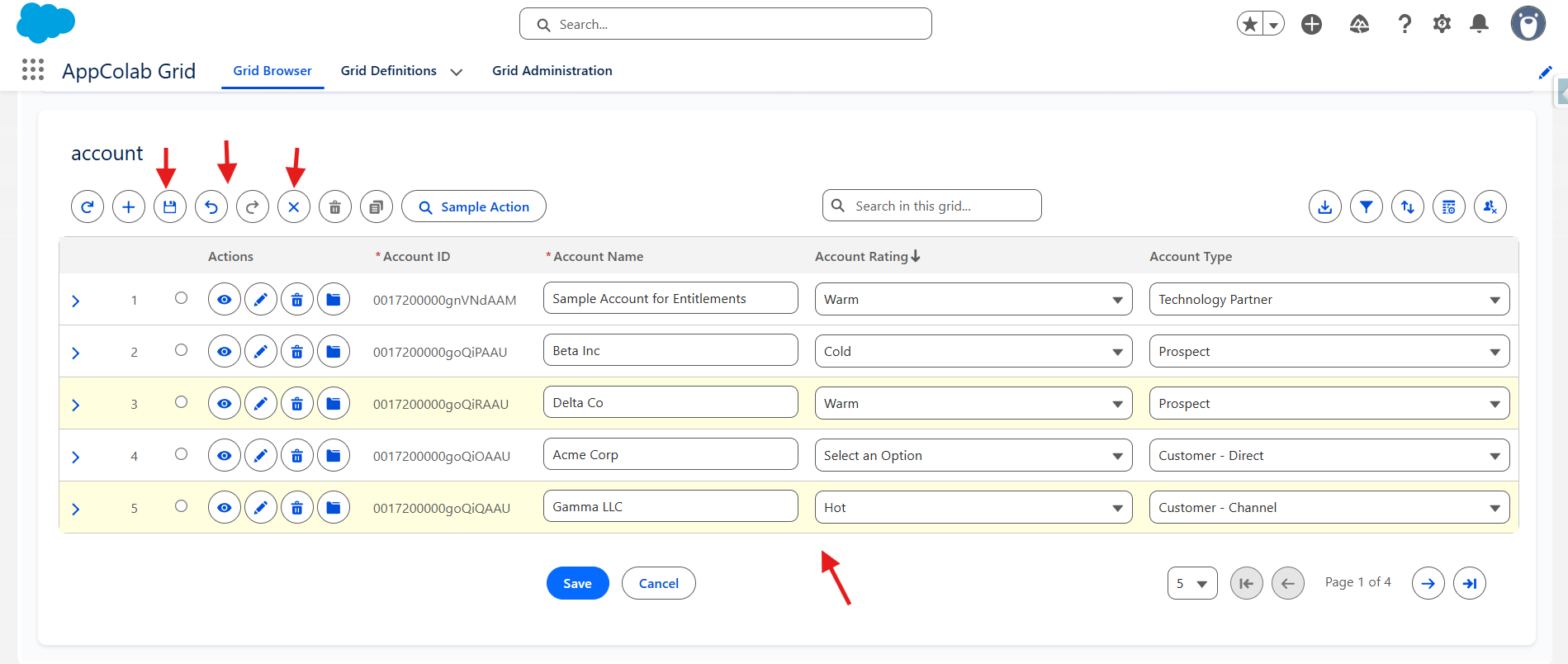
If the pencil icon is not visible, your admin has not enabled inline editing for this grid.
Which cells are editable?
A cell is read-only if any of these are true:
- The field is a formula, rollup, or system-managed field.
- You do not have field-level edit permission.
- The column uses an override type that doesn’t support editing (for example, Mini Chart).
- The record is owned by someone else and your sharing settings don’t allow edit.
Read-only cells appear greyed out in Edit Mode.
Save or cancel
- Save (disk icon) — commits all dirty rows in one transaction.
- Cancel (X icon) — discards unsaved edits and exits Edit Mode.
Validation happens on save. If any row fails validation (required fields, value rules), the grid highlights the offending rows and shows an error — fix them and save again.
Undo and Redo
- Undo reverses your most recent edit. You can undo repeatedly to roll all the way back.
- Redo re-applies an undone edit.
Undo/Redo is available only before you save. Once you click Save, the changes are permanent.
Add a new row
If Add Row is enabled:
- Click Add Row in the toolbar.
- A new empty row appears at the top of the grid.
- Fill in the required fields and click Save.
When adding a row inside a child grid, the parent lookup (for example, AccountId) is auto-filled and locked.
Clone a record
If Clone Records is enabled and your admin added Clone to row actions:
- Click the Clone action on a row.
- A duplicate appears at the top of the grid with the same field values.
- Change anything you want and Save.
Bulk delete
- Check the boxes next to the rows you want to delete.
- Click the Delete toolbar button.
- Confirm.
Deleted records go to the standard Salesforce Recycle Bin and can be restored there within 15 days.
Common edit errors
- “You don’t have permission to edit this field” — your profile/permission sets restrict FLS.
- “REQUIRED_FIELD_MISSING” — a required field was cleared or left blank.
- “Validation rule failed” — a record-level validation rule rejected the save. Read the rule’s error message for the specific requirement.
Fix the affected rows and save again — unaffected rows are not lost.