
Exporting Data
You can export the current grid view to a CSV file for analysis in Excel, Google Sheets, or any tool that reads CSV.
Download CSV
- Click the Download CSV icon in the toolbar (cloud-download icon).
- Your browser downloads a
.csvfile containing all rows in the current grid view. - Open the file in your spreadsheet tool of choice.
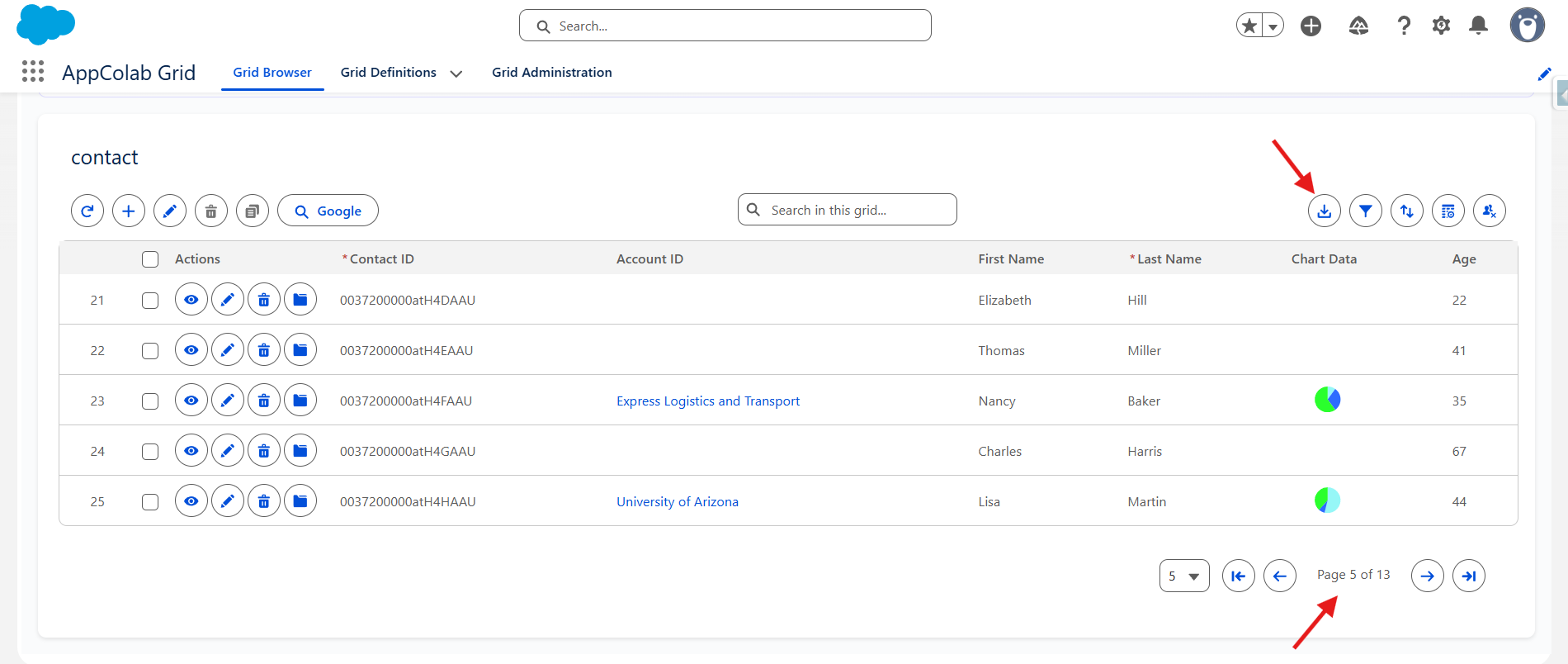
If the Download CSV icon is missing, your admin has not enabled CSV export on this grid.
What gets exported
- The columns you currently see (hidden columns are not exported). Use Column Settings first if you need to include or exclude specific columns.
- The rows that currently match your filters and search.
- The current sort order.
- Cell values as displayed — for example, picklist labels rather than API values, and formatted dates.
Pagination and the export
- Client-side pagination: the CSV contains all records matching your filters up to the grid’s record limit — not just the current page.
- Server-side pagination: the CSV contains only the pages you have already loaded/viewed. To export everything, scroll through all pages first, or switch the grid to client-side (admin only).
Large exports
- If your grid has thousands of rows, expect the download to take a few seconds.
- Very large exports (tens of thousands of rows) are best done with the grid set to Client-Side pagination and a higher record limit — coordinate with your admin if needed.
Tips
- Before exporting, hide any columns you do not need and apply filters to narrow the data — this keeps the file small and easy to work with.
- For recurring exports, save your column layout and filters once; they will be applied automatically each visit.