
Searching, Filtering & Sorting
Three ways to narrow down what you see: search, filter, and sort. They can all be used together.
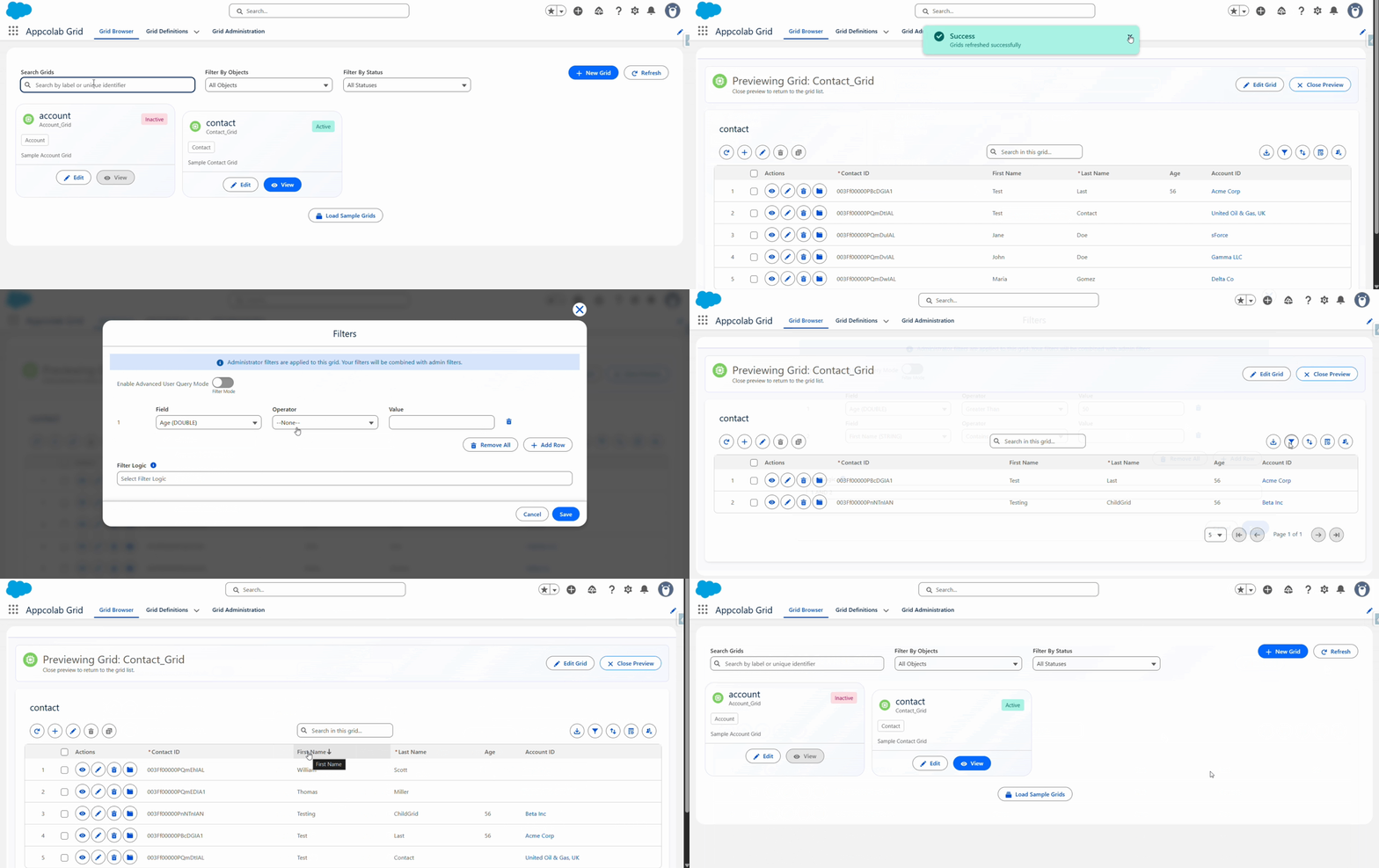
Global search
Find records that match text across the visible columns.
- Type in the Search box in the center of the toolbar.
- The grid narrows to rows whose text fields contain your query.
- Clear the search box (or click the X) to show all records again.
Search is most useful for quick lookups by name, email, or ID. For multi-criteria narrowing, use filters.
Filters
The filter panel lets you combine multiple rules.
- Click the Filter icon (funnel icon) in the top-right area of the toolbar to open the panel.
- Click Add Filter.
- Choose a Field, an Operator, and a Value (for example,
StageequalsClosed Won). - Add more rules as needed.
- Click Apply to update the grid.
Combining rules
If you have more than one rule, choose how they combine:
- AND — every rule must match (default).
- OR — any rule can match.
- Custom — write an expression like
(1 AND 2) OR 3referencing the rule numbers.
Clearing filters
- Click Clear All in the filter panel to remove all your runtime filters.
- Click Reset Grid in the toolbar to clear your personal preferences entirely (filters, sort, visible columns, page size). This returns the grid to the admin default for your user.
Admin filter vs. user filter
- The admin filter (set on the Grid Definition) always applies — you cannot see records that the admin filter hides.
- Your filters are applied on top of the admin filter and are saved to your user preferences.
Sorting
Quick sort (column header click)
- Click any column header to sort by that column. Click again to reverse direction.
- Hold Shift and click additional columns to multi-sort (sort by the first column, then by the second within ties, and so on).
- A small number next to each sort arrow shows the priority order when multi-sorting.
- Click a third time (without Shift) to remove that column from the sort.
Sort modal
Click the Sort icon (sort icon) in the top-right area of the toolbar to open the Sort modal. The Sort modal gives you full control over the sort order:
- Default Sorting (when an admin has configured a default sort) — shows the admin’s preset sort as locked entries with a lock icon. You can toggle Override Default to bypass the admin sort entirely and apply your own.
- Your Sort — your personal sort entries. Click column headers to add columns here, toggle a column’s direction with the direction button, or click X to remove it. Click Clear All to remove all your custom sorts and revert to the admin default.
Click Apply to apply the sort, or Cancel to discard changes.
Your sort preference is saved. Next time you open this grid, it is still sorted the same way. Use Reset Grid to return to the admin default sort.
Tips
- Use search for “I know the name or part of it”.
- Use filters for “I know the criteria” (stage, date range, owner, etc.).
- Use sort to bring the most important rows to the top (for example, recently modified).
- Your filters, sort, and search do not affect other users — they are saved to your personal preferences.