
Creating a Grid Definition
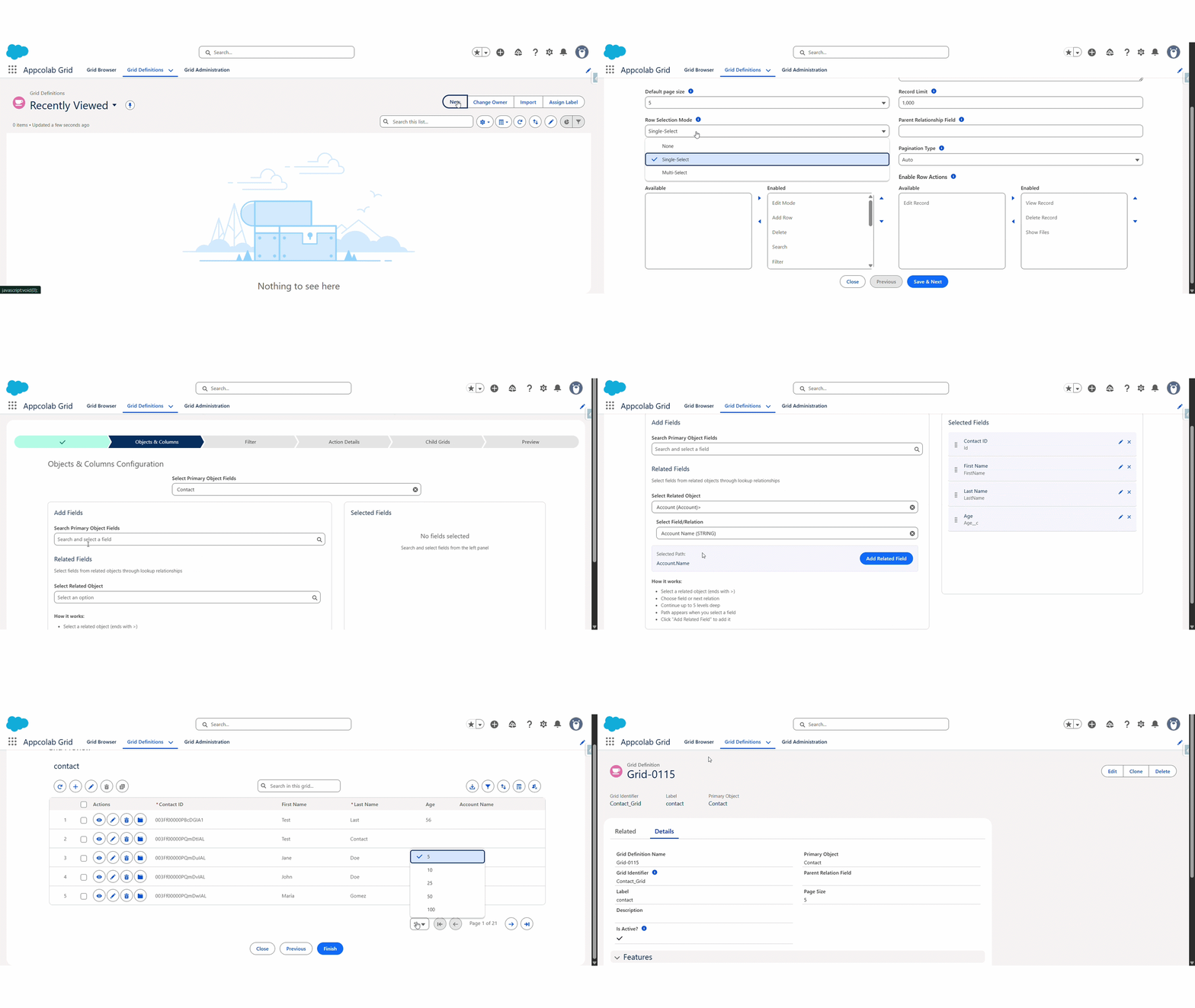
A Grid Definition is the admin configuration that powers a grid. You create and edit one through a six-step wizard. This page is a map of the wizard — each step links to a deeper how-to page.
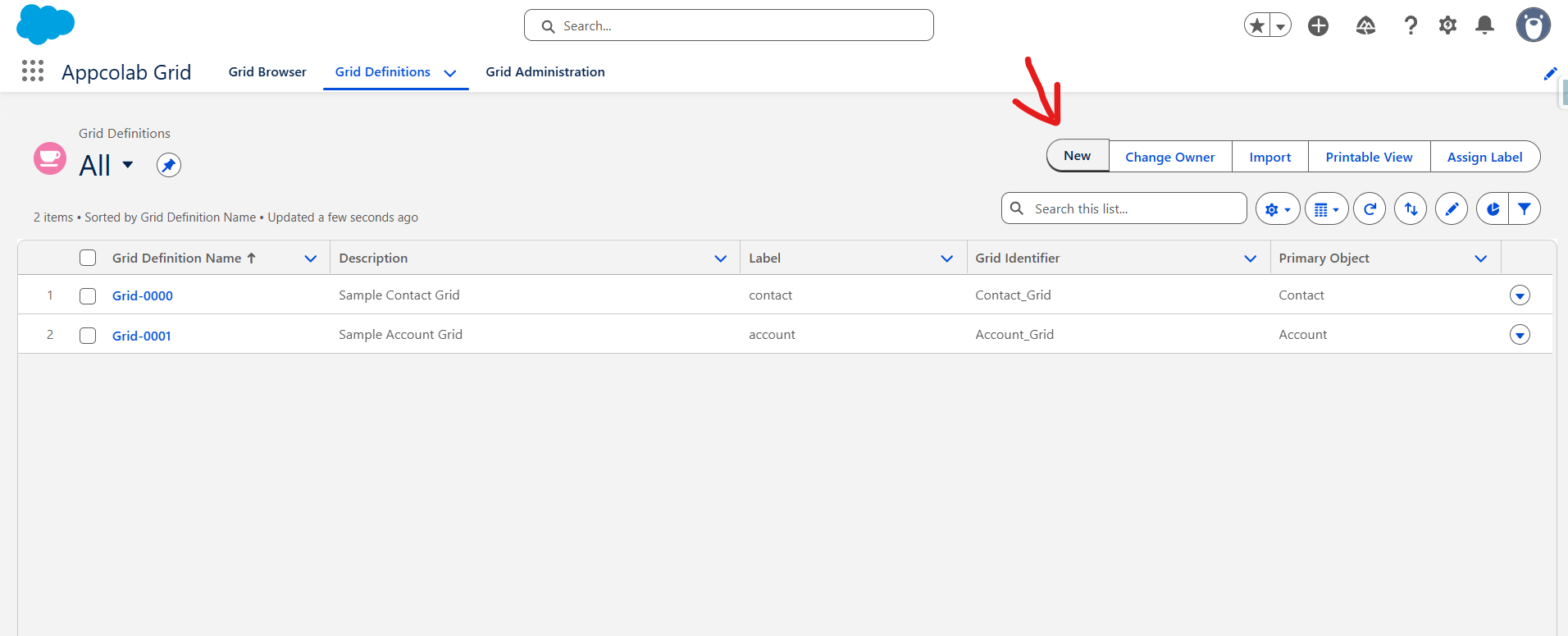
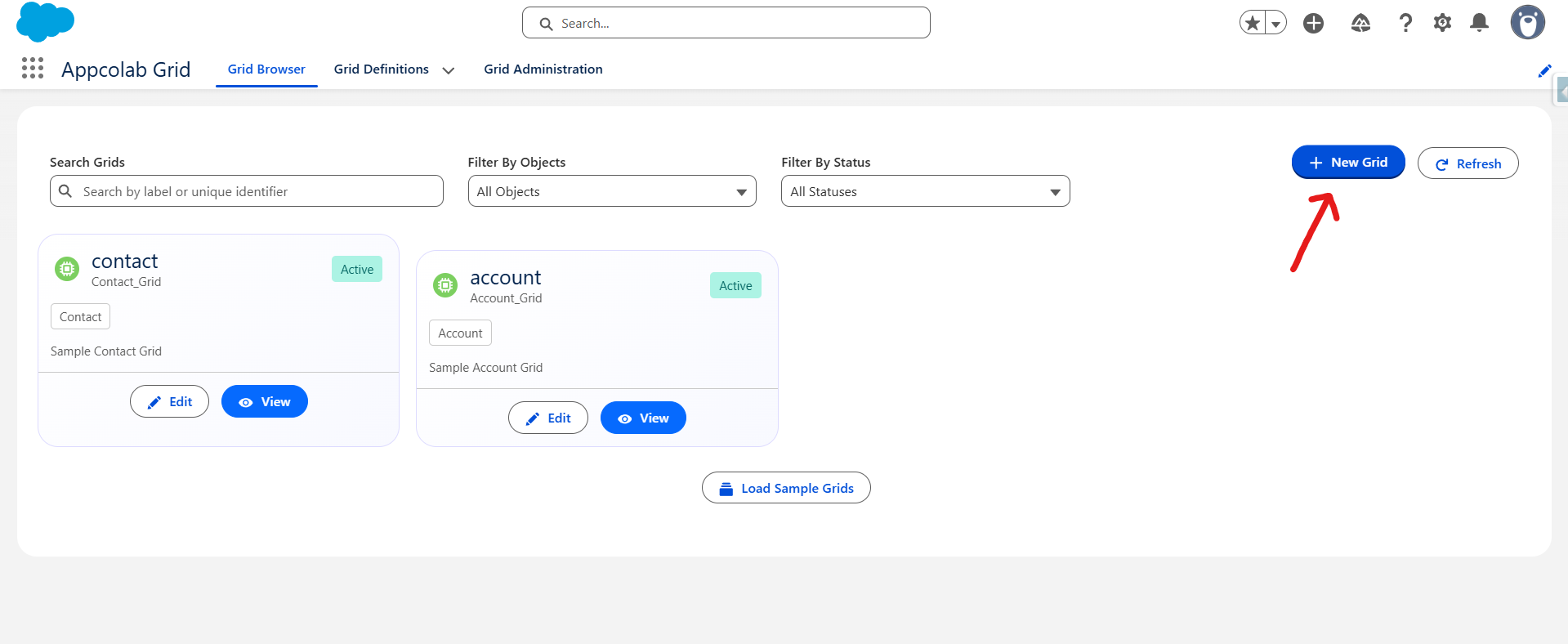
Open the wizard
You can start the wizard two ways:
- From the Grid Definition tab → click New.
- From the Grid Browser tab → click + New Grid.
To edit an existing grid, open the Grid Definition record and click Edit Configuration, or click Edit on its card in the Grid Browser.
The six wizard steps
| Step | What you do | Deep-dive page |
|---|---|---|
| 1. Grid Details | Name, label, page size, features, row actions, pagination | Grid Details |
| 2. Objects & Columns | Pick the object, add columns, related fields, overrides, conditional highlighting | Columns & Fields |
| 3. Filter | Define which records appear by default | Filters & Sort |
| 4. Action Details | Add toolbar or row actions (Standard or Flow, Apex, URL) | Grid Actions |
| 5. Child Grids | Show related records inline under each row | Child Grids |
| 6. Preview | Verify the grid with live data, then Finish | — |
Navigating the wizard
- Save & Next saves the current step and advances. Most steps require you to save before moving forward.
- Previous returns to the last step without losing changes.
- Close exits the wizard. Unsaved changes on the current step will be lost.
- Finish (available on the Preview step) saves the Grid Definition.
Activating a grid
A grid is hidden from end users until it is active.
- In the wizard’s Grid Details step, check Is Active.
- Or edit the Grid Definition record directly and set Is Active to true.
See Grid Administration for information about active-grid limits.
Tips before you start
- Know which primary object your grid will target, and list the fields you want up front — including any related fields through lookups.
- If the grid will be embedded on a record page (for example, Contacts shown under an Account), note the parent lookup field you will use.
- If you plan to use custom Apex actions, write and deploy the Apex class implementing
GridApexActionInterfacebefore opening the wizard.