
Personalizing Your View
Your settings on a grid — which columns you see, how they’re ordered, your filters, your sort, and your page size — are saved per user. The admin’s configuration is never overwritten.
What is personalized
Each of the following is saved per grid, per user:
- Column order.
- Column visibility (shown/hidden).
- Active filters (from the filter panel).
- Current sort order and direction.
- Current page size.
- Column widths (adjusted via the resize handles).
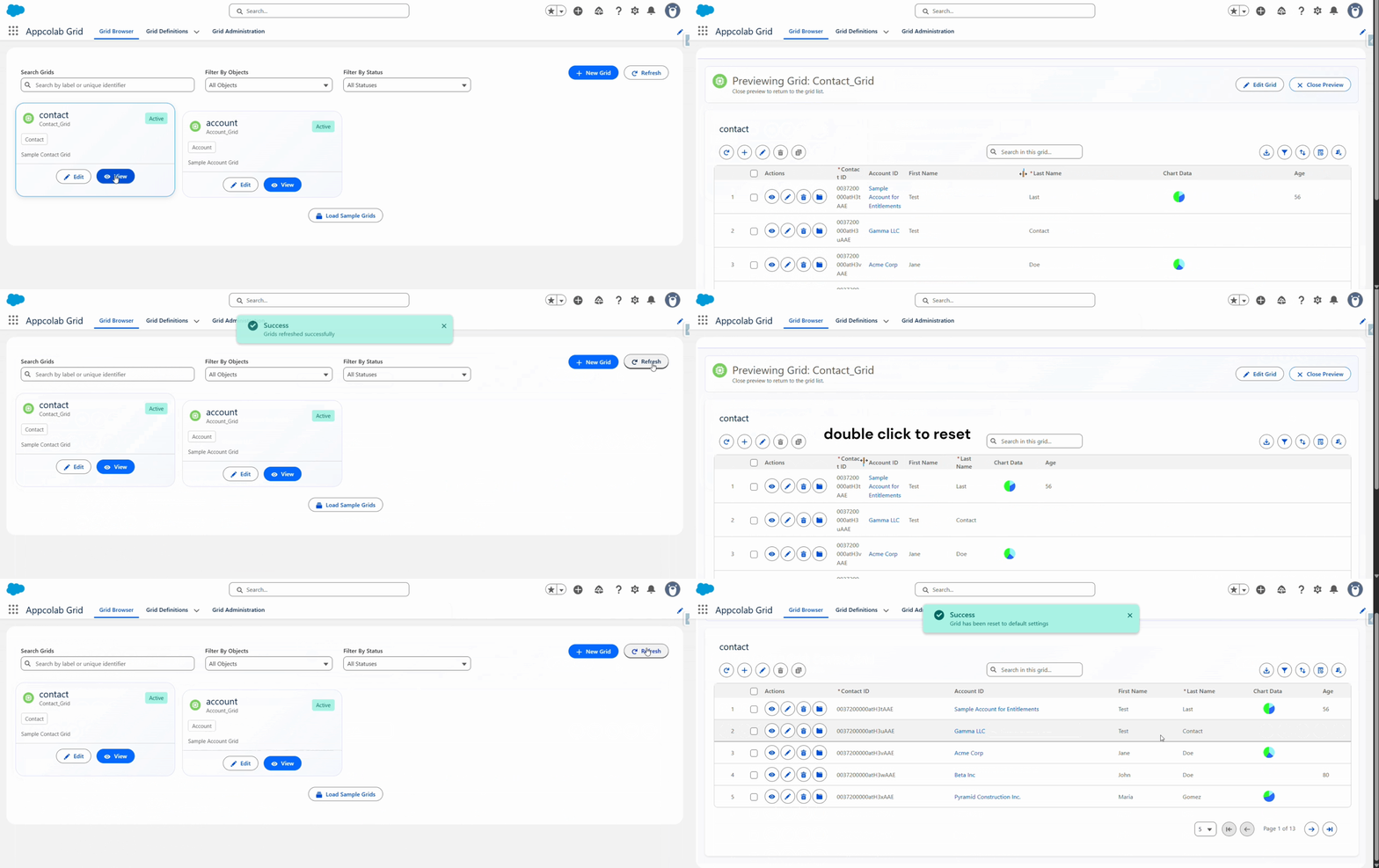
Close the grid, come back tomorrow, open it — everything is where you left it.
Show or hide columns
- Click the Column Settings icon in the toolbar.
- A panel opens with every column defined on the grid.
- Use the checkboxes to show or hide columns.
- Drag the handle on each column to reorder.
- Click Save or Cancel.
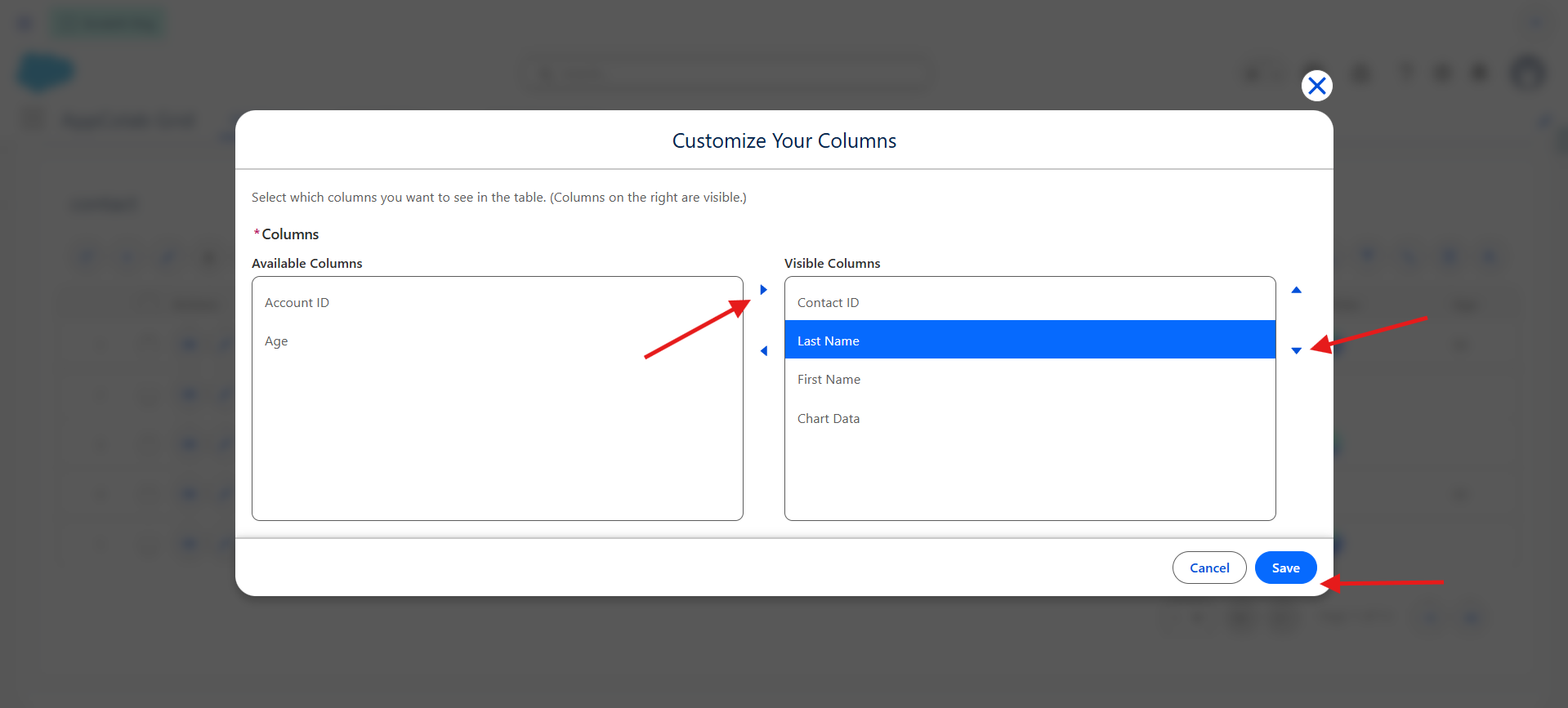
Showing fewer columns makes large grids easier to scan. Columns you hide can be shown again any time.
Reorder columns
- Drag a column header left or right (where supported) to move it.
- Or use Column Settings to reorder via the drag handles.
Change page size
- In the pagination controls at the bottom, pick a page size (10, 25, 50, 100, etc.).
- The choice is saved for next time.
Reset to admin defaults
If your view has drifted from what you want — too many filters, wrong columns, strange sort — you can reset everything:
- Click Reset Grid in the toolbar.
- Confirm the action.
Reset Grid clears only your personal preferences on this grid. It does not modify the admin configuration, and it does not affect other users.
Why personalization is safe
- Your changes never alter the admin’s Grid Definition.
- Admin changes to the Grid Definition (new columns, new filters, renamed fields) are merged into your view on the next load.
- If the admin removes a column that you had visible, it simply disappears from your view.
- If the admin adds a new column, it shows up at the position they put it, not disrupting your existing arrangement.