
Airtable Grid Integration
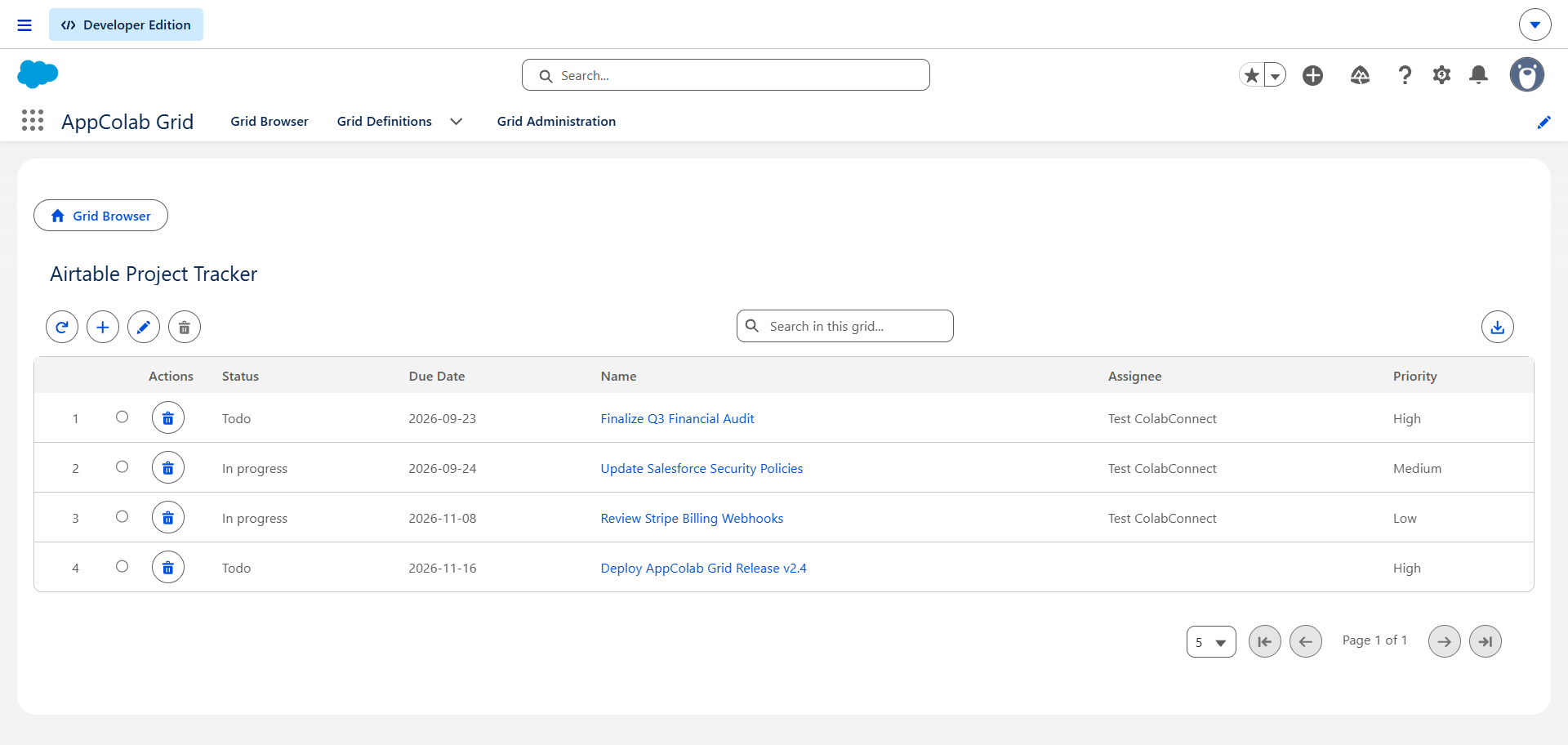
The Airtable Grid integration allows users to view, search, add, inline-edit, delete, and export records from any Airtable Base and Table directly inside the AppColab Grid UI.
What’s Deployed
| Component | Name | Purpose |
|---|---|---|
| Named Credential | Airtable |
Connects to https://api.airtable.com via Airtable External Credential |
| External Credential | Airtable |
Custom authentication with Bearer <Personal_Access_Token> |
| Apex Client | AirtableClient.cls |
REST client supporting listRecords, createRecords, updateRecords, deleteRecords, and schema inspection |
| Apex Data Provider | AirtableGridDataProvider.cls |
Implements appcg.GridDataProviderV1 and appcg.GridDataMutationProviderV1 with dynamic schema discovery and full CRUD |
| Permission Set | Integration_Admin |
Grants access to Airtable → ApiKey external credential principal |
One-Time Manual Setup
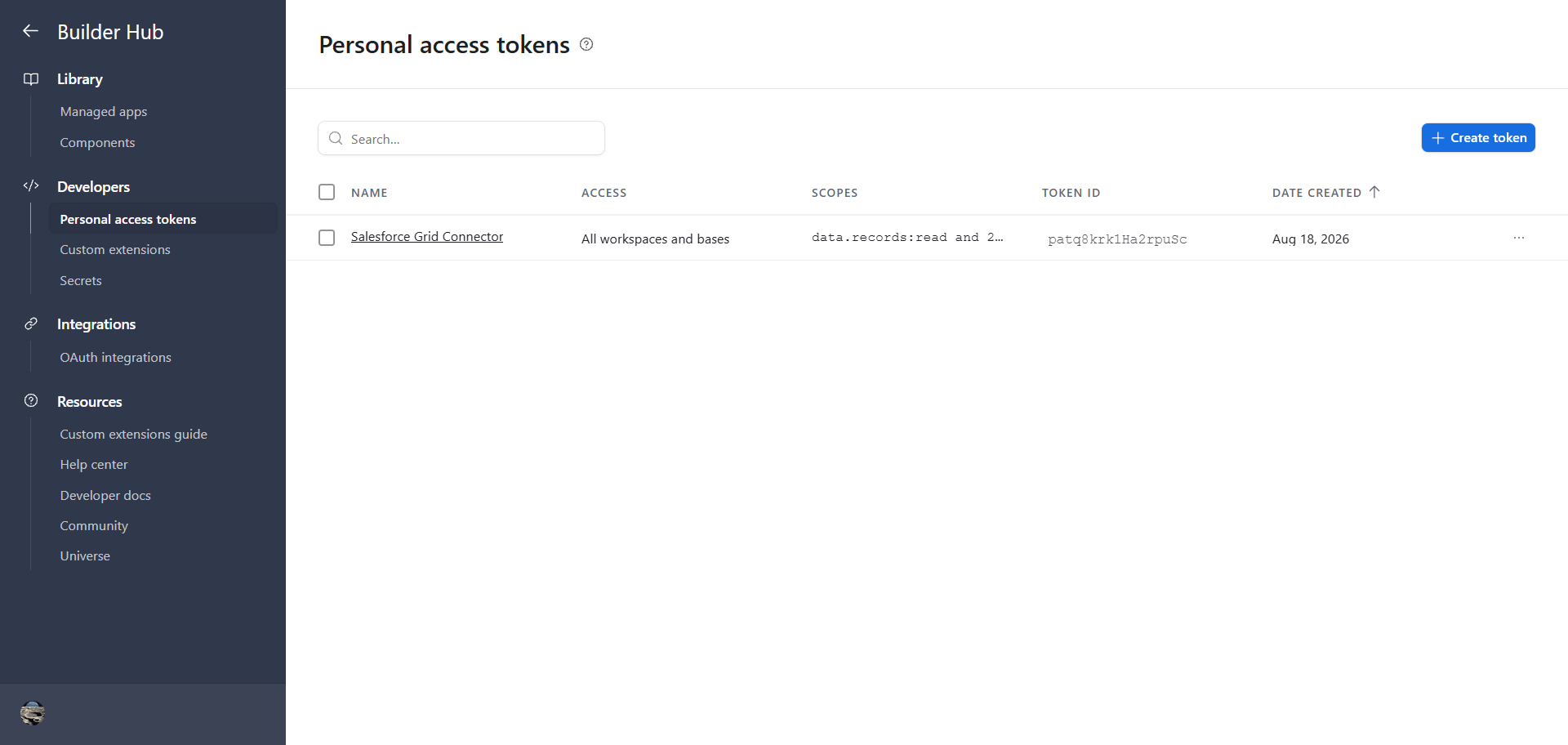
1. Create a Personal Access Token (PAT) in Airtable
- Go to the Airtable Builder Hub / Personal Access Tokens.
- Click Create token.
- Name your token (e.g.,
AppColab Salesforce Integration). - Under Scopes, add:
data.records:readdata.records:writeschema.bases:read
- Under Access, select All current and future bases in all current and future workspaces (or choose your specific Base).
- Click Create token and copy the secret key (
patXXXXXXXXXX...).
2. Configure Credentials in Salesforce Setup
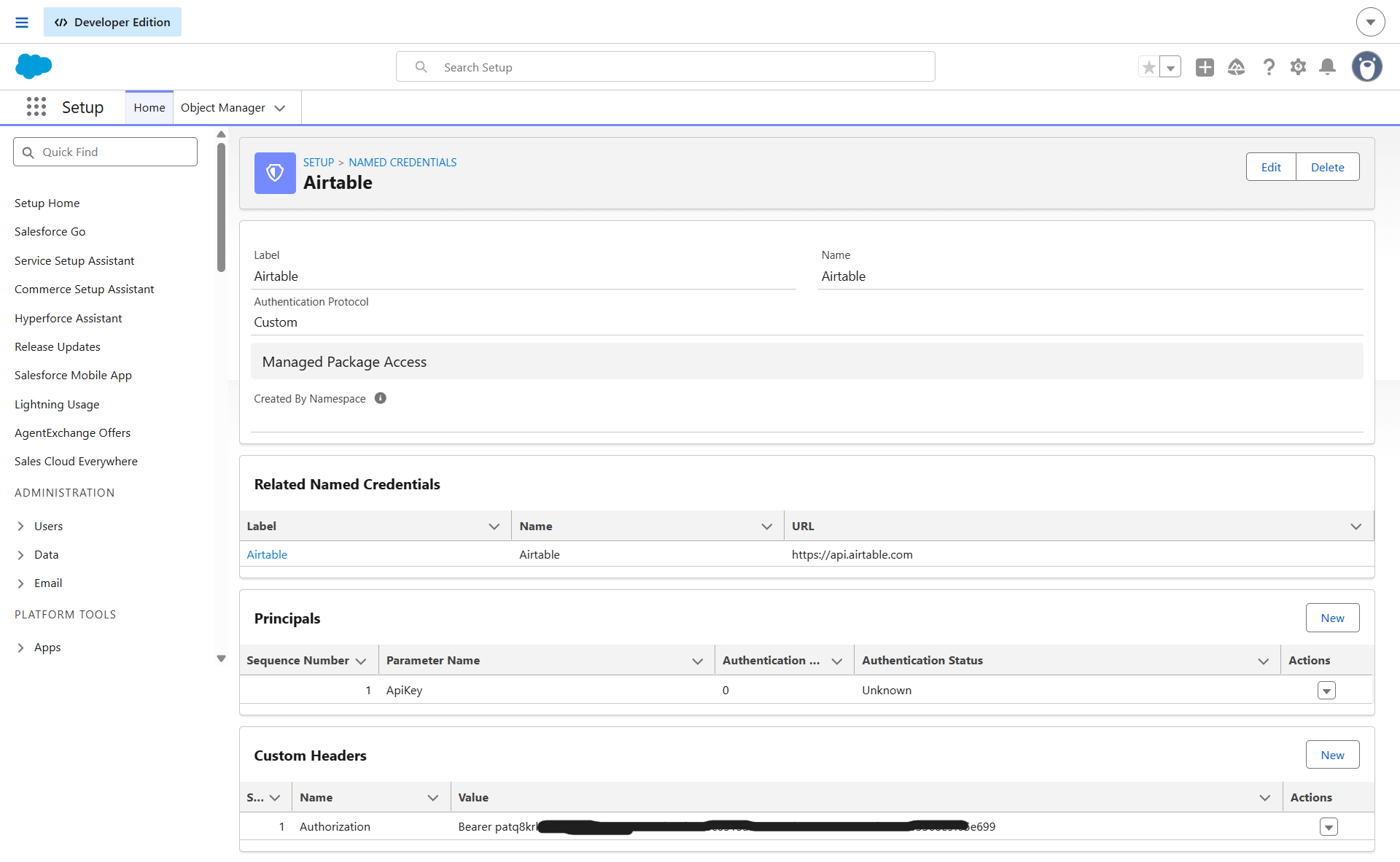
2.1 Create the External Credential
- Go to Setup (gear icon ⚙️ → Setup).
- In the Quick Find box, enter Named Credentials and select Named Credentials.
- Click the External Credentials tab → click New:
- Label:
Airtable - Name:
Airtable - Authentication Protocol:
Custom - Click Save.
- Label:
- In the Principals section, click New:
- Parameter Name:
ApiKey - Sequence:
1 - Click Save.
- Parameter Name:
- In the Custom Headers section, click New:
- Name:
Authorization - Value:
Bearer YOUR_PERSONAL_ACCESS_TOKEN(paste the token copied from Step 1) - Sequence Number:
1 - Click Save.
- Name:
2.2 Create the Named Credential
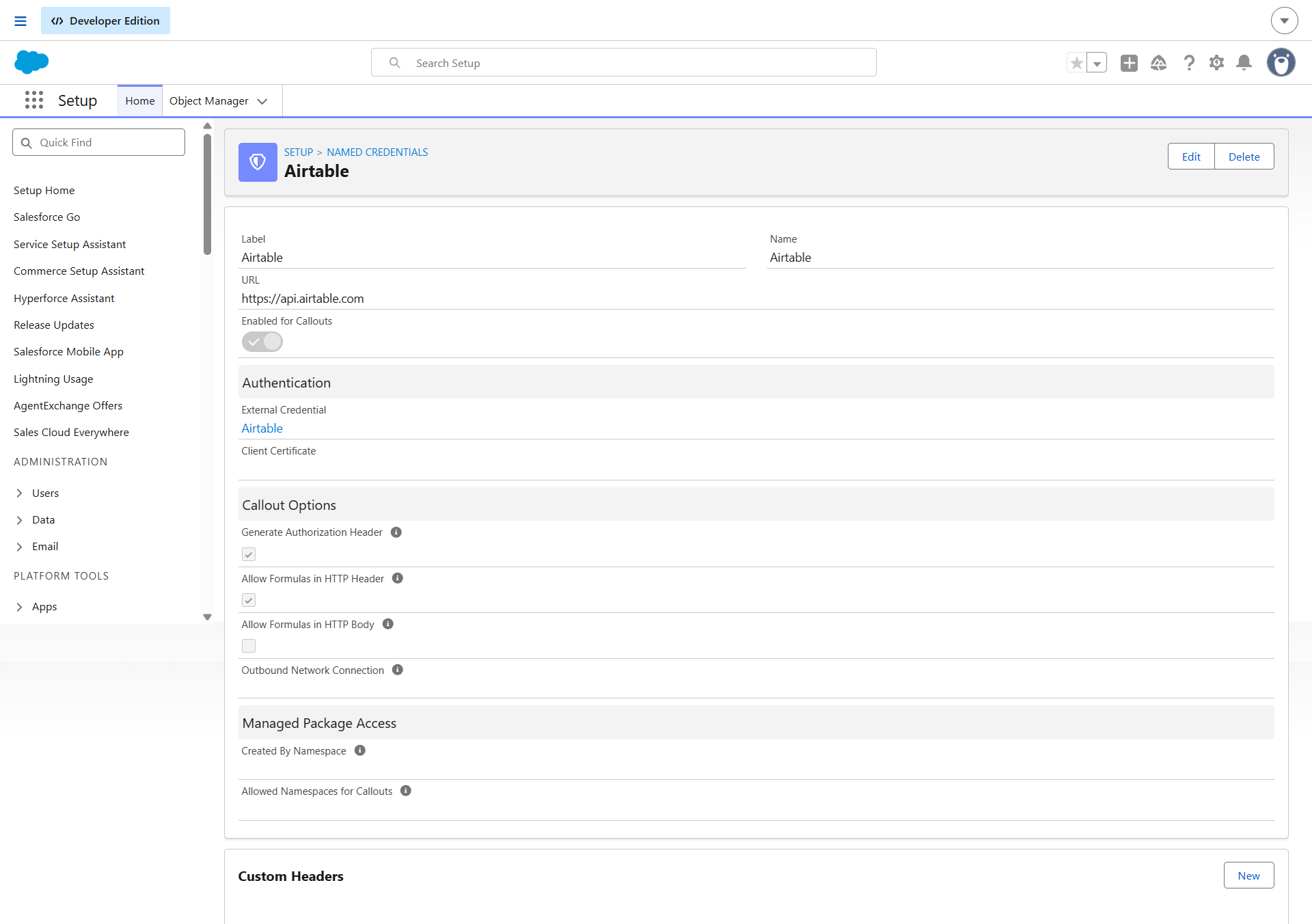
- Click the Named Credentials tab (next to External Credentials) → click New:
- Label:
Airtable - Name:
Airtable - URL:
https://api.airtable.com - External Credential: Select
Airtable - Generate Authorization Header: Leave Unchecked (handled by the custom Authorization header)
- Allow Formulas in HTTP Header: Checked
- Label:
- Click Save.
3. Assign Permission Set Access
- Setup → Permission Sets → click Integration Admin.
- Click External Credential Principal Access and ensure
Airtable - ApiKeyis in Enabled External Credential Principals. - Click Manage Assignments and assign the permission set to your user.
Creating an Airtable Grid Definition
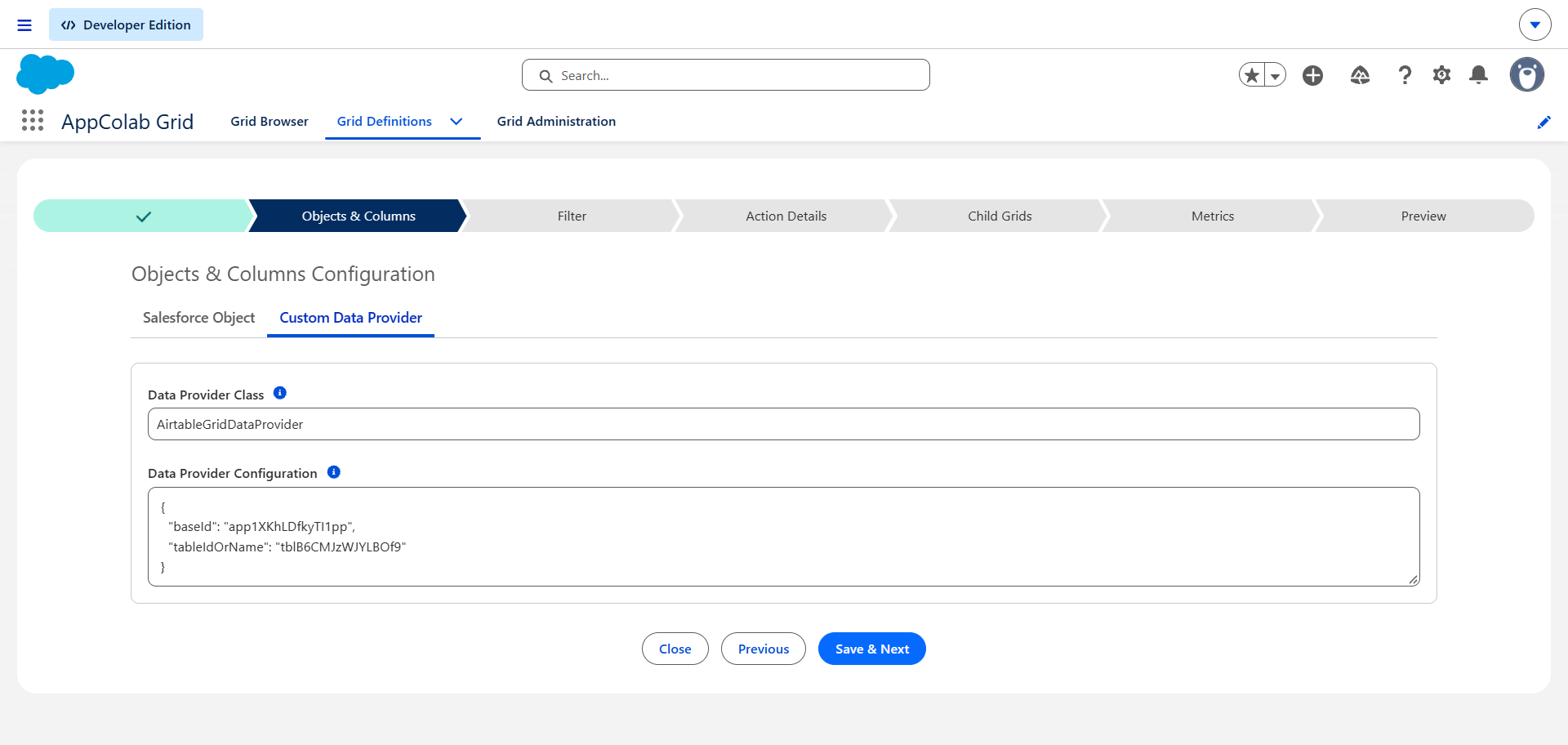
- In Salesforce, open the AppColab Grid app → go to the Grid Definitions tab → click New Grid Definition.
- Fill in:
- Grid Settings Name:
Airtable_Grid - Grid Label:
Airtable Live Grid - Is Active?: Checked
- Data Provider Class:
AirtableGridDataProvider - Data Provider Configuration:
{ "baseId": "app1XKhLDfkyTI1pp", "tableIdOrName": "Table 1" }Tip: Extract the
baseIdandtableIdOrNamedirectly from your Airtable URL:https://airtable.com/app1XKhLDfkyTI1pp/tblB6CMJzWJYLBOf9/viw...
- Grid Settings Name:
- Click Save & Next → proceed to Preview.
- The Grid automatically discovers table columns, marks computed/formula fields as read-only, and displays your Airtable records in real time!
Supported Grid Features
| Feature | Provider Implementation | How It Works |
|---|---|---|
| Dynamic Columns | Dynamic Schema & Field Parsing | Automatically discovers all field names from Airtable table schema and records |
| Computed Fields Protection | Automatic Filter | Detects formula, collaborator, attachment, and rollup fields and marks them read-only |
| Search | Case-Insensitive Filter | Full-text client-side searching across all table columns |
| Inline Editing | updateRecords (PATCH) |
Instant inline cell editing saved directly back to Airtable |
| Add New Records | createRecords (POST) |
Add new rows directly into your Airtable Base from the Grid header |
| Delete Records | deleteRecords (DELETE) |
Remove records with a single click |
| CSV Export | AppColab Grid Core | Download filtered or full table data as CSV |
Troubleshooting
401 Unauthorized / INVALID_PERMISSIONS_OR_MODEL_NOT_FOUND: Verify that your Airtable token is valid, has not expired, and contains thedata.records:read,data.records:write, andschema.bases:readscopes.404 Not Found (TABLE_NOT_FOUND): Double-check yourbaseIdandtableIdOrNamein the Data Provider Configuration JSON.User doesn't have access to the external credential principal: Assign theIntegration Adminpermission set to your Salesforce user.