
Gmail Grid Integration
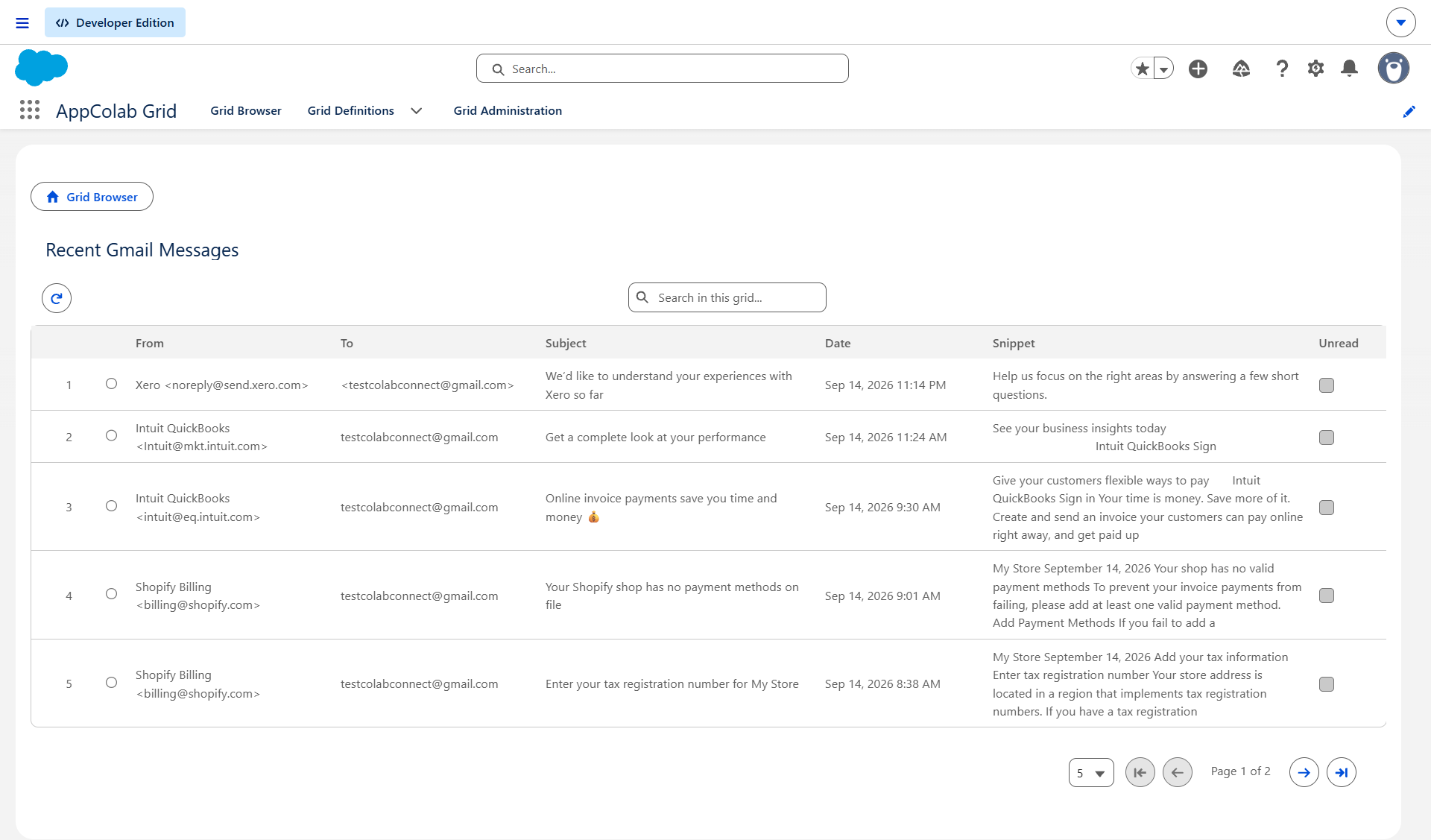
The Gmail Grid integration allows Salesforce users to view, search, filter, and inspect email messages and thread histories from Gmail directly inside AppColab Grid without synchronizing email bodies into Salesforce custom objects.
What’s Deployed
| Component | Name | Purpose |
|---|---|---|
| Named Credential | Gmail |
Connects to https://gmail.googleapis.com via Google_APIs External Credential |
| External Credential | Google_APIs |
Shared Google OAuth 2.0 credential |
| Apex Client | GmailClient.cls |
REST client supporting listMessages, getMessage, listThreads, getThread |
| Apex Data Provider | GmailGridDataProvider.cls |
Implements appcg.GridDataProviderV1 for message feeds, search queries, and sender filtering |
| Permission Set | Integration_Admin |
Grants access to Google_APIs → Google_User principal |
One-Time Manual Setup
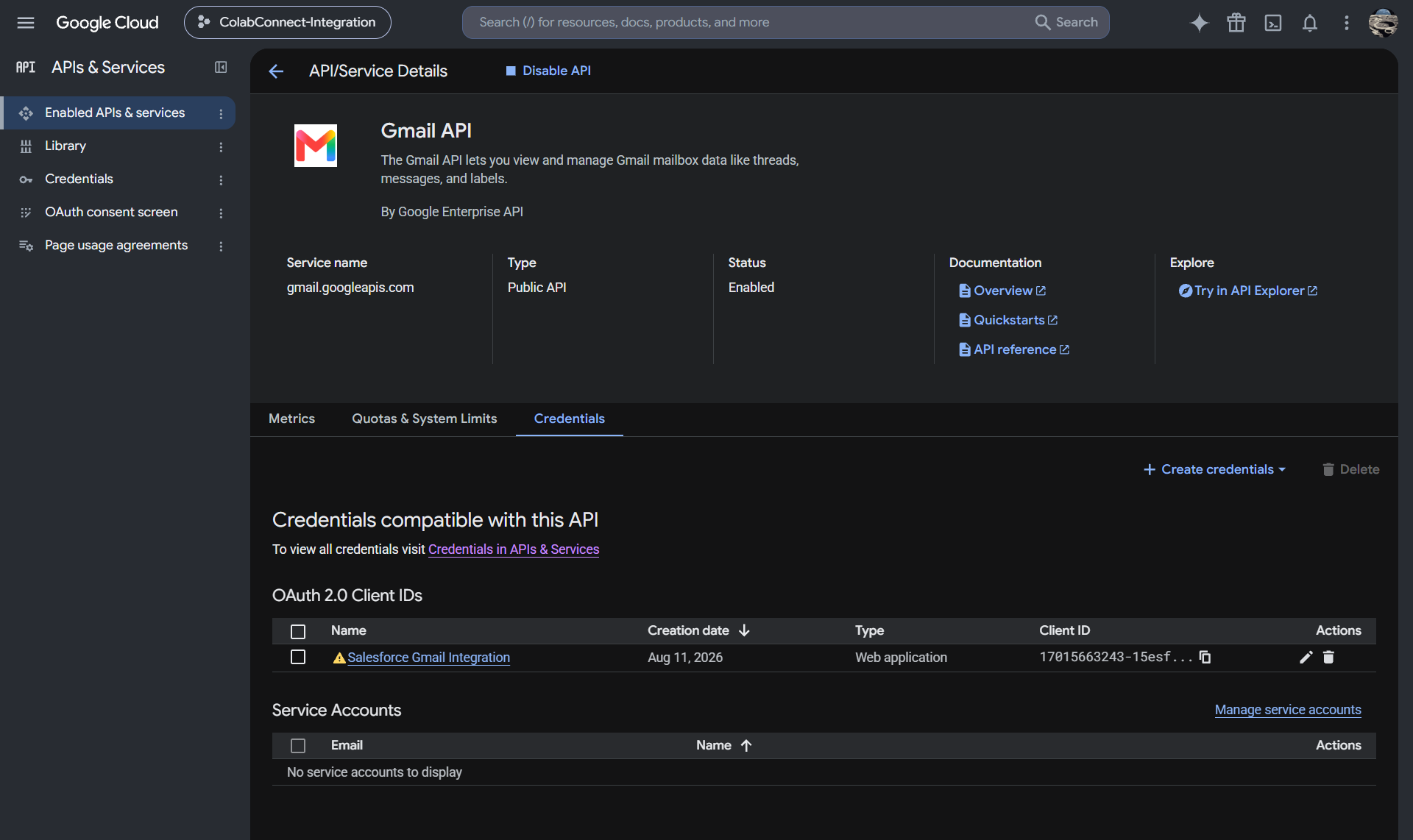
1. Enable Gmail API in Google Cloud
- In the Google Cloud Console, open your Google integration project.
- Go to APIs & Services → Library.
- Search for and enable Gmail API.
- In OAuth consent screen → Scopes, add:
https://www.googleapis.com/auth/gmail.readonly
- Save changes.
2. Configure Credentials in Salesforce Setup
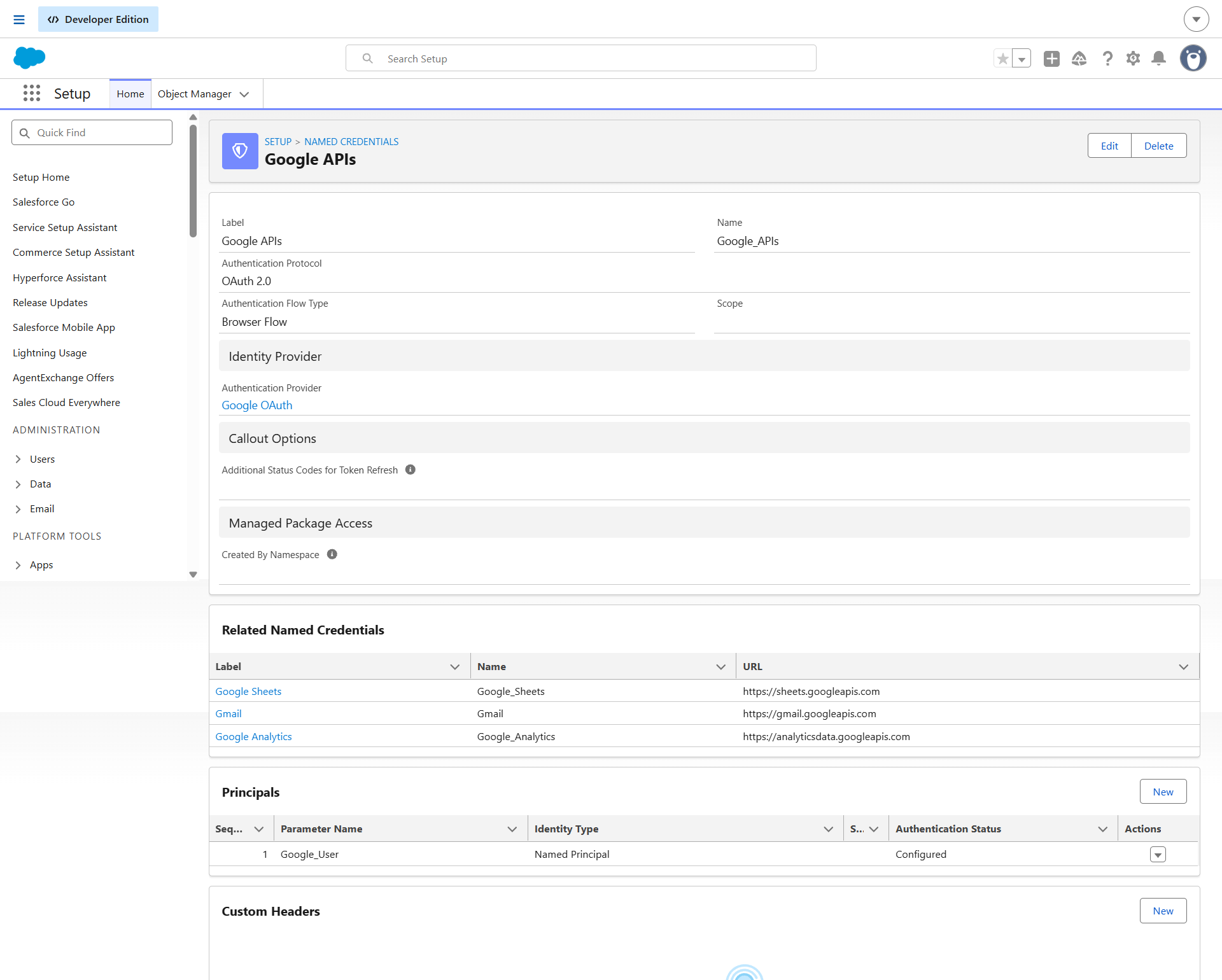
Salesforce connects securely to Gmail using External Credentials and Named Credentials. If you have already configured Google_APIs for Google Sheets or GA4, you only need to create the Gmail Named Credential (Step 2.2).
2.1 Create the External Credential (if not already created)
- Go to Setup (gear icon ⚙️ → Setup).
- In the Quick Find box, enter Named Credentials and select Named Credentials.
- Click the External Credentials tab → click New:
- Label:
Google APIs - Name:
Google_APIs - Authentication Protocol:
OAuth 2.0 - Authentication Provider: Select your Google Auth Provider (e.g.
Google_OAuth). - Click Save.
- Label:
- Under the Principals section on the detail page, click New:
- Parameter Name:
Google_User - Sequence:
1 - Click Save.
- Parameter Name:
- On the
Google_Userrow, click the dropdown arrow▼→ click Authenticate. - Sign in with the Google account for your Gmail integration and approve permissions. (Status will update to Configured).
2.2 Create the Named Credential
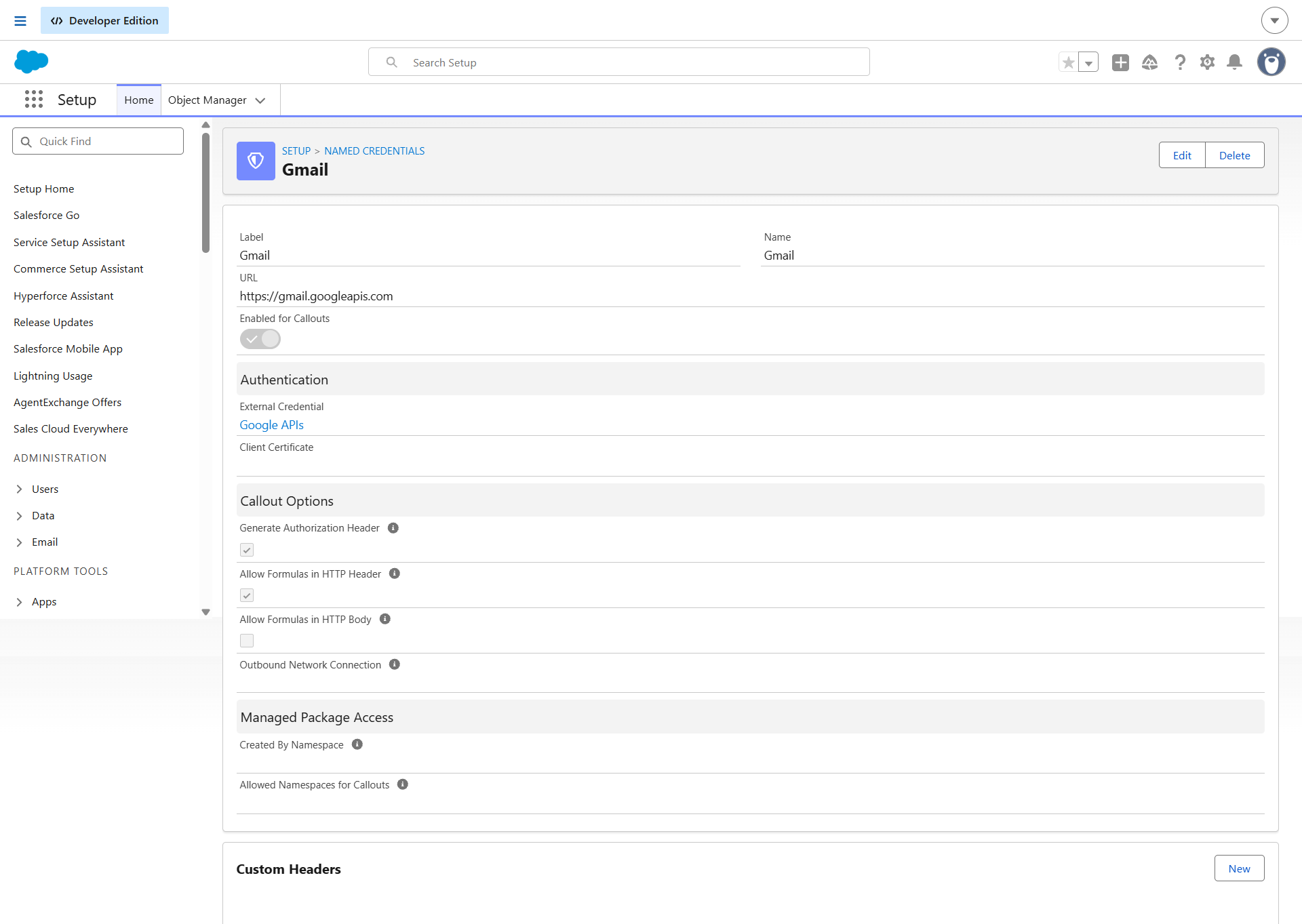
- Click the Named Credentials tab (next to External Credentials) → click New:
- Label:
Gmail - Name:
Gmail - URL:
https://gmail.googleapis.com - External Credential: Select
Google APIs - Generate Authorization Header: Checked
- Allow Formulas in HTTP Header: Checked
- Label:
- Click Save.
3. Assign Permission Set Access
- In Salesforce Setup, enter Permission Sets in Quick Find.
- Select Integration Admin (or
Appcolab Grid Admin). - Click External Credential Principal Access → click Edit.
- Add
Google_APIs - Google_Userto Enabled External Credential Principals. - Click Save and verify the permission set is assigned to your Salesforce users.
Creating a Gmail Grid Definition
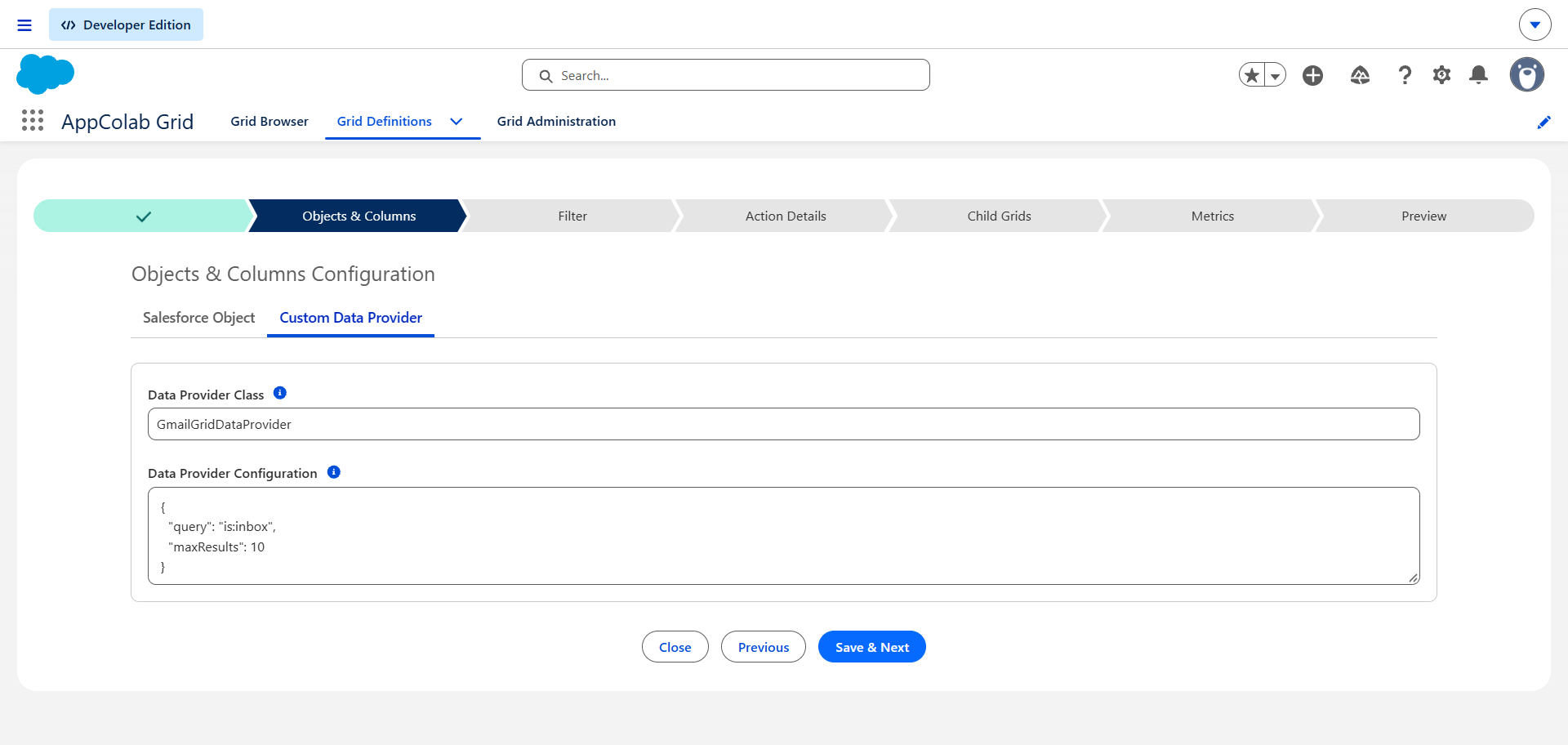
- In Salesforce, open AppColab Grid app → Grid Definitions tab → click New Grid Definition.
- Fill in:
- Grid Settings Name:
Gmail_Inbox_Grid - Grid Label:
Recent Gmail Messages - Is Active?: Checked
- Data Provider Class:
GmailGridDataProvider - Data Provider Configuration:
{ "query": "is:inbox", "maxResults": 25 }Tip: You can use standard Gmail search operators like
"query": "from:acme.com"or"query": "has:attachment". Because message details are fetched via individual API calls, keepingmaxResultsat 20–25 ensures lightning-fast grid load times while staying well within Salesforce callout limits.
- Grid Settings Name:
- Click Save & Next → proceed to Preview.
- Your recent emails load live with Subject, From, Date, and Snippet!
Supported Grid Features
| Column | Data Type | Description |
|---|---|---|
| Subject | TEXT |
Email subject line |
| From | EMAIL |
Sender name and email address |
| Snippet | TEXT |
Plaintext email preview snippet |
| Date | DATETIME |
Message timestamp |
| Thread ID | TEXT |
Gmail conversation thread ID |
| Labels | TEXT |
Applied Gmail labels (e.g. INBOX, UNREAD, STARRED) |
Troubleshooting
403 Forbidden / Access Not Configured: Ensure the Gmail API is enabled in your Google Cloud Console project.401 Unauthorized: Re-authenticate theGoogle_Userprincipal in Salesforce Setup → Named Credentials → External Credentials →Google APIs.