
HubSpot Grid Integration
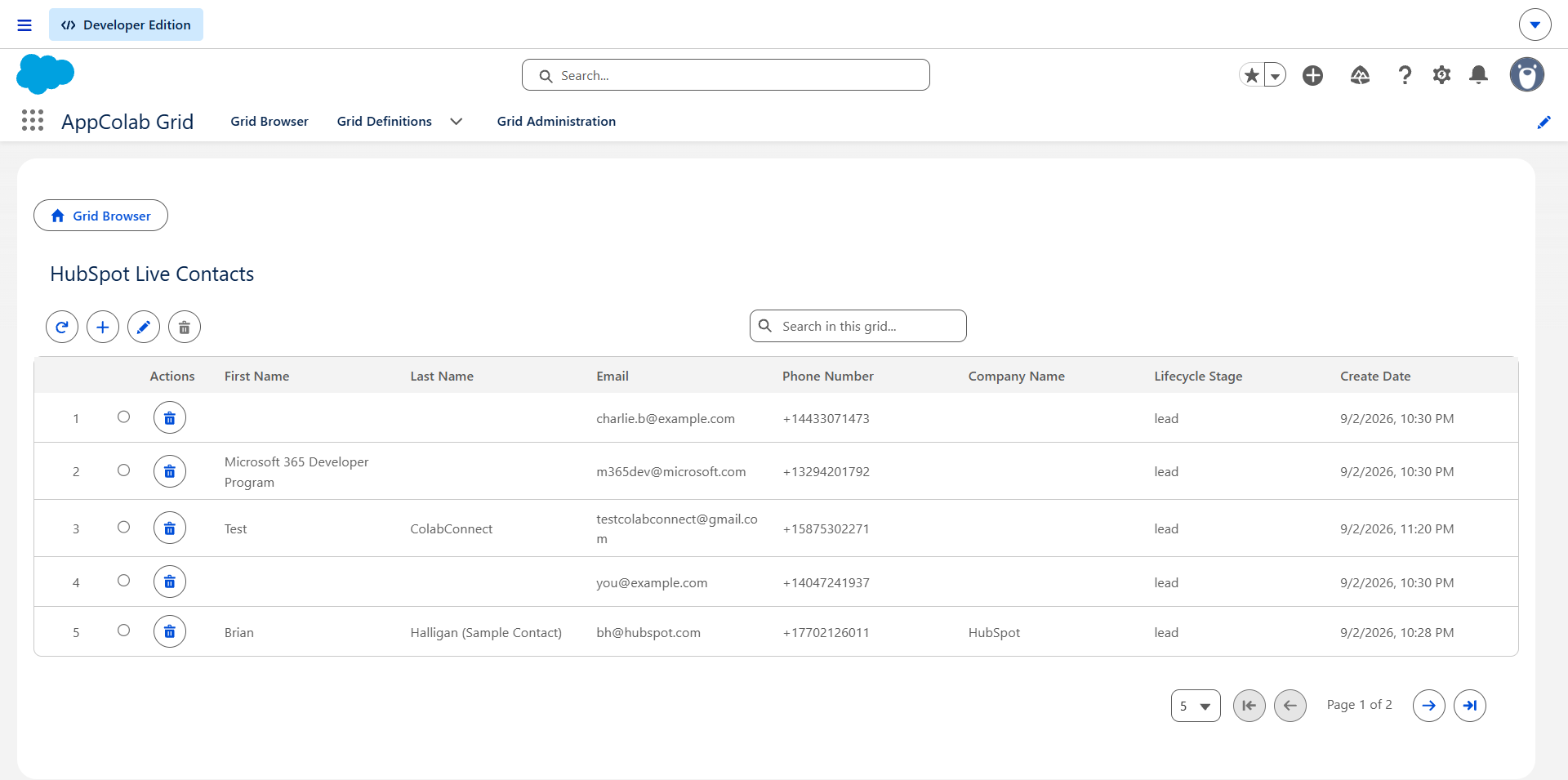
The HubSpot Grid integration enables Salesforce users to view, search, inline-edit, create, and delete CRM records from HubSpot (Contacts, Companies, Deals, and Tickets) as well as view live Contact email engagement history directly inside AppColab Grid.
What’s Deployed
| Component | Name | Purpose |
|---|---|---|
| Named Credential | HubSpot |
Connects to https://api.hubapi.com via HubSpot External Credential |
| External Credential | HubSpot |
Custom authentication with Bearer <HubSpot_Private_App_Token> |
| Apex Client | HubSpotClient.cls |
REST client supporting listObjects, describeProperties, searchObjects, createObject, updateObject, deleteObject |
| Apex Data Provider | HubSpotGridDataProvider.cls |
Implements appcg.GridDataProviderV1 and appcg.GridDataMutationProviderV1 with full CRUD |
| Permission Set | Integration_Admin |
Grants access to HubSpot → ApiKey external credential principal |
One-Time Manual Setup
1. Create a Private App & Obtain a Personal Access Token (PAT)
[!IMPORTANT] Use Personal Access Tokens (
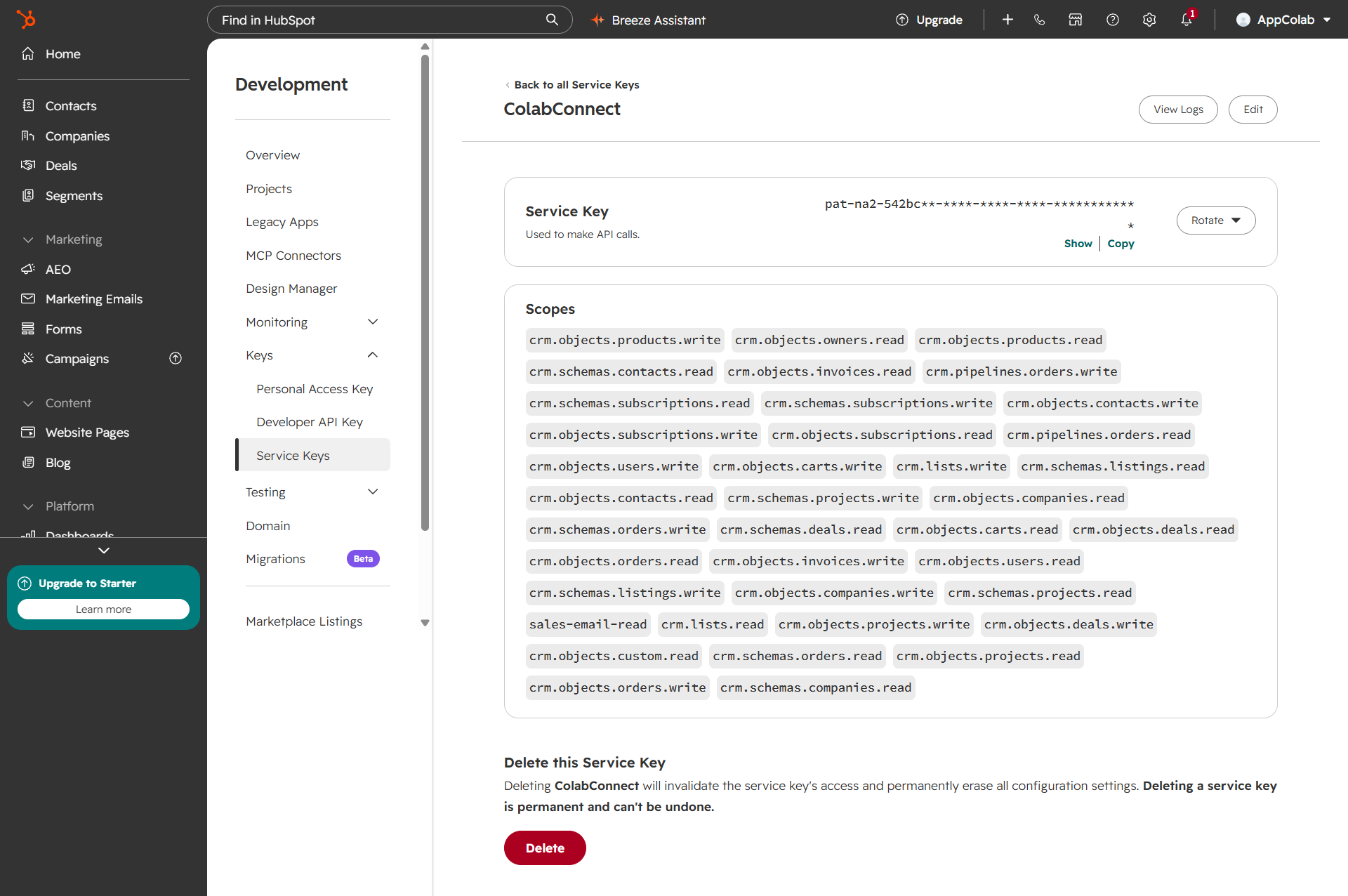
pat-...): HubSpot’s standard OAuth bearer tokens (such asCiRuYT...) are temporary and expire after a short window. For persistent grid connectivity, you must use a Personal Access Token (PAT) from a Private App or Service Key (prefixed withpat-na2-orpat-eu1-), which remains valid indefinitely.
Depending on your HubSpot account view, obtain your token using either method:
-
In HubSpot Developer / App Accounts (Recommended):
- In the left navigation menu, go to Development → Keys → Service Keys.
- Click Create service key (or open an existing key like
ColabConnect). - Under Scopes, ensure the required CRM permissions are enabled:
crm.objects.contacts.read&crm.objects.contacts.writecrm.objects.companies.read&crm.objects.companies.write(optional)crm.objects.deals.read&crm.objects.deals.write(optional)sales-email-read(optional, for email engagement history)
- Click Copy next to your Service Key (
pat-na2-...).
-
In Standard HubSpot CRM Portals:
- In your HubSpot portal, click the Settings icon ⚙️ in the top navigation bar.
- In the left sidebar, navigate to Integrations → Private Apps.
- Click Create private app → name it
AppColab Grid. - Under the Scopes tab, select
crm.objects.contacts.readandcrm.objects.contacts.write. - Click Create app (top-right) → confirm and copy the generated token (
pat-na2-...orpat-eu1-...).
2. Configure Credentials in Salesforce Setup
2.1 Create the External Credential
- Go to Setup (gear icon ⚙️ → Setup).
- In the Quick Find box, enter Named Credentials and select Named Credentials.
- Click the External Credentials tab → click New:
- Label:
HubSpot - Name:
HubSpot - Authentication Protocol:
Custom - Click Save.
- Label:
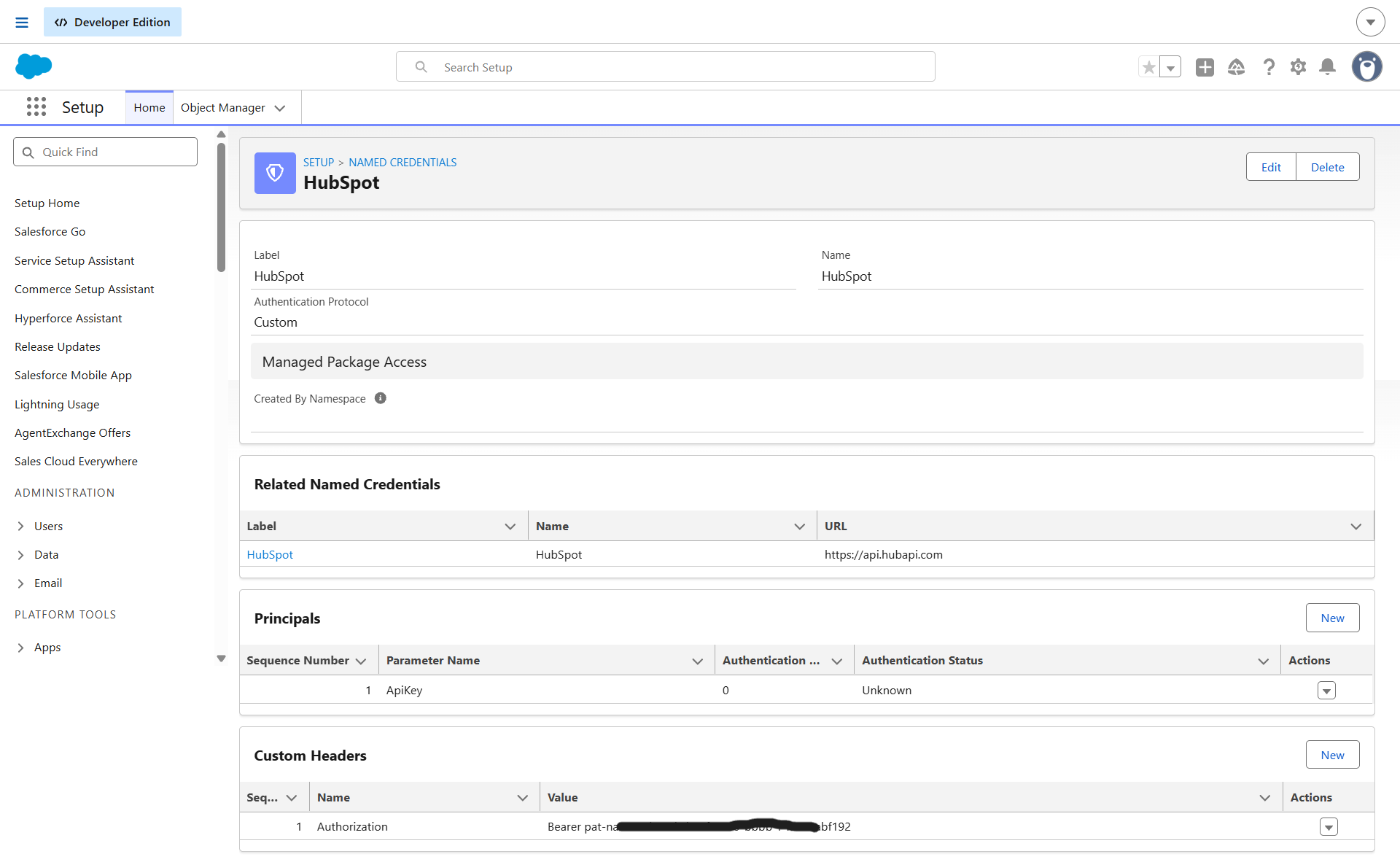
- In the Principals section, click New:
- Parameter Name:
ApiKey - Sequence:
1 - Click Save.
- Parameter Name:
- In the Custom Headers section, click New:
- Name:
Authorization - Value:
Bearer pat-na2-YOUR_HUBSPOT_TOKEN(paste your Personal Access Token from Step 1, preceded byBearer) - Sequence Number:
1 - Click Save.
- Name:
2.2 Create the Named Credential
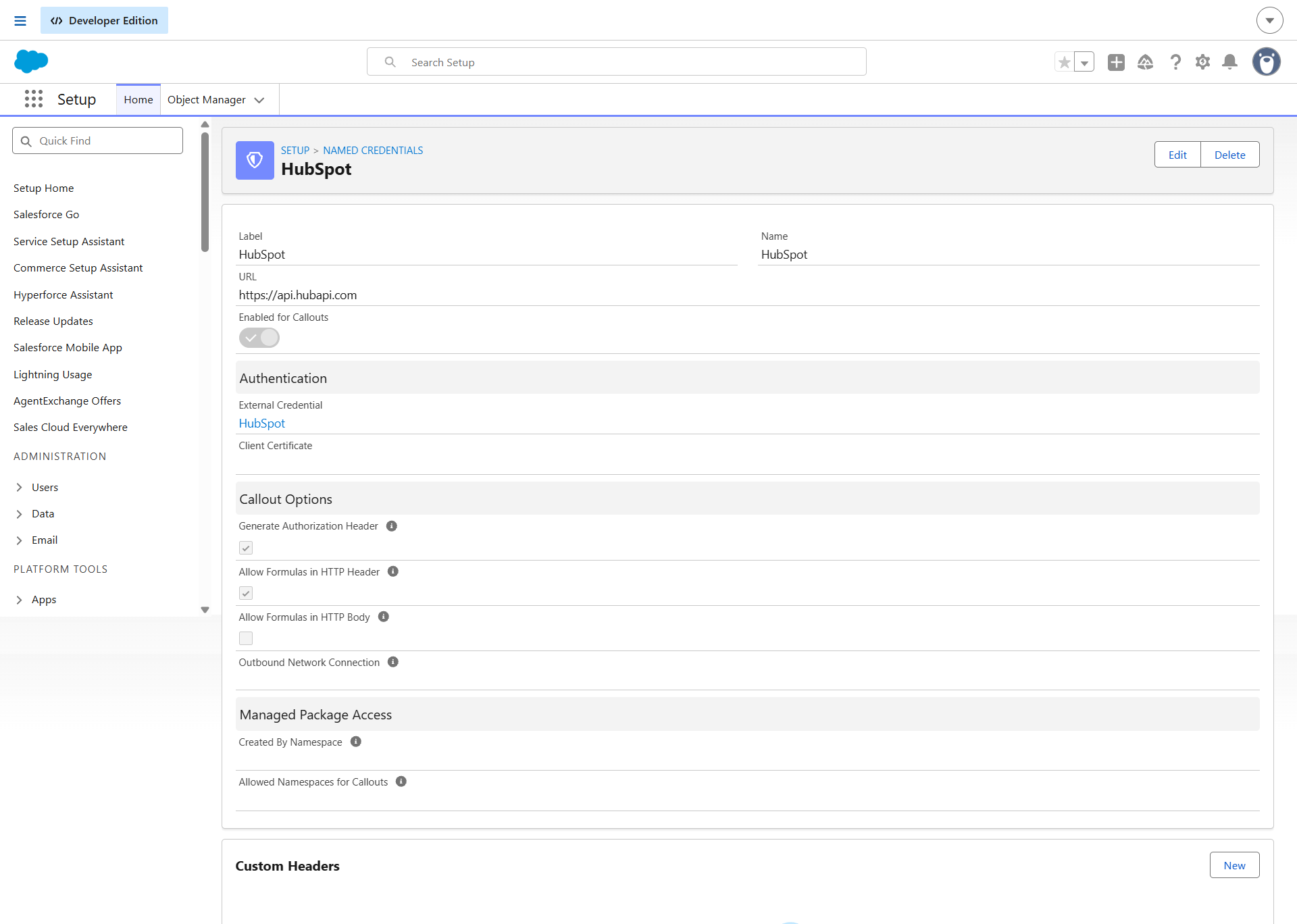
- Click the Named Credentials tab (next to External Credentials) → click New:
- Label:
HubSpot - Name:
HubSpot - URL:
https://api.hubapi.com - External Credential: Select
HubSpot - Generate Authorization Header: Leave Unchecked (handled by custom Authorization header)
- Allow Formulas in HTTP Header: Checked
- Label:
- Click Save.
3. Assign Permission Set Access
- In Salesforce Setup, enter Permission Sets in Quick Find.
- Select Integration Admin (or
HubSpot_Integration/ your custom admin permission set). - Click External Credential Principal Access → click Edit.
- Add
HubSpot - ApiKeyto Enabled External Credential Principals. - Click Save and verify the permission set is assigned to your Salesforce users.
Creating a HubSpot Grid Definition
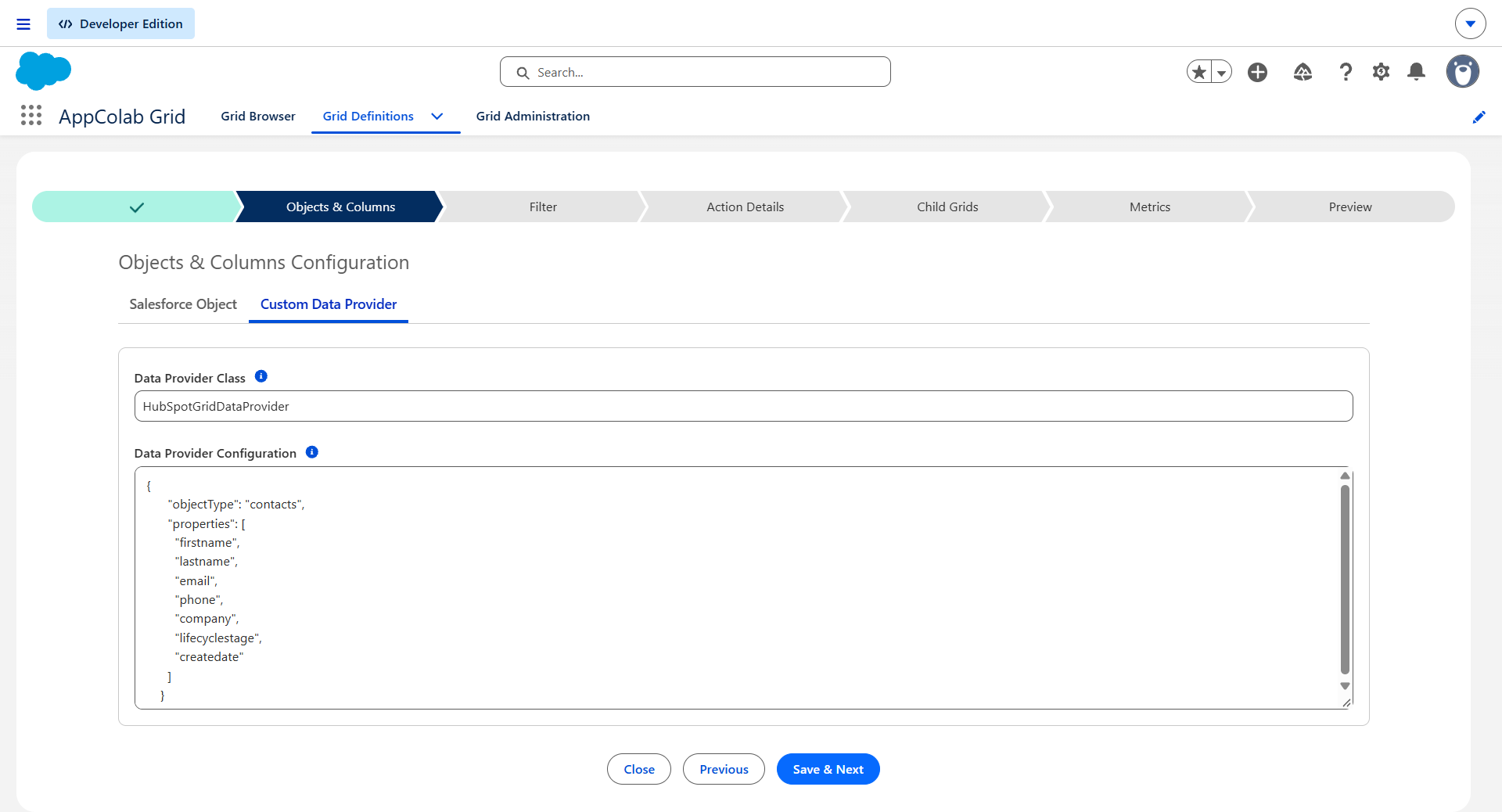
- In Salesforce, open AppColab Grid app → Grid Definitions tab → click New Grid Definition.
- Fill in:
- Grid Settings Name:
HubSpot_Contacts_Grid - Grid Label:
HubSpot Contacts - Is Active?: Checked
- Data Provider Class:
HubSpotGridDataProvider - Data Provider Configuration:
{ "objectType": "contacts" }Tip: You can also use
"companies","deals", or"tickets"as theobjectType.
- Grid Settings Name:
- Click Save & Next → proceed to Preview.
- All HubSpot contacts load live with First Name, Last Name, Email, Phone, Company, Lifecycle Stage, and Lead Status!
Supported Grid Features
| Feature | Details |
|---|---|
| Full CRUD | Inline edit Contact/Deal details, create new contacts, or delete directly from the Grid |
| Server-Side Pagination | Fast, responsive navigation through thousands of HubSpot CRM records |
| Real-Time Search | Leverages HubSpot’s high-speed Search API for instantaneous filtering across names, companies, and emails |
| Parent Record Association | Embed on Salesforce Contact record pages to automatically filter HubSpot records matching the current contact’s email address |
Troubleshooting & Common Gotchas
- Grid preview renders columns but shows “No Records Found” (Silent 401):
- Cause: HubSpot returns
HTTP 401 EXPIRED_AUTHENTICATION(“The OAuth token used to make this call expired…”). The Apex data provider catches callout errors gracefully to prevent UI crashes, which produces an empty record list (0rows). - Fix: In Salesforce Setup > Named Credentials > External Credentials >
HubSpot> Custom Headers, verify that theAuthorizationheader is using an active Personal Access Token (Bearer pat-na2-...orBearer pat-eu1-...), not an expired temporary OAuth token.
- Cause: HubSpot returns
403 Forbidden: Missing scopes:- Cause: The Private App was created without required object scopes.
- Fix: In your HubSpot portal under Settings → Integrations → Private Apps, edit your app scopes and enable
crm.objects.contacts.read(and.writeif inline editing).
- 0 records when embedded on a Salesforce Record Page:
- Cause: When embedded on a Contact Lightning page, the provider matches HubSpot contacts where the email equals the Salesforce Contact’s
Emailfield. If the Salesforce Contact has a blank email or there is no matching record in HubSpot, the grid will be empty.
- Cause: When embedded on a Contact Lightning page, the provider matches HubSpot contacts where the email equals the Salesforce Contact’s
- Missing External Credential Access:
- Cause: Users encounter an error indicating principal access is missing.
- Fix: Assign the permission set containing
HubSpot - ApiKeyexternal credential principal access to the user.