
Salesforce Cross-Org Grid Integration
The Salesforce Cross-Org Grid integration enables users to query, display, search, inline-edit, create, and delete records from any standard or custom SObject in another Salesforce Org (e.g. Developer Org, Sandbox, Production Org, or Scratch Org) directly inside AppColab Grid.
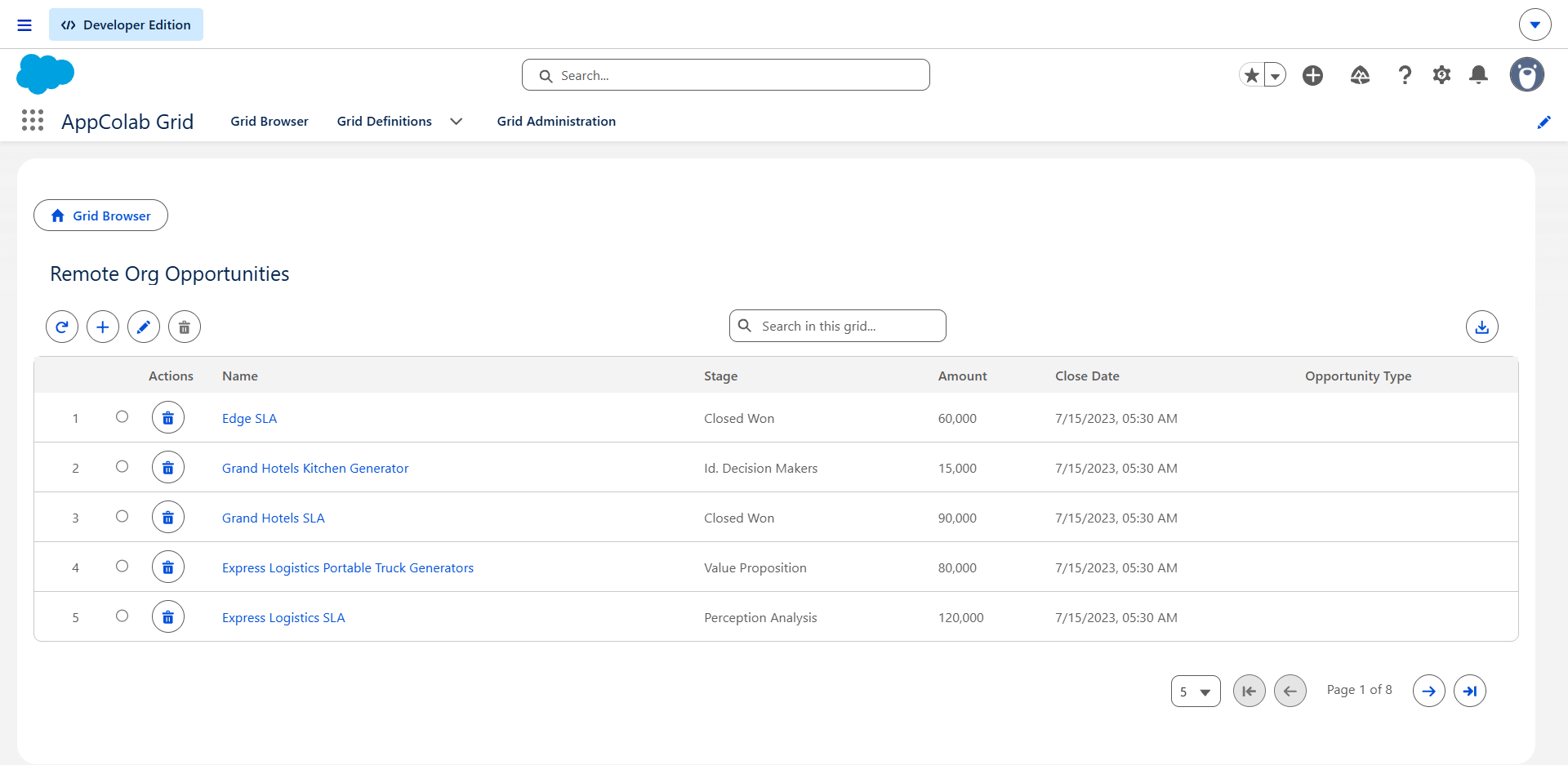
Architecture & What’s Deployed
| Component | Name | Purpose |
|---|---|---|
| Named Credential | Salesforce_Org |
Endpoints to callout:Salesforce_Org pointing to the remote Salesforce My Domain URL |
| External Credential | Salesforce_Org |
OAuth 2.0 Client Credentials authentication (ClientCredentialsClientSecret) |
| Apex Client | SalesforceClient.cls |
REST client supporting query, queryMore (cursor pagination for >2,000 records), describeSObject, getRecord, createRecord, updateRecord, and deleteRecord |
| Apex Data Provider | SalesforceGridDataProvider.cls |
Implements appcg.GridDataProviderV1 and appcg.GridDataMutationProviderV1 with dynamic schema describe, parent-child record filtering, auto-population on create, and full CRUD |
| Permission Set | Integration_Admin |
Grants user access to the Salesforce_Org external credential principal |
One-Time Manual Setup
1. In the REMOTE Salesforce Org (Source Org)
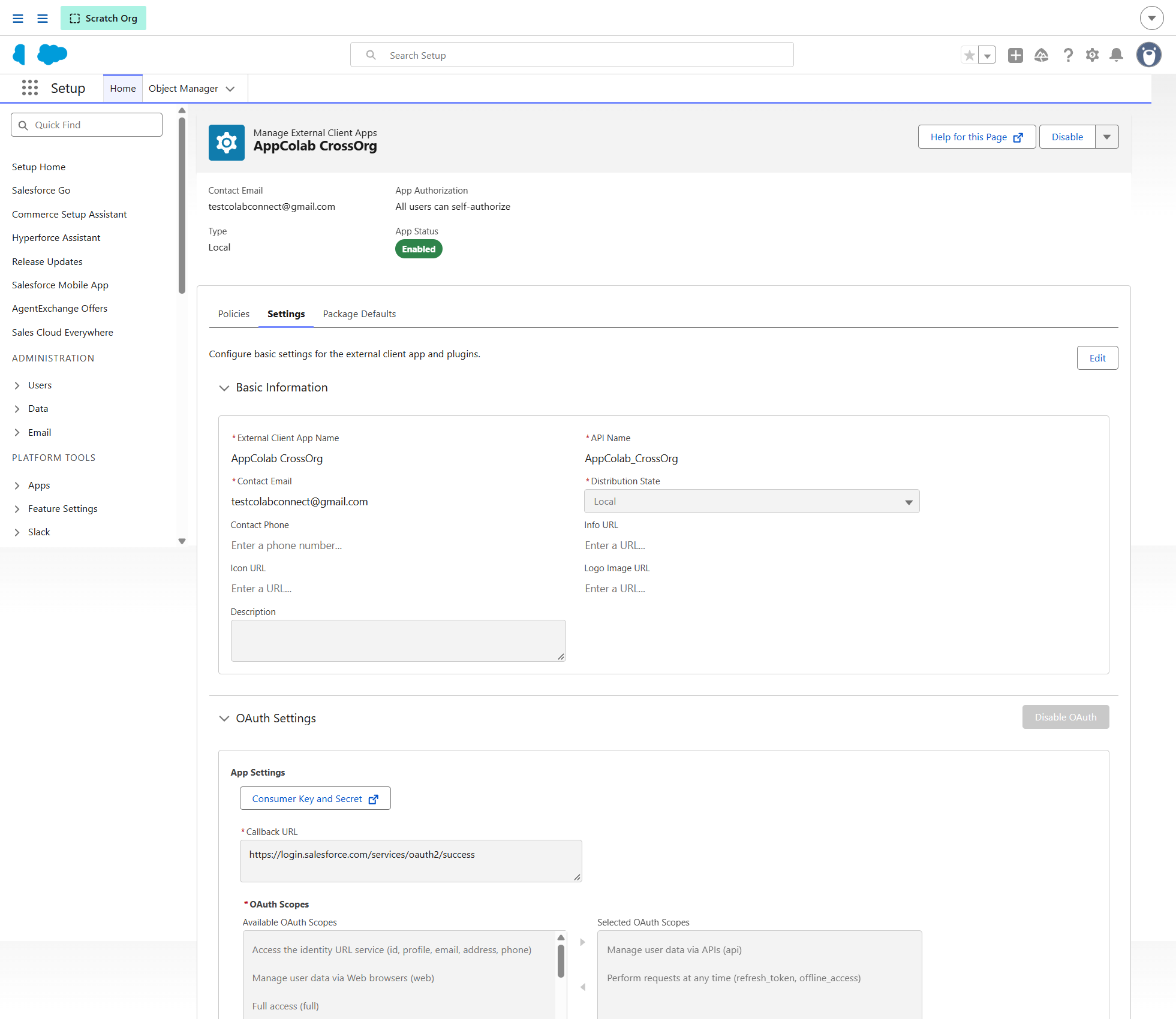
The remote org hosts the data (e.g. Cases, Contracts, Invoices). We configure an External Client App (or Connected App) to allow machine-to-machine authentication.
- In the remote org, go to Setup → search External Client App Manager (or App Manager → New Connected App).
- Create an External Client App:
- App Name:
AppColab Grid Connector - API Name:
AppColab_Grid_Connector - Contact Email: Your administrator email.
- Enable OAuth Settings:
- Callback URL:
https://login.salesforce.com/services/oauth2/success(Salesforce requires this field; Client Credentials flow does not use browser redirects). - Selected OAuth Scopes:
Manage user data via APIs (api)Perform requests at any time (refresh_token, offline_access)
- Check Enable Client Credentials Flow (if visible on the creation page).
- Callback URL:
- Click Create / Save.
- App Name:
- Configure Client Credentials Execution User (Crucial):
- Under the app’s Policies or OAuth Settings, locate Client Credentials Flow.
- Set Execution User / Run As: Select an active System Administrator or Integration User. (Salesforce rejects Client Credentials calls if an execution user is not configured).
- Copy the Consumer Key (Client ID) and Consumer Secret (Client Secret).
2. In the LOCAL Salesforce Org (Where AppColab Grid is Installed)
2.1 Configure the External Credential
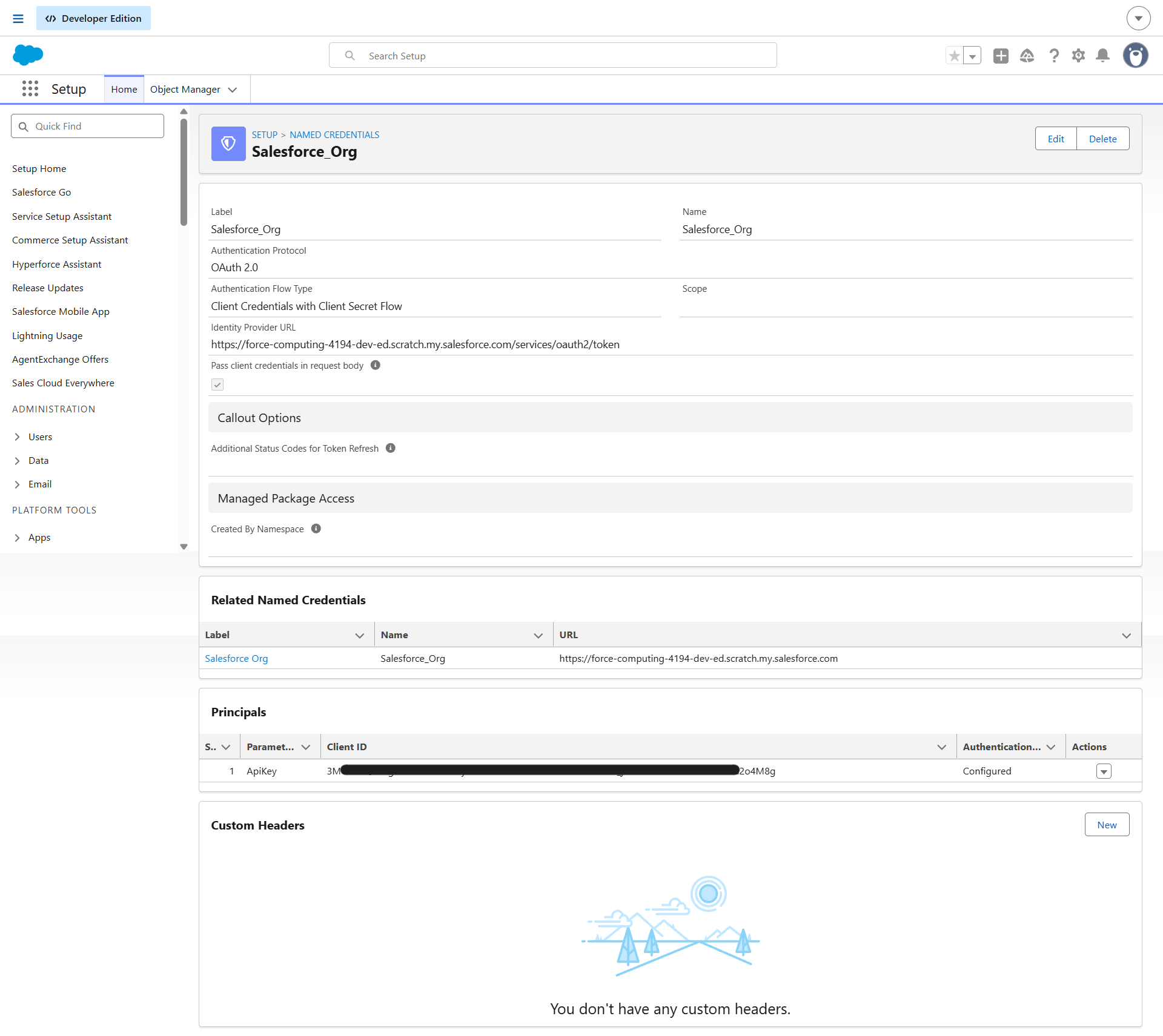
- In your local Salesforce org, go to Setup → in Quick Find enter Named Credentials → select Named Credentials.
- Click the External Credentials tab → click New (or edit
Salesforce_Org):- Label:
Salesforce_Org - Name:
Salesforce_Org - Authentication Protocol:
OAuth 2.0 - Authentication Flow Type:
Client Credentials with Client Secret Flow - Identity Provider URL: Enter your remote org’s My Domain token endpoint:
https://<your-remote-my-domain>.my.salesforce.com/services/oauth2/tokenImportant: Do not use
login.salesforce.comfor Client Credentials; Salesforce requires the specific My Domain endpoint. - Click Save.
- Label:
- In the Principals section, click New:
- Parameter Name:
ApiKey - Sequence:
1 - Click Save.
- Parameter Name:
- On the
ApiKeyrow, click the dropdown arrow▼(under Actions) → click Edit:- Client ID: Paste the Consumer Key from Step 1.
- Client Secret: Paste the Consumer Secret from Step 1.
- Click Save.
2.2 Configure the Named Credential
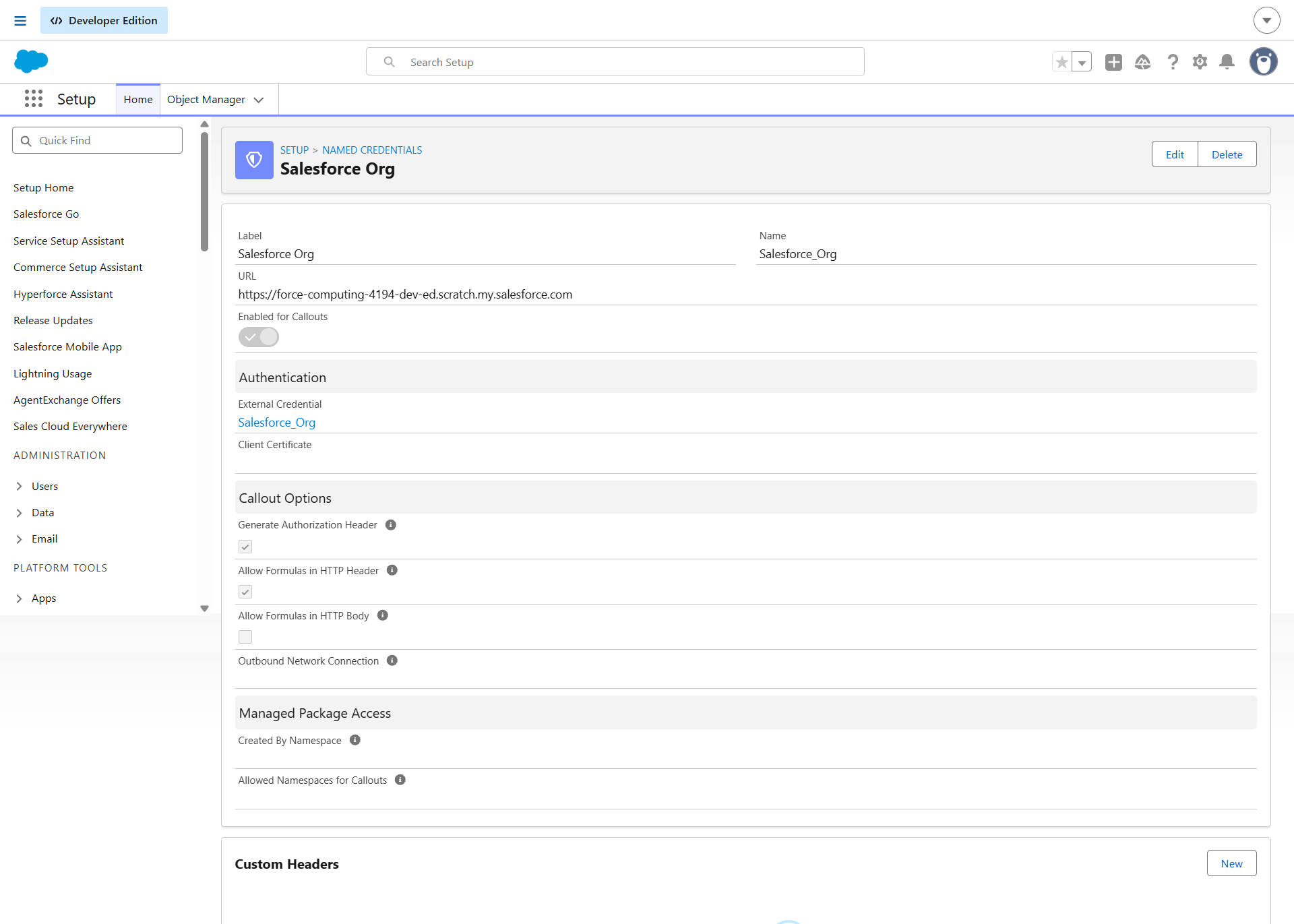
- Click the Named Credentials tab (next to External Credentials) → click New (or edit
Salesforce_Org):- Label:
Salesforce Org - Name:
Salesforce_Org - URL: Enter your remote org’s My Domain base URL:
https://<your-remote-my-domain>.my.salesforce.com - External Credential: Select
Salesforce_Org - Generate Authorization Header: Checked
- Allow Formulas in HTTP Header: Checked
- Label:
- Click Save.
3. Assign Permission Set Access
- In Salesforce Setup, enter Permission Sets in Quick Find.
- Select Integration Admin (or
Appcolab Grid Admin). - Click External Credential Principal Access → click Edit.
- Add
Salesforce_Org - ApiKeyto Enabled External Credential Principals. - Click Save and verify the permission set is assigned to your Salesforce users.
Use Case 1: Cross-Org Child Grid (Remote Cases on Accounts)
A powerful capability of AppColab Grid is embedding remote records as a Child Grid on a local parent record (e.g., viewing Cases from a remote Service Org directly on an Account in your CRM org).
1. Linking Local Accounts to Remote Accounts
Because each Salesforce org assigns distinct 18-character Record IDs, store the remote org’s Account ID on the local Account:
- Option A (Standard Field): Use standard Account Number (
AccountNumber) on the local Account and paste the remote Account’s 18-character ID (e.g.001fn00000IiExrAAF). - Option B (Custom Field): Create a text field
External_Account_Id__c(Length: 18, marked as External ID).
2. Create the Child Grid Definition
- Open the AppColab Grid app → Grid Definitions tab → click New Grid Definition.
- Configure Objects & Columns:
- Grid Settings Name:
Account_Remote_Cases - Grid Label:
Customer Support Cases (Remote Org) - Data Provider Class:
SalesforceGridDataProvider - Data Provider Configuration:
{
  "sObject": "Case",
  "fields": "CaseNumber, Subject, Status, Priority, CreatedDate, AccountId",
  "orderBy": "CreatedDate DESC",
  "parentMatchColumn": "AccountId",
  "parentMatchField": "AccountNumber",
  "autoPopulateParent": true,
  "limit": 500
}
- Grid Settings Name:
- Configuration parameters:
parentMatchColumn: The lookup field on the remote child object (AccountIdonCase).parentMatchField: The field on the local record containing the matching key (AccountNumber).autoPopulateParent: When set totrue, theparentMatchColumnis made read-only in the UI, and when users click + Add Row, the remote Account ID is automatically injected into the new Case.
- Click Save & Next → Finish.
3. Embed on the Account Record Page
- Open any Account record (e.g. Edge Communications).
- Click the gear icon ⚙️ → Edit Page.
- Add a tab named Customer Support Cases and drag the AppColab Grid component into it.
- In the component inspector on the right, select Grid Definition:
Account_Remote_Cases. - Click Save and Activate. When viewing the Account, AppColab Grid queries and displays only the cases belonging to that account from the remote org!
Use Case 2: Standalone Cross-Org Grid
To display all remote records in a dedicated tab or portfolio view:
{
  "sObject": "Case",
  "fields": "CaseNumber, Subject, Status, Priority, Account.Name, CreatedDate",
  "whereClause": "Status != 'Closed'",
  "orderBy": "CreatedDate DESC",
  "limit": 5000
}
limit: Supports up to 50,000 records. Datasets larger than 2,000 records automatically leverageSalesforceClient.queryMorecursor loops.whereClause: Supports standard SOQL filtering expressions.
Supported Grid Features
| Feature | Details |
|---|---|
| Parent-Child Filtering | Match remote records to local records via parentMatchColumn and parentMatchField |
| Auto-Population on Create | Automatically injects the parent record ID into new rows created in the child grid |
| Dynamic Schema Describe | Remote /services/data/v64.0/sobjects/{sObject}/describe auto-detects labels, picklists, and types |
Cursor Pagination (queryMore) |
Seamlessly navigates datasets beyond 2,000 rows using Salesforce query locators |
| Deterministic Sorting | Automatically applies , Id ASC tie-breakers to ensure stable pagination across API requests |
| Full CRUD & Inline Editing | Inline edits trigger remote REST PATCH calls; row deletion triggers remote REST DELETE calls |
Troubleshooting
invalid_grant: request not supported on this domain:- Cause: The External Credential’s Identity Provider URL is pointing to
https://login.salesforce.com/services/oauth2/token. - Fix: Change it to your remote org’s specific My Domain token endpoint:
https://<your-remote-domain>.my.salesforce.com/services/oauth2/token.
- Cause: The External Credential’s Identity Provider URL is pointing to
HTTP 400: Invalid ID field: ...:- Cause: The local matching field (e.g.
AccountNumber) contains a non-Salesforce ID string (e.g.CD451796) when filtering against an ID field likeAccountId. - Fix: Ensure the local Account’s mapped field contains the valid 15 or 18-character Salesforce ID from the remote org (e.g.
001fn00000IiExrAAF).
- Cause: The local matching field (e.g.
invalid_client: client credentials flow is not enabled or execution user is not configured:- Cause: In the remote org’s External Client App / Connected App policies, the Run As / Execution User has not been selected.
- Fix: Edit the app’s OAuth policies in the remote org and assign an active Administrator or Integration user under Client Credentials Flow.
INVALID_SESSION_ID:- Cause: The access token has expired or credentials were revoked.
- Fix: In Named Credentials, ensure the External Credential Principal has active Client ID & Secret values and that the user’s Profile/Permission Set has access to the principal.