
Google Analytics Grid Integration
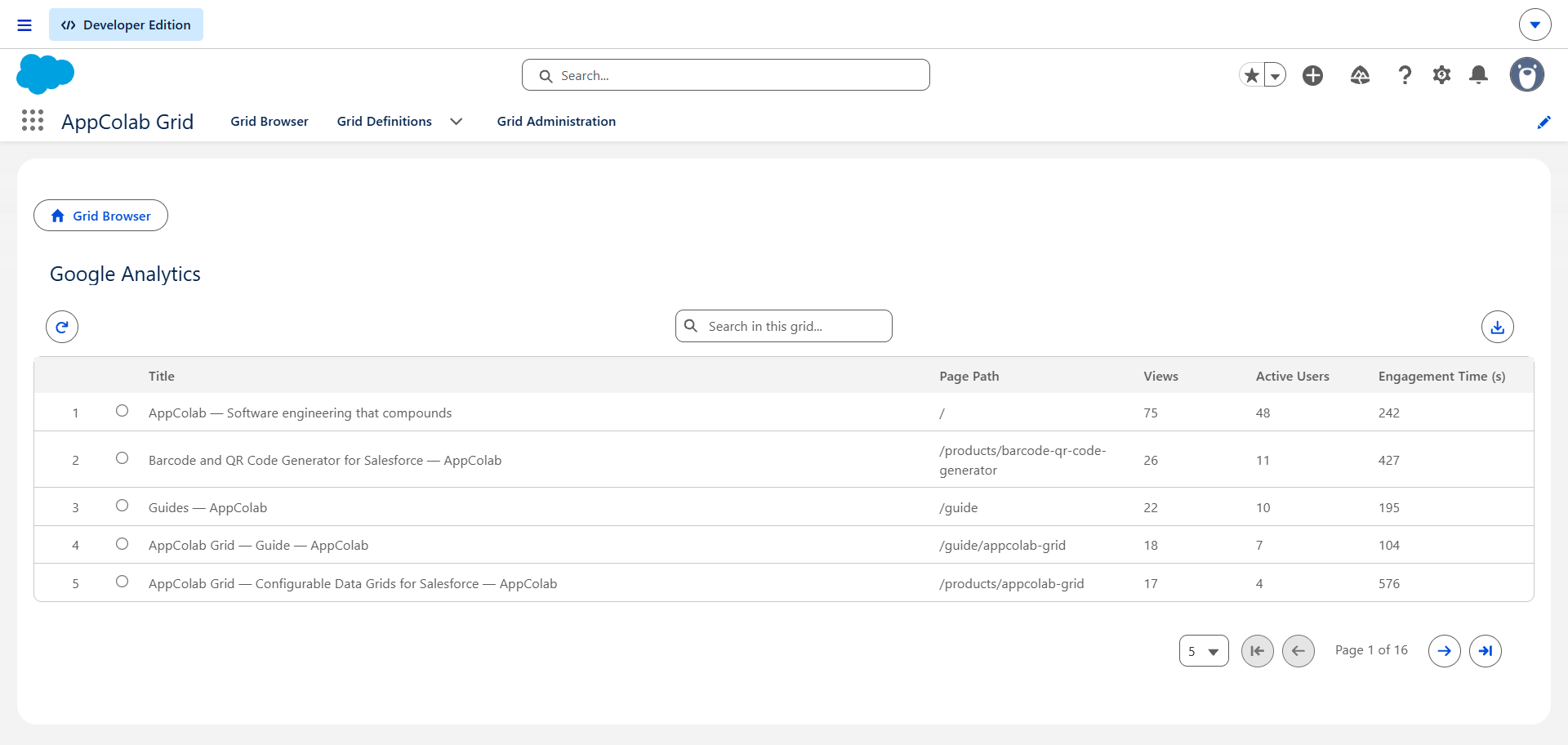
The Google Analytics 4 (GA4) integration enables Salesforce users to view, analyze, search, and export live website traffic, visitor demographics, channel acquisition, and user engagement directly inside AppColab Grid.
What’s Deployed
| Component | Name | Purpose |
|---|---|---|
| Named Credential | Google_Analytics |
Connects to https://analyticsdata.googleapis.com via Google_APIs External Credential |
| External Credential | Google_APIs |
Shared Google OAuth 2.0 credential |
| Apex Client | GoogleAnalyticsClient.cls |
REST client dispatching :runReport requests to GA4 Data API v1beta |
| Apex Data Provider | GoogleAnalyticsGridDataProvider.cls |
Implements appcg.GridDataProviderV1 for top pages, geo demographics, traffic sources, and user activity |
| Permission Set | Integration_Admin |
Grants access to Google_APIs → Google_User principal |
One-Time Manual Setup
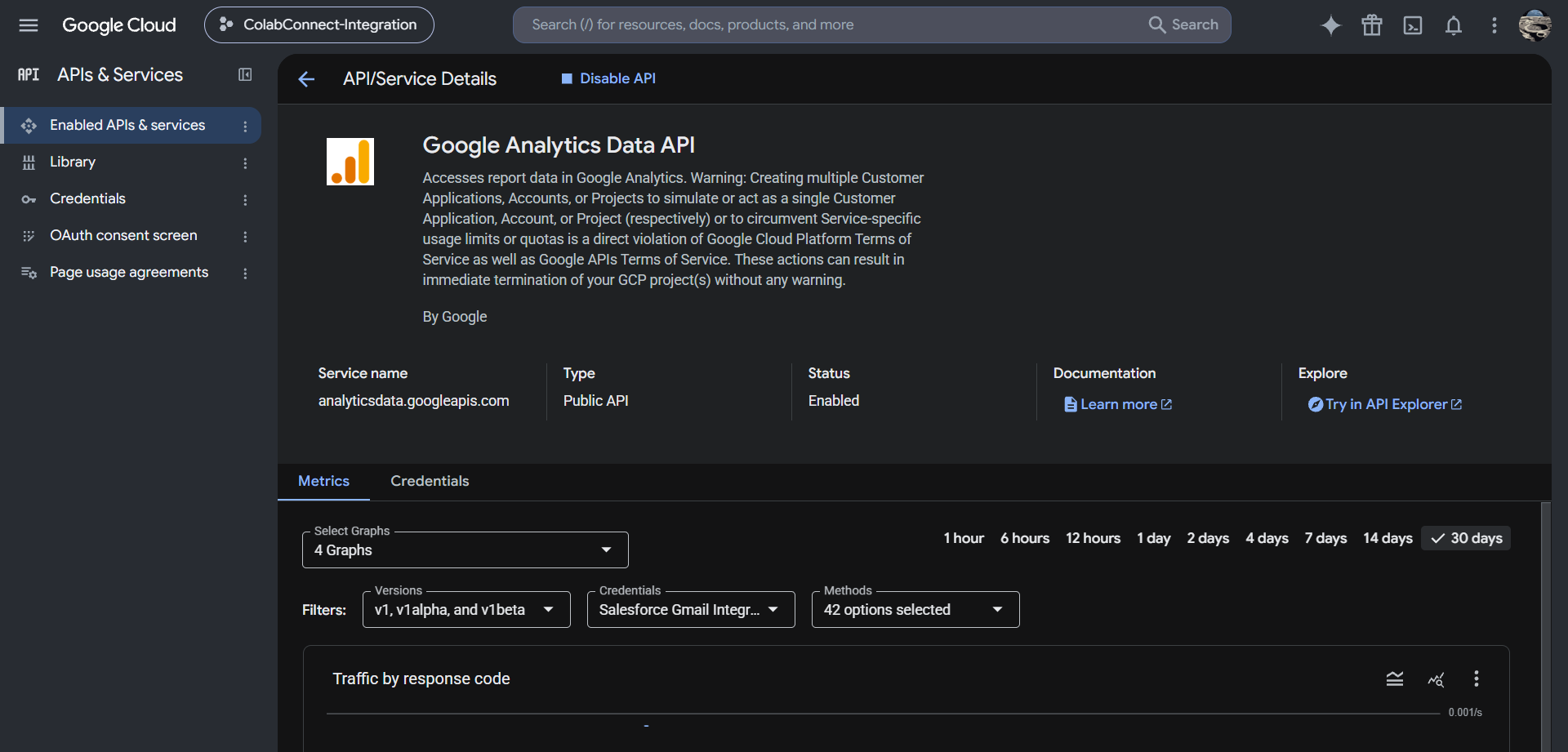
1. Enable Google Analytics Data API in Google Cloud
- In the Google Cloud Console, open the project you created for Google integrations.
- Navigate to APIs & Services → Library.
- Search for and enable Google Analytics Data API.
- In APIs & Services → OAuth consent screen, ensure the following scope is added:
https://www.googleapis.com/auth/analytics.readonly
- Save changes.
2. Configure Credentials in Salesforce Setup
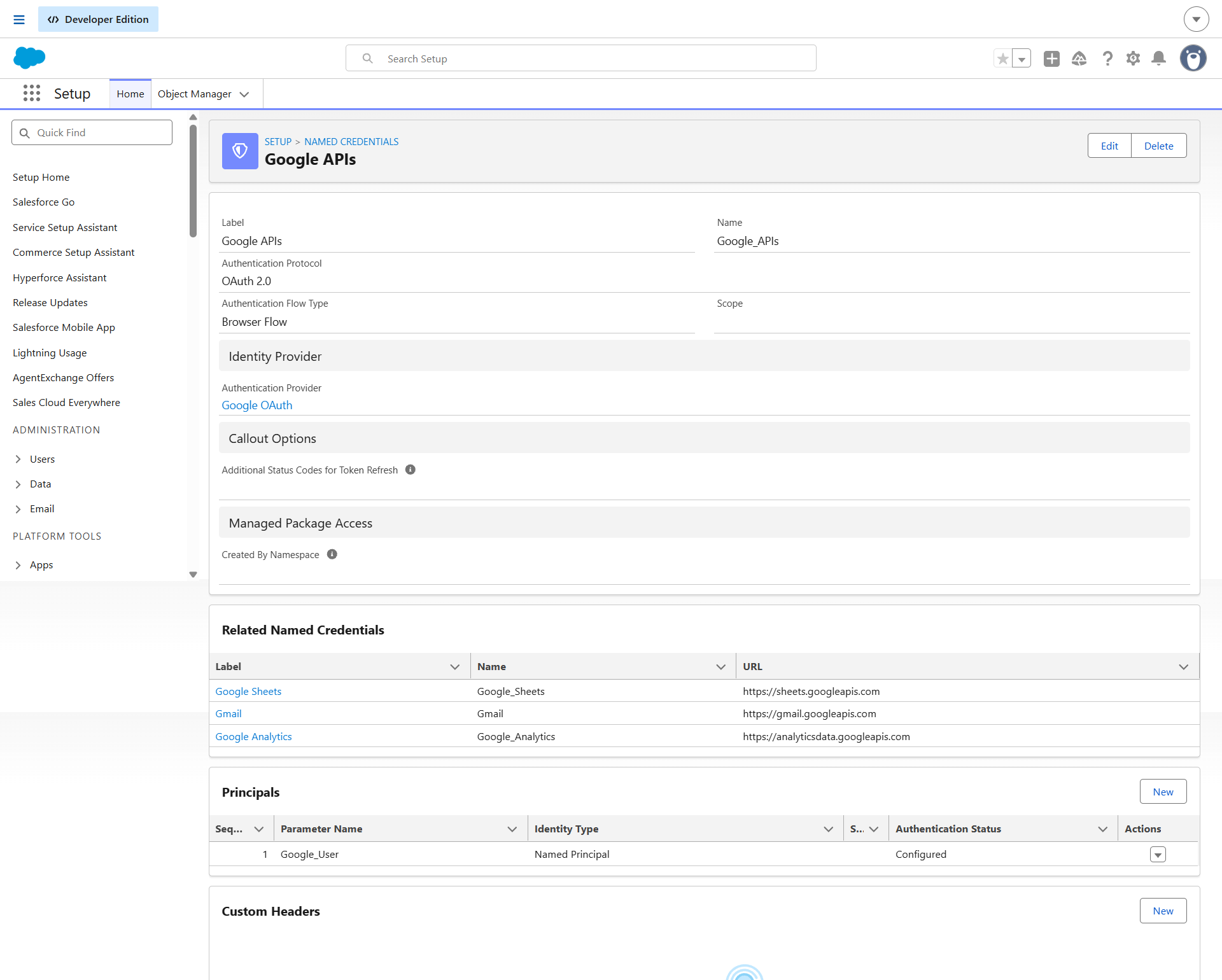
Salesforce uses External Credentials and Named Credentials to securely connect to Google APIs. If you have already set up Google_APIs for Google Sheets or Gmail, you only need to create the Google_Analytics Named Credential (Step 2.2).
2.1 Create the External Credential (if not already created)
- Go to Setup (gear icon ⚙️ → Setup).
- In the Quick Find box, enter Named Credentials and select Named Credentials.
- Click the External Credentials tab → click New:
- Label:
Google APIs - Name:
Google_APIs - Authentication Protocol:
OAuth 2.0 - Authentication Provider: Select your Google Auth Provider (e.g.
Google_OAuth). - Click Save.
- Label:
- Under the Principals section on the detail page, click New:
- Parameter Name:
Google_User - Sequence:
1 - Click Save.
- Parameter Name:
- On the
Google_Userprincipal row, click the dropdown arrow▼→ click Authenticate. - Sign in with the Google account that has access to your GA4 property and approve the requested permissions. (Status will update to Configured).
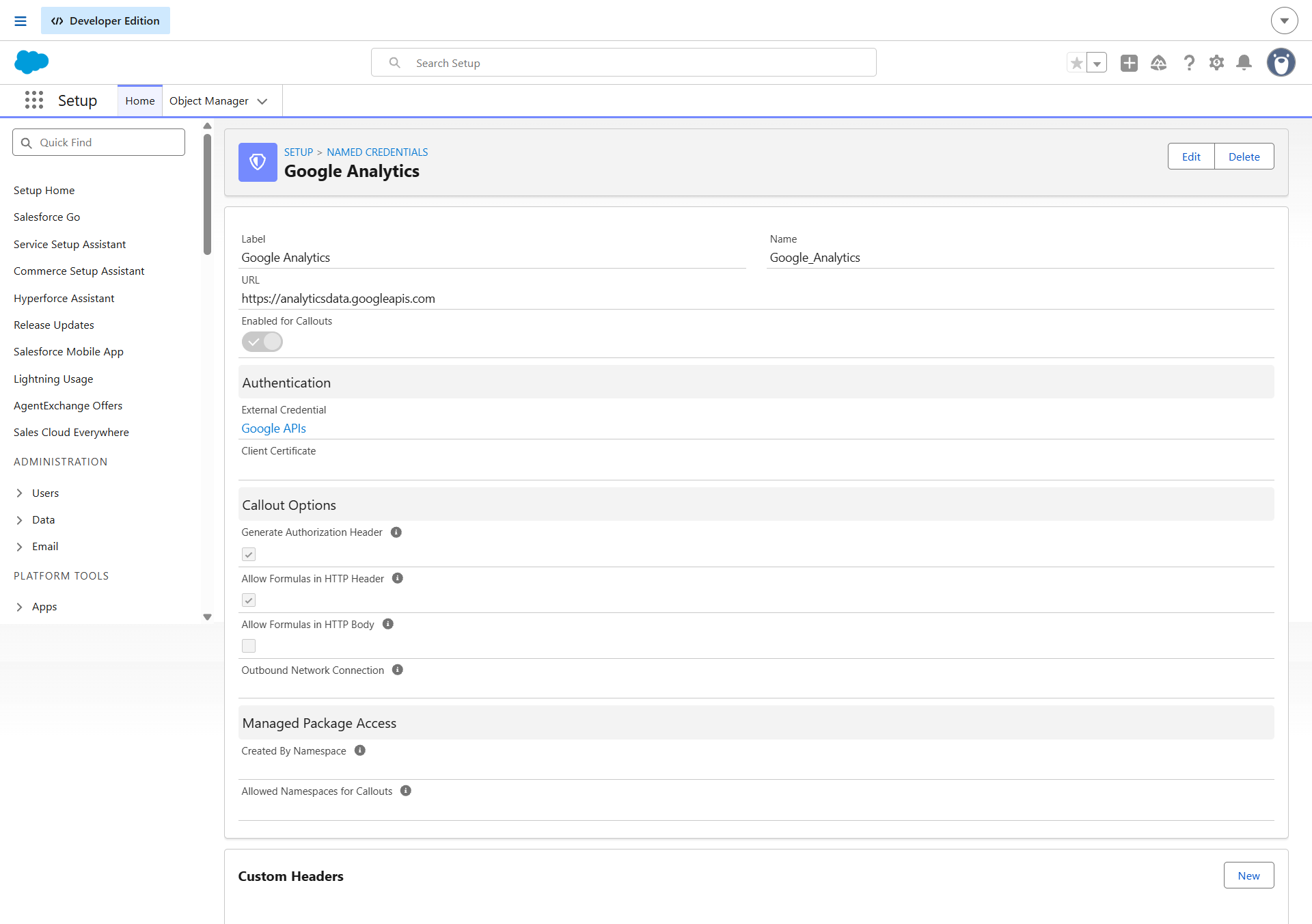
2.2 Create the Named Credential
- Click the Named Credentials tab (next to External Credentials) → click New:
- Label:
Google Analytics - Name:
Google_Analytics - URL:
https://analyticsdata.googleapis.com - External Credential: Select
Google APIs - Generate Authorization Header: Checked
- Allow Formulas in HTTP Header: Checked
- Label:
- Click Save.
3. Assign Permission Set Access
- In Salesforce Setup, enter Permission Sets in Quick Find.
- Select Integration Admin (or
Appcolab Grid Admin). - Click External Credential Principal Access → click Edit.
- Add
Google_APIs - Google_Userto Enabled External Credential Principals. - Click Save and verify the permission set is assigned to your Salesforce users.
Creating a GA4 Grid Definition
- In Salesforce, open AppColab Grid app → Grid Definitions tab → click New Grid Definition.
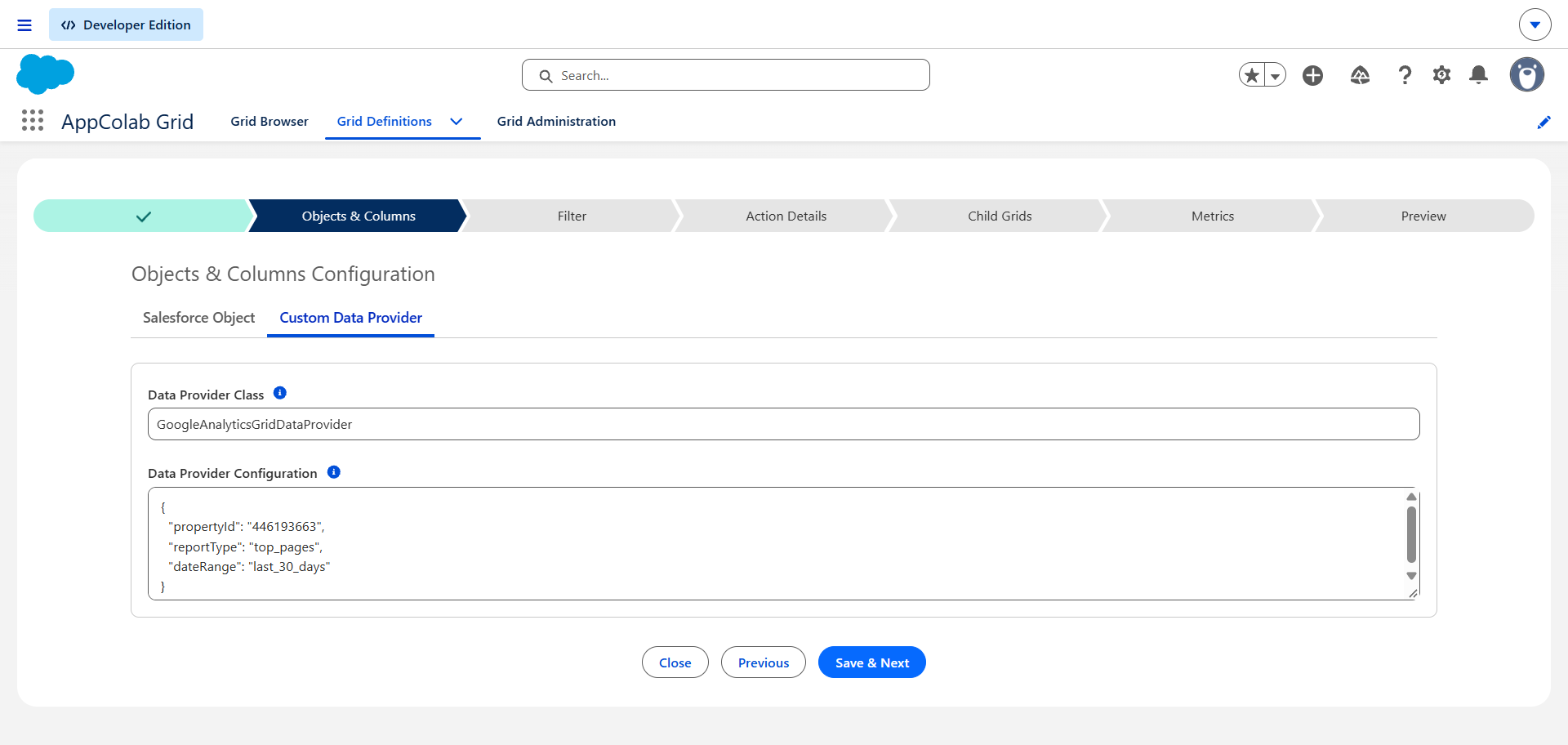
- Fill in:
- Grid Settings Name:
GA4_Top_Pages - Grid Label:
Website Top Pages (Last 30 Days) - Is Active?: Checked
- Data Provider Class:
GoogleAnalyticsGridDataProvider - Data Provider Configuration:
{ "propertyId": "446193663", "reportType": "top_pages", "dateRange": "last_30_days", "limit": 100 }Tip: Find your GA4
propertyIdin Google Analytics → Admin (⚙️) → Property Settings.
- Grid Settings Name:
- Click Save & Next → proceed to Preview.
- Real-time website performance metrics load instantly!
Supported Report Types
AppColab Grid supports 4 dedicated report types configured via reportType in the configuration JSON:
1. Top Pages ("reportType": "top_pages")
Shows top performing website pages, blogs, and landing pages:
- Columns:
Page Title,Page Path,Views,Active Users,Engagement Time (s)
2. Geographic Visitors ("reportType": "geo")
Shows where your website visitors are located globally:
- Columns:
Country,City,Active Users,New Users,Sessions
3. Traffic Sources ("reportType": "traffic_sources")
Shows how visitors find your brand (Direct, Organic Search, Referral, Social, Paid):
- Columns:
Source / Medium,Session Default Channel Group,Sessions,Engaged Sessions,Conversions
4. User Engagement ("reportType": "user_activity")
Shows user activity and event counts:
- Columns:
Event Name,Event Count,Total Users
Troubleshooting
403 Forbidden / PERMISSION_DENIED: The authenticated Google user does not have Viewer access to the specified GA4propertyId. Grant access to the Google user in GA4 Admin → Property Access Management.401 Unauthorized: Re-authenticate theGoogle_Userprincipal in Salesforce Setup → Named Credentials → External Credentials →Google APIs.