
Trello Grid Integration
The Trello Grid integration allows teams to view, search, add, inline-edit, archive/delete, and export cards from any Trello Board directly inside AppColab Grid.
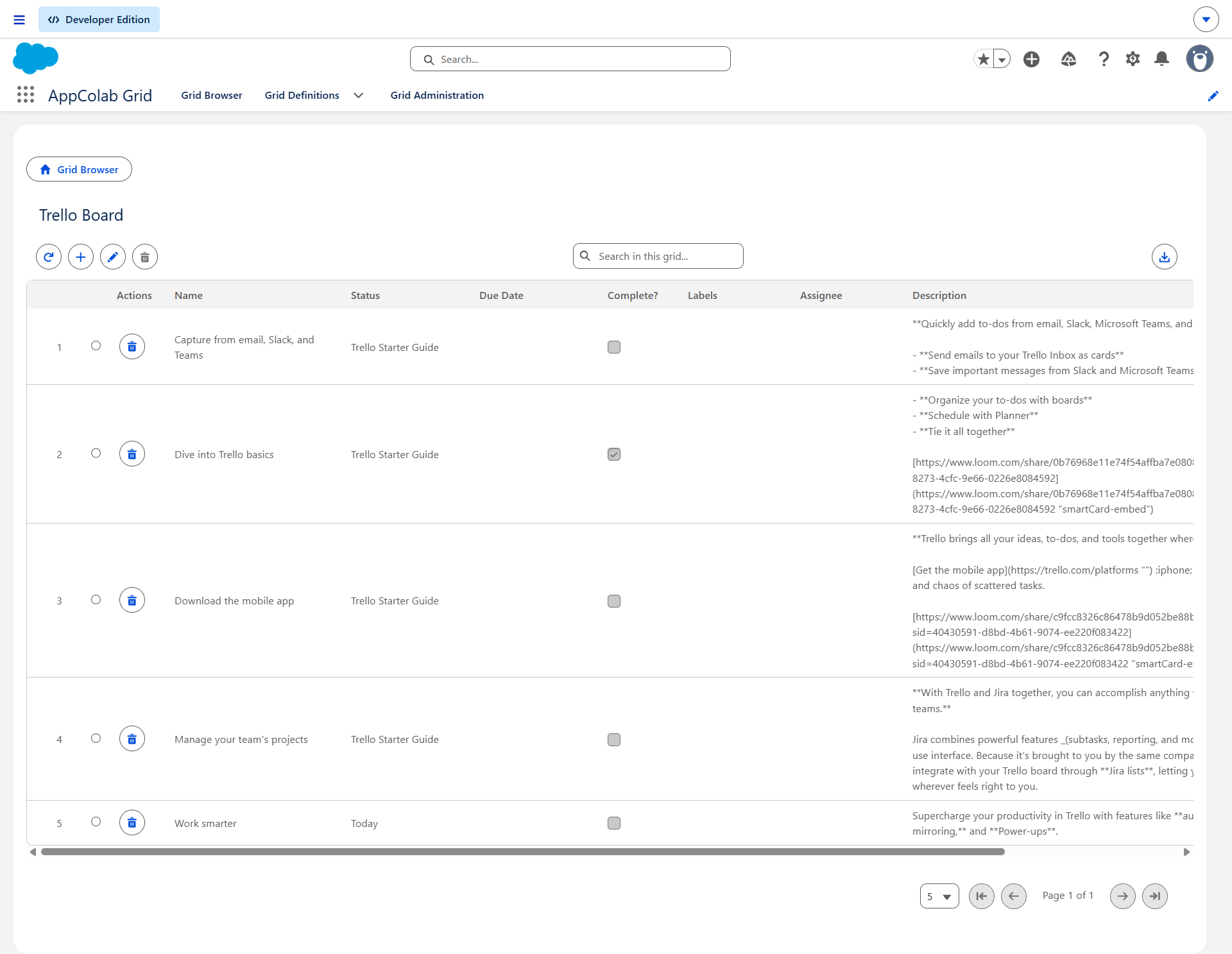
What’s Deployed
| Component | Name | Purpose |
|---|---|---|
| Named Credential | Trello |
Connects to https://api.trello.com via Trello External Credential |
| External Credential | Trello |
Custom authentication with Trello API key & OAuth token |
| Apex Client | TrelloClient.cls |
REST client supporting getBoardCards, getBoardLists, createCard, updateCard, deleteCard |
| Apex Data Provider | TrelloGridDataProvider.cls |
Implements appcg.GridDataProviderV1 and appcg.GridDataMutationProviderV1 with full CRUD |
| Permission Set | Integration_Admin |
Grants access to Trello → ApiKey external credential principal |
One-Time Manual Setup
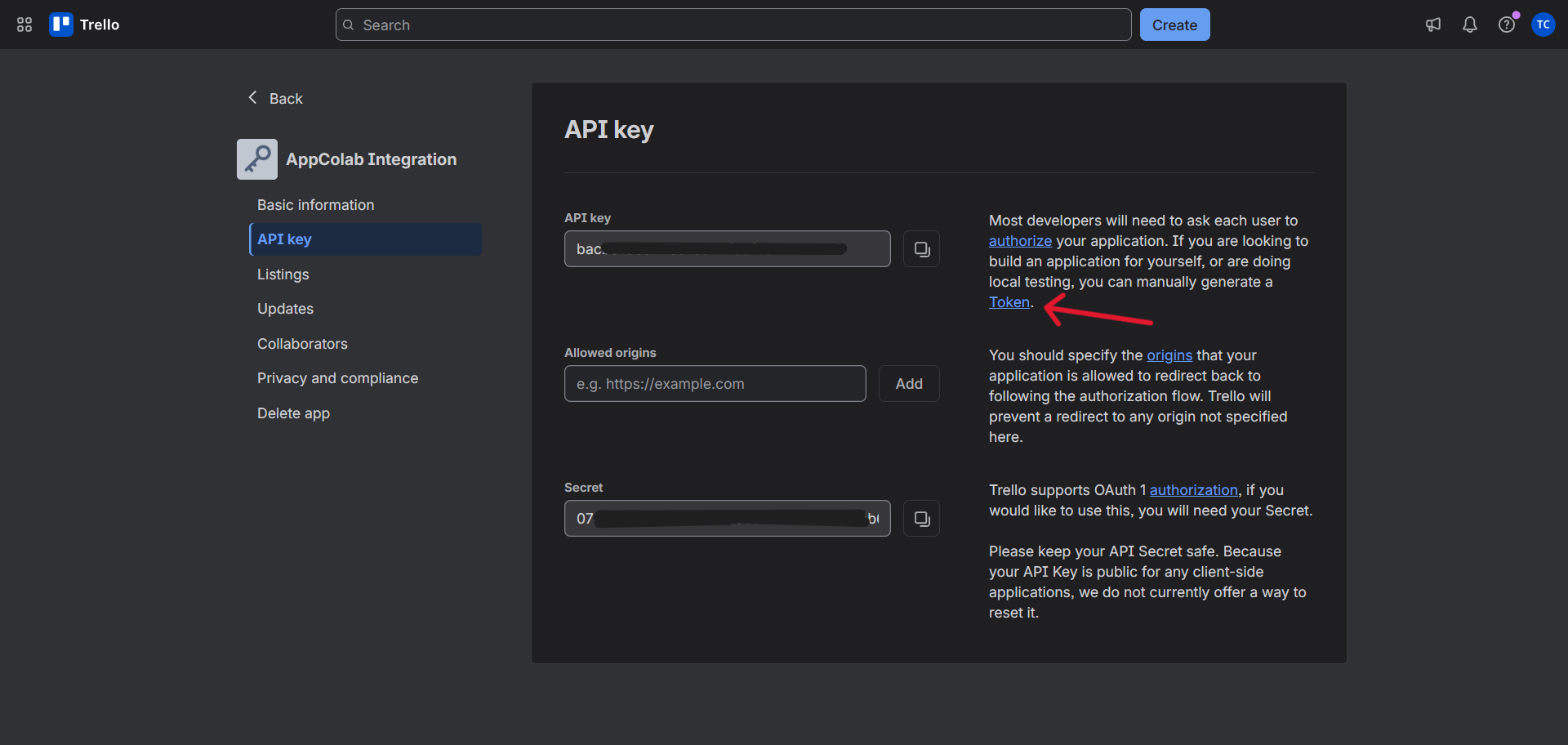
1. Generate Your Trello API Key & Token
- Log into Trello and navigate to the Trello Power-Up / API Key Portal (or trello.com/app-key).
- Click New:
- App Name:
AppColab Integration - Select your Workspace and click Generate a new API Key.
- App Name:
- Copy your 32-character API Key (e.g.
bacbd106d720a7ec...). - Click the link beside it to generate a Token:
- Authorize the integration on the prompt screen.
- Copy the Token (e.g.
ATTA...).
2. Configure Credentials in Salesforce Setup
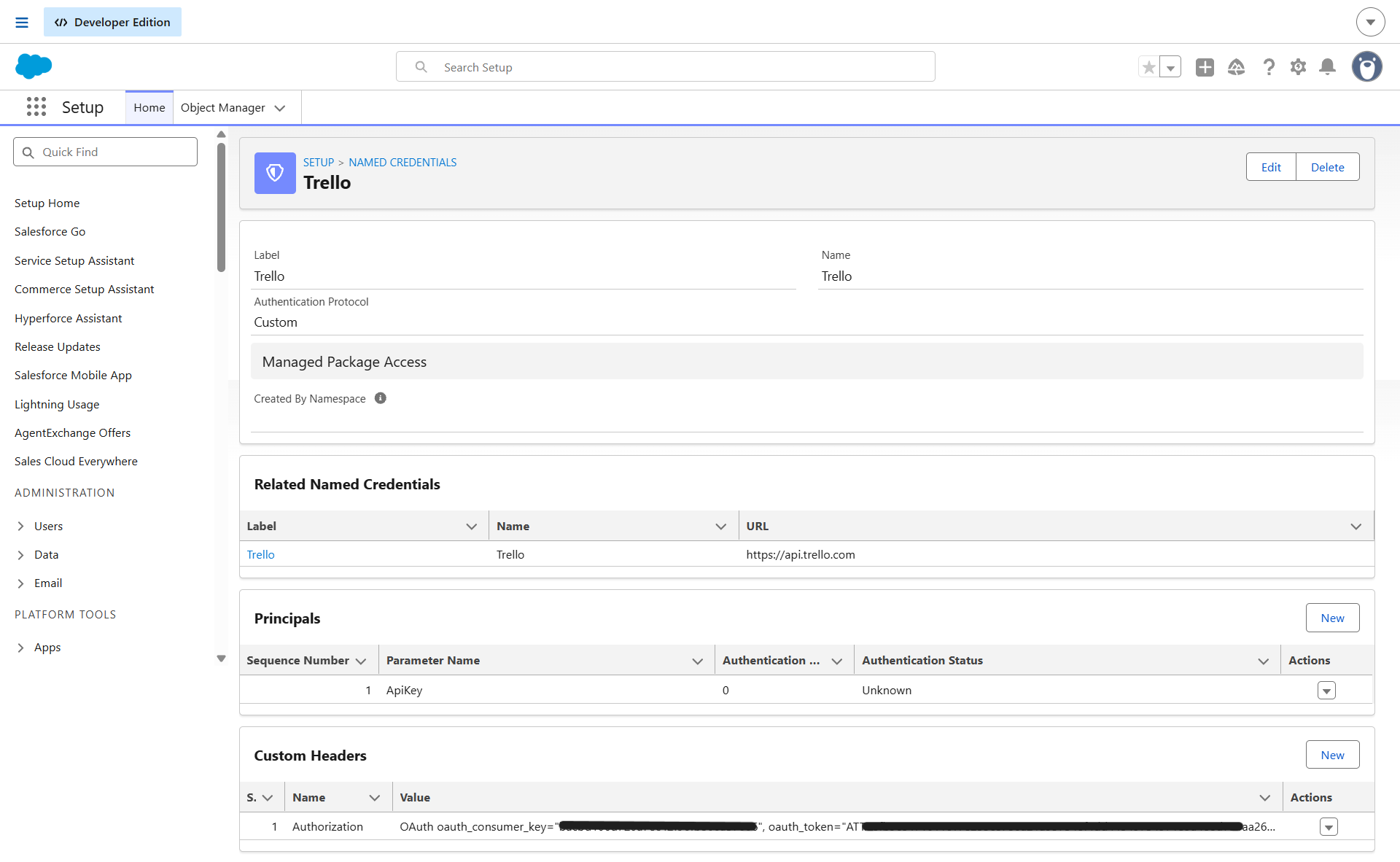
2.1 Create the External Credential
- Go to Setup (gear icon ⚙️ → Setup).
- In the Quick Find box, enter Named Credentials and select Named Credentials.
- Click the External Credentials tab → click New:
- Label:
Trello - Name:
Trello - Authentication Protocol:
Custom - Click Save.
- Label:
- In the Principals section, click New:
- Parameter Name:
ApiKey - Sequence:
1 - Click Save.
- Parameter Name:
- In the Custom Headers section, click New:
- Name:
Authorization - Value:
(Replace with your 32-character API key and token from Step 1)OAuth oauth_consumer_key="YOUR_API_KEY", oauth_token="YOUR_TOKEN" - Sequence Number:
1 - Click Save.
- Name:
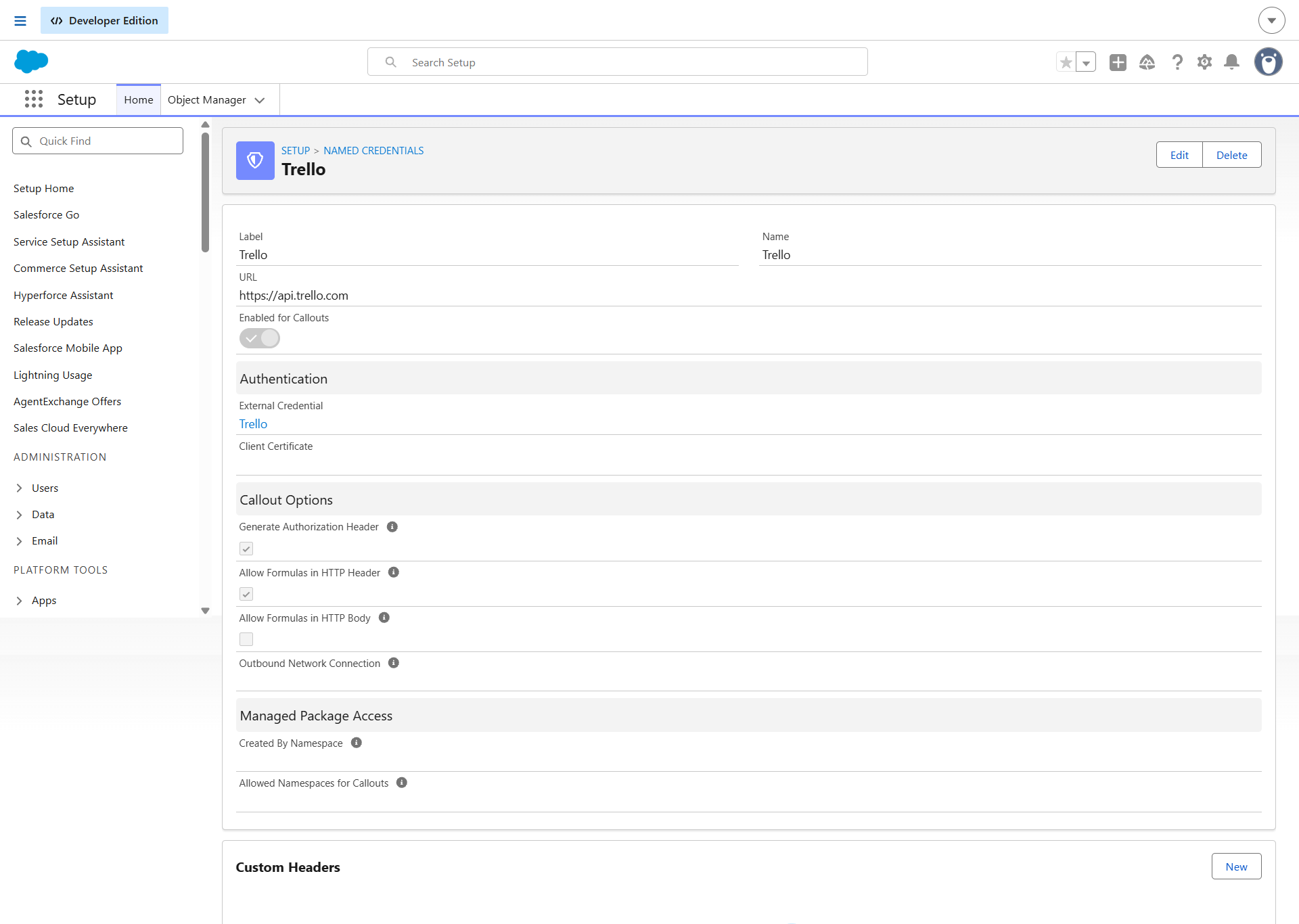
2.2 Create the Named Credential
- Click the Named Credentials tab (next to External Credentials) → click New:
- Label:
Trello - Name:
Trello - URL:
https://api.trello.com - External Credential: Select
Trello - Generate Authorization Header: Checked
- Allow Formulas in HTTP Header: Checked
- Label:
- Click Save.
3. Assign Permission Set Access
- In Salesforce Setup, enter Permission Sets in Quick Find.
- Select Integration Admin (or
Appcolab Grid Admin). - Click External Credential Principal Access → click Edit.
- Add
Trello - ApiKeyto Enabled External Credential Principals. - Click Save and verify the permission set is assigned to your Salesforce users.
Creating a Trello Grid Definition
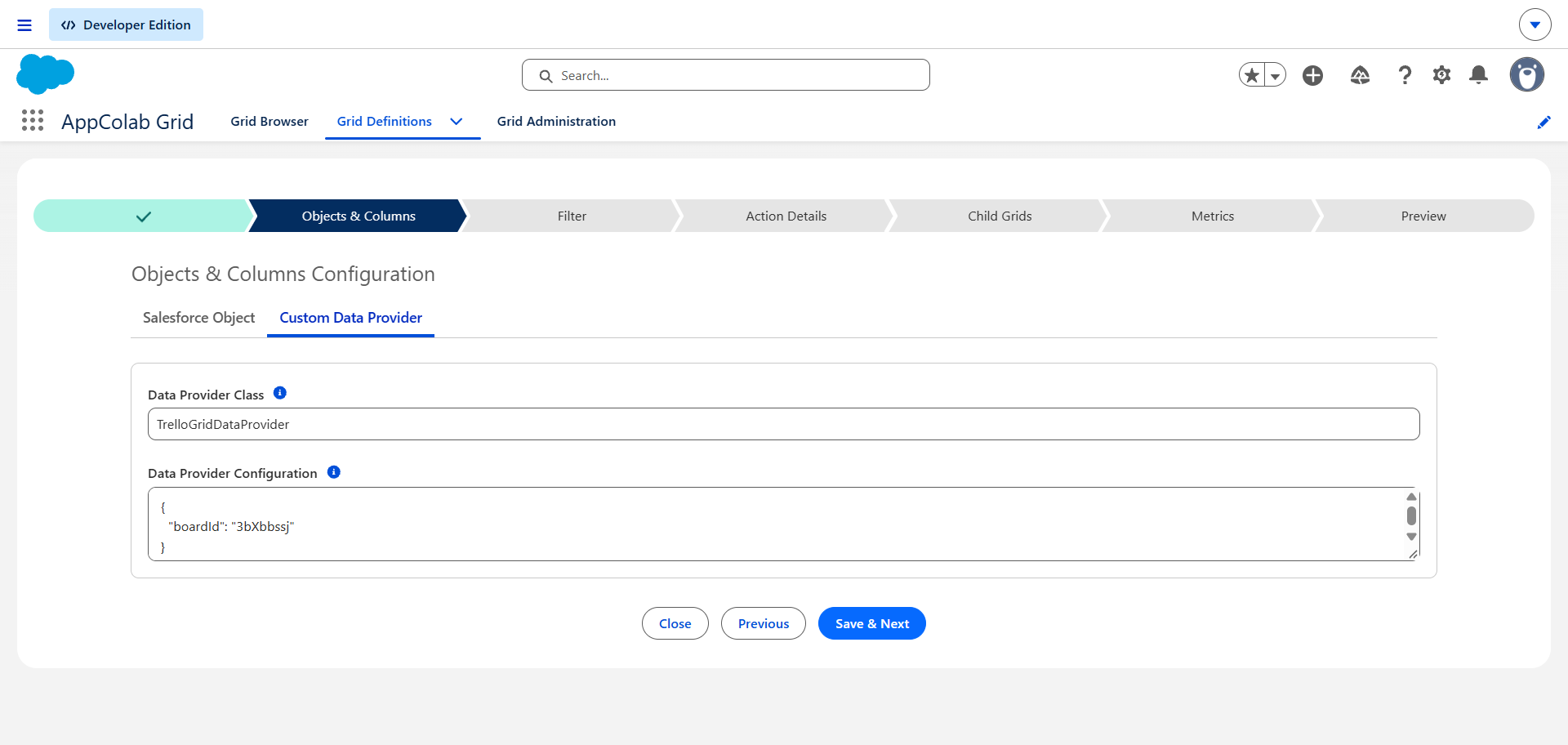
- In Salesforce, open AppColab Grid app → Grid Definitions tab → click New Grid Definition.
- Fill in:
- Grid Settings Name:
Trello_Board_Cards - Grid Label:
Trello Board Cards - Is Active?: Checked
- Data Provider Class:
TrelloGridDataProvider - Data Provider Configuration:
{ "boardId": "YOUR_BOARD_ID" }Tip: Extract your
boardIdfrom your Trello board URL:https://trello.com/b/660e1f4b8a9c/my-sprint-board
- Grid Settings Name:
- Click Save & Next → proceed to Preview.
- Your Trello cards display live with Card Name, List Name, Due Date, Due Complete, Labels, and Members!
Supported Grid Features
| Column | Data Type | Editable | Notes |
|---|---|---|---|
| Card Name | TEXT |
Yes | Inline editable card title |
| List Name | TEXT |
Read-only | Which list/column the card belongs to (e.g. To Do, Doing, Done) |
| Due Date | DATE |
Yes | Card deadline date |
| Due Complete | BOOLEAN |
Yes | Checkbox toggle for completed cards |
| Description | TEXT |
Yes | Card details / notes |
| Labels | TEXT |
Read-only | Comma-separated label names |
Troubleshooting
401 Unauthorized / invalid key: Check yourAuthorizationheader format in the Trello External Credential. It must beOAuth oauth_consumer_key="...", oauth_token="..."with double quotes.404 Not Found / invalid id: Ensure yourboardIdstring is copied accurately from your board URL.